
 2 MIN READ
 UPDATED OCT 30, 2026
If your country legally requires working-time records, Toku asks you to record your daily start, end, and break times. This guide covers the day-to-day recording; signing and submitting is covered in Toku: Sign and submit your timesheet.
Your timesheet page
Go to Time Tracking in the left menu. The page shows your current period with summary cards on top: hours recorded, days recorded against expected, days missing so far, and your compliance status.
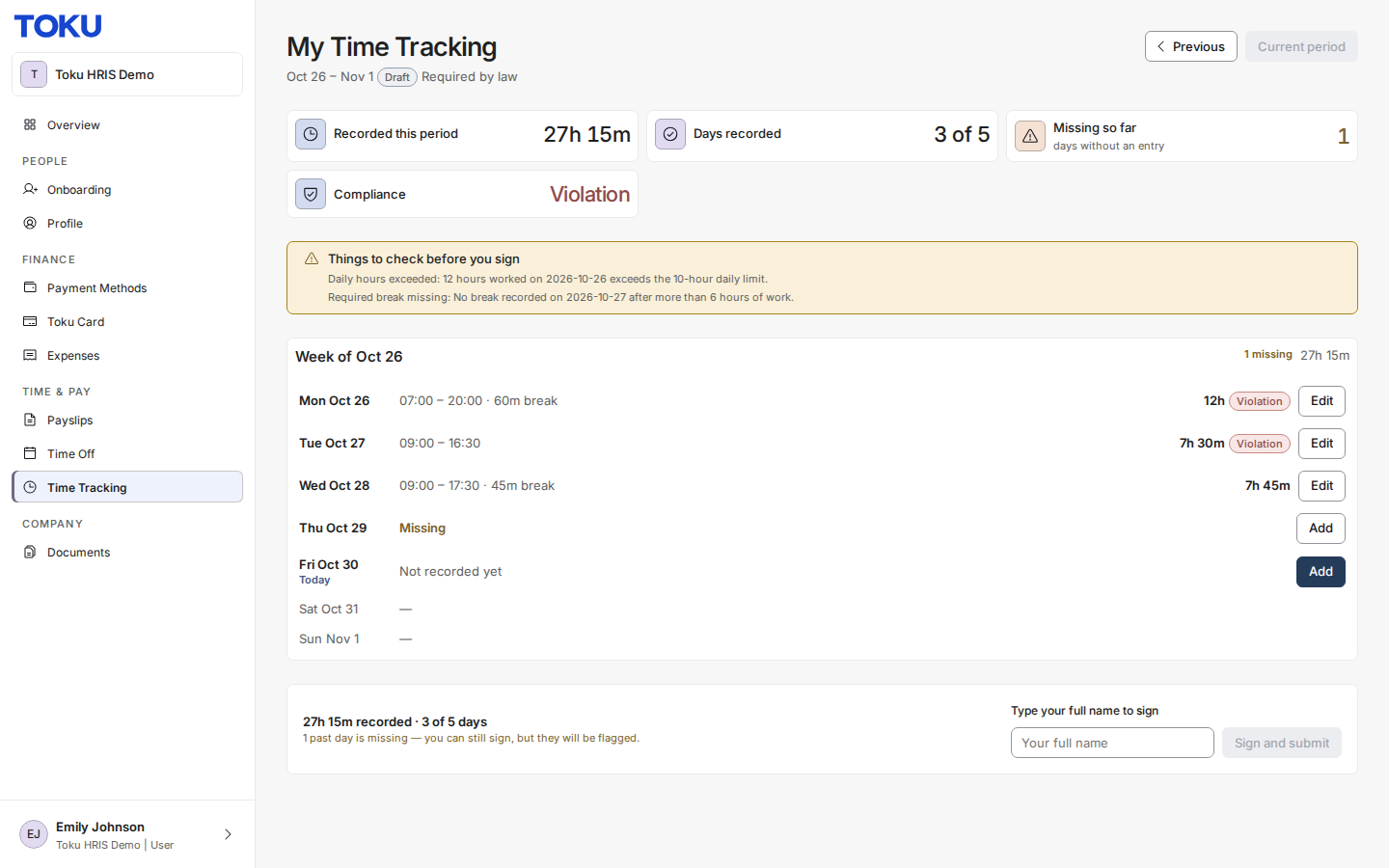
Each day tells you its state at a glance:
- Today — marked Today under the date, with an Add button.
- Missing (amber) - a past working day with no entry. Only days that have already passed are ever marked missing.
- Upcoming — a future working day. Nothing is expected from you yet.
- A dash - weekends and other unscheduled days.
- Public holiday or Approved leave badges - excused days; no entry is expected.
Add or edit a day
- Click Add (or Edit on a recorded day). The editor opens pre-filled with that day's times, or a standard 9 - 18 day with a lunch break.
- Adjust Start, End, and break times. Use Copy previous day to repeat your last recorded day, or Usual hours (9 - 6) to reset to the standard day.
- Click Save.
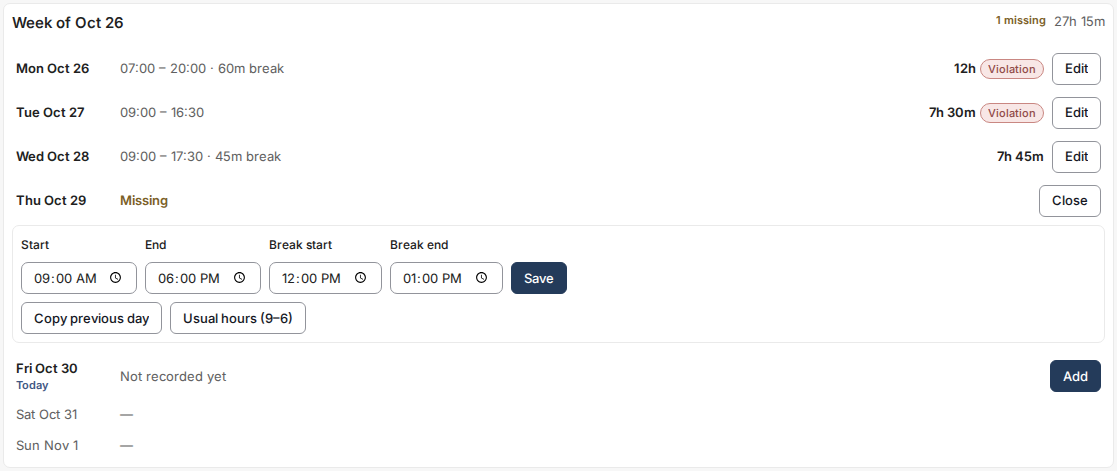
A few rules the form enforces:
- A shift that runs past midnight is recorded as two days: end the first day at 23:59 and put the remainder on the next day.
- Breaks need both a start and an end, inside your working hours.
- Late entries: you can add a past day for a limited number of days (7 by default - your admin can change this). Older days need an admin.
- Future days cannot be recorded.
If something you recorded breaks a working-time rule
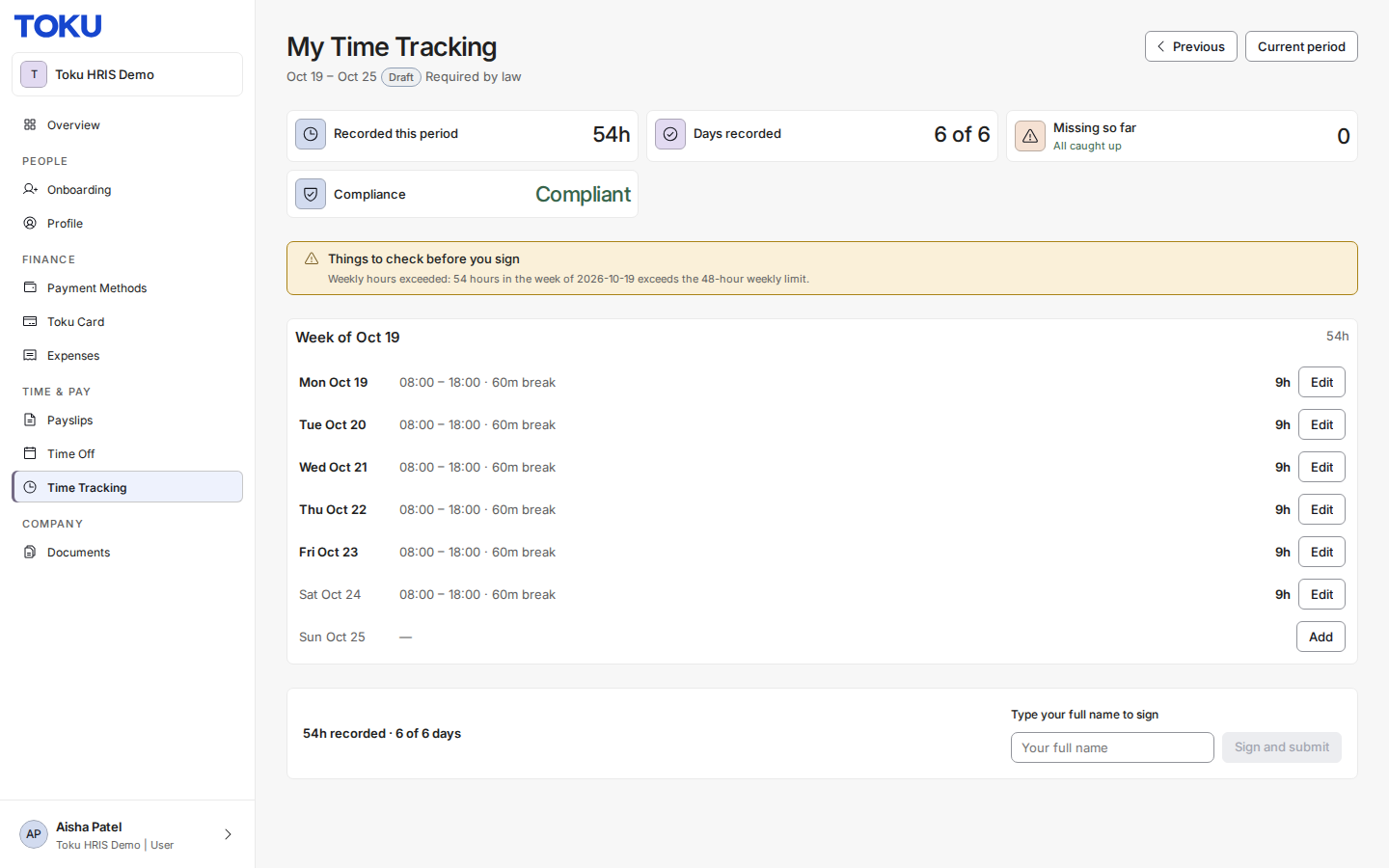
Toku checks your records against your country's rules - maximum daily and weekly hours, minimum rest, required breaks. Issues appear in a Things to check before you sign panel and on the affected day. Nothing is blocked: you can correct the day if it was a typo, or leave it as-is if it reflects reality - your admin will see the finding and handle it with you.
Questions not covered here? Email customer-success@toku.com.