
 4 MIN READ
 UPDATED OCT 30, 2026
📘 For employees, contractors, and organization administrators on Toku. Last updated October 30, 2026.
Add a second security layer to your Toku account by setting up two-factor authentication - a 6-digit code from an authenticator app on your phone.
Before you start
- Have app.toku.com open in your browser and your login credentials ready. This replaces the old tga.app.toku.com address.
- Sign in with your Toku email and password (the same credentials you use today): enter your email, click Continue, then enter your password.
- Install a free authenticator app on your smartphone before you begin - download it from your phone's app store. Toku recommends Authy or Google Authenticator; other apps such as 1Password or Microsoft Authenticator also work.
What two-factor authentication is
Two-factor authentication (2FA) adds a second check on top of your password. After you enter your email and then your password, Toku asks for a 6-digit code generated by an authenticator app on your phone. The code changes every 30 seconds and only your phone can produce it, so even someone who learns your password cannot sign in without your device.
Toku never sends these codes by text message or email - they are generated on your phone by the authenticator app itself, which means they keep working even with no signal.
Set up 2FA for the first time
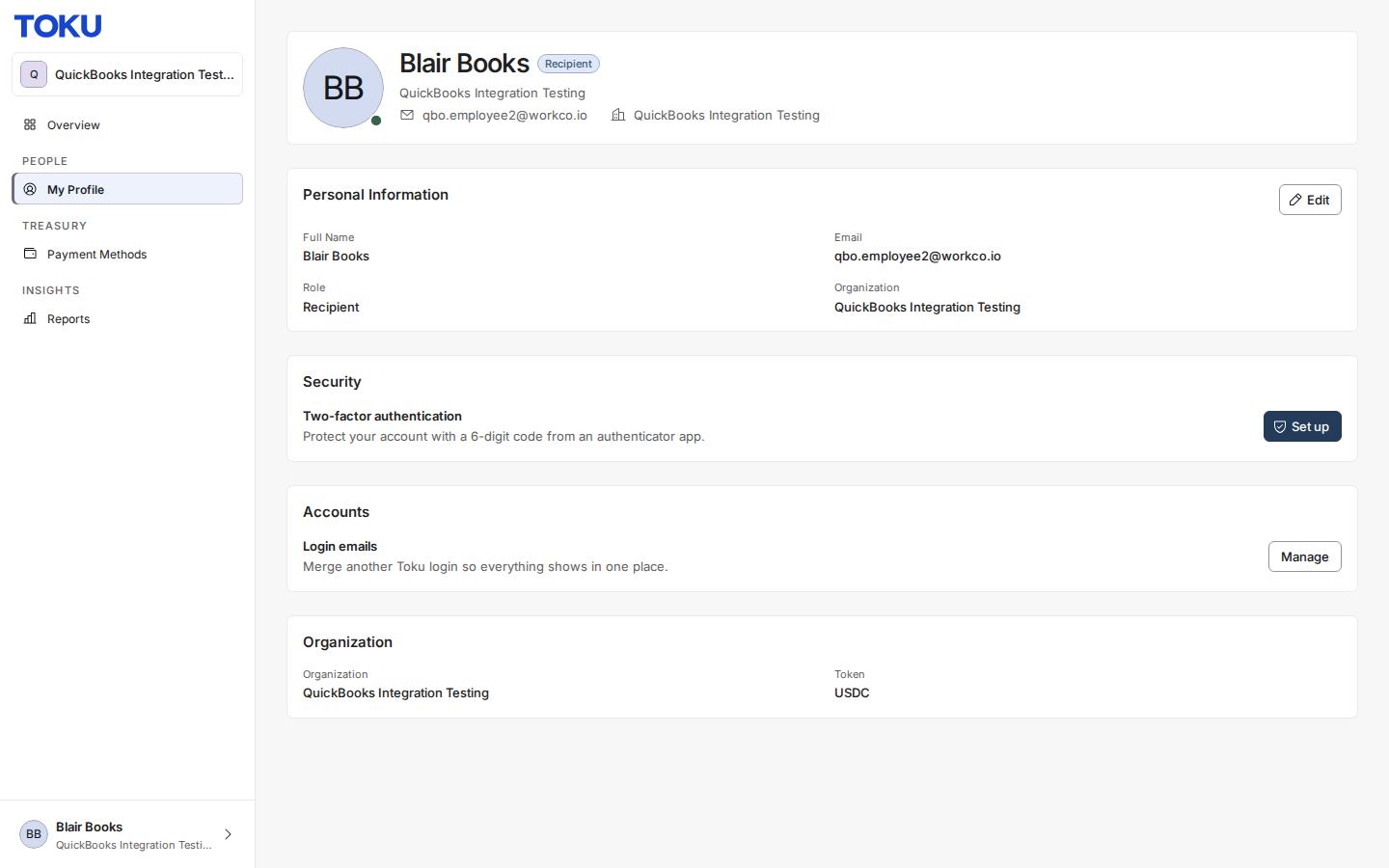
- Open the Set up two-factor authentication screen. If your organization requires 2FA, this screen appears automatically right after you enter your password at sign-in; otherwise, select My Profile in the left-hand menu and click Set up next to Two-factor authentication in the Security section. Install Authy or Google Authenticator on your phone first if you have not already.
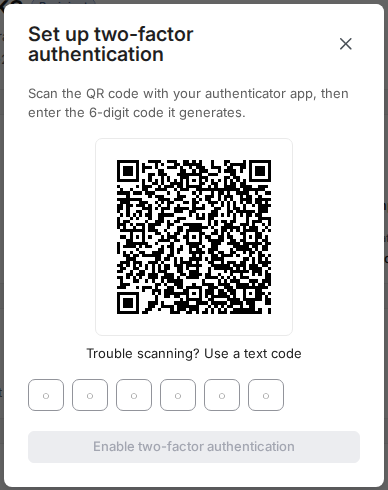
- On the Set up two-factor authentication screen, open your authenticator app and select the option to add a new entry or scan a QR code. Point your phone's camera at the QR code on your screen. Your app will add a new Toku entry showing a 6-digit code that refreshes every 30 seconds. If your camera cannot read the code, turn up your screen brightness and hold the phone steady; if it still will not scan, select Trouble scanning? Use a text code and type that code into your app instead.
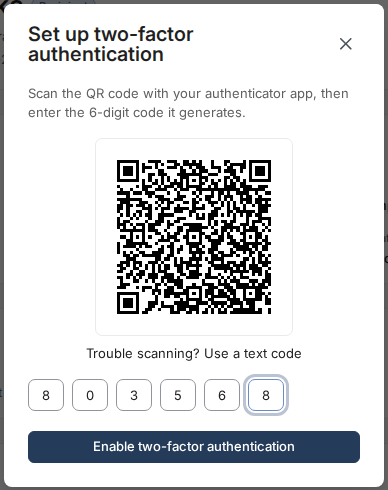
- Below the QR code, type the code showing in your authenticator app into the six boxes, then select Enable two-factor authentication. Codes expire every 30 seconds - if it changes while you're typing, enter the new one. If it's correct, you'll move to the recovery key step; if not, the screen tells you the code didn't work so you can enter the one showing now.
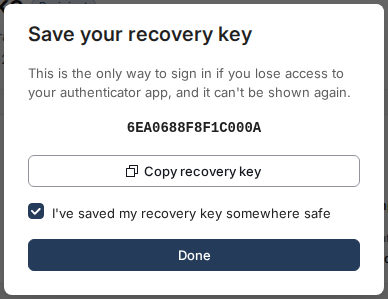
- The Save your recovery key screen displays a one-time recovery key. Select Copy recovery key and save it to a password manager or other secure location - this is how you regain access if you lose your phone. Tick I've saved my recovery key somewhere safe, then select Continue (or Done if you started from My Profile). You'll see a confirmation that two-factor authentication is now enabled.
Good to know
- Toku never sends 2FA codes by text or email - they only come from your authenticator app.
- You set 2FA up once; your app then keeps a permanent Toku entry with the code.
- Your recovery key is unique to your account. The key in the screenshot above comes from a demo account - never share your own recovery key with anyone, including Toku support.
- If your organization requires 2FA at sign-in, the setup screen appears automatically after you enter your password.
Still stuck?
You can email customer-success@toku.com to reach our support team. Please include your email address, organization name, and a description of what happened. Screenshots and videos are always welcome to speed up the troubleshooting process. Feel free to reach out any time for further assistance.