
 11 MIN READ
 UPDATED OCT 30, 2026
⚠️ Contractor invoice and payment deadlines: late action means late payment
- Contractors: submit invoices by the 19th of each month. A saved draft is not a submitted invoice.
- Admins: approve invoices by the 21st of each month. Submission alone does not authorize payment.
- Funding: Toku must receive cleared funds 4 - 5 business days before payout. Initiating a transfer or sending proof of payment does not meet the deadline.
- Standard monthly payout: the last day of the month, provided submission, approval, and funding deadlines are met. Late submission, approval, or funding will delay payment. Every day of delay pushes payment back by at least one day. A missed payment cycle can cause a longer delay; the invoice due date is not a guarantee of payment.
Automation does not remove these deadlines. Earlier published holiday deadlines take precedence; see Toku: 2026 End-of-Year Payroll & Payment Guide.
💙 Audience: client admins · Customer-facing · Last updated October 30, 2026 for the move to app.toku.com.
Who this is for and what you'll accomplish
This guide is for administrators at companies that use Toku to employ their team, who need to end an employment relationship. By the end you will have sent a termination request to Toku with the right dates, reason, and paid-time-off figures, and you will know what Toku does with the request afterwards and where the final documents appear. You do not need any prior experience with Toku or with HR terminology to follow it.
Employee termination deadlines
- Submit the request in Toku at least 14 calendar days before the proposed termination date. Longer contractual, statutory, consultation, or payroll requirements still apply.
- For monthly payroll countries, submit payroll changes by the 10th and finalize all termination details no later than the 20th for consideration in that month's payroll. There are no exceptions to the 20th finalization deadline.
- When pre-funding is required, submit the change and payment details needed for invoicing by the 10th and ensure full funds are received and cleared by the 14th. The 20th finalization deadline does not extend either deadline. Plan large severance and other termination payments early enough to meet all three dates.
- A request is not finalized while the termination date, garden leave, PTO, severance, or payment terms remain under negotiation.
- The United States, Canada, the Philippines, and Brazil use semi-monthly cycles. Follow the applicable earlier cutoff in Toku: 2026 and 2027 Payroll Calendar and Deadlines. The 10th/14th funding requirements do not extend an earlier cycle deadline.
- Late changes or funding move discretionary additional payments to the next eligible regular payroll cycle. An off-cycle payroll requires Toku confirmation, starts at $49 USD per person, may cost more by country, and requires at least four business days of processing time.
- Statutory final-payment obligations continue to be handled according to local law; clients remain responsible for the associated costs. A missed funding deadline does not change those obligations. Employee pre-funding: For EOR, PEO, and payroll-only employees, additional payments over $5,000 USD require pre-funding. Whenever pre-funding is required, including termination or severance payments, submit complete changes and payment details in Toku by the 10th. Toku reviews those submissions and sends invoices on the 11th or next business day. Full funds must be received and cleared by the 14th for that month's payroll consideration. Funding received after the 14th moves the additional payment to the next eligible regular payroll cycle. Earlier cycle cutoffs still apply. Contractor deadlines are separate. See Additional Compensation Changes Over $5,000: Prefunding Approval.
Before you start
- Sign in at https://app.toku.com with your work email and password. This replaced tga.app.toku.com in August 2026, and there are no product tabs to select any more.
- You need an administrator account for your organization. If your account cannot see the People page described below, you have a standard account - ask the colleague who manages your Toku workspace to make the request or to upgrade your access.
- Have the person's agreed last working day, the reason for the termination, and their paid-time-off records for this year at hand. The form asks for all three.
- A termination in Toku is a request, not an immediate action. Nothing changes for the employee until Toku reviews and approves what you submit.
Start a termination request
Step 1. Open your web browser and type app.toku.com into the address bar. The page is headed Welcome back and shows a single Email box - there are no product tabs to choose. If you do see three tabs, you have reached an old cached page or bookmark: retype the address in full.
Step 2. Type your work email into the Email box and select Continue. The page then asks for your password: type it and select the blue Sign in button. Within a few seconds you are taken to the next screen. If you instead see a red error message, re-check the email and the password - for security the message does not say which one was wrong. You can also use Sign in with Google, or ask Toku to email you a one-time sign-in link.
Step 3. If your account has more than one role, a screen appears asking how you would like to continue. Select the option labeled ADMIN for your organization, then select the blue Continue as ADMIN button. If you do not see this screen, you were signed straight in - continue to the next step.
Step 4. Select People in the menu on the left side of the screen. A page titled "People" opens, listing everyone in your organization with their type and status. Find the person you need to terminate - you can type their name into the "Search by name, email, or title" box above the table - and select their row. Their profile page opens. If you cannot find the person, they may be listed under a different email address; try searching by first name only.
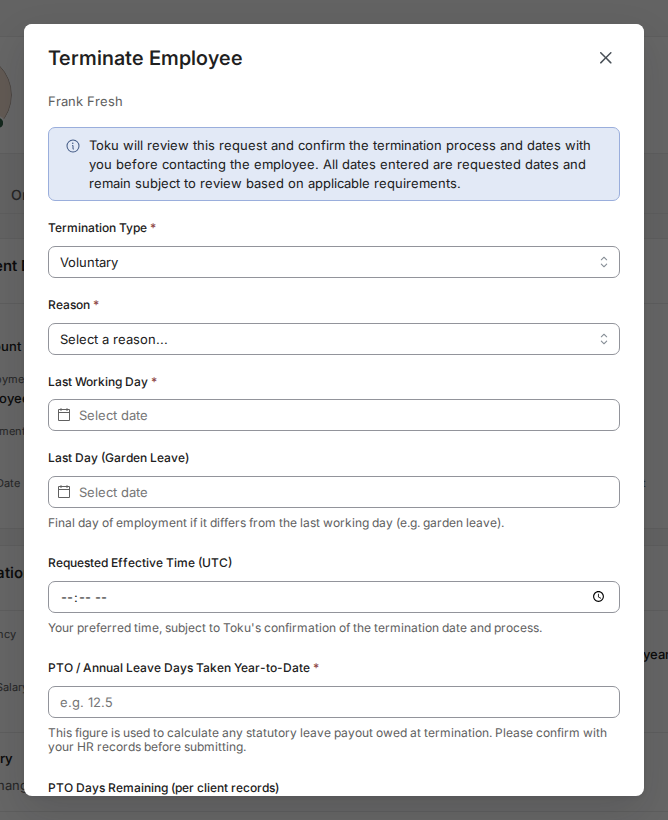
Step 5. On the person's profile, look at the top-right corner. Next to Edit Profile and Change Type there is a red-outlined button labeled Terminate. Select it. A window titled "Terminate Employee" opens in the middle of the screen, with the person's name under the title. A blue note at the top reads: "Toku will review this request and confirm the termination process and dates with you before contacting the employee. All dates entered are requested dates and remain subject to review based on applicable requirements." That note is normal - it is how the process is designed.

Notice periods (and blocked dates)
The fields in the Terminate Employee window decide how the termination is reviewed. Take them in order, from the top.
Step 1. Open the Termination Type menu and choose one of the two options. Pick Voluntary when the person is leaving by their own choice (the Reason menu then offers "Resignation", "Fixed-term contract expiry", and "TUPE transfer"). Pick Involuntary when the company is ending the employment (the Reason menu then offers "Mutual agreement", "Poor performance", "Redundancy", "Restructuring", "Business closure", and "Other", and the form also asks Have you already informed the employee of the intended termination?).
Step 2. Open the Reason menu and choose the option that fits. For most reasons, a Reason Details box appears below the menu with the prompt "Provide context for this termination...". Type one or two sentences explaining the situation in plain language - it is required for most involuntary reasons, and it helps Toku's reviewers process the request without coming back to you with questions. Resignation and Poor performance also ask for a Supporting Document (the resignation letter or the performance improvement plan).
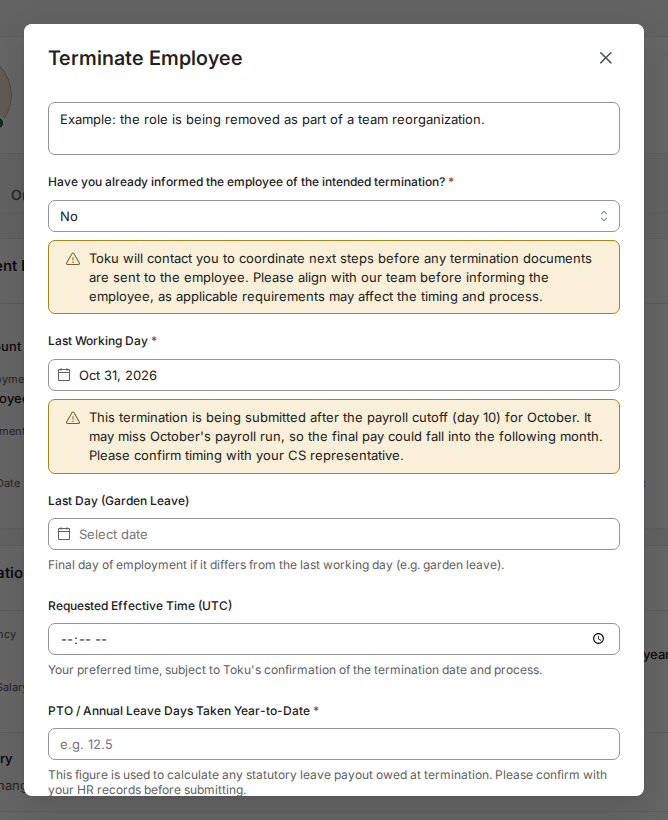
Step 3. Select the Last Working Day field and pick the person's final day of work in the calendar. Pay attention to any message that appears under the date. In the example below, a yellow notice explains the chosen date falls after the month's payroll cutoff, so final pay could move to the following month. Employment law in the person's country usually requires a minimum notice period for involuntary terminations, and Toku enforces those rules when it reviews your request. If the platform warns about your date, or Toku's team tells you the date cannot be accepted, do not try to work around it by editing other fields or re-submitting with a different reason - the rule exists to keep your company compliant. Instead, contact Toku (see "Still stuck?" below) and agree on the earliest date that works.
After you submit: review and status
Step 1. Fill in the two paid-time-off fields. "PTO / Annual Leave Days Taken Year-to-Date" (required) is the number of paid leave days the person has already used this year - check your HR records before typing it, because the note under the field explains it is used to calculate any statutory leave payout owed at termination. "PTO Days Remaining (per client records)" is the number of unused days left according to your records. Half days are fine (for example 12.5).
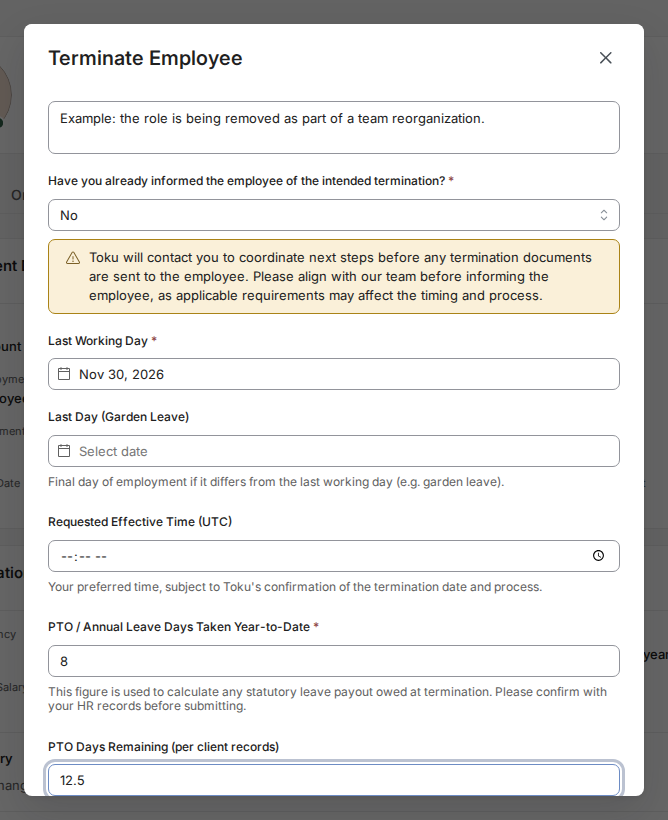
Step 2. Review every field from top to bottom, then select the Submit Termination Request button at the bottom-right of the window. If you are not ready, select Cancel instead - nothing is saved until you submit. After you submit, the request goes to Toku's team for review, as the blue note at the top of the form explains: Toku confirms the process and dates with you before contacting the employee, and the employee is not terminated until the request is approved. The employee is not notified at this point, and the notice stays hidden from them until the effective time on the last working day. Toku's team will contact you if anything about the request needs to change, and your Toku representative can confirm the status of a pending request at any time.
After approval: dates and documents
Once Toku approves the request, the termination becomes real: the person's employment ends on the last working day you provided, and their benefits end according to the same approved dates. Termination paperwork is prepared as part of the approval - which is why you will not see any termination documents at the moment you submit the form. They appear after approval, not before. This surprises many administrators, so if the paperwork is not visible right after you submit, nothing is wrong - it has not been generated yet.
Step 1. To find the paperwork once the request has been approved, open the person's profile again (People page, then their row) and select the Documents tab under their name, next to Overview, Onboarding, and Activity. Documents connected to the person's employment are collected there. The person keeps access to their own copies of employment documents after they leave, following Toku's document-visibility rules - so do not be surprised that a terminated person can still see their own paperwork.
Final pay and special cases
The person's final pay is handled together with your normal payroll cycle, using the dates and paid-time-off figures from the form. A few situations need extra care:
Step 1. If you want to offer a severance payment, set the Offer Severance? menu to Yes. Note the warning under the menu: "Severance must be pre-funded before it can be paid." That means the money has to be transferred to Toku before the payment can go out - plan this early, not on the person's last day. The form also asks "Was there a performance plan?" — answer honestly, because it matters for involuntary terminations.
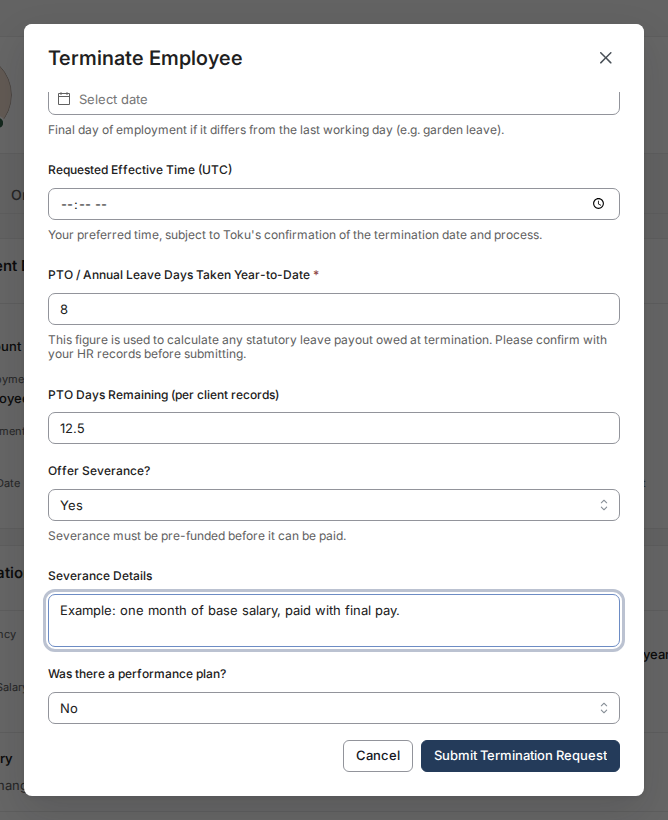
- Garden leave (the person stops working but stays employed for a while): put the last day they actually work in Last Working Day, and their final day of employment in the Last Day (Garden Leave) field underneath it.
- Exact timing: the optional Requested Effective Time (UTC) field is your preferred time on the last working day for the termination to take effect, subject to Toku's confirmation. Until that moment, the notice stays hidden from the employee.
- Payroll timing: if the yellow cutoff notice appeared under your date, final pay may land in the following month's payroll. Confirm the timing with your Toku representative.
- Anything unusual — severance beyond the standard fields, disputed dates, works-council or union requirements, or a person who is mid-payroll - flag it to Toku explicitly when you submit, rather than assuming the form covered it.
Still stuck?
Email customer-success@toku.com and include: your full name and your organization's name, the full name of the person you are terminating, which screen you were on (for example "the Terminate Employee window"), a screenshot that shows any warning or error message, and the last working day you are trying to set. If the platform blocked or warned about your chosen date, say so in the first line - those cases are resolved by agreeing a compliant date with Toku, and the team can tell you the minimum notice that applies in the person's country. If you cannot sign in at all, follow "Logging in to Toku: which website and which password to use" first.