
 1 MIN READ
 UPDATED NOV 6, 2026
For administrators on Toku Employment. Last updated November 6, 2026.
Add a probation end date
You can record an optional probation end date while adding an employee through Employer of Record (EOR). When you enter a date during onboarding, it appears in the employee's Employment Details.
Add the date during onboarding
- Open People and select Add People.
- Choose Employee, then Employer of Record (EOR).
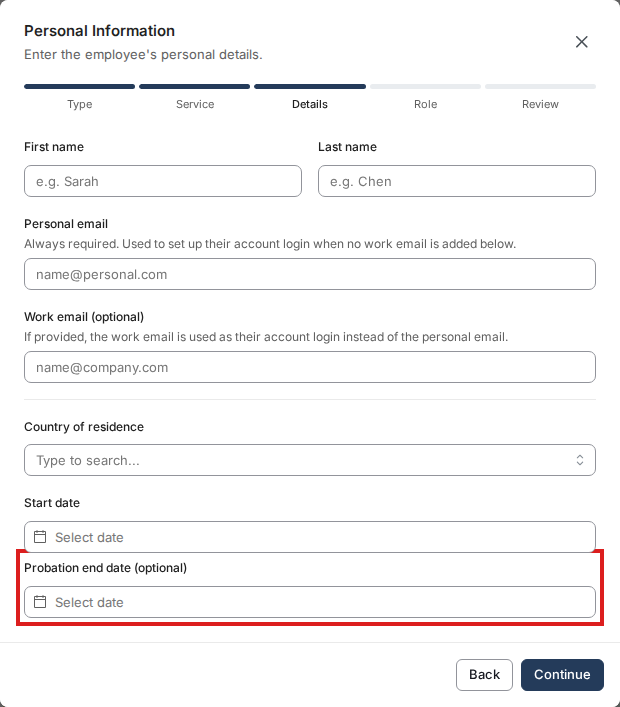
- In Personal Information, enter the employee's details and start date. Select an optional Probation end date.
- Continue through the remaining steps, review the details, and submit the onboarding information.
Find the date
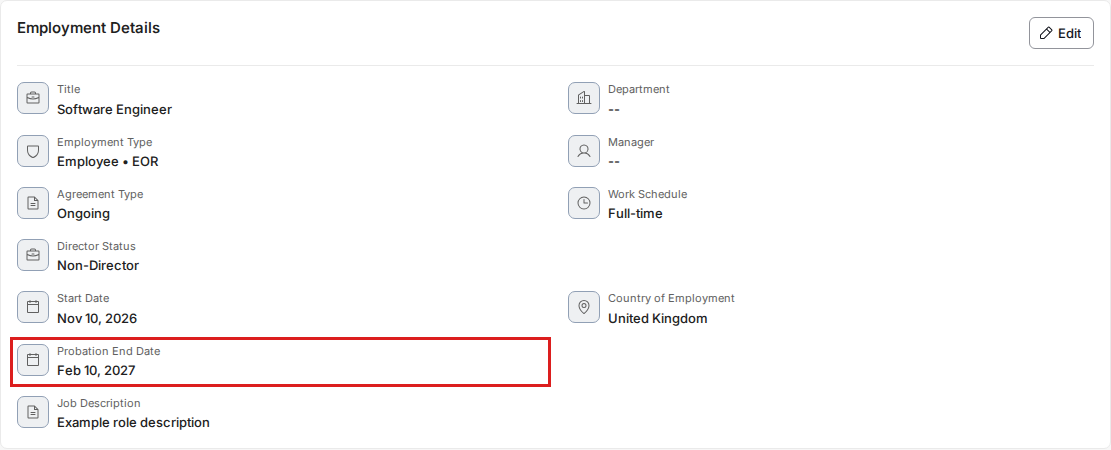
Open the employee's profile from People. If you entered a probation date during onboarding, find it under Employment Details. If no probation date was selected during onboarding, the field does not appear on the profile.
Change the date
In Employment Details, select Edit. Change Probation End Date, select Submit, and follow the confirmation prompts. The form explains that Toku reviews changes. Editing the date does not generate a letter.
Good to know
- The probation end date cannot be before the employee's start date.
- This flow does not create a probation extension or confirmation letter.
Still stuck?
Contact customer-success@toku.com