
 4 MIN READ
 UPDATED OCT 30, 2026
📘 For organization administrators on Toku. Last updated October 30, 2026.
Connect your Greenhouse account to Toku so your hired candidates appear in Toku, ready to invite to onboarding without retyping their details.
Before you start
- Greenhouse is under Integrations in the left-hand menu of your administrator account.
- You need Full Access to Integrations. Access levels are managed on Team & Permissions.
- You need Greenhouse Harvest v3 (OAuth) credentials: a Client ID and a Client secret. Your Greenhouse administrator creates them in Greenhouse under Configure → Dev Center → API Credential Management → Create new API credentials, with the API type Harvest v3 (OAuth). Greenhouse shows the client secret only once, so save it straight away. See Greenhouse's guide: Create Harvest API credentials for an integration.
- The credentials must be able to read candidates and applications. To bring over job title, department, country or start date, they also need to read jobs, departments, offices and offers.
Connect Greenhouse
- Open Integrations in the left-hand menu, then click Open Greenhouse on the Greenhouse card.
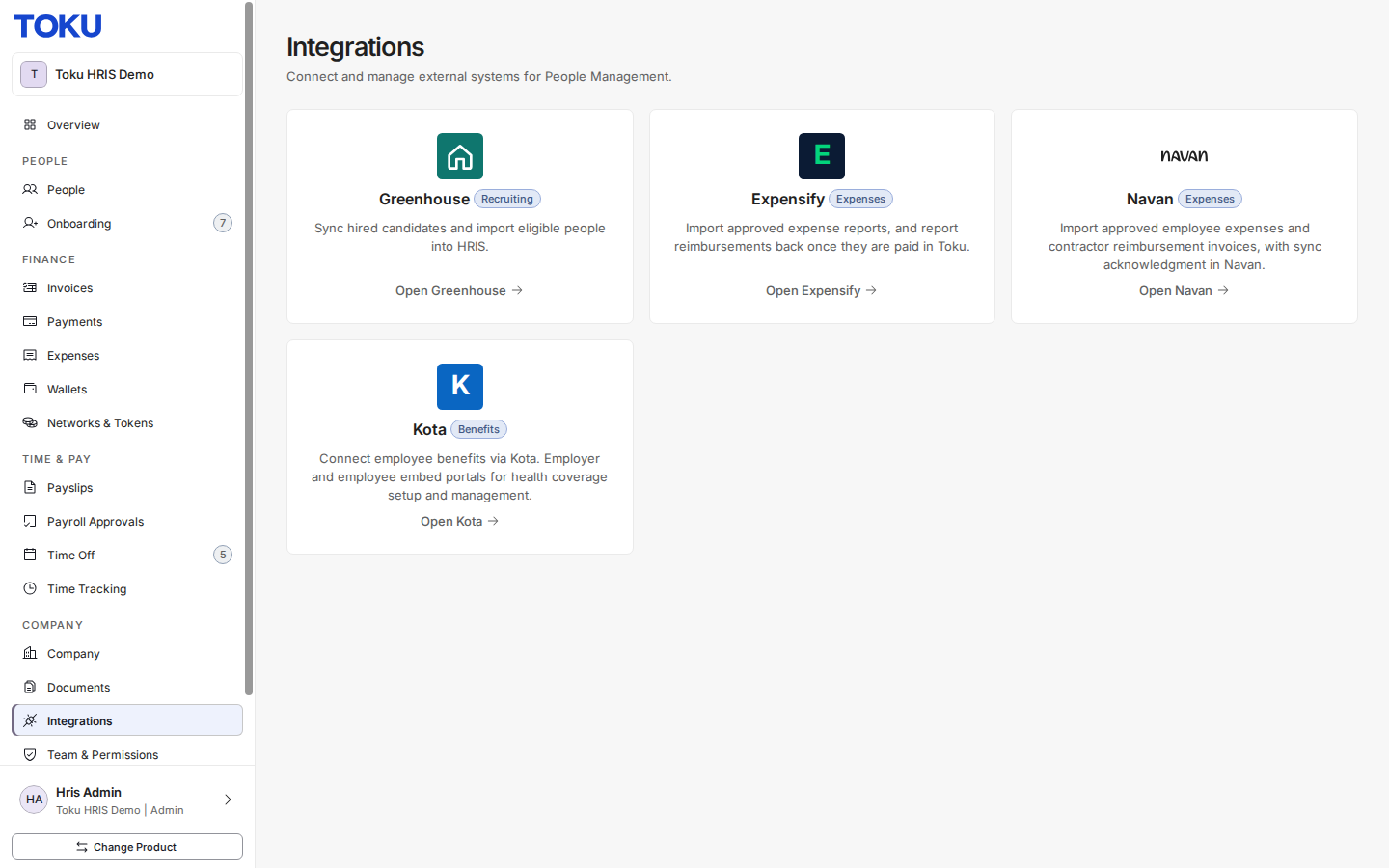
- Click Connect.
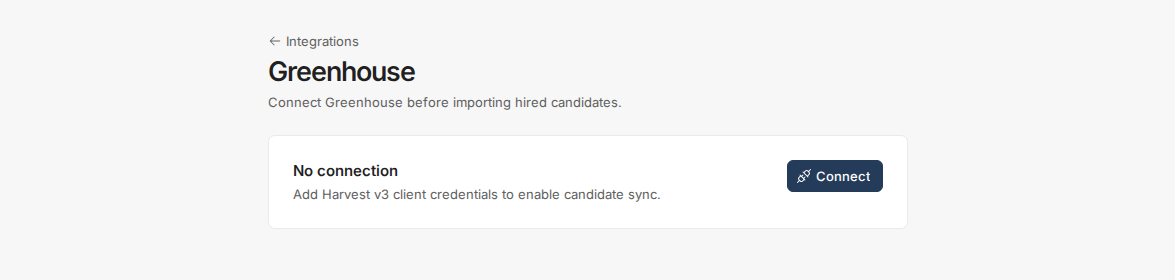
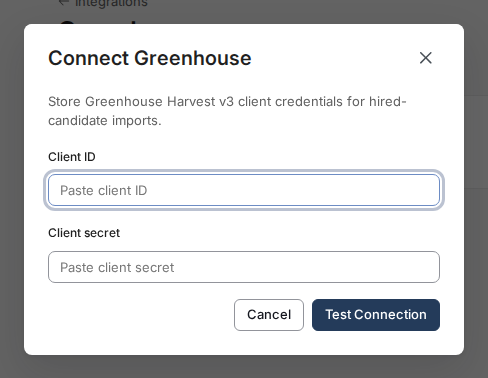
- Paste your Client ID and Client secret, then click Test Connection. Toku checks them with Greenhouse and saves them only if the check passes.
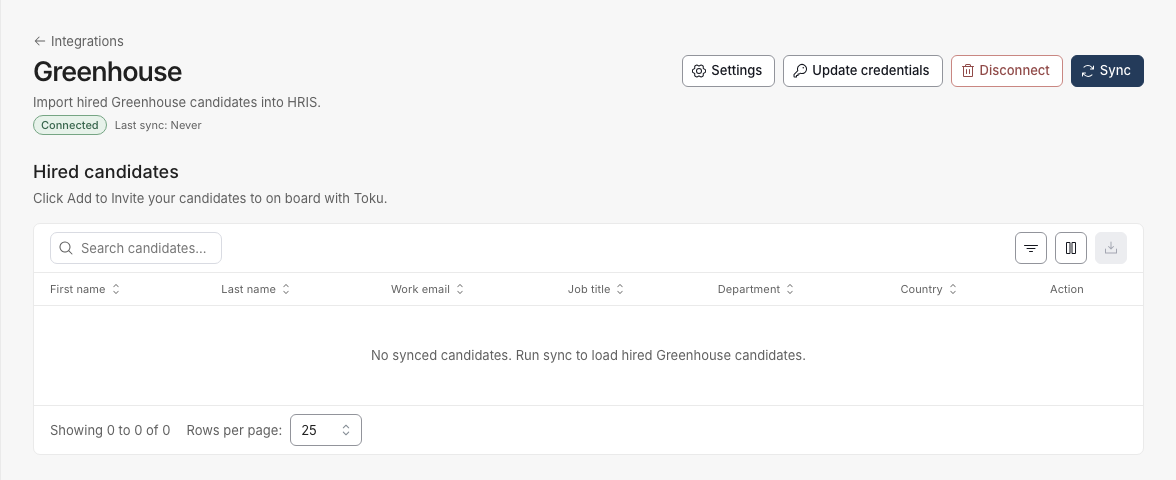
- The page now shows Connected next to the Greenhouse name. The Hired candidates table stays empty until your first sync.
If the test fails, check with your Greenhouse administrator that the credentials are for Harvest v3 (OAuth) and have the permissions above, then try again.
Sync your hired candidates
- Click Sync. Toku brings every candidate marked as hired in Greenhouse into the Hired candidates table. A Sync complete message tells you how many were found.
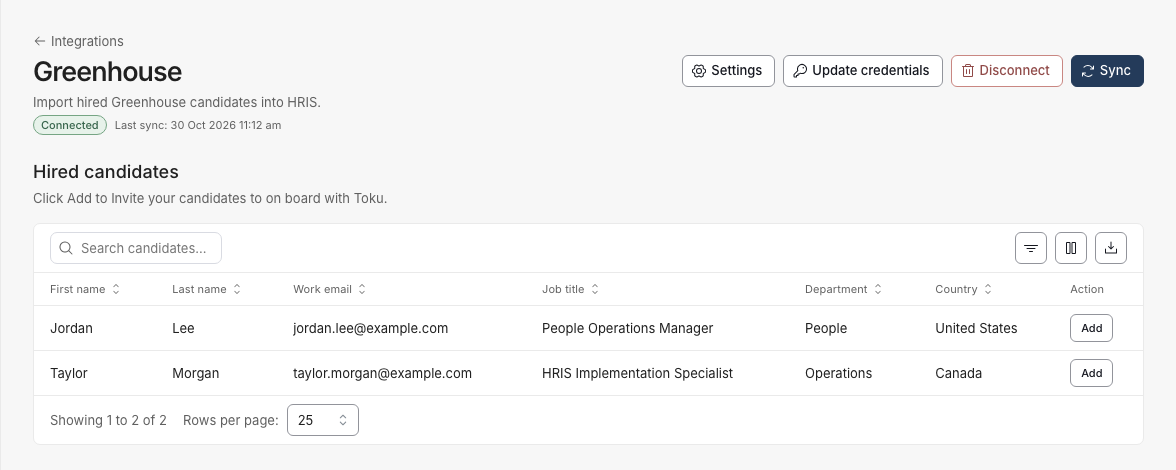
- Use Search candidates... and the filter and columns icons to its right to find the person you want.
Choose which details carry over
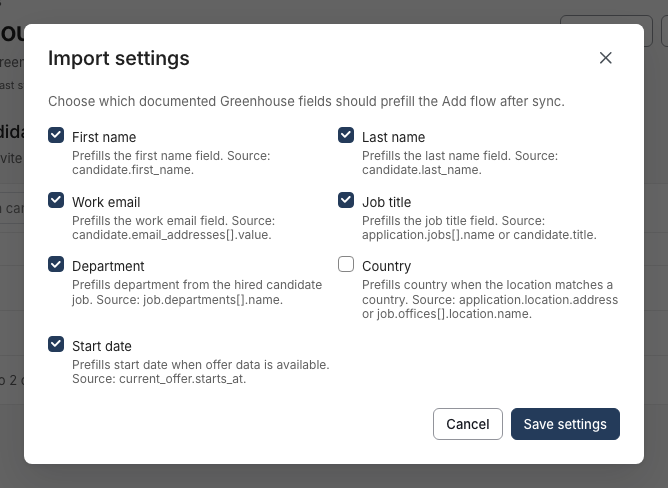
- Click Settings to open the Import settings window.
- Tick the details you want Toku to fill in for you: First name, Last name, Work email, Job title, Department, Country and Start date. Then click Save settings.
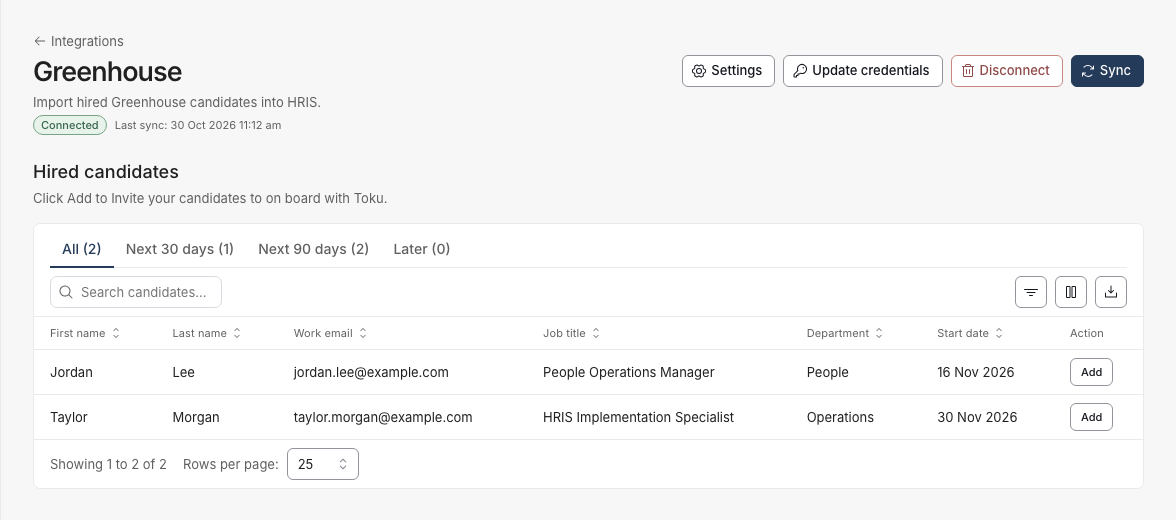
- The table's columns follow your choice. Here, Country was unticked and Start date was ticked, so the table shows start dates instead of countries.
Add a candidate to onboarding
- Find the person in Hired candidates and click Add on their row.
- The add-person window opens with the details you chose in Import settings already filled in. Check them, then finish the remaining steps to invite the person.
- Once the person is in your organization, their row shows Completed instead of Add.
Change the credentials or disconnect
- To replace your credentials, click Update credentials and enter the new Client ID and Client secret.
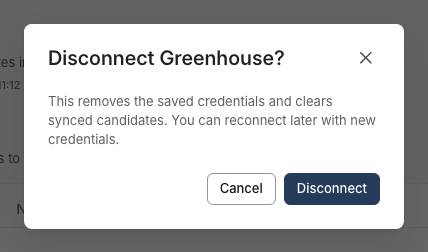
- To stop using the integration, click Disconnect, then click Disconnect again in the window that opens. This removes your saved credentials and clears the synced candidates. You can reconnect later with new credentials.
Good to know
- Only candidates marked as hired in Greenhouse come across. Other applicants are never synced.
- Syncing happens only when someone clicks Sync. Last sync, under the page title, shows when it last ran.
- If someone with the same email address is already in your organization, their row shows Completed, so you won't invite them twice.
- A candidate with no name or no email in Greenhouse can't be added. Their button reads Missing name or Missing email instead of Add. Fix the record in Greenhouse, then click Sync again.
- Country is filled in only when the candidate's Greenhouse location matches a country. Start date is filled in only when the candidate has offer details in Greenhouse.
- Connecting a different Greenhouse account (a new Client ID) clears the synced candidates. Replacing only the Client secret keeps them.
- Toku never shows your saved client secret again once it is stored. To change it, use Update credentials.
- With View Only access to Integrations, you can see synced candidates, but the buttons are greyed out and each row reads View only.
Still stuck?
Email customer-success@toku.com with your organization name and a screenshot of the Greenhouse page. Never send your client secret.