
 4 MIN READ
 UPDATED OCT 31, 2026
📘 For employees on Toku. Last updated October 31, 2026.
The Tax Calculator shows roughly how much of your pay you take home after taxes and deductions. Try a raise, a different tax rate or a change to a deduction, and see the result straight away. It starts from your latest payslip, so the numbers are already close to your own.
What you can use it for
- Plan for a raise or a new offer. Enter a different gross pay and see your new take-home pay.
- Check a deduction. See what changes if a contribution, such as a provident fund or pension, goes up or down.
- Understand your payslip. See each tax and deduction as a share of your gross pay.
💡 Nothing you enter changes your pay. The calculator is for estimates only. It doesn't change your salary, your deductions or your profile, and nobody else sees what you enter.
Before you start
- Sign in to Toku at app.toku.com.
- The Tax Calculator is on your own Payslips page. It works best once your first payslip is there, because it fills itself in from that payslip.
Open the Tax Calculator
- In the left-hand menu, under TIME & PAY, select Payslips.
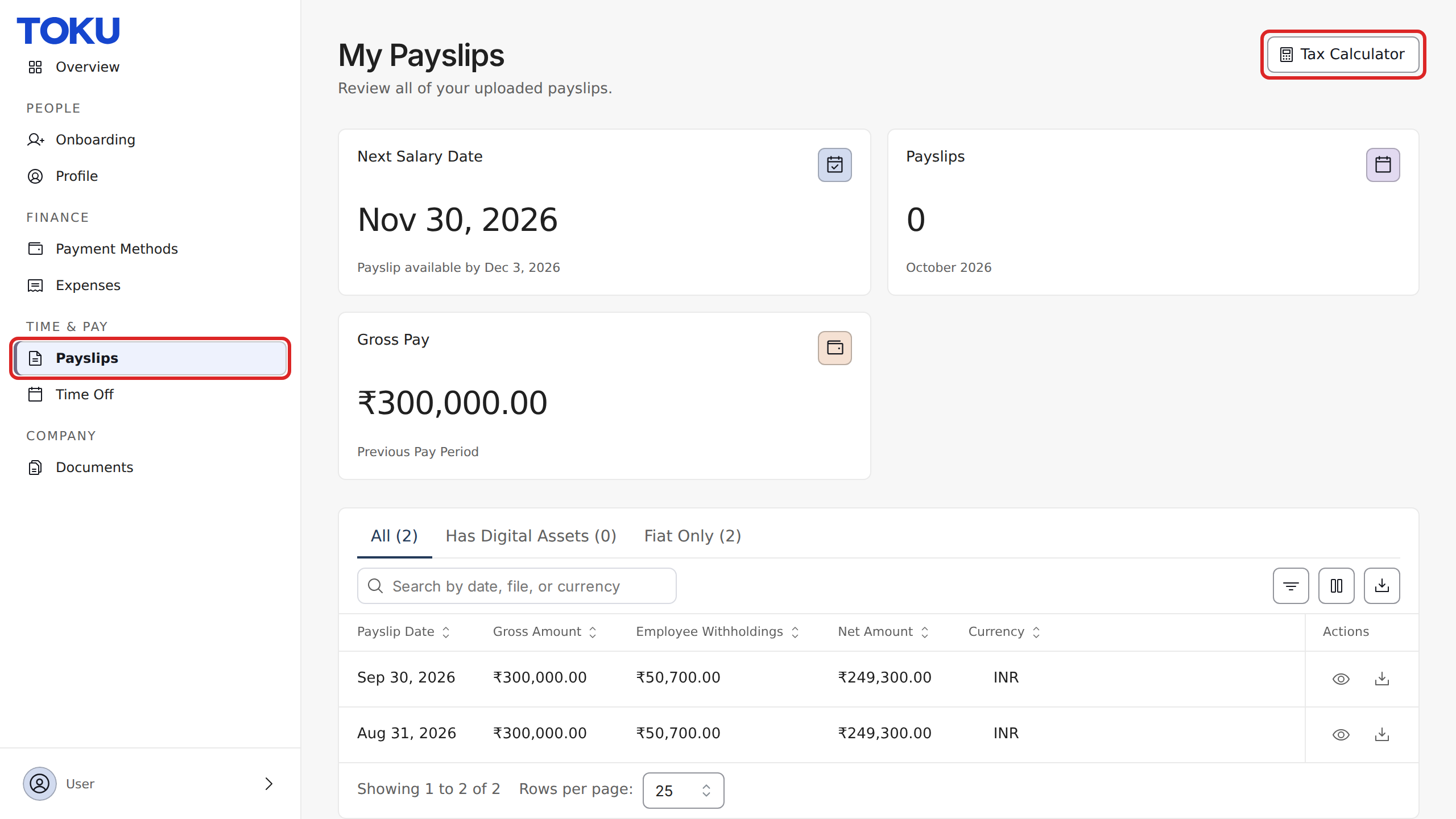
- Select Tax Calculator at the top right of the page.

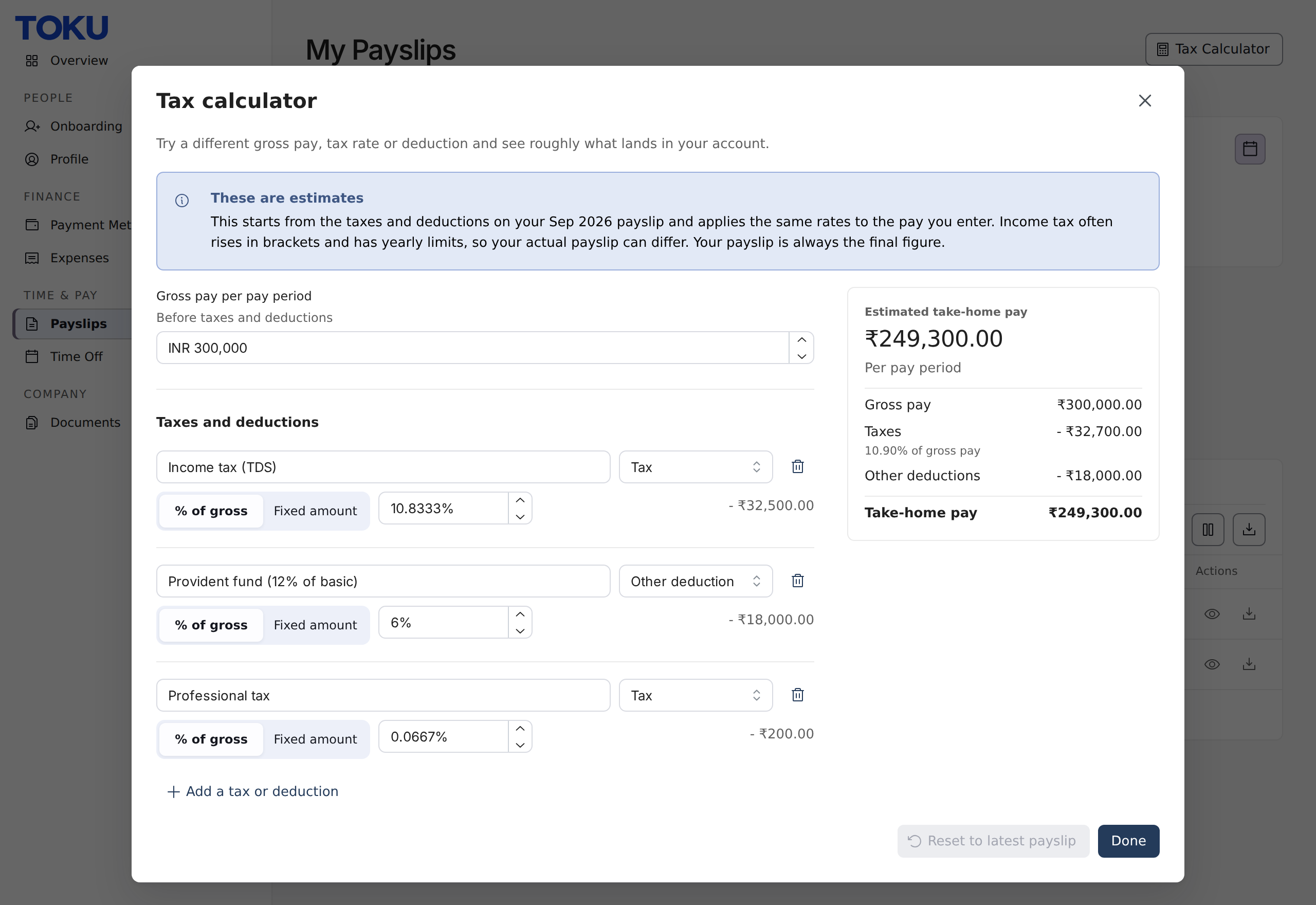
- The calculator opens with your latest payslip already filled in.
Understand what you see
Gross pay per pay period
Your pay before any taxes or deductions, for one pay period. It starts at the gross pay on your latest payslip, in the currency you're paid in.
Taxes and deductions
One line for each tax or deduction on your latest payslip, such as income tax, social security, a pension or a provident fund. Each line shows:
- Name: what the line is, as it appears on your payslip.
- Type: Tax or Other deduction. This decides which total the line counts toward on the right.
- % of gross or Fixed amount: whether the line is a percentage of your gross pay or the same amount every pay period.
- Amount: how much the line takes off your pay at the gross pay you entered. If your payslip shows withholding as one total without a breakdown, you see a single line called Not itemised.
Estimated take-home pay
The box on the right adds everything up: your gross pay, total taxes (with their share of your gross pay), other deductions, and your estimated take-home pay for one pay period.
Try a change
- To see a raise or a different salary, type a new amount in Gross pay per pay period. Lines set to % of gross grow or shrink with it, and fixed amounts stay the same.
- To change a tax or deduction, edit its rate or amount. For example, lower a provident fund contribution to see how much more you'd take home.
- To switch how a line is worked out, select % of gross or Fixed amount.
- To add something that isn't on your payslip, select Add a tax or deduction, give it a name and choose its type. To remove a line, select the bin icon next to it.
- Select Reset to latest payslip to undo your changes, or Done to close the calculator.
Frequently asked questions
Why is my estimate different from my payslip?
The calculator applies the rates from your latest payslip to the pay you enter. Real payroll can differ. Income tax often rises in brackets, some contributions have yearly limits, and one-off items such as bonuses or reimbursements can change a single payslip. Your payslip is always the final figure.
I don't see the Tax Calculator button
The button is on your own My Payslips page, at the top right. It isn't shown when an administrator views someone else's payslips. If you still can't see it, refresh the page or contact support.
I don't have a payslip yet. Can I still use it?
Yes. Enter your expected gross pay and add the taxes and deductions you expect. Once your first payslip is ready, the calculator fills itself in from it.
How do I actually change a deduction?
The calculator doesn't change anything. To change a deduction or contribution, submit a change request from your Profile or contact your HR team. See How to submit salary and employment changes.
Related articles
Still stuck?
Email customer-success@toku.com and our support team will help. Include your email address, your organization name and a short description of what happened. Screenshots and videos help us solve it faster.