
 3 MIN READ
 UPDATED OCT 30, 2026
Fireblocks Transaction Guide
A step‑by‑step walkthrough for settling Stablecoin Payroll transactions via Fireblocks.
Before you start
- Stablecoin payroll transactions are prepared and ready for approval
- Sufficient asset balances and gas are available in the selected Fireblocks vault
- Destination accounts include any required memo/destination tags for chains that need them
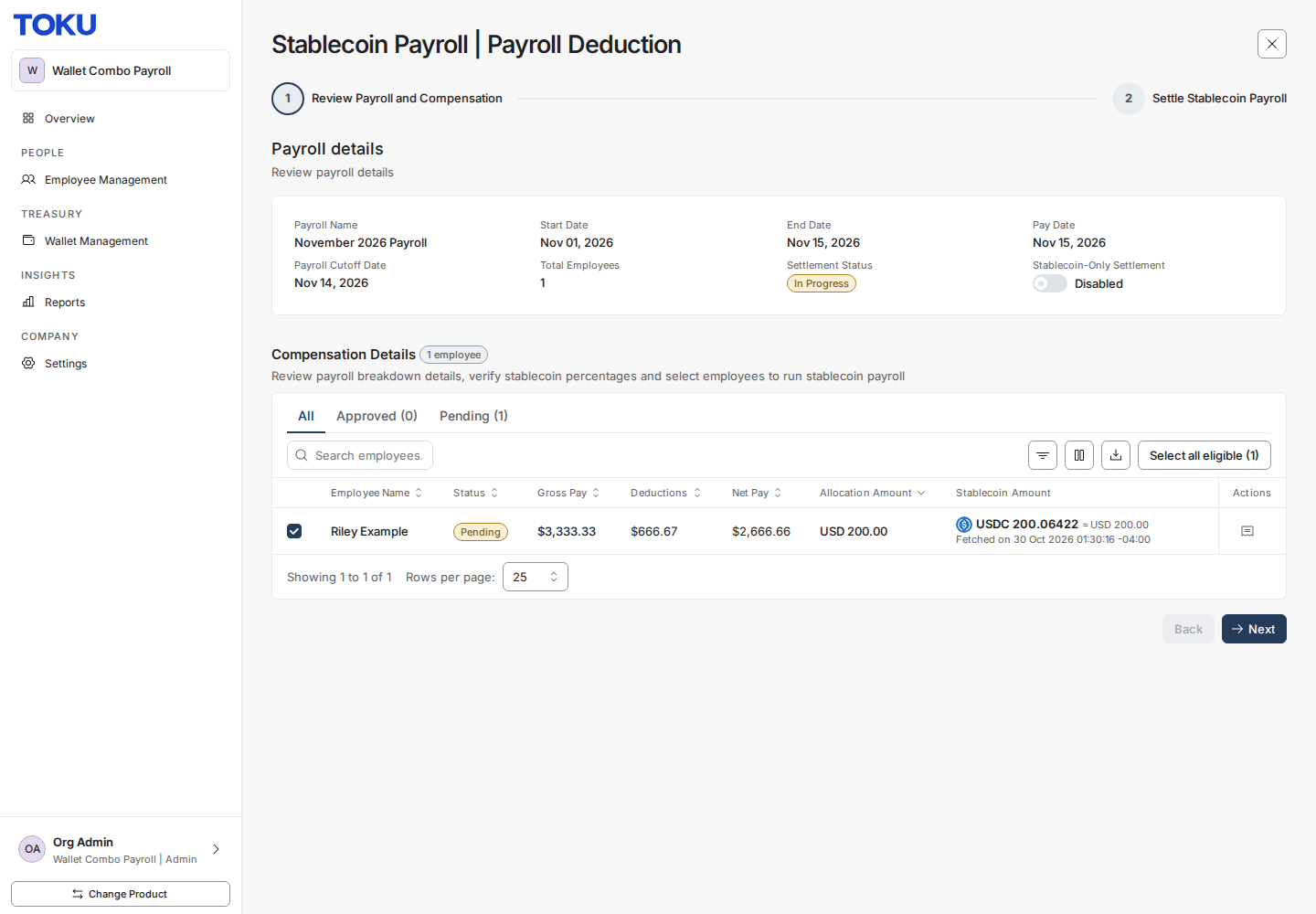
Step 1 - Approve payroll transactions in Toku
- In Toku, select the transactions to approve.
- Click Next and approve the summary.
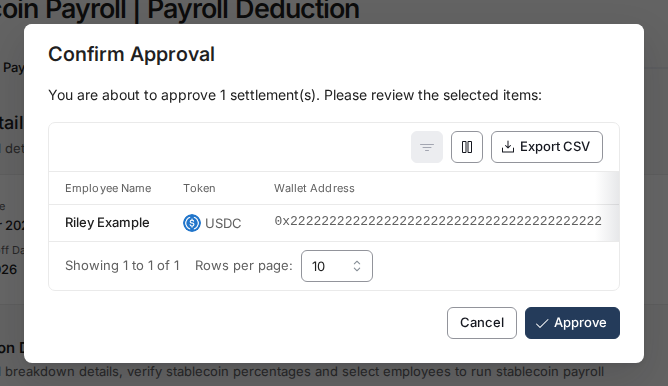
Step 2 - Move approved transactions to settlement
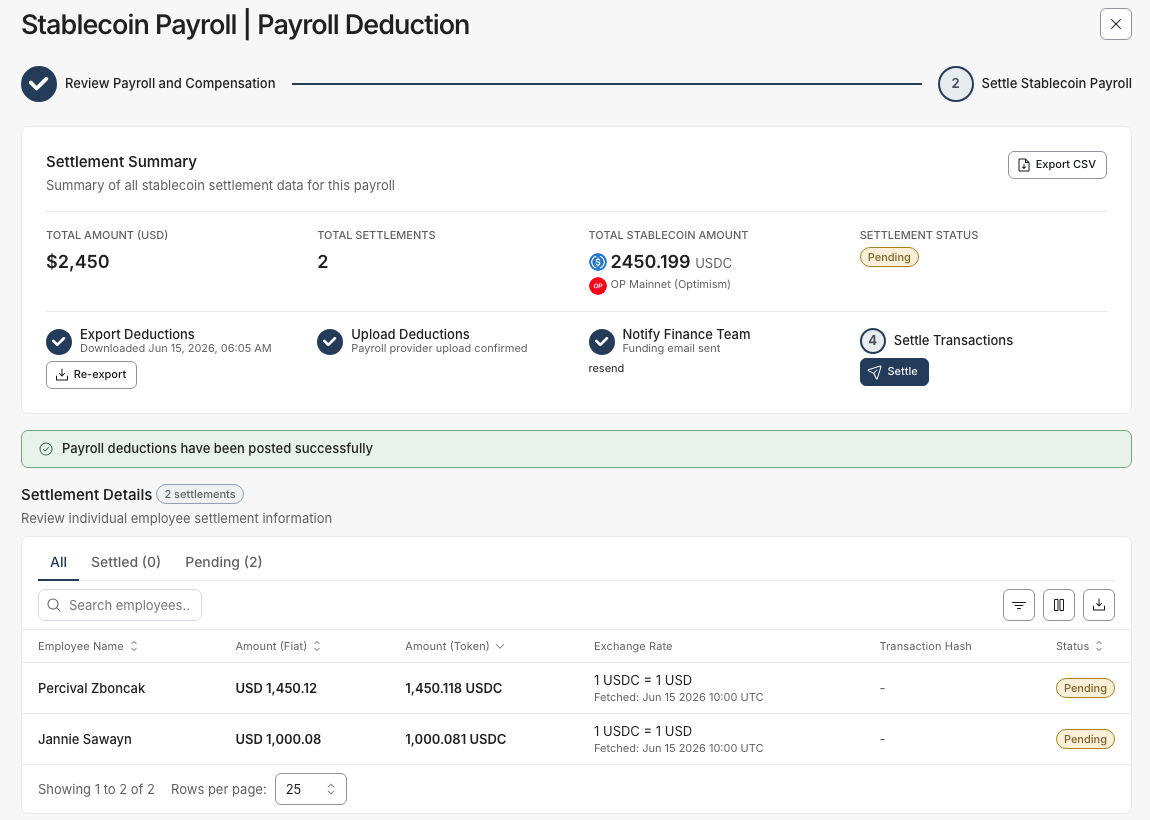
- Once approved, transactions appear as Pending in Settlement Details.
- Click Settle (under Settle Transactions).
Step 3 - Choose Fireblocks as the settlement path
- In “How would you like to settle transactions?”, select “Fireblocks”.
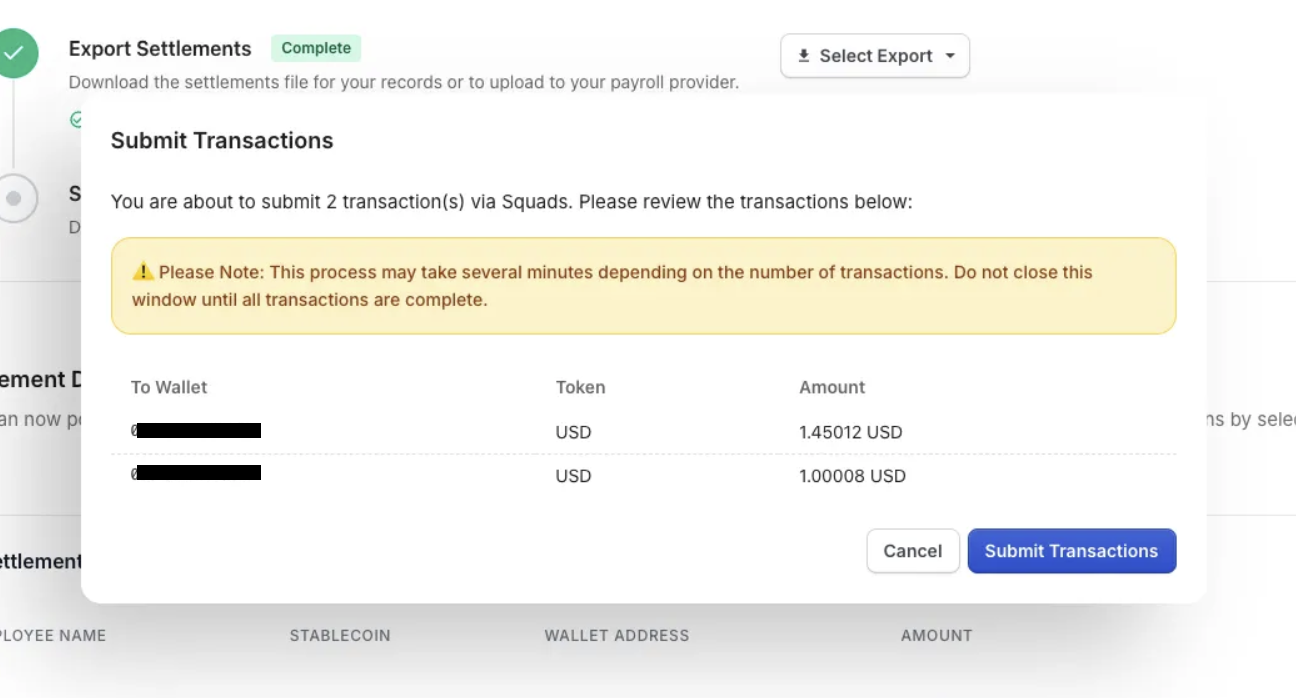
Step 4 - Submit the batch to Fireblocks
- Submit to send the transactions to your Fireblocks workspace.
Step 5 - Monitor the submission status in Toku
- After submission, Toku shows Fireblocks submission status for each item.
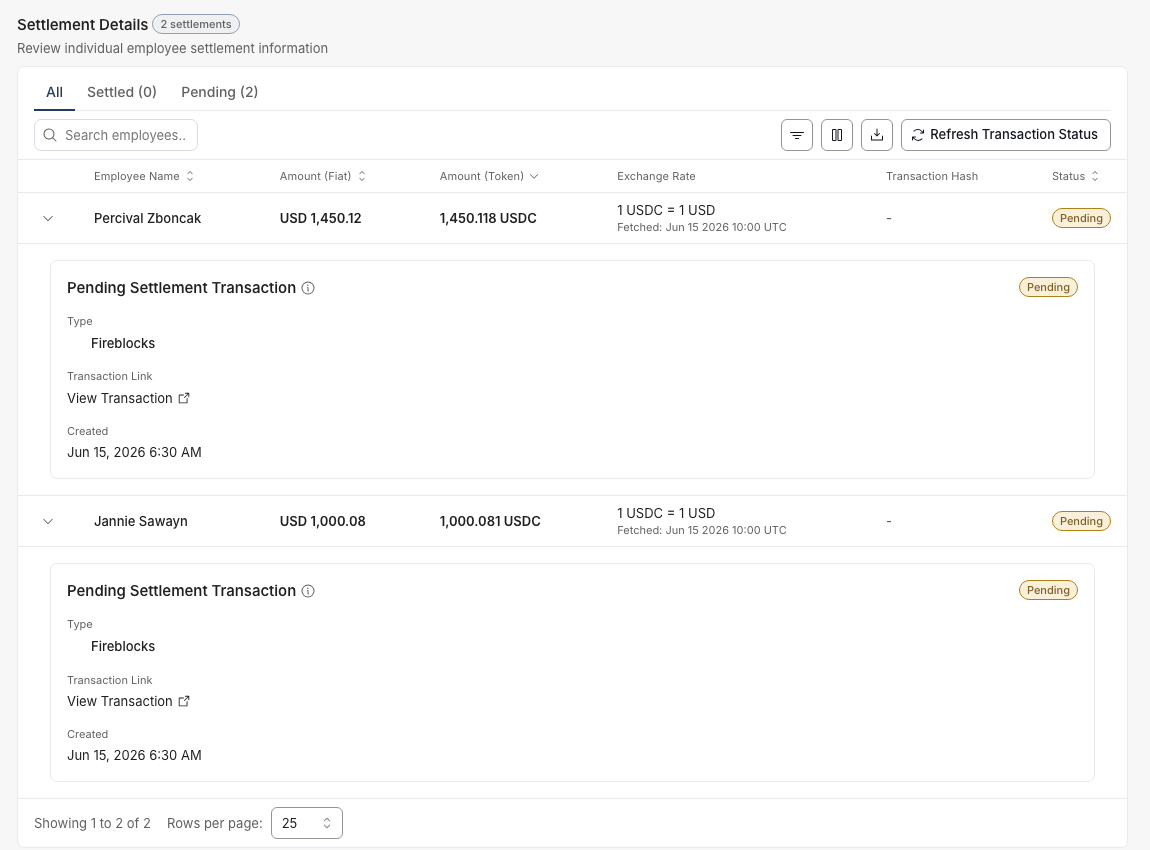
Step 6 - Approve the transactions in Fireblocks
- In Fireblocks, locate the submitted transactions and approve them according to your policy.
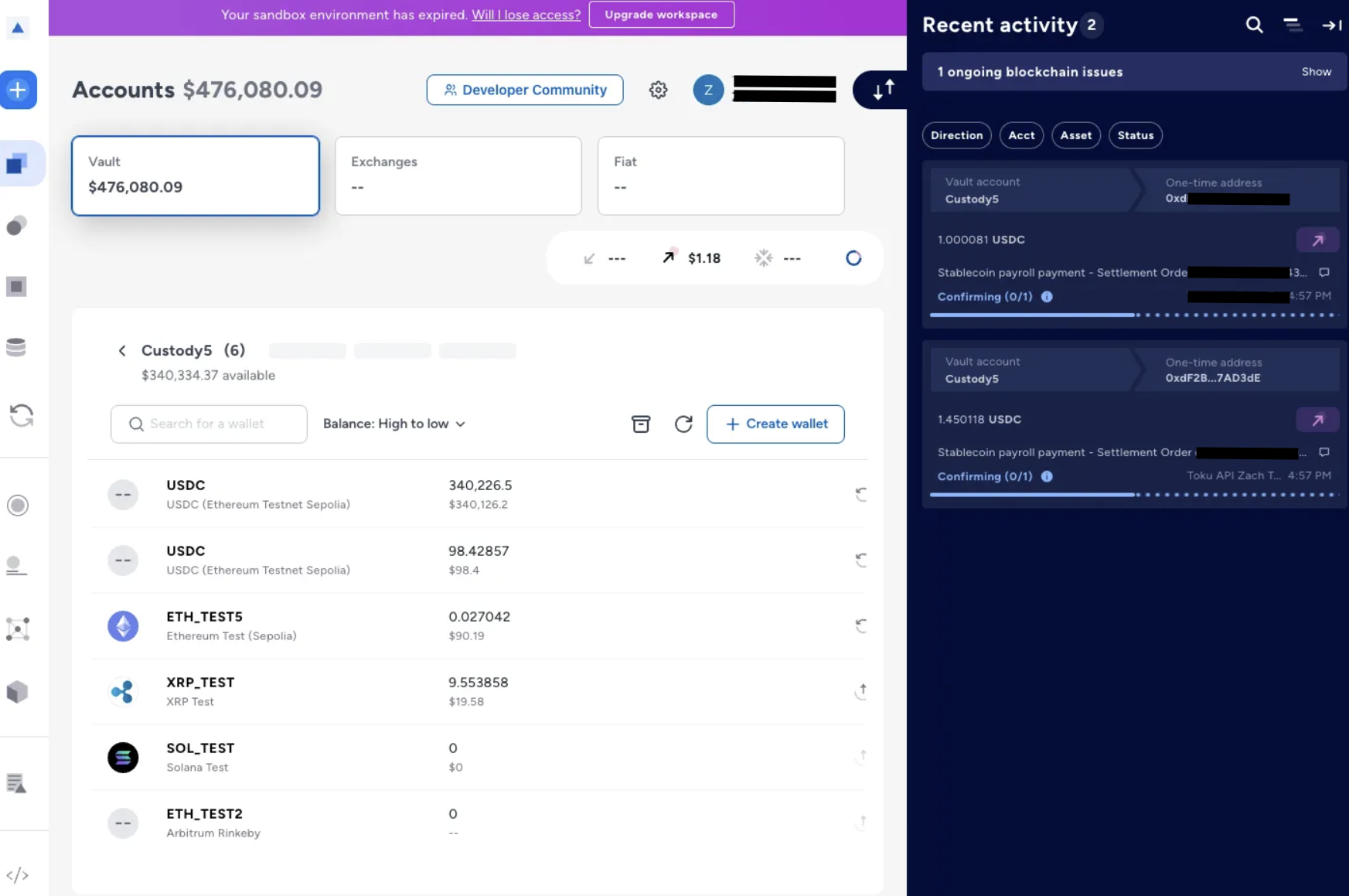
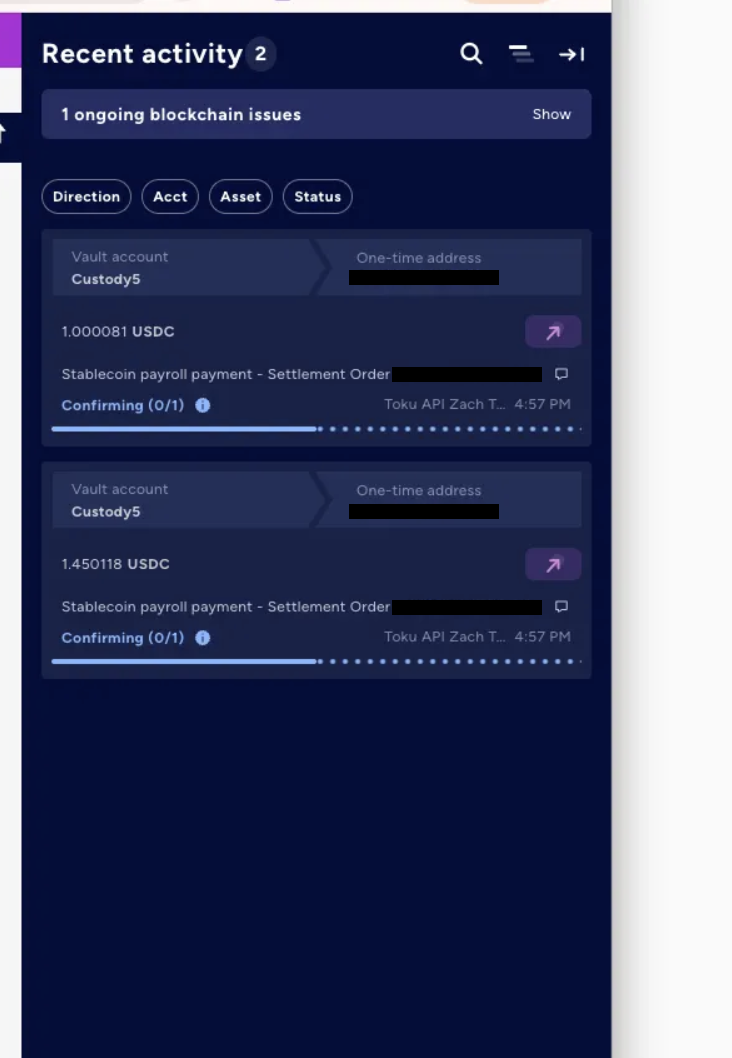
Step 7 - Fireblocks broadcasts and confirms
- After approval, Fireblocks submits on‑chain. Status transitions to Confirmed when finalized.
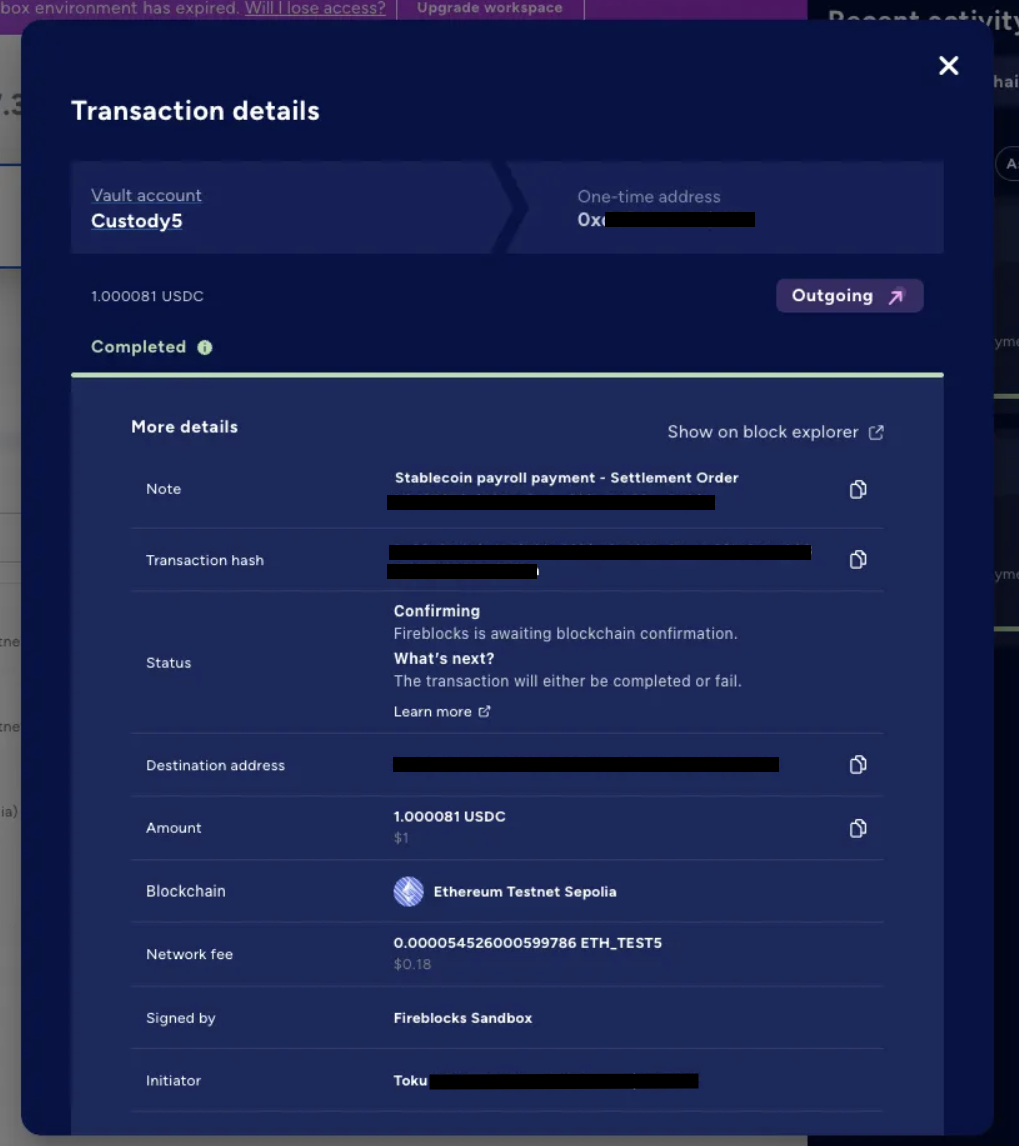
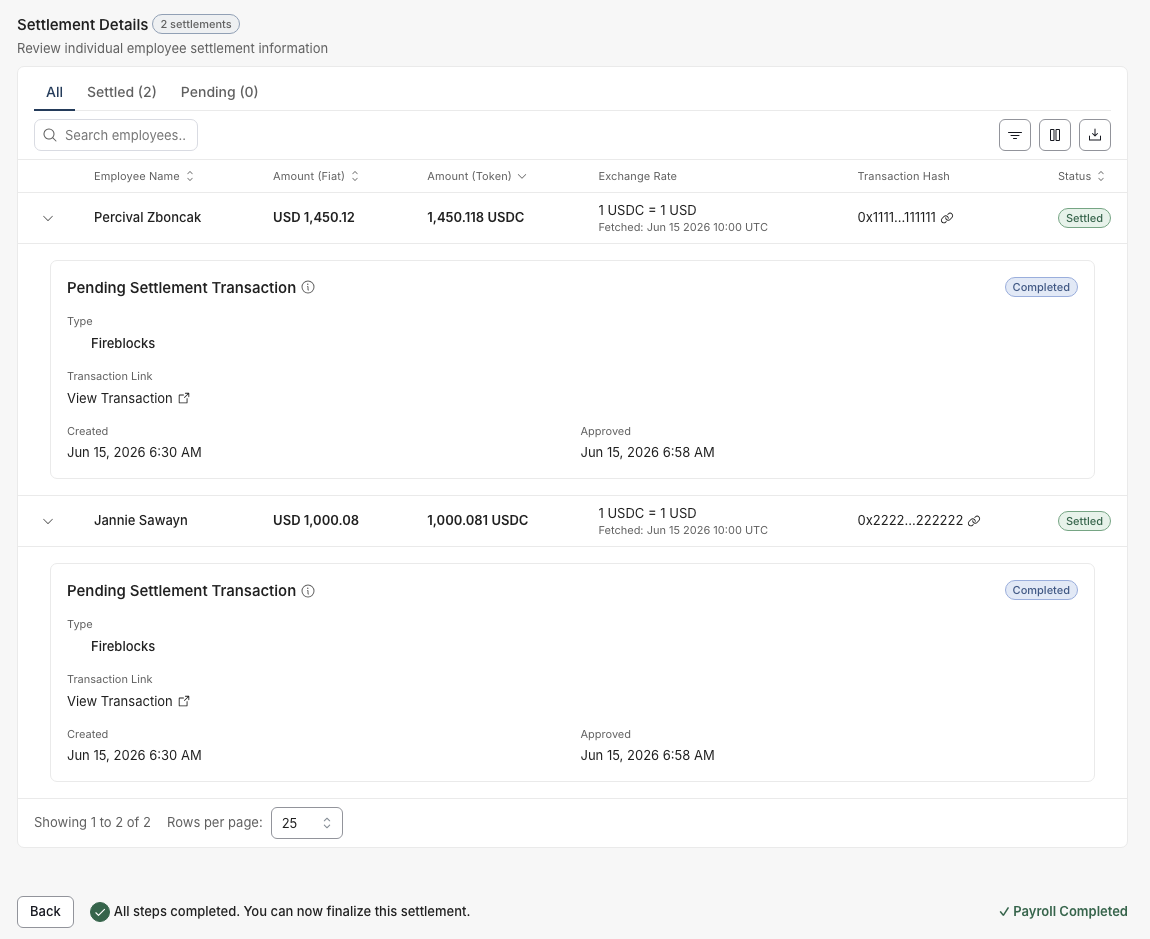
Step 8 - Toku ingests confirmations for reporting
- Toku automatically picks up final settlement status from Fireblocks for dashboards and reports.
Tips and best practices
- Use a dedicated Fireblocks Vault for payroll to simplify reconciliation.
- Keep destination tags and memos accurate on chains that require them.
- Ensure gas provisioning on the correct network and from the correct vault.
Troubleshooting
- Transactions not submitted to Fireblocks
- Check vault balances for the asset and network gas.
- Verify memo/destination tag is present where required.
- Confirm the asset exists in the selected vault account.
- Approval stuck or missing in Fireblocks
- Confirm approvers are available and your policy permits these transfers.
- Make sure the API user connected to Toku has access to the vault.
- Status not updating in Toku
- Allow a short delay for webhook or poll‑based updates, then refresh.
- If still stale, recheck Fireblocks for final status and try a manual refresh.
Reference: Fireblocks Integration Setup
If you need to (re)connect Fireblocks to Toku or verify roles and vault access, follow the integration guide:
- Toku: Fireblocks Stablecoin Payroll Integration Guide CONFIDENTIALITY NOTICE: This resource and any attachments are only for the use of the intended recipient and may contain information that is privileged, confidential, or exempt from disclosure under applicable law. If you are not the intended recipient, any disclosure, distribution, or other use of this resource or attachments is prohibited. If you have received this resource in error, please delete and notify the sender immediately. Thank you.