
 3 MIN READ
 UPDATED NOV 4, 2026
For contractors on Toku Employment (HRIS). Last updated November 4, 2026.
You can get paid into a multi-currency account from an app like Wise, Revolut, Payoneer or GrabrFi instead of a traditional bank. These apps give you ordinary local bank details for each currency they hold, such as a US routing and account number, a UK sort code or a euro IBAN. Toku pays those details the same way it pays any bank account. When you choose your app and currency, Toku picks the right bank country and currency for you and shows where to find the details in the app.
Before you start
- You need a contractor login on Toku and access to Payment Methods.
- Open your app and make sure it can receive money in the currency you want. For example, a Payoneer or GrabrFi USD account, a Wise USD, EUR or GBP balance, or a Revolut EUR or GBP account.
- The account must be in your own name, or in your company's name if you invoice as a company.
- You can keep one active bank account. If you already have one, you replace it by editing its details.
Add a multi-currency account
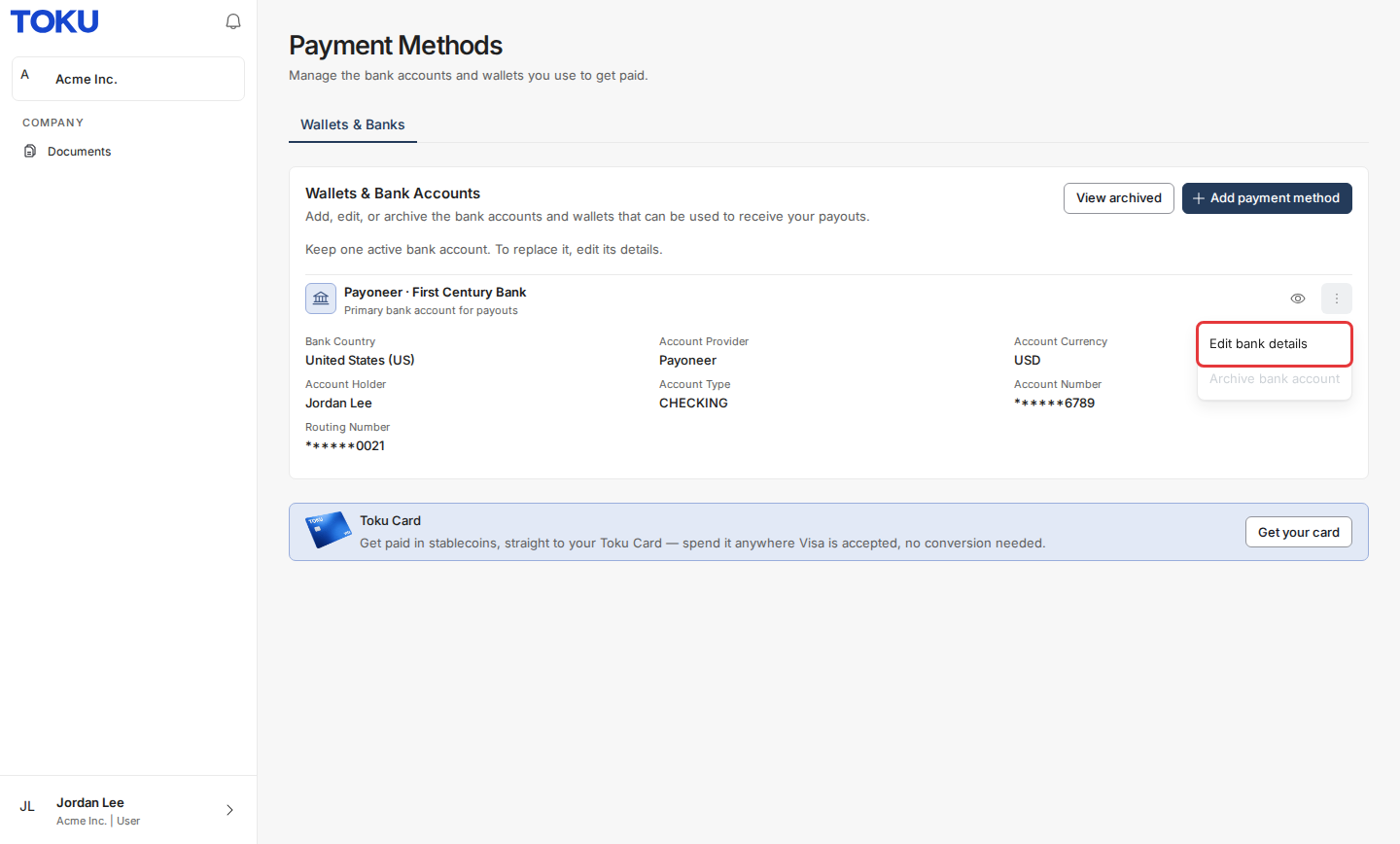
- Go to Payment Methods. If you have no bank account yet, select Add payment method, choose Add checking or savings account and select Next. If you already have a bank account, open the menu on its row and select Edit bank details.
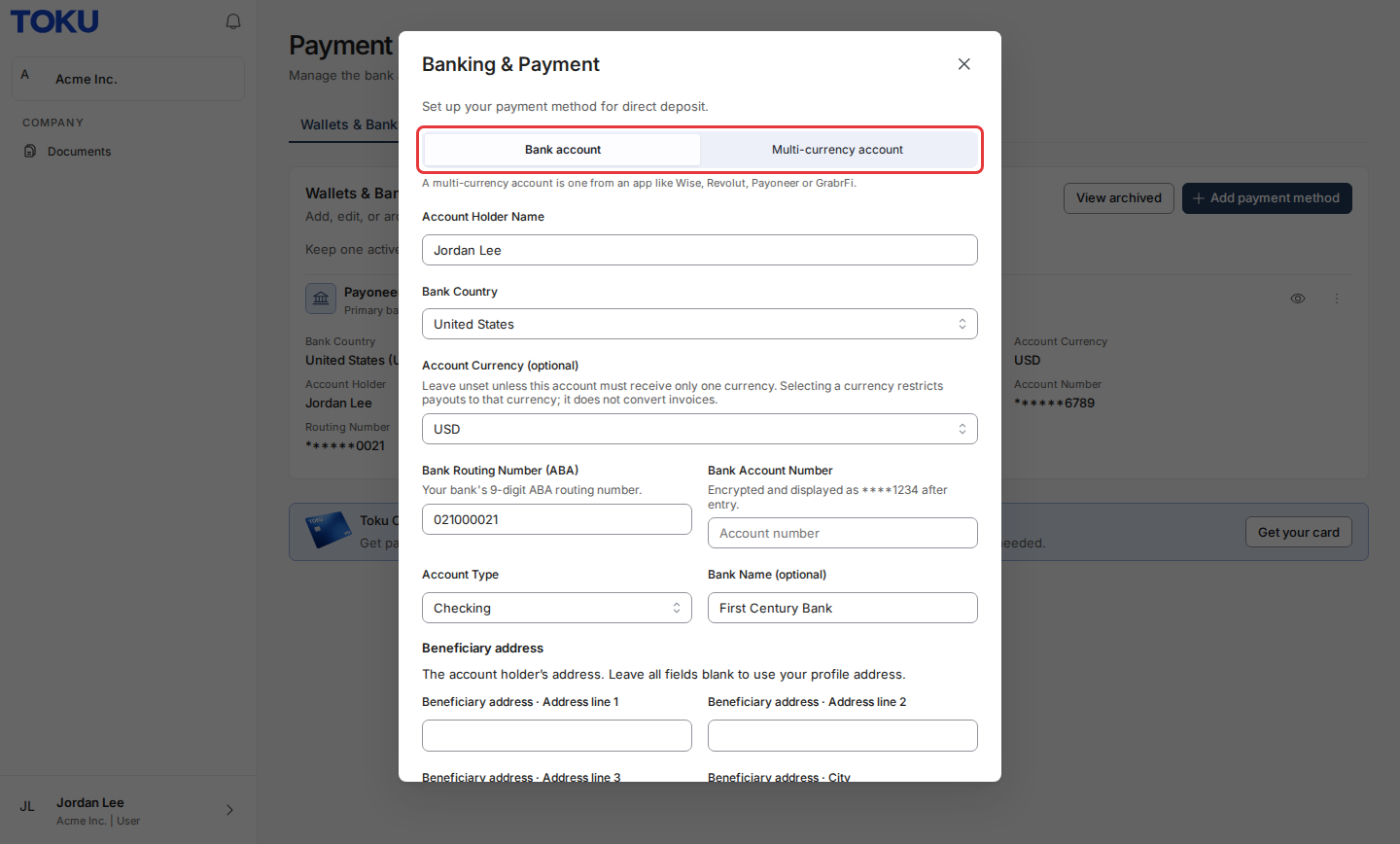
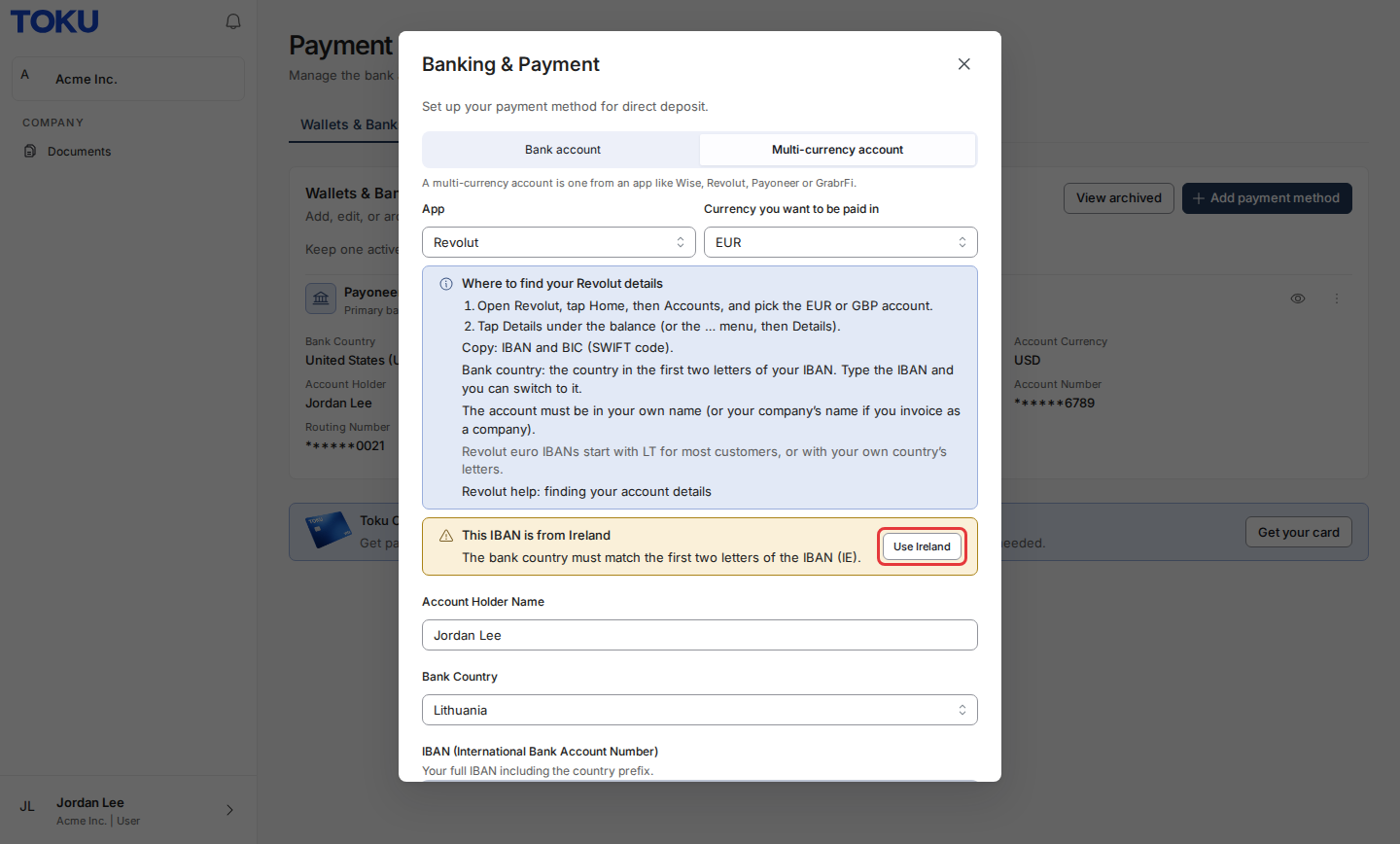
- At the top of the Banking & Payment form, select Multi-currency account. The line under it lists example apps.
- In App, choose your app: Wise, Revolut, Payoneer, GrabrFi or Another app.
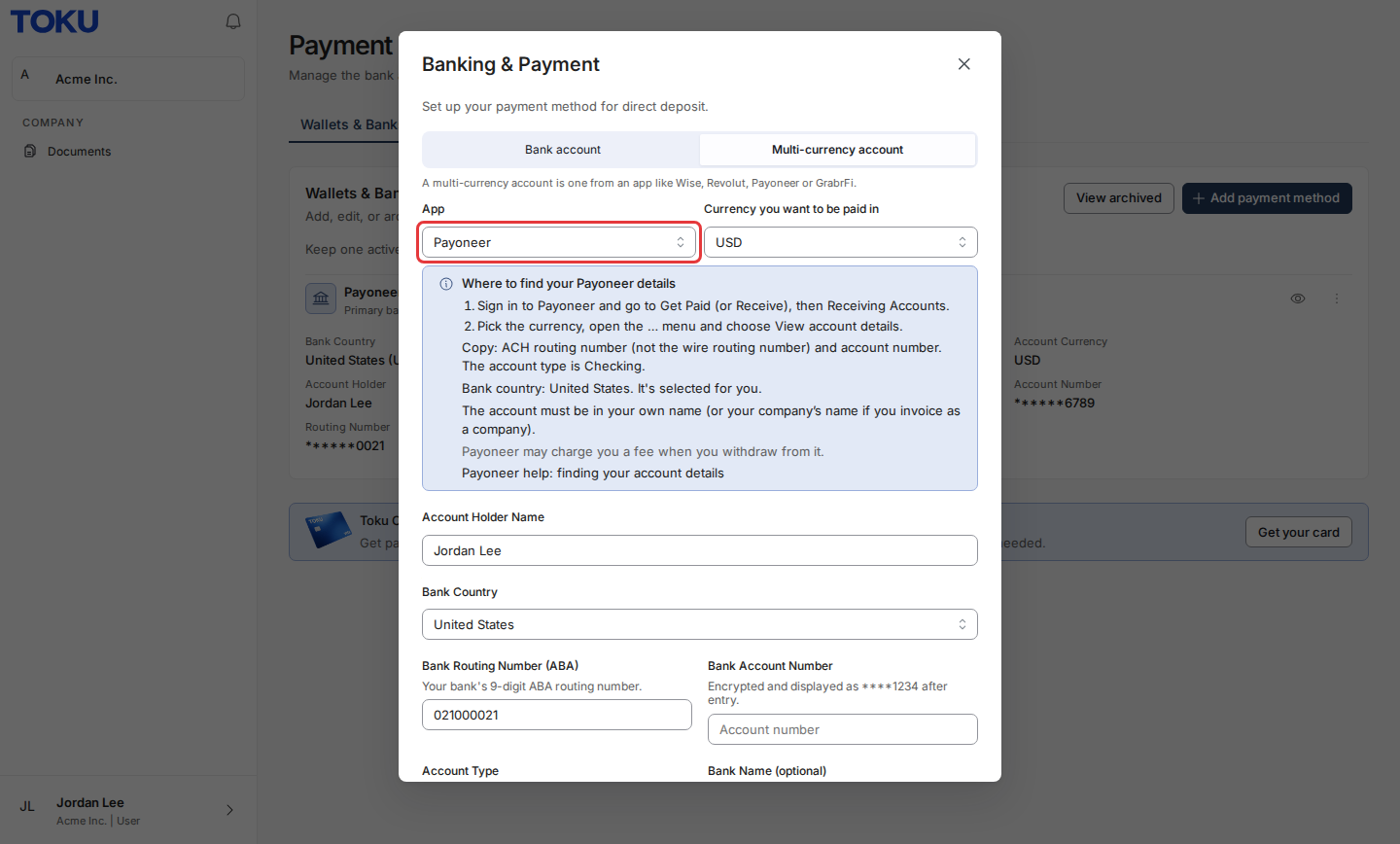
- In Currency you want to be paid in, choose the currency of the balance you are adding. Toku sets Bank Country to the country those details come from. For example, Payoneer and GrabrFi USD details are United States accounts, Wise EUR details are Belgian, and Wise or Revolut GBP details are UK accounts. For US details the account type is set to Checking.
- Read the guide under the app. It says where the app shows your details and which ones to copy.
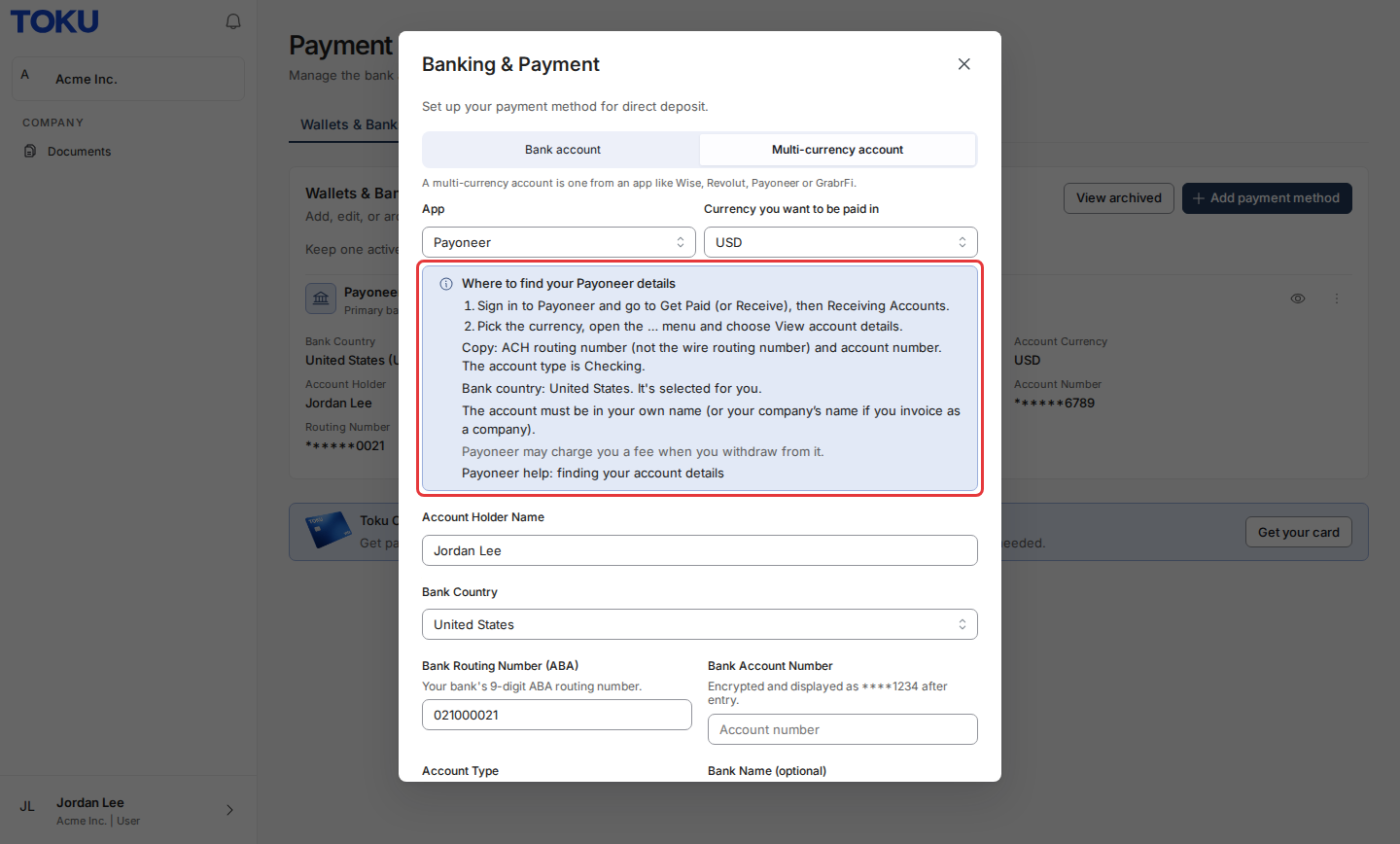
- Copy the details from your app into the fields below the guide. Use the ACH routing number for US details, not the wire routing number. Enter the account holder name exactly as the app shows it.
- For a euro IBAN, check the first two letters. They name the IBAN's country. If they don't match Bank Country, Toku shows a message with a button to switch, for example Use Ireland. Select it.
- Select Save.
After you save
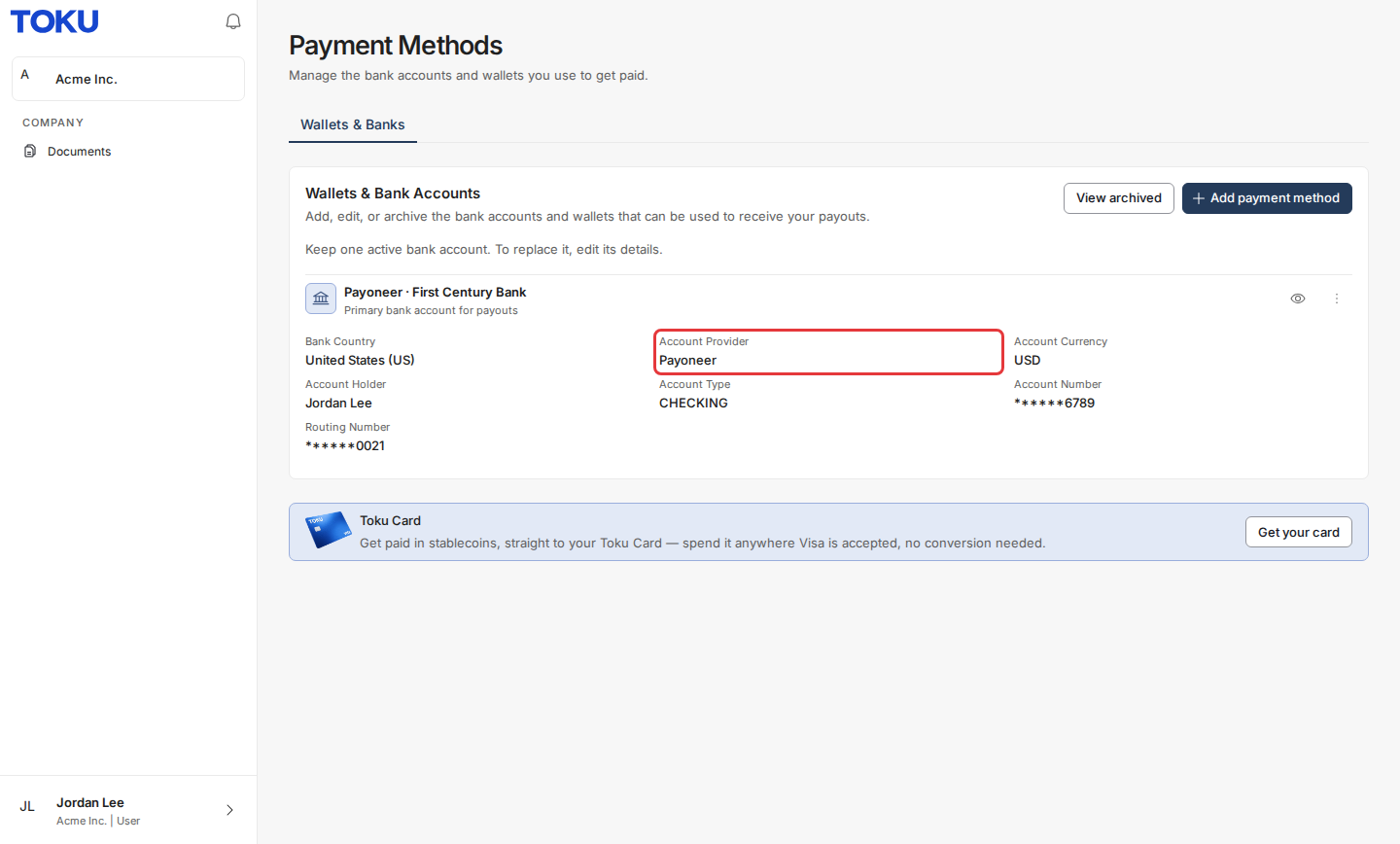
Your account shows on Payment Methods with the app's name in the title and an Account Provider row.
If the account's bank country is not the country you live in (for example, a US Payoneer account for a contractor in India), Toku reviews the change before it applies. You see a message that it was submitted for review. Payments keep going to your previous account until the change is approved.
Good to know
- A multi-currency account is paid exactly like a bank account. Payments go to the local details you entered, in the account's currency.
- On Payment Methods the account currency is set from your choice. Payments in another currency are not sent to that account, so choose the currency your client pays you in.
- Some apps charge their own fees, for example when you withdraw money from them. Check your app's pricing.
- To go back to a traditional bank, edit the account, select Bank account and enter your bank's details.
- If your app is not listed, choose Another app and pick the bank country your details come from, not the country you live in.
Still stuck?
Email customer-success@toku.com and tell us which app and currency you are adding.