
 2 MIN READ
 UPDATED OCT 30, 2026
📘 For organization administrators on Toku. Last updated October 30, 2026.
Export all visible columns from your People list into a CSV file for external use.
Before you start
- You'll need admin access to your organization's People section.
- The exported file will contain every column you've toggled on in the Columns menu.
Export your People list
- Open People from the left-hand menu. You'll see the list of all employees and contractors in your organization.
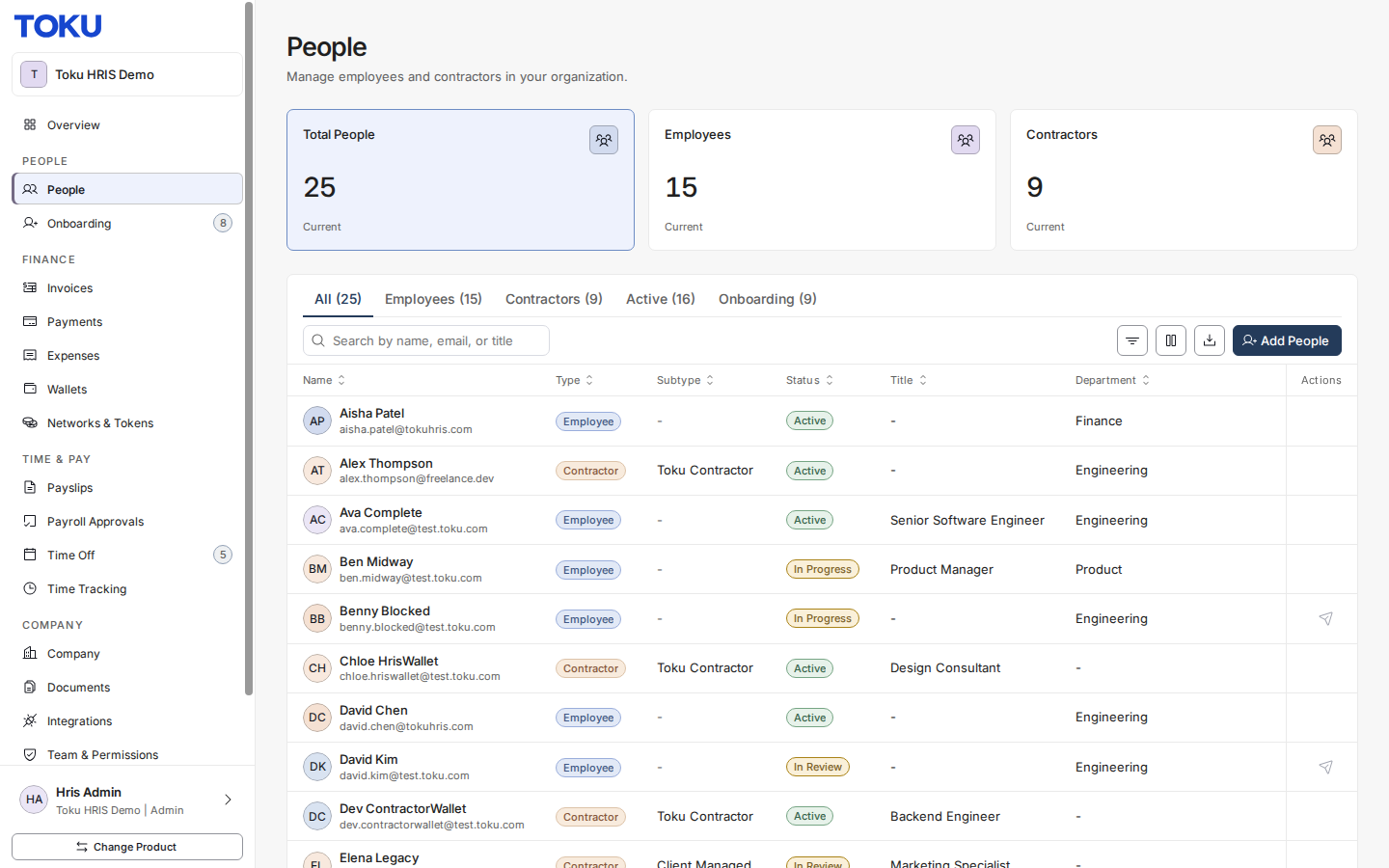
- Click the Columns icon above the table (its tooltip reads Columns (9 of 10 shown)) to open the Column Visibility menu. You can toggle any column on or off to customize what appears in the table.
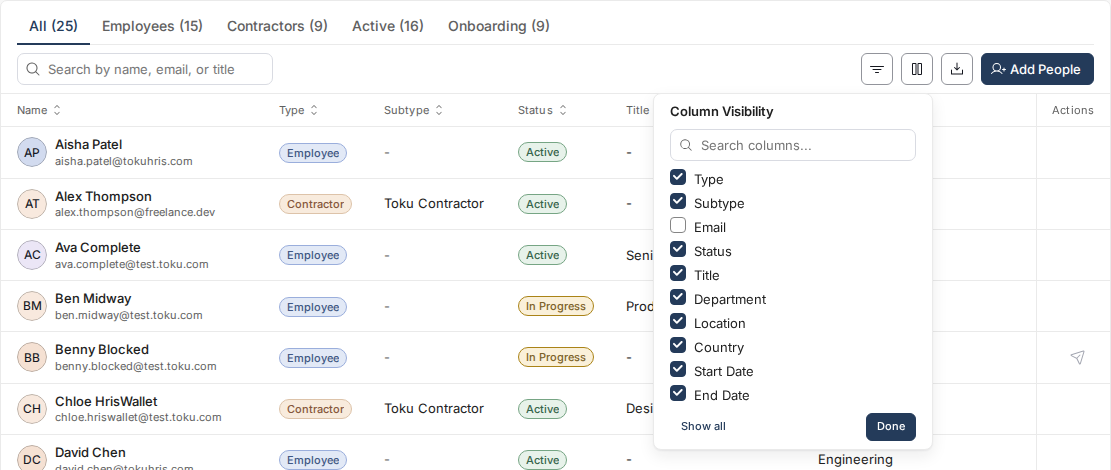
- Click Show all to display all available columns at once, then click Done to apply your selection. The table will now show all 10 columns, including Email.
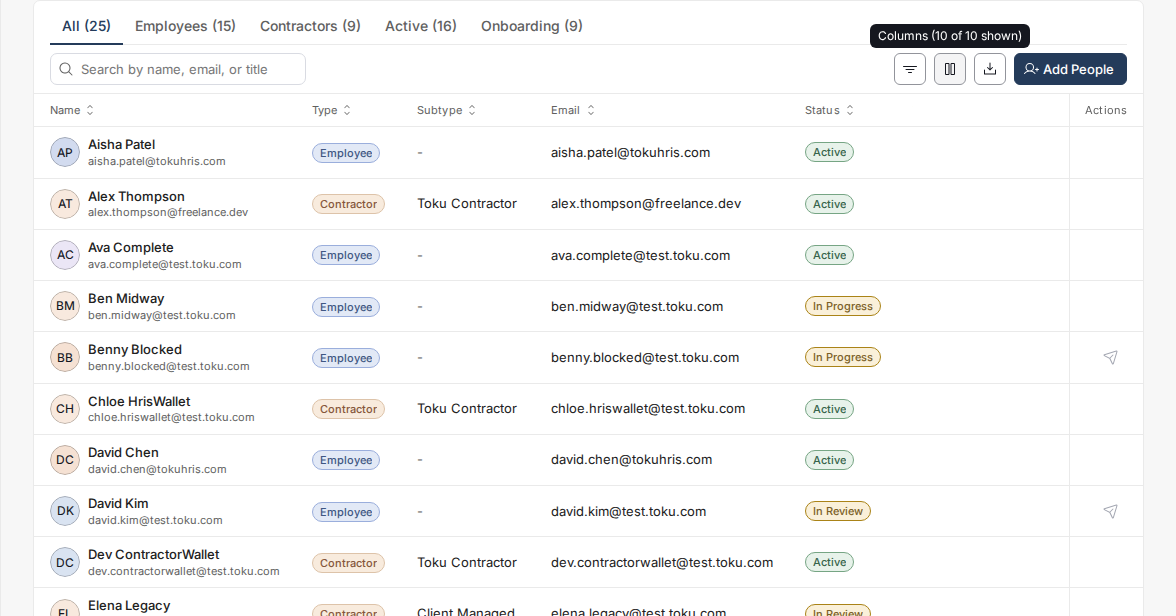
- Click the Export CSV (download) icon next to the Columns icon to download the file. Your CSV will contain exactly the columns you see on the page right now.
Good to know
- The exported CSV includes only the columns toggled on in the Columns menu - if you hide a column, it won't appear in your export.
- The Actions column (for example the send-invite icon) is never included in exports.
- You can customize your column selection before each export if you only need specific data.
Still stuck?
You can email customer-success@toku.com to reach our support team. Please include your email address, organization name, and a description of what happened. Screenshots and videos are always welcome to speed up the troubleshooting process. Feel free to reach out any time for further assistance.