
 4 MIN READ
 UPDATED OCT 20, 2026
⚠️ Contractor invoice and payment deadlines: late action means late payment
- Contractors: submit invoices by the 19th of each month. A saved draft is not a submitted invoice.
- Admins: approve invoices by the 21st of each month. Submission alone does not authorize payment.
- Funding: Toku must receive cleared funds 4 - 5 business days before payout. Initiating a transfer or sending proof of payment does not meet the deadline.
- Standard monthly payout: the last day of the month, provided submission, approval, and funding deadlines are met. Late submission, approval, or funding will delay payment. Every day of delay pushes payment back by at least one day. A missed payment cycle can cause a longer delay; the invoice due date is not a guarantee of payment.
Automation does not remove these deadlines. Earlier published holiday deadlines take precedence; see Toku: 2026 End-of-Year Payroll & Payment Guide.
📘 This guide is for Toku's Stablecoin Payroll product only. It does not apply to Toku Employment (HRIS). If you use Toku Employment, contractor invoices are reviewed and paid from the Invoices page instead - see Review, approve, and manage contractor invoices. Last updated September 17, 2026.
Process token payments to contractors through Mesh by approving invoices, connecting a wallet, and executing the batch transaction. This describes Toku's Stablecoin Payroll product, which is separate from Toku Employment. If your organization uses Toku Employment/HRIS, contractor invoice payments are handled from the Invoices page instead - see Review, approve, and manage contractor invoices.
Before you start
- You need Admin access to your organization's Stablecoin Payroll dashboard on Toku.
- Contractor payments for the period must already be aggregated into a settlement - look for the period in the Contractor Invoice Settlements table on the Settlement Dashboard.
- If you plan to Settle via Mesh, you'll need a Trust Wallet or MetaMask wallet to sign the on-chain transactions. If you plan to Settle Manually instead (uploading transaction hashes for payments made off-platform), no wallet connection is needed inside Toku.
Approve Contractor Invoices
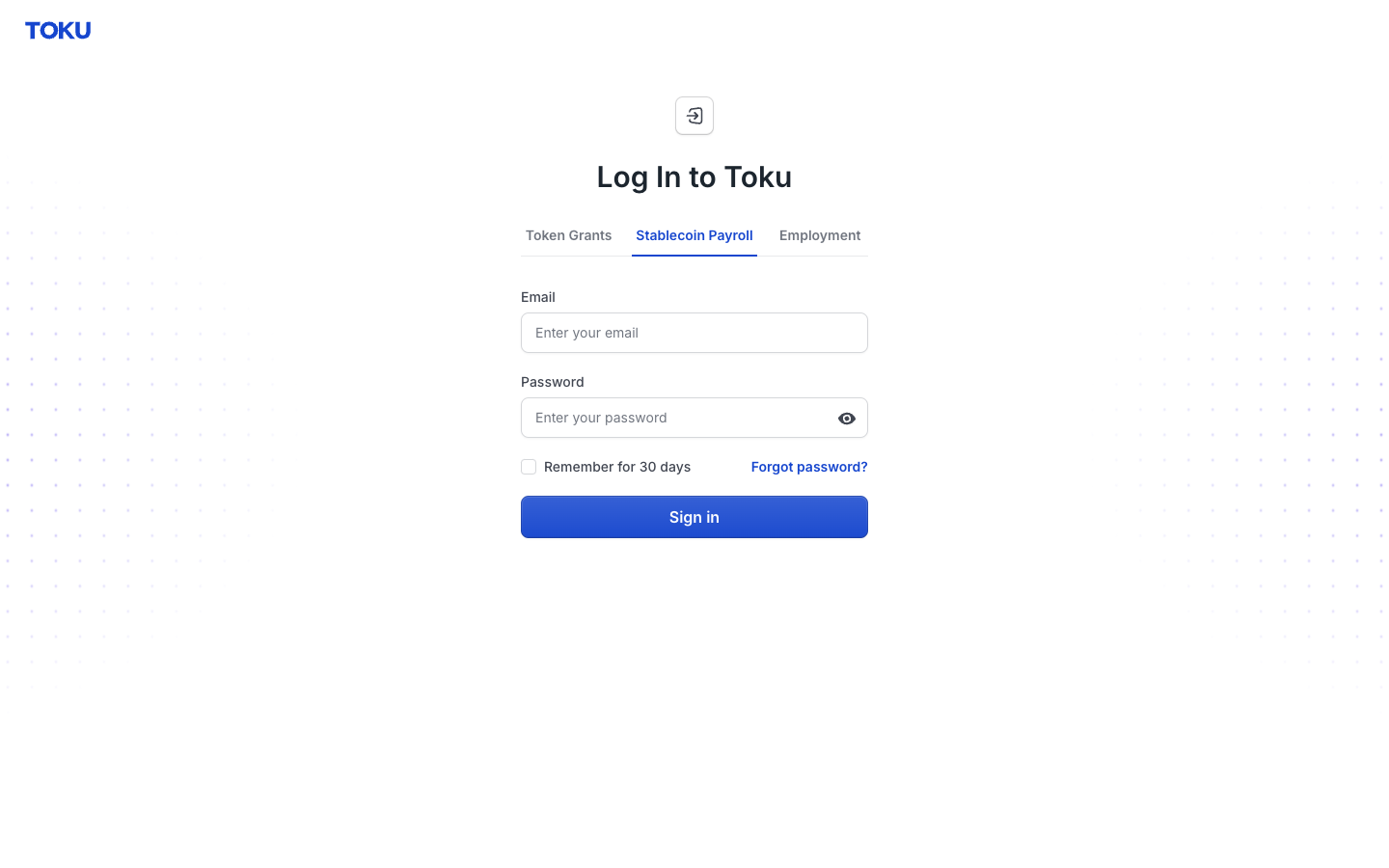
- Sign in at https://app.toku.com/login with your work email and password.
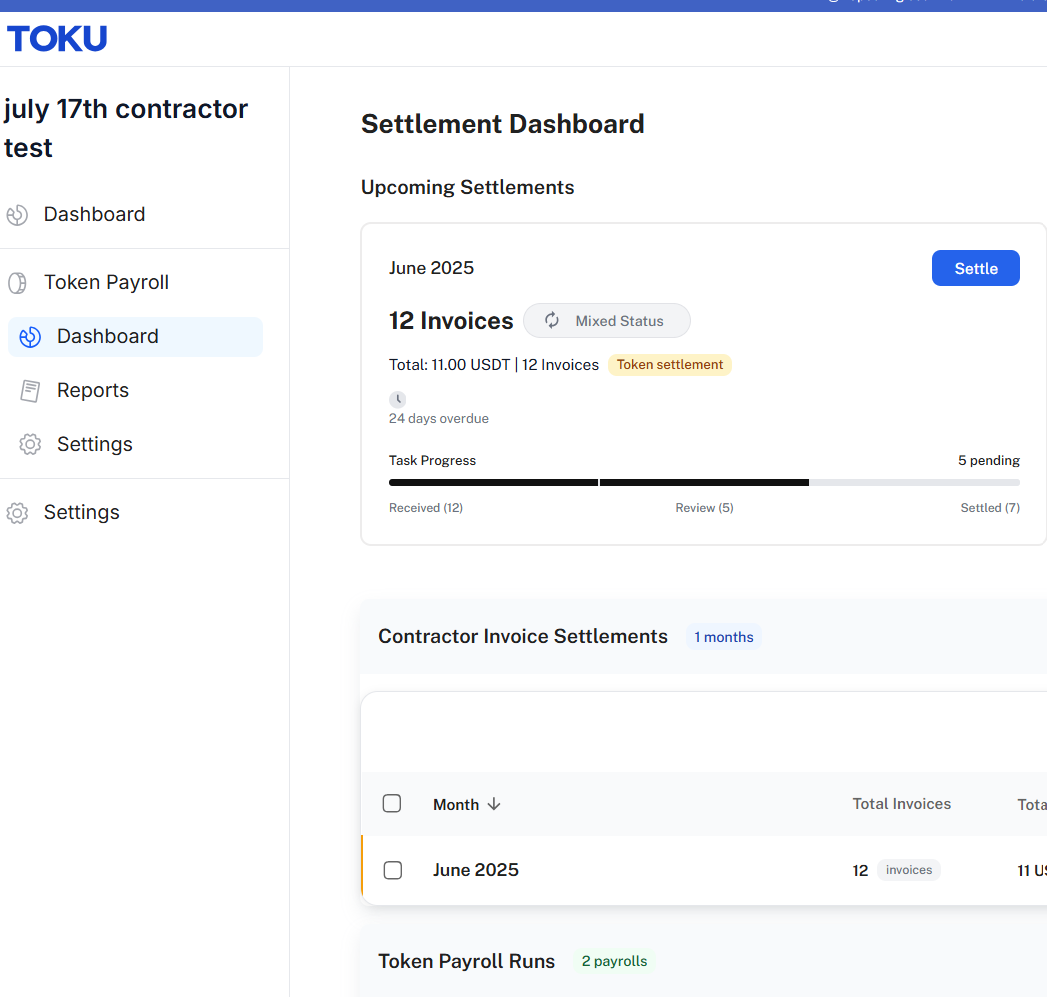
- In the left-hand menu, click Token Payroll, then Dashboard. This opens the Settlement Dashboard with your Upcoming Settlements.
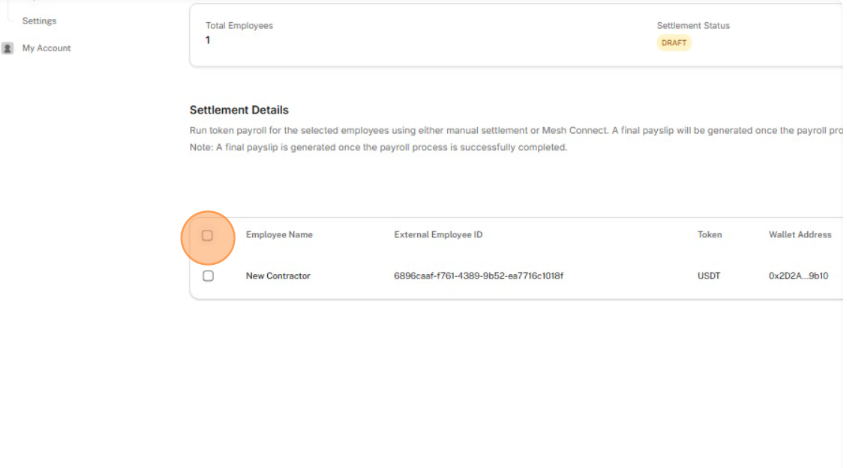
- Open the settlement and review the contractors listed for the period, each showing their token and wallet address. Check the box next to the ones you want to include.
Configure Settlement Network and Wallet
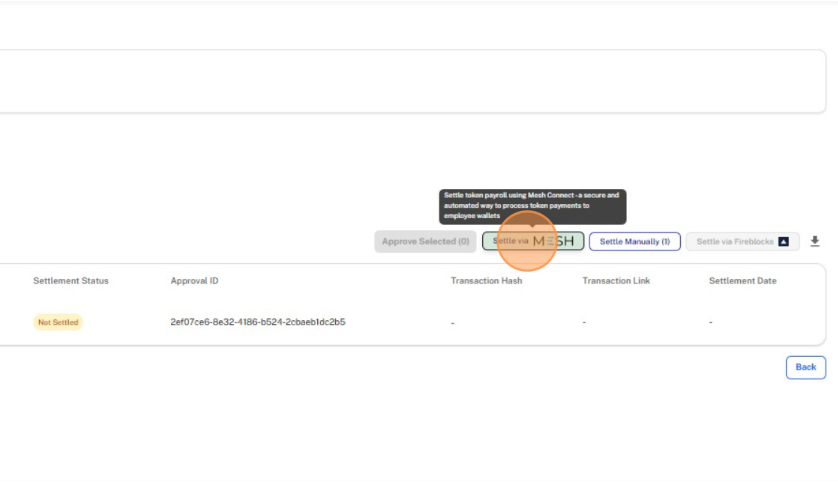
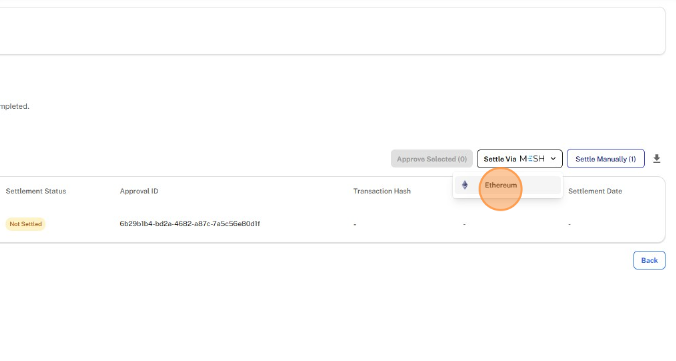
- Click Approve Selected, then choose your settlement method: Settle via Mesh for automated, on-chain settlement, or Settle Manually if you're recording payments made off-platform. (A third option, Settle via Fireblocks, appears if your organization has Fireblocks connected.)
- Select the blockchain network where payments will be processed.
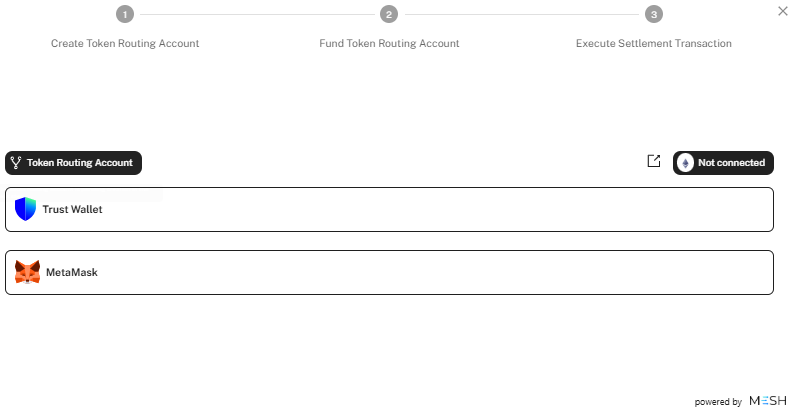
- You'll be prompted to connect a wallet - using Trust Wallet or MetaMask — as part of setting up the Token Routing Account in the next step.
Set Up Token Routing and Execute
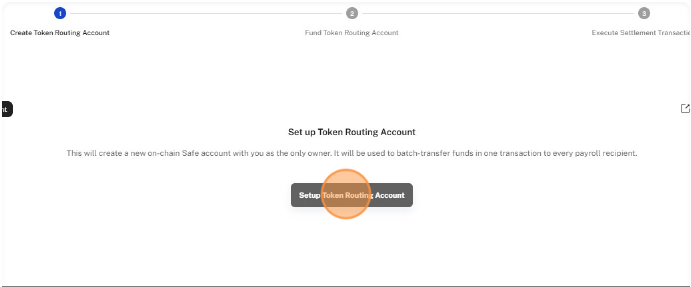
- Click Setup Token Routing Account to create a Safe account that holds funds during the settlement process.
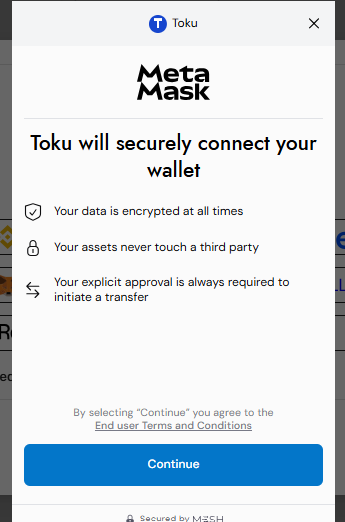
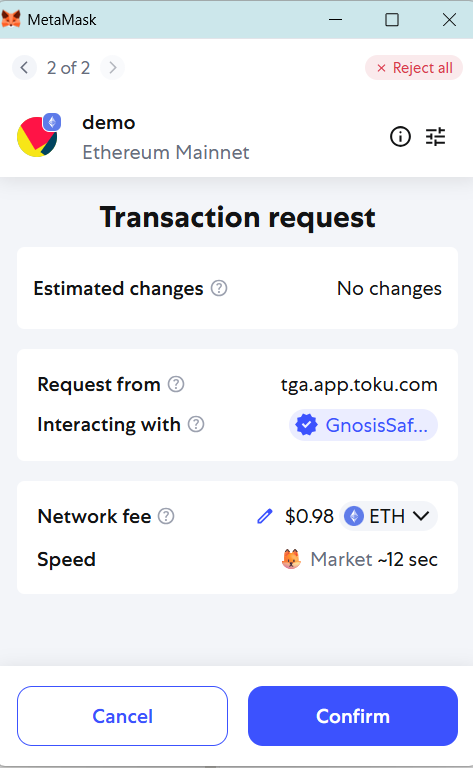
- Approve the wallet connection request when prompted (shown here for MetaMask) to authorize the Token Routing Account to draw funds from your selected provider.
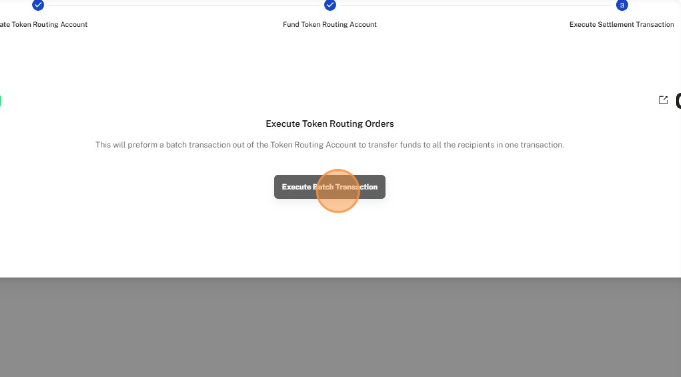
- Click Execute Batch Transaction to send all payments in a single batch to recipients.
- Sign the final transaction in your connected wallet to complete the payment batch settlement.
Good to know
- Mesh handles batch settlement of multiple contractor payments in a single transaction, reducing gas costs.
- All transactions require wallet signatures - keep your connected wallet active during the entire process.
- If the batch transaction fails, you'll see a Transaction Failed card ('An error occurred while executing the batch transaction. Please check your wallet and try again.') with a Try Again button - your contractor selections are preserved, so you don't need to re-enter them.
Still stuck?
You can email customer-success@toku.com to reach our support team. Please include your email address, organization name, and a description of what happened. Screenshots and videos are always welcome to speed up the troubleshooting process. Feel free to reach out any time for further assistance.