
 3 MIN READ
 UPDATED OCT 30, 2026
📘 For employees on Toku. Last updated October 30, 2026.
Submit a time off request, check its approval status, and withdraw it if your plans change.
Before you start
- Sign in to Toku at app.toku.com/login with your work email and password.
- Employees submit their own time off requests. Administrators can also submit a request on an employee's behalf using the New Request button on the admin Time Off page.
- Your organization must have at least one active leave type before you can submit a request.
Request time off
- Sign in and select Time Off (under TIME & PAY) in the left-hand menu to open your My Time Off page. You'll see three balance cards at the top and a table showing your requests below.
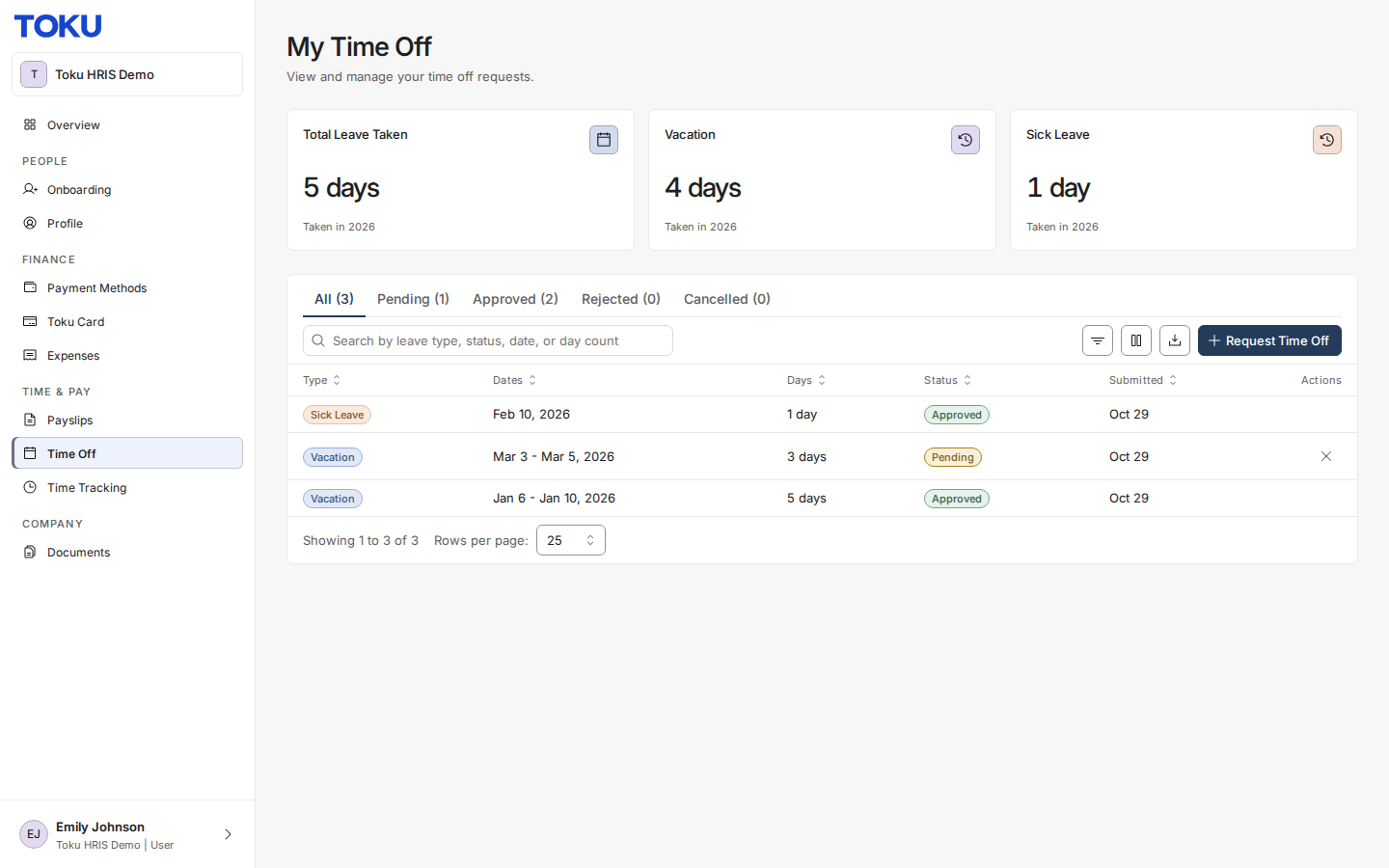
- Select the Request Time Off button. A window opens with three fields: Leave type, Dates, and Note (optional).
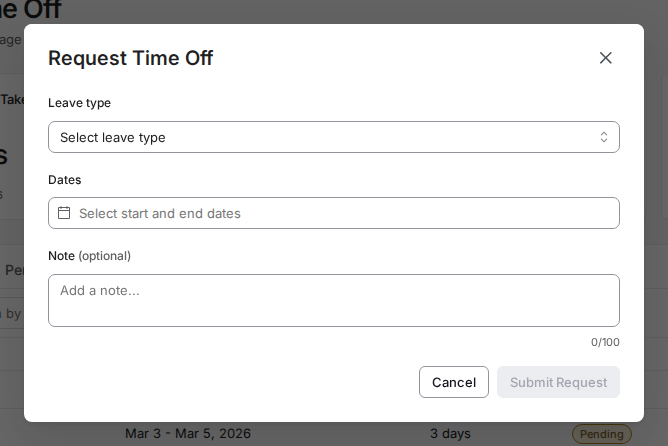
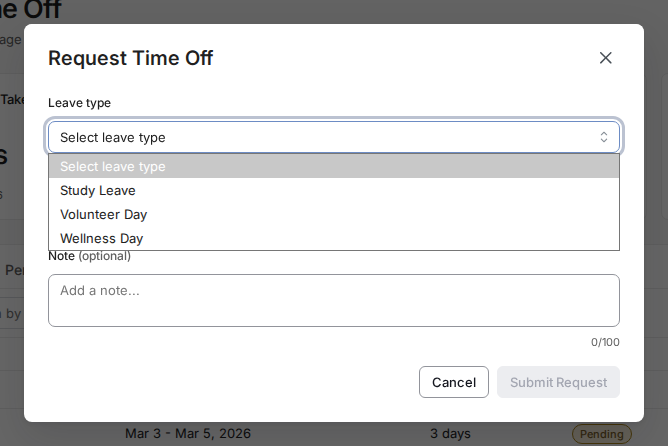
- Select your desired Leave type from the dropdown menu (for example: vacation, sick leave, or other categories).
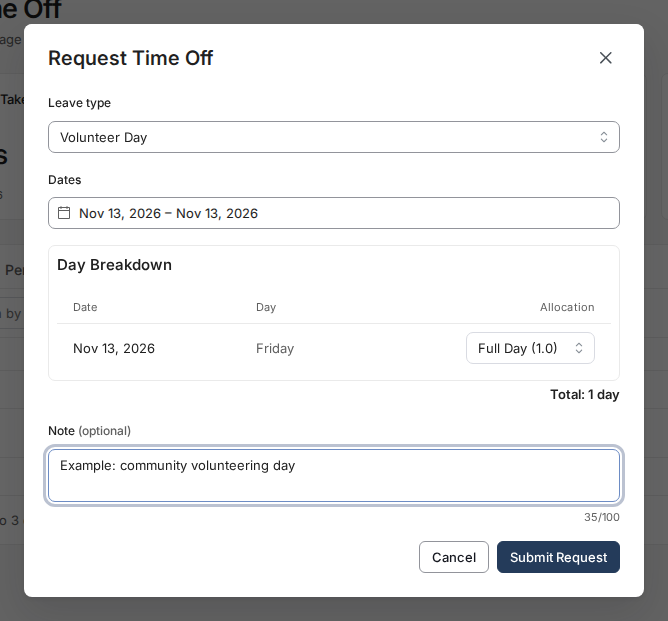
- Pick your start and end dates under Dates (select the same day twice for a single day); a Day Breakdown then lets you set each day to a full or half day. Add an optional note (up to 100 characters) and select Submit Request in the bottom-right corner. The button stays grayed out until both a leave type and dates are set. Your request then appears as a new row in the table on My Time Off.
Track your request
- Go back to My Time Off at any time to check your requests. Each request row shows its Type, Dates, Days, Status, and Submitted date. Watch the Status column for the approval decision.
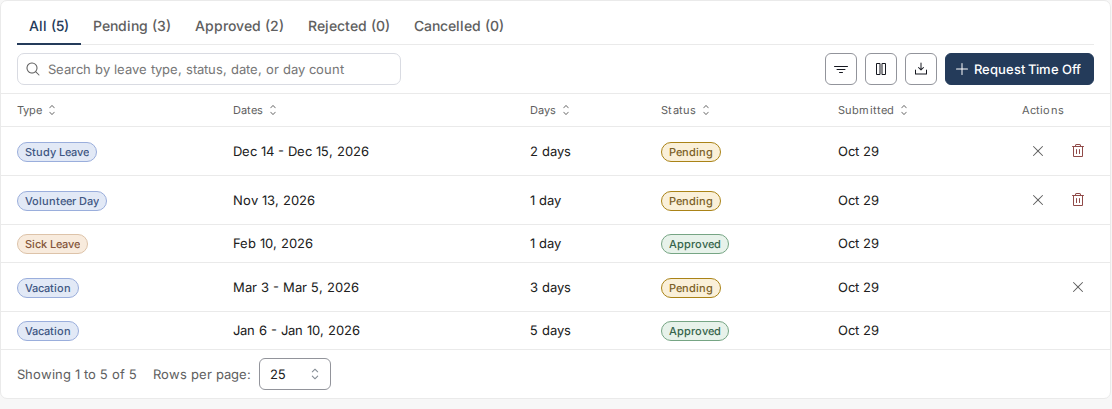
- If your plans change before the request is approved, select the X (Cancel request) icon in the Actions column on that row. Cancelling takes effect immediately with no confirmation step. If approval is delayed instead, a polite message to your manager is the quickest follow-up.

Good to know
- If the Leave type menu is empty and the Leave Types tab shows zero active types, your organization hasn't activated leave types yet - ask your administrator to activate or create them.
- Contractors may not see the Time Off area if your organization hasn't enabled time off for contractor accounts.
- Brand-new accounts may show "0 days" or dashes in balance cards until your organization configures leave types.
- Once your account setup is complete, your Overview page also displays a time off summary.
Still stuck?
You can email customer-success@toku.com to reach our support team. Please include your email address, organization name, and a description of what happened. Screenshots and videos are always welcome to speed up the troubleshooting process. Feel free to reach out any time for further assistance.