
 8 MIN READ
 UPDATED NOV 3, 2026
Connect Navan to Toku so approved Navan expenses reach Toku automatically and can be reimbursed there. Employees' expenses become approved expense reports. Contractors' expenses become reimbursement invoices. You review and pay them in Toku the same way as any other expense or invoice.
Setup takes about 15 minutes: create API credentials in Navan, connect them in Toku, then run your first sync.
💡 What gets imported: approved, out-of-pocket Navan expenses that are reimbursed through payroll. Expenses that Navan reimburses directly (for example by ACH), personal spend and partially rejected expenses stay in Navan and are not imported.
Before you begin
Make sure the following is in place. Each item prevents a common reason an expense doesn't import.
- [ ] You are a Toku admin with full access to Integrations. Admins with view-only access can see the connection, but cannot connect or sync.
- [ ] Expenses are turned on for your organization in Toku.
- [ ] Everyone who submits expenses in Navan is set up in Toku, with the same email address in both systems (their Toku work or login email). Capitalization doesn't matter.
- [ ] Each person is classified correctly in Toku as an employee or a contractor. That decides whether their expenses arrive as an expense report or an invoice.
- [ ] Contractors have a bank account added in Toku. Toku needs it to create a contractor's reimbursement invoice.
- [ ] The currencies your team spends and is reimbursed in are active in Toku.
- [ ] You can reach your Navan administrator, who needs to create API credentials in Navan (Step 1).
Step 1: Create API credentials in Navan
Your Navan administrator does this step in Navan.
- Sign in to Navan on the web as an administrator.
- From the product selector at the top left, choose Admin.
- In the sidebar, under Travel, open Settings → Integrations.
- Find Navan API credentials and select Create new.
- Enter a description you'll recognize later, such as Toku expense integration.
- Turn on both Expense: Read Only and Expense: Write. Toku needs write access to tell Navan which expenses it has imported. Booking access is not needed.
- Select Create.
- Copy the Client ID and the Secret Key, and store them in your password manager. Navan shows the Secret Key only once.
⚠️ If you don't see Navan API credentials, ask your Navan account representative to enable the Expense API for your company. While you're asking, confirm whether your Navan account is hosted in the US or the EU; you'll need that in Step 2.
Navan's own reference is the Navan API documentation.
Step 2: Connect Navan in Toku
- Sign in to Toku.
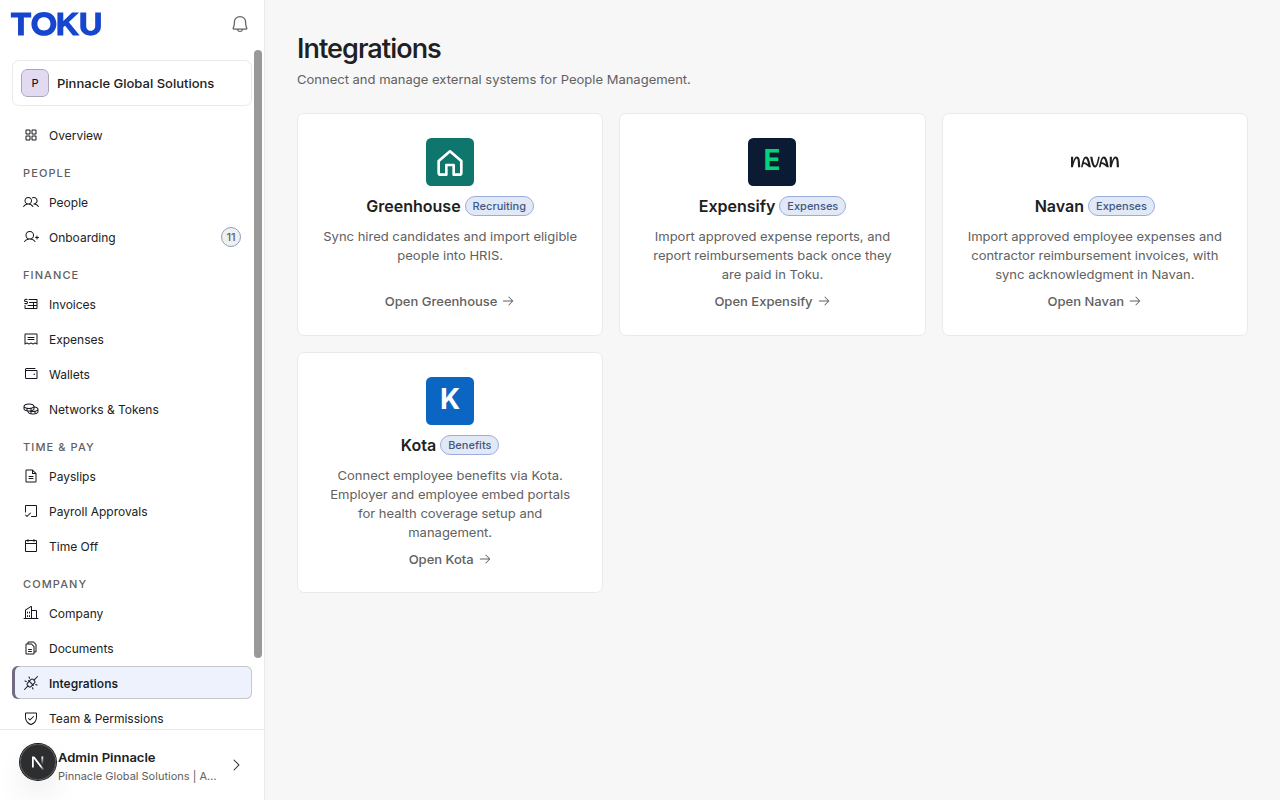
- In the sidebar, under Company, select Integrations.
- On the Navan card, select Open Navan.
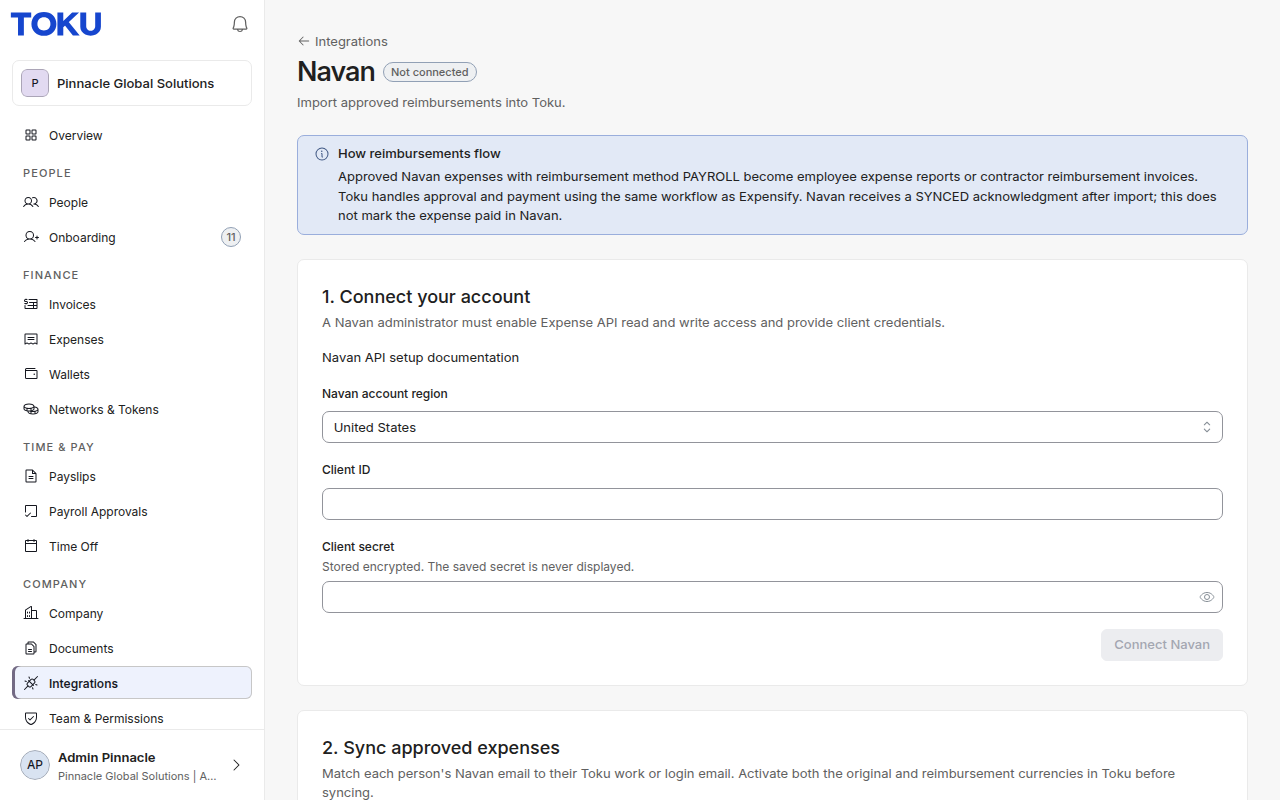
- Under 1. Connect your account, set Navan account region to United States or Europe. This is where your Navan account is hosted, not where your employees are.
- Paste the Client ID from Navan.
- Paste Navan's Secret Key into Client secret. This is not your Navan login password.
- Select Connect Navan.
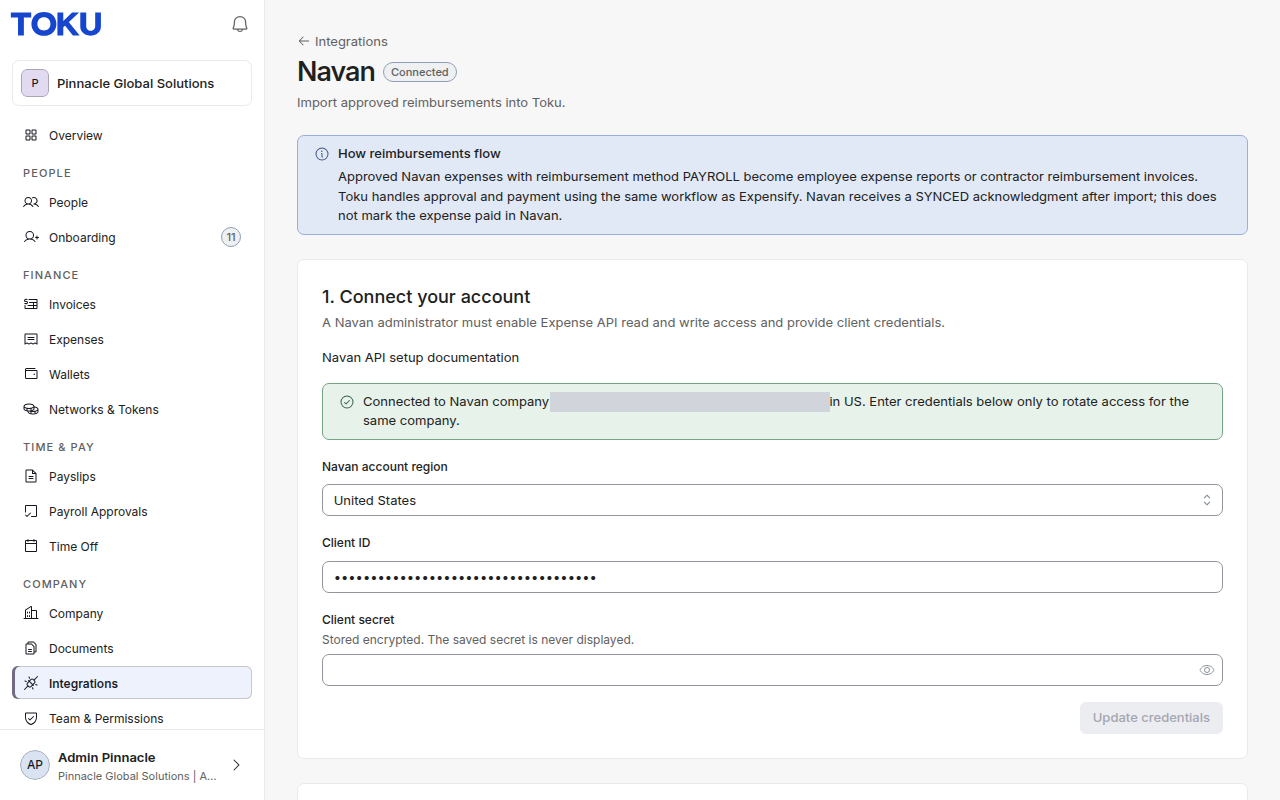
Toku checks the credentials with Navan before it saves anything. When the connection works, the page shows Connected and "Connected to Navan company … in US" (or EU). Your secret is stored encrypted and never shown again.
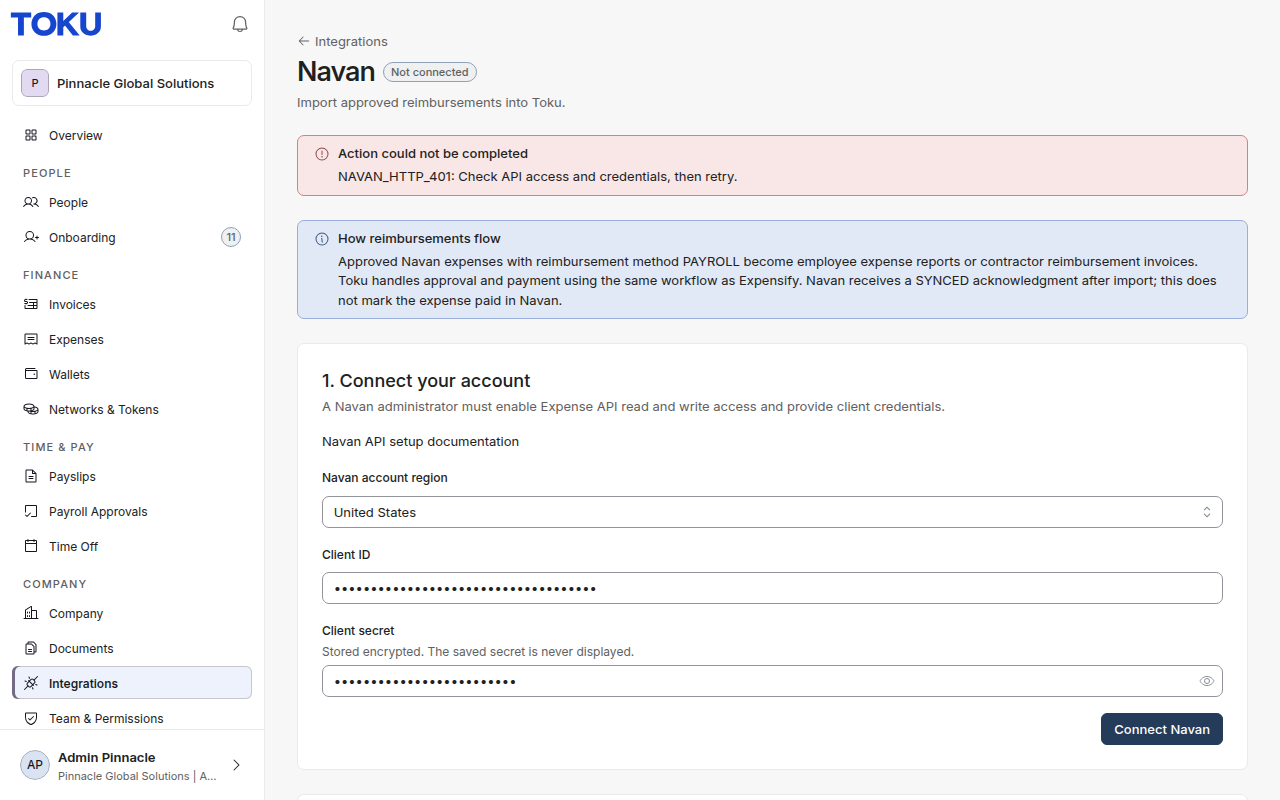
If Navan doesn't accept the credentials, you'll see Action could not be completed and nothing is saved. Check the region, the Client ID and the secret, then try again.
Step 3: Sync approved expenses
- On the Navan page, under 2. Sync approved expenses, select Sync now.
- Wait a few moments until the button is available again.
- Review the results under 3. Review the results. The summary line counts how many expenses were created, already imported, skipped and awaiting Navan acknowledgment. Below it, each Navan expense has its own card with a status and a message. When an expense was imported, the card also shows the Toku expense report or invoice it became.
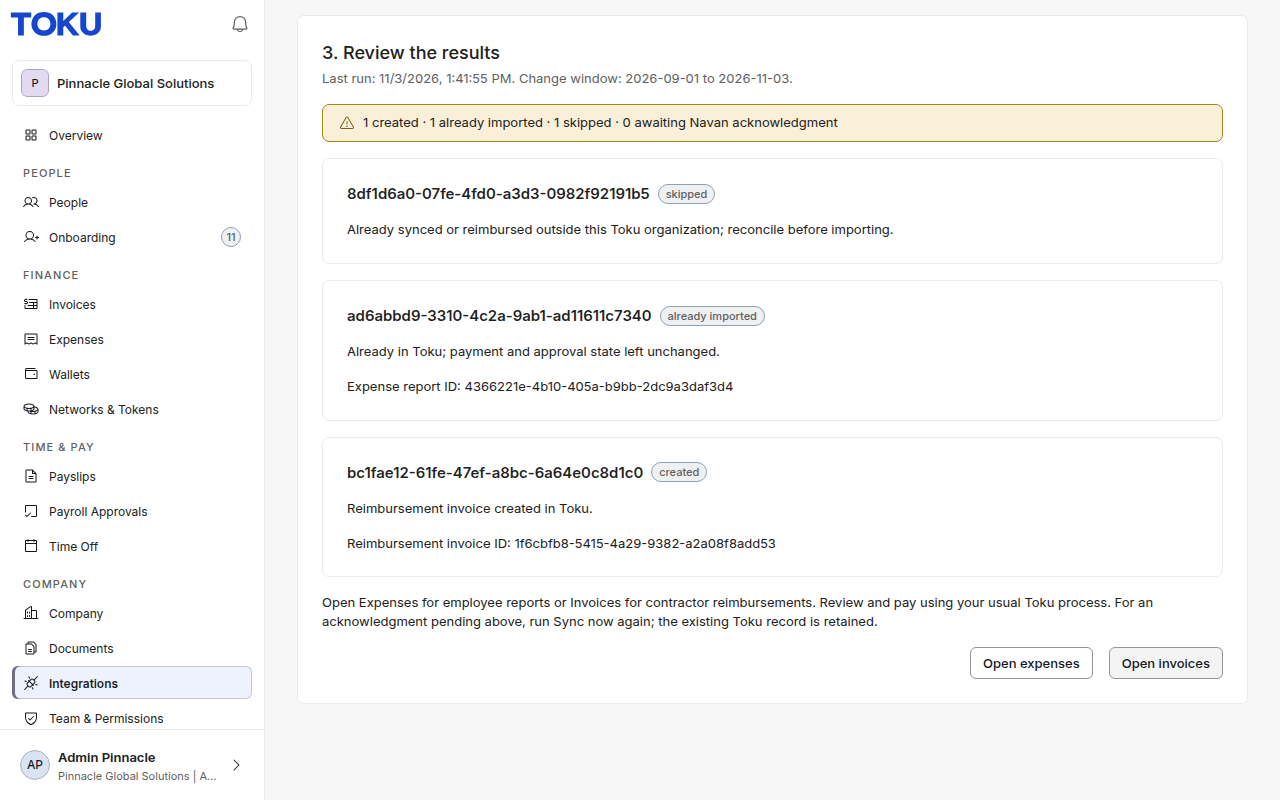
| Status | What it means | What to do |
|---|---|---|
| created | The expense is now in Toku, and Navan has been notified. | Review and pay it in Toku (Step 4). |
| already imported | It was imported in an earlier sync. Toku left it unchanged. | Nothing. |
| skipped | It was not imported. The message says why. | See Troubleshooting below, fix the cause, then sync again. |
| awaiting Navan acknowledgment | The expense is in Toku, but Navan hasn't confirmed it yet. | Select Sync now again. Don't create the expense by hand. |
Run a sync regularly, for example weekly or before each payroll. Syncing is manual. Each sync picks up expenses changed since the first day of the month two months ago, so an expense that waits longer than that won't be picked up. You can sync as often as you like: Toku never imports the same Navan expense twice.
⏱️ An expense approved in Navan can take up to four hours to become available to Toku. If a newly approved expense doesn't appear, sync again later.
Step 4: Review and pay in Toku
Imported expenses go into your normal Toku queues. Use the Open expenses and Open invoices buttons under the sync results, or the sidebar.
Employee expenses
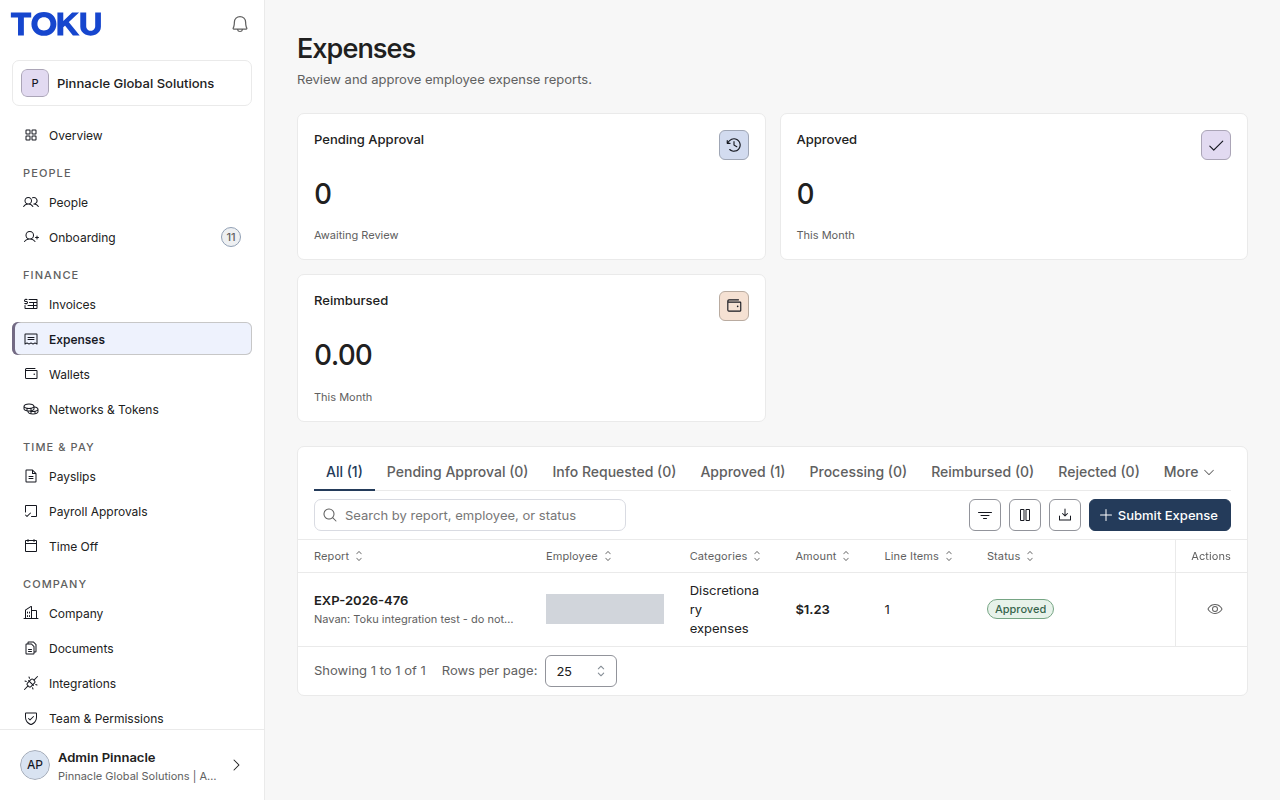
Open Finance → Expenses. Each imported expense appears as its own report named Navan: merchant (date). It is already Approved, because it was approved in Navan. Select the eye icon to see the line, amount and dates, then pay it through your usual expense process.
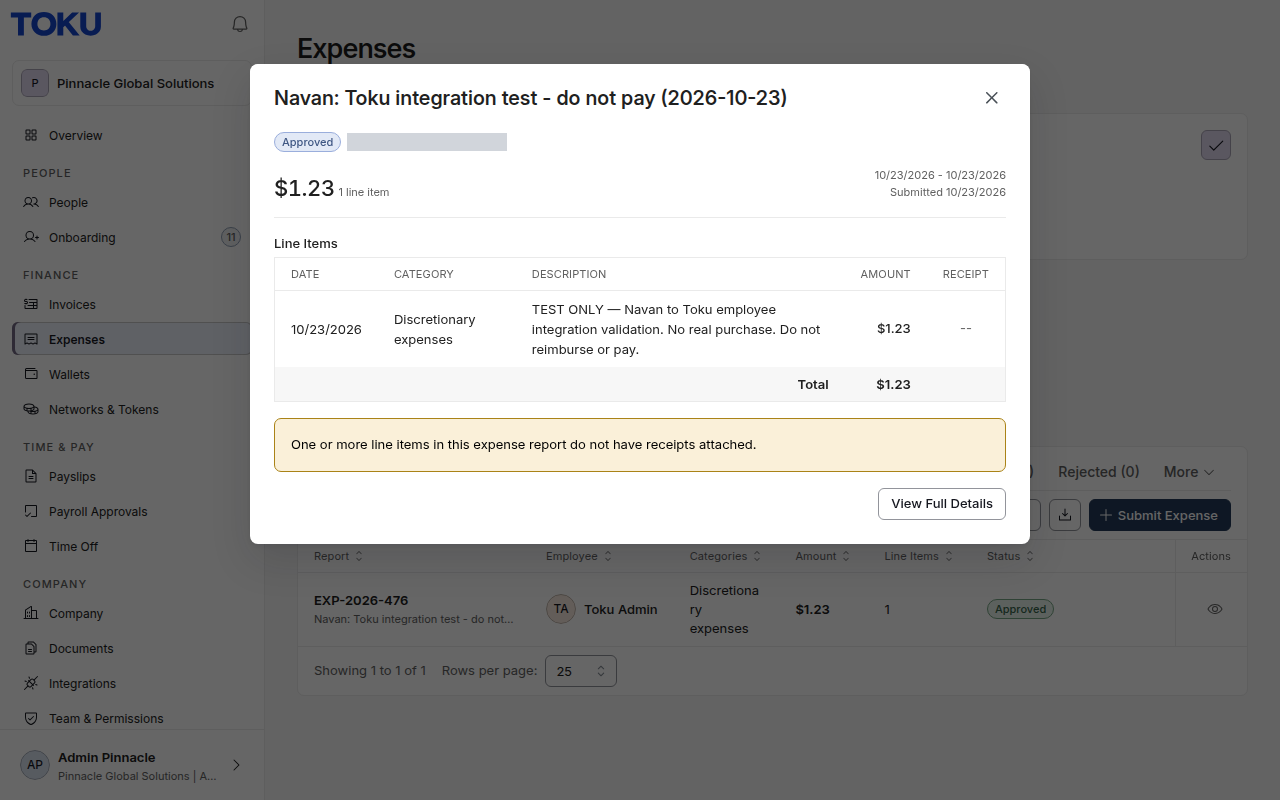
Receipts stay in Navan. Toku shows a note when a line has no receipt attached. You can review the receipt in Navan, or attach it in Toku if your policy requires it.
Contractor reimbursements
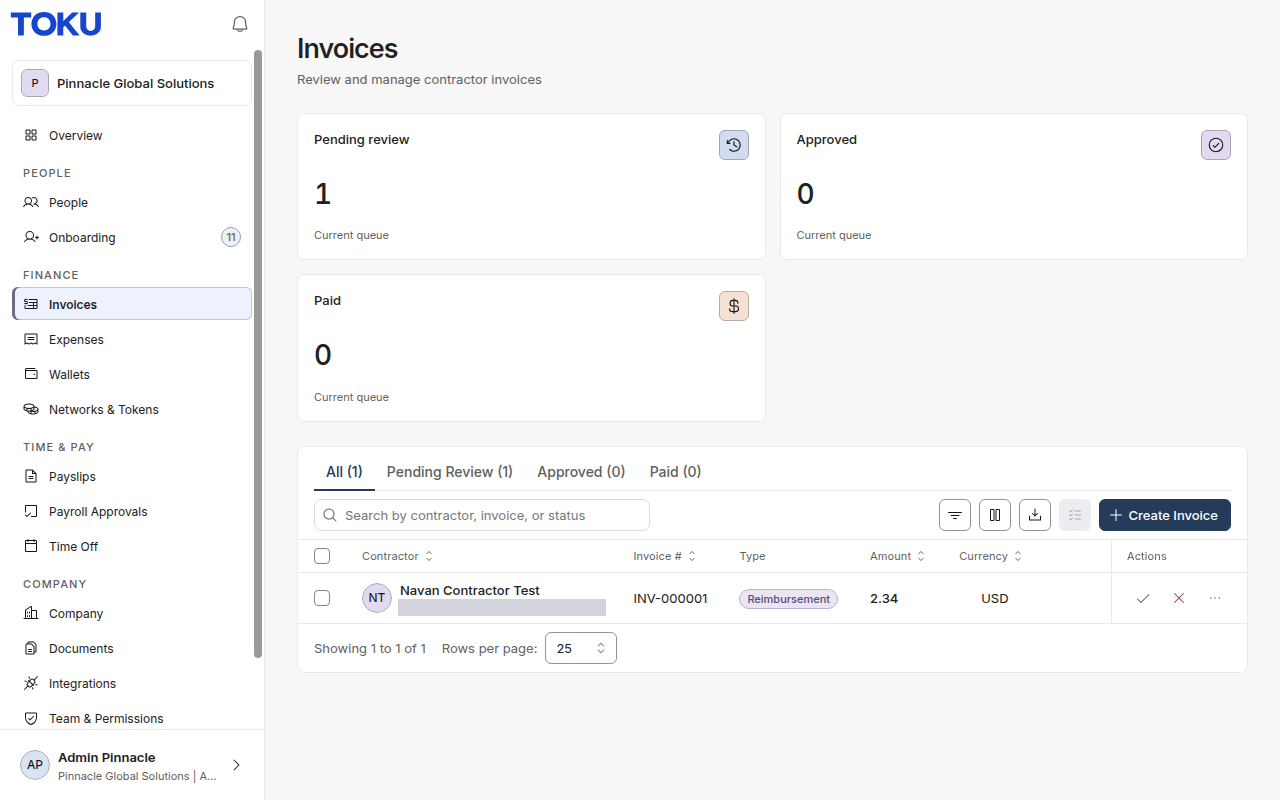
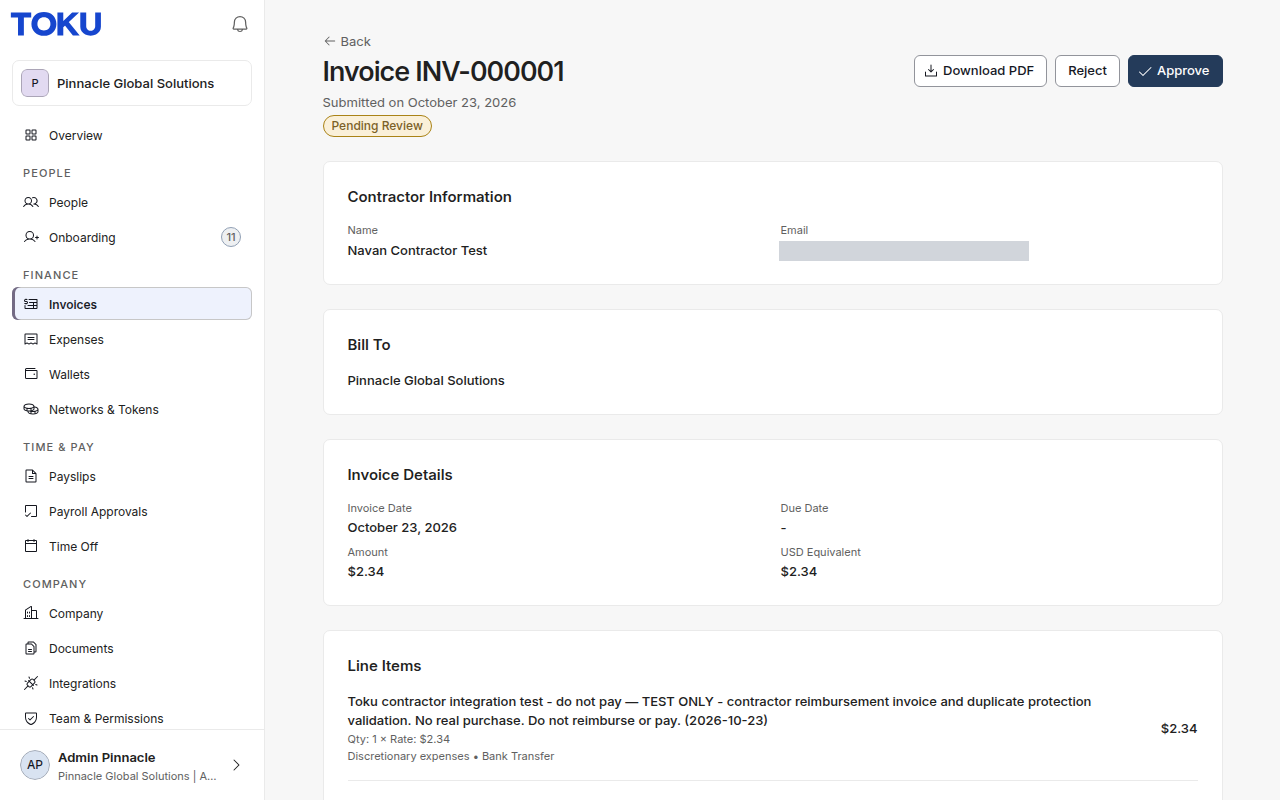
Open Finance → Invoices. Each imported contractor expense appears as an invoice with the type Reimbursement. It arrives as Pending Review, unless your organization's auto-approval rules approve it. Open it from the row's ⋯ menu with View, check the line, then Approve and pay it as usual.
ℹ️ After importing an expense, Toku tells Navan it has been synced. Paying the expense in Toku does not mark it as paid in Navan. Use Toku as your record of reimbursement payments.
Troubleshooting
| Message on a skipped expense | What to do |
|---|---|
| Import was not completed. Check the person and active currencies, then retry. | The person who submitted the expense wasn't found in Toku. Make sure they are an active member of your organization in Toku with the same email as in Navan, then sync again. If they are, check that the expense's currencies are active in Toku. |
| This contractor does not have a bank account on file for fiat invoices. | Add the contractor's bank account in Toku, then sync again. |
| … currency … is not active for this organization. | Activate that currency in Toku, then sync again. |
| Already synced or reimbursed outside this Toku organization; reconcile before importing. | Navan shows this expense as already handled by another system or another Toku account. Check where it was reimbursed before doing anything else, so it isn't paid twice. Contact Toku support if you need help. |
| Not approved in Navan | Approve the expense in Navan, then sync again. |
| Navan handles this reimbursement directly; excluded from Toku payment. | The expense is set to be reimbursed by Navan, not through payroll, so it stays in Navan. |
| Personal or partially rejected amount requires reconciliation before import. | Resolve the expense in Navan first. |
| The import failed unexpectedly. The next sync retries it. | Sync again. If the message keeps appearing, contact Toku support. |
| Message when connecting or syncing | What to do |
|---|---|
| Check API access and credentials, then retry. | Check the region, Client ID and secret. Make sure the Expense API is enabled for your Navan company. |
| Enable Navan Expense read and write API access before connecting. | In Navan, edit the API credential and turn on Expense: Write as well as read access. |
| Navan company or API permissions changed. Reconnect Navan before syncing. | The credential lost write access or was replaced. Fix it in Navan, then enter the credentials again and select Update credentials. |
| This organization is connected to a different Navan company. | A Toku organization can connect to only one Navan company. Contact Toku support if you need to switch. |
| Connection changed. Reload this page before retrying. | Someone else changed the connection at the same moment. Reload the page and try again. |
| No approved expenses were returned. | Check that the expenses are approved and reimbursed through payroll in Navan, and allow up to four hours after approval. |
Managing the connection
- Rotating the secret: create a new secret in Navan (open the credential, then Edit → Rotate Key). In Toku, enter the Client ID and new secret, then select Update credentials. The new credential must belong to the same Navan company.
- Changing Navan company or disconnecting: contact Toku support.
- Security: Toku stores your secret encrypted and never displays it again. Don't share the secret by email, chat or screenshot.
Need help?
Contact Toku support. Include the Navan expense ID shown on the sync result and the message you saw. Never include your Client secret.