
 2 MIN READ
 UPDATED OCT 30, 2026
1. Export Upcoming Payroll Register from Sequoia (PrismHR)
- Log in to the Sequoia (PrismHR) portal.
- Navigate to Payroll → Payroll Approval.
- Select the upcoming payroll batch (before approval).
- Run one of the following reports:
- Gross-to-Net (Register) → shows all pay + deductions.
- Payroll Register → detailed employee-level pay/deduction lines.
- Payroll Check Journal → adds explicit Net Pay values.
- Click Export → CSV (or Excel).
- Ensure the file includes: Employee Name, Employee ID, Gross Pay, Deductions, Net Pay.
- Save the file as
Sequoia_Payroll_Register.csv.
2. Process Stablecoin Payments in Toku
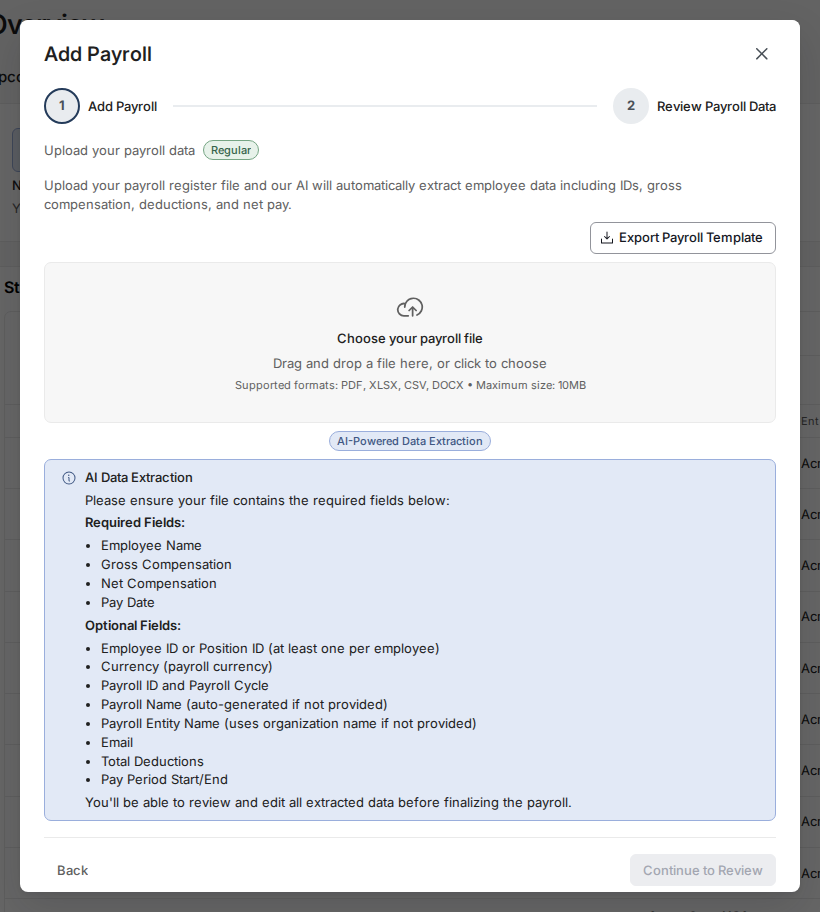
- In Toku, go to Overview, click Add Payroll, choose Regular Payroll and click Next.
- Upload your CSV (
Sequoia_Payroll_Register.csv).
- Toku automatically:
- Matches employees using IDs or emails.
- Calculates voluntary stablecoin deduction amounts.
- Review the preview table and confirm totals.
- Click Approve Transactions.
- On the following page you can propose the transactions to your finance team’s multi-sig custody solution for approval.
- Once approved by the finance team the stablecoins are distributed to your employee’s verified wallets directly from selected payment solution.
3. Export Stablecoin Deductions File from Toku
- Open the payroll from Overview. In the Settle Stablecoin Payroll step, under Export Deductions, click Export (or Re-export) → CSV Export.
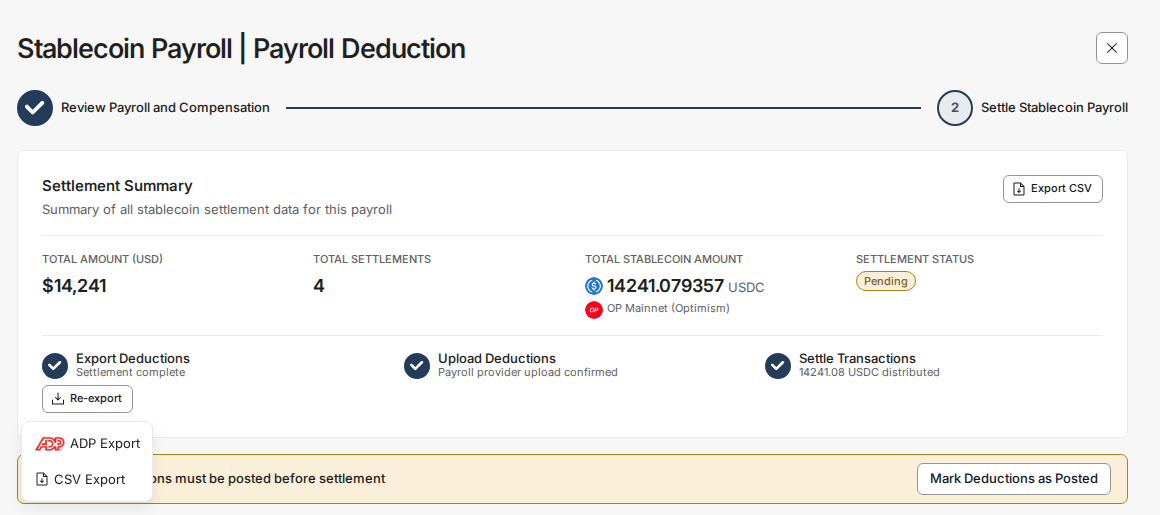
- Save the downloaded file as
Toku_Deduction_Export.csv. - Confirm these columns appear:
Employee NameEmployee IDDeduction Type(Post-Tax)Deduction Amount
- Save the file for import back to Sequoia.
4. Import Custom Post-Tax Deductions into Sequoia
Option A - Direct Import (via PrismHR Data Import Tool)
- In the Sequoia (PrismHR) portal, go to Operations → Import Processing → Data Import Tool.
- Choose the import type:
- Employee One-Time Deductions (single-cycle) or
- Scheduled Deductions Import (recurring).
- Upload
Toku_Deduction_Export.csv. - Map fields:
Employee ID→ Employee IdentifierDeduction Type→ Deduction CodeDeduction Amount→ Amount- (optional)
Stop Datefor ending deductions
- Run import and check the success log.
- Validate each employee record under HR → Change → Employee → Scheduled Deductions.
Option B - If Portal Import Is Restricted
-
Before the payroll cutoff date, email Sequoia Support / your Sequoia One CS Manager.
-
Subject: “Custom Post-Tax Stablecoin Deductions - [Pay Date] Batch”
-
Attach the
Toku_Deduction_Export.csvfile. -
In your email, request:
- Load each deduction as a post-tax fixed-amount deduction.
- Apply in the [specific payroll date] run.
- Confirm deduction code mapping and total validation.
- Request confirmation before Sequoia locks payroll.