
 5 MIN READ
 UPDATED OCT 30, 2026
📘 For all Toku users. Welcome-back screenshots updated October 29, 2026; role picker and signed-in Overview screenshots updated October 30, 2026. The signed-in screenshot uses a demo account.
Learn how to sign in to Toku at its new address, choose between a password, your Google account, or a one-time link sent to your email, and select your role if you have more than one.
Before you start
- Go to app.toku.com in your browser - this replaces tga.app.toku.com and any older Toku website you may have used.
- You no longer pick a Token Grants, Stablecoin Payroll, or Employment tab. There is one sign-in page for everyone, and Toku sends you to the right product after you sign in.
- Have your email address ready: the exact email that received your Toku invitation (work email or personal, whichever was invited).
- Have your current password ready. Your password did not change in the upgrade - if it worked before, it works now.
Go to the sign-in page
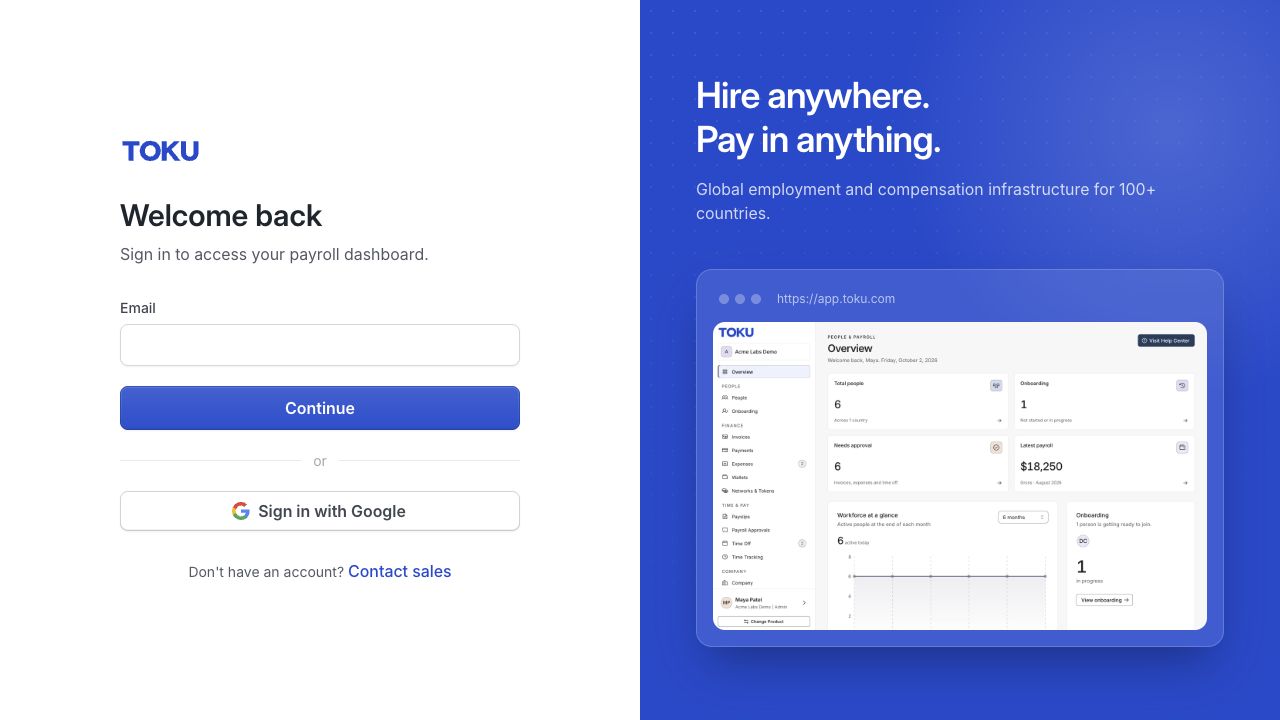
- Open your browser and type app.toku.com in the address bar, then press Enter. The page takes a couple of seconds to load. You see Welcome back and a single Email box.
Enter your email
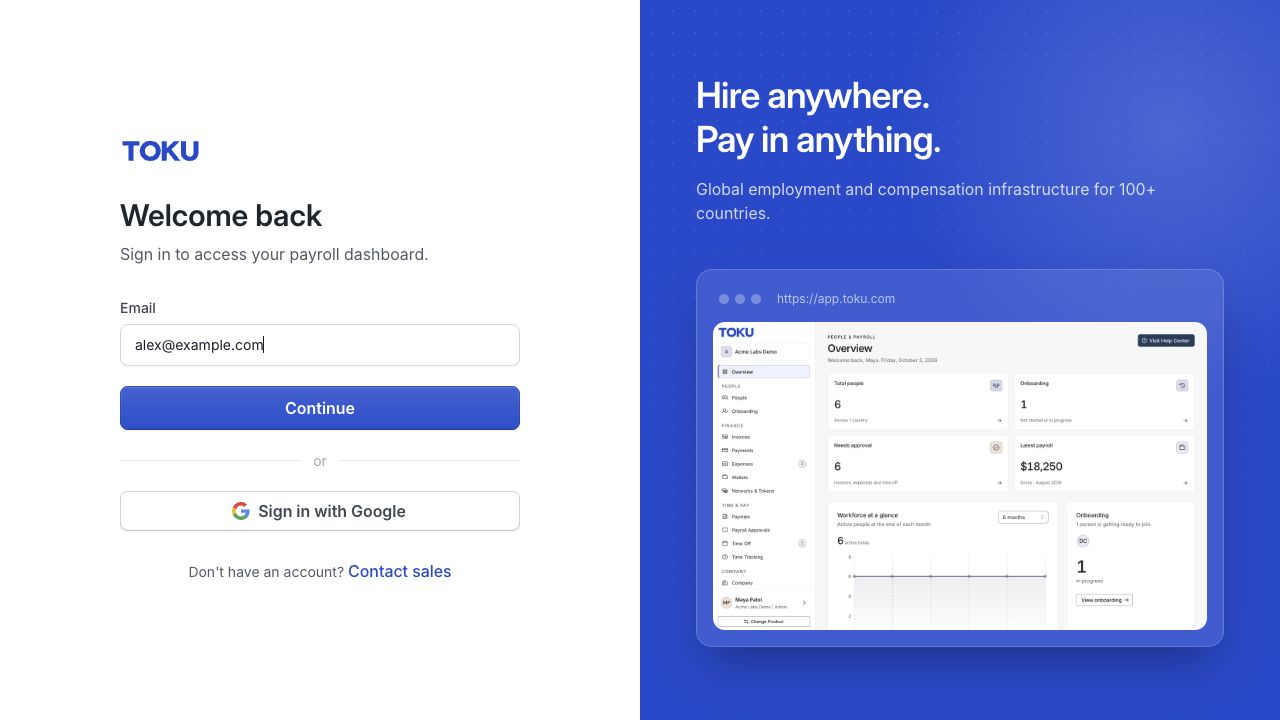
- Click the Email box and type the exact email address that received your Toku invitation. Watch for typos and extra spaces, then click Continue.
Enter your password and sign in
- The page changes to the password step and shows which account you are signing in as. Type your password, then click the blue Sign in button. Your typing shows as dots for privacy - click the eye icon at the right of the box to check what you typed. Tick Remember me if you want Toku to remember your email on this device.
- If your account has two-factor authentication turned on, enter your code when asked.
💡 Signed in as the wrong person? On the password step, click Use a different email to go back without reloading the page.
Other ways to sign in
- Sign in with Google. If your Toku email is a Google account, click Sign in with Google on the sign-in page - you can do this straight away, without entering your email first. Use the same Google account as the email that was invited to Toku, or Toku will not find your organization.
- Get a sign-in link by email. Enter your email, click Continue, then choose the option to email you a sign-in link. Toku shows Check your email and confirms the address it sent to. The link is valid for one hour and can only be used once; requesting a new one invalidates the previous link.
- If your company uses SSO, nothing changes. Keep signing in through your company's identity provider exactly as you do today.
Choose your role (if prompted)
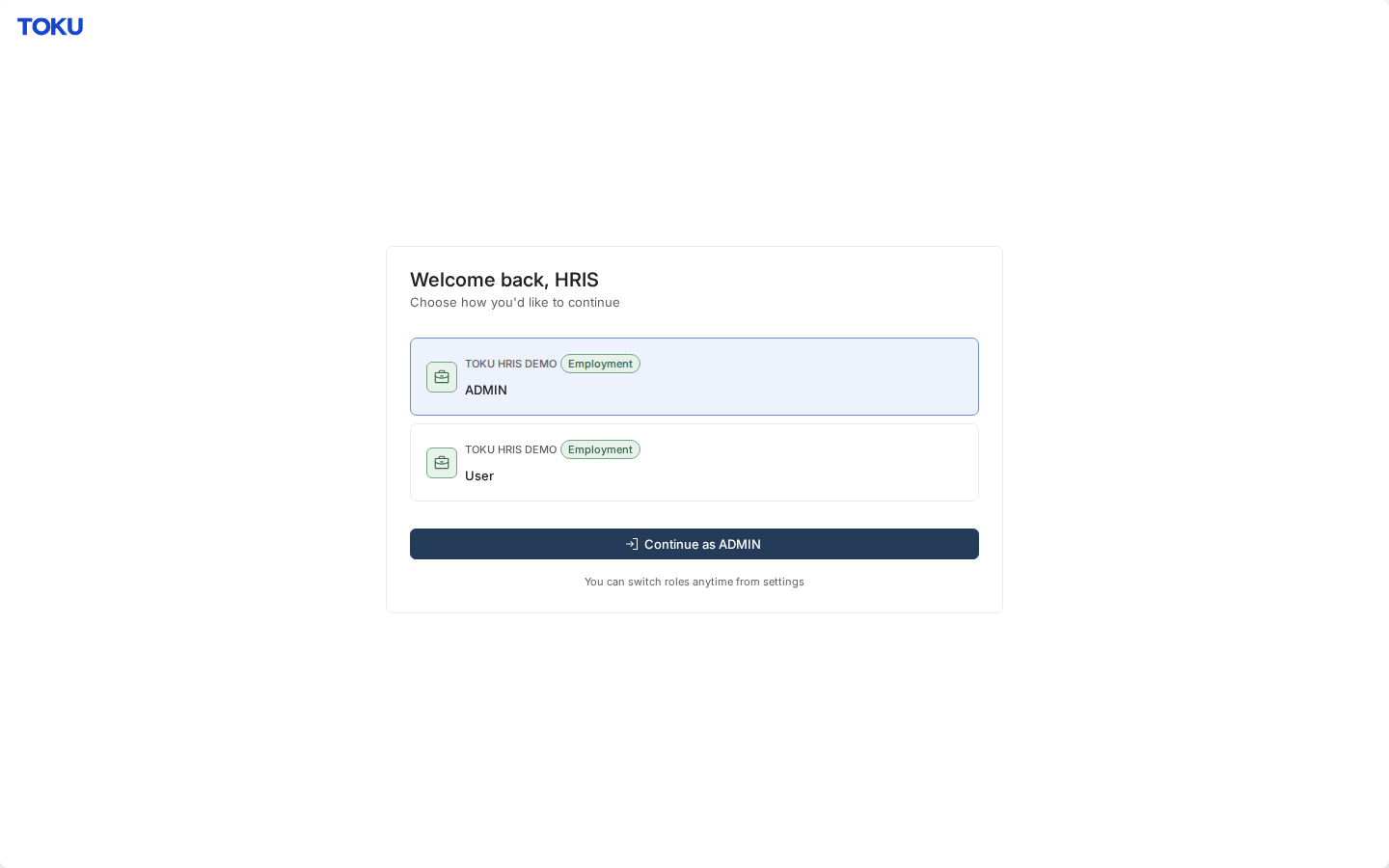
- If you see a "Choose how you'd like to continue" screen after signing in, you have more than one role. Select the role you need - ADMIN to manage the organization, or User to see your own payslips and documents - then click the Continue as button below the options to finish signing in. If you only have one role, you will not see this screen; Toku selects your role automatically and takes you straight to your home screen.
You are signed in
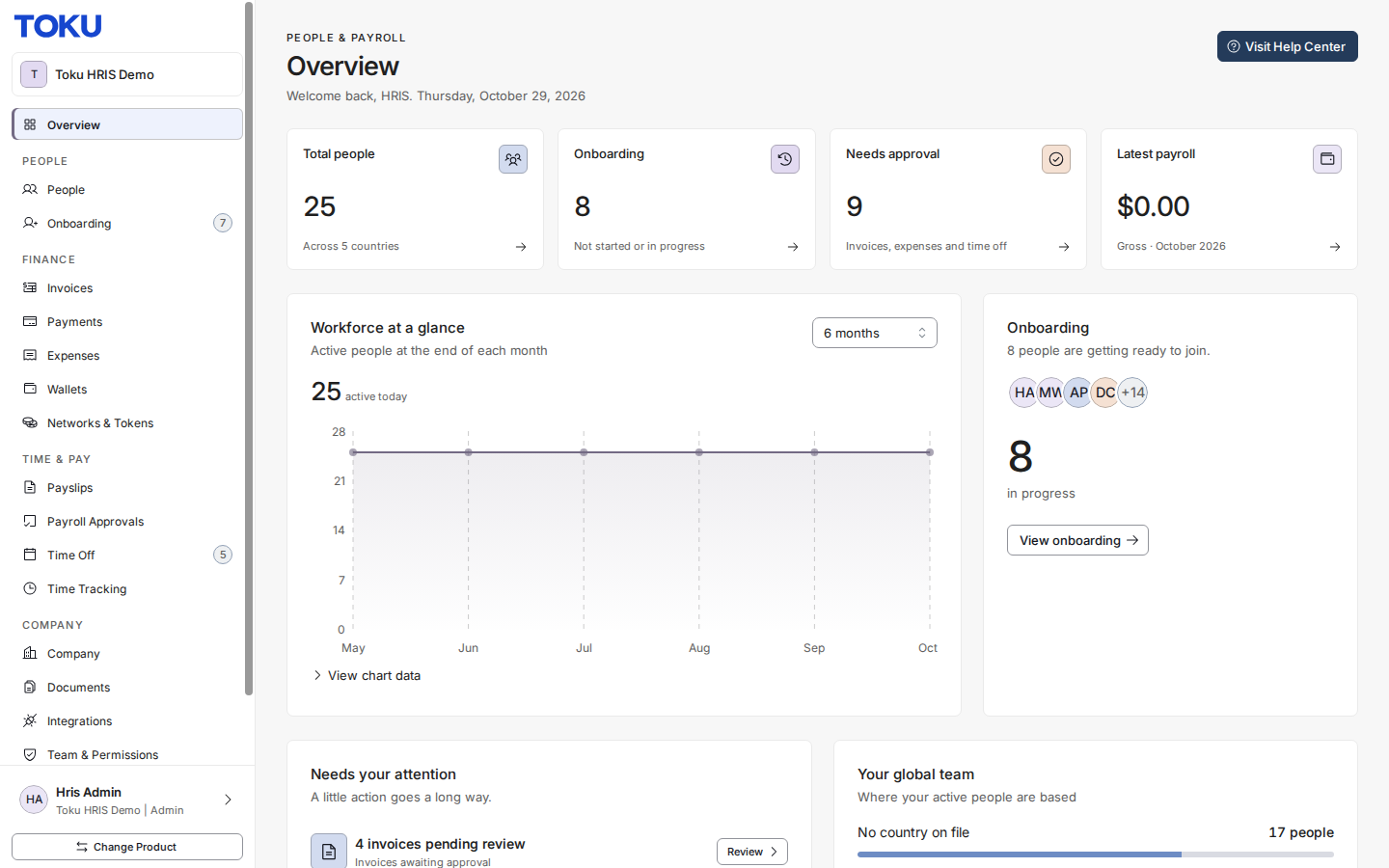
- Your Toku home screen loads. Check the upper-left corner: it shows your organization's name, which confirms you are signed in to the right place. If you never saw the role-picker screen, that is normal - it only appears if you have more than one role.
If you cannot sign in
- "We couldn't sign you in" after typing your password. For your security Toku does not say whether it was the email or the password that was wrong. Check the email address first, then use Forgot password? to reset.
- The sign-in link says it has expired. Links last one hour and can only be used once. Go back to the sign-in page and request a new one.
- The old address does not work. Use app.toku.com. Older Toku addresses may have been saved by your browser - type the new one in full rather than picking a suggestion.
- Google says you are signed in but Toku does not let you through. You are probably using a different Google account than the one invited. Sign out of Google, or open Toku in a private window and pick the right account.
Good to know
- There is one sign-in page for all Toku products. After you sign in, Toku takes you to the right product automatically.
- Your password did not change during the upgrade. Remember me stores your email address on that device only, never your password.
- You can switch between sign-in methods at any time - using Google once does not stop you using your password later.
- If you have more than one role, you can switch roles with Change Product at the bottom-left of the sidebar without signing out.
Still stuck?
You can email customer-success@toku.com to reach our support team. Please include your email address, organization name, and a description of what happened. Screenshots and videos are always welcome to speed up the troubleshooting process. Feel free to reach out any time for further assistance.