
 2 MIN READ
 UPDATED OCT 1, 2026
⚠️ Contractor invoice and payment deadlines: late action means late payment
- Contractors: submit invoices by the 19th of each month. A saved draft is not a submitted invoice.
- Admins: approve invoices by the 21st of each month. Submission alone does not authorize payment.
- Funding: Toku must receive cleared funds 4 - 5 business days before payout. Initiating a transfer or sending proof of payment does not meet the deadline.
- Standard monthly payout: the last day of the month, provided submission, approval, and funding deadlines are met. Late submission, approval, or funding will delay payment. Every day of delay pushes payment back by at least one day. A missed payment cycle can cause a longer delay; the invoice due date is not a guarantee of payment.
Automation does not remove these deadlines. Earlier published holiday deadlines take precedence; see Toku: 2026 End-of-Year Payroll & Payment Guide.
Onboarding
For contractors added through People → Add People in Toku Employment, the administrator chooses invoice automation after Contract and before Review. This administrator step is separate from the contractor’s wallet and document steps below; for the illustrated setup, see the contractor onboarding walkthrough.
See the illustrated contractor onboarding walkthrough.
- Receive Onboarding Email and click “Provide Information”
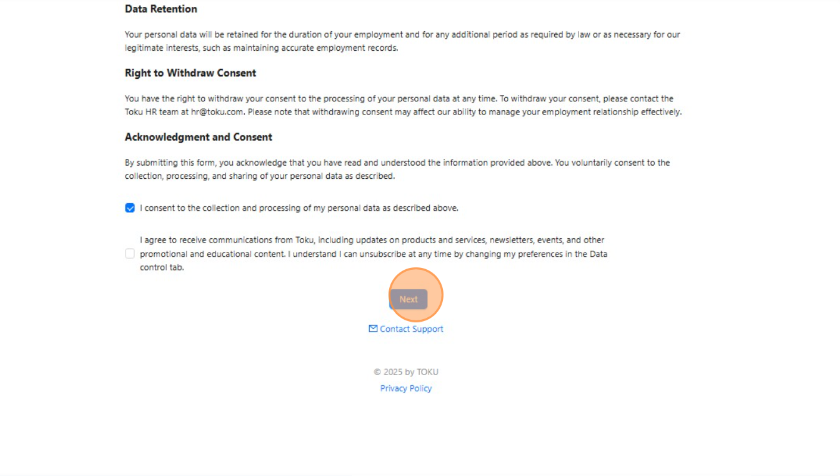
- Read and consent to the collection and processing of personal data
- Click “Next”
- Enter Personal information & click “Next”
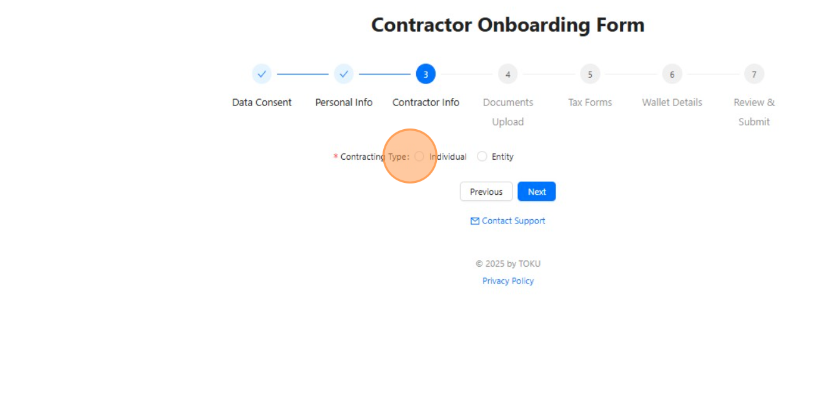
- Select Contracting Type & click “Next”
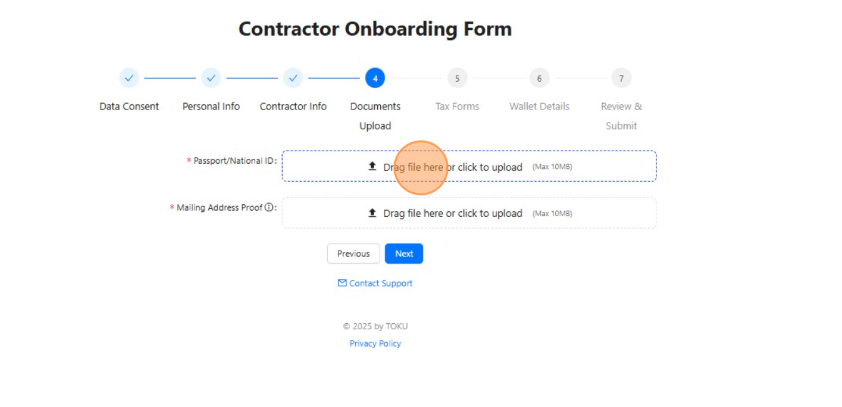
- Upload Documents & click “Next”
- Complete Tax Form & click “Next”
- click “Add First Wallet”
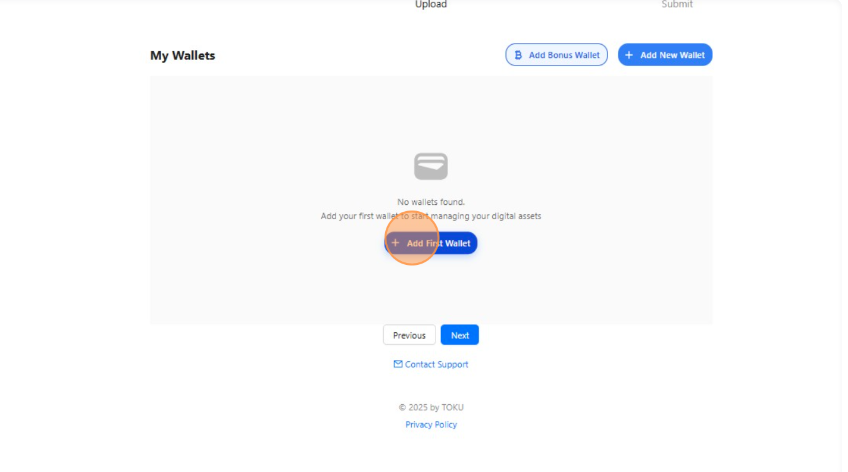
- Add Wallet Name, Address, Network, & Token. Click “Add New Wallet”
- Confirm wallet Added and click “Got it!”
- View test transaction
- Confirm receipt of test transaction
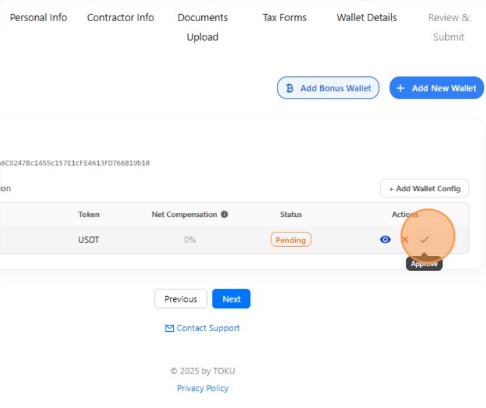
- Set token allocation & click “Confirm”
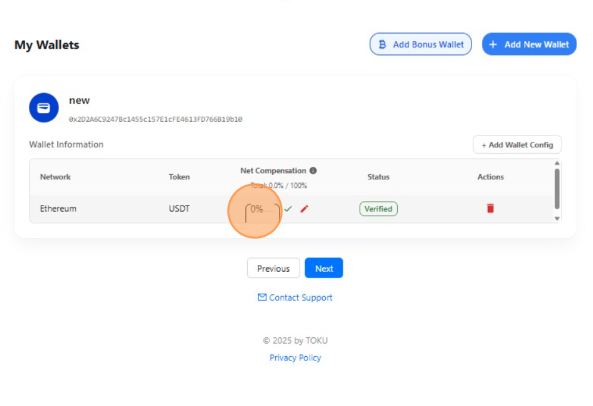
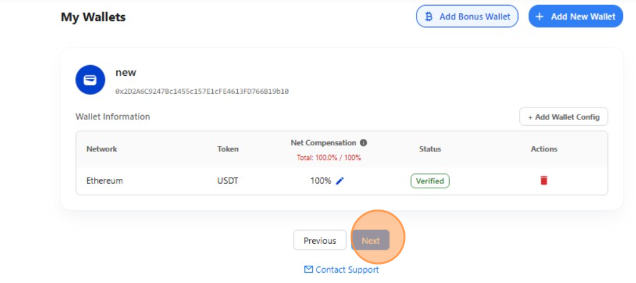
- Click “Next”
- Click “I confirm that all information is accurate and complete
- Click “Submit”
- Successfully Submitted
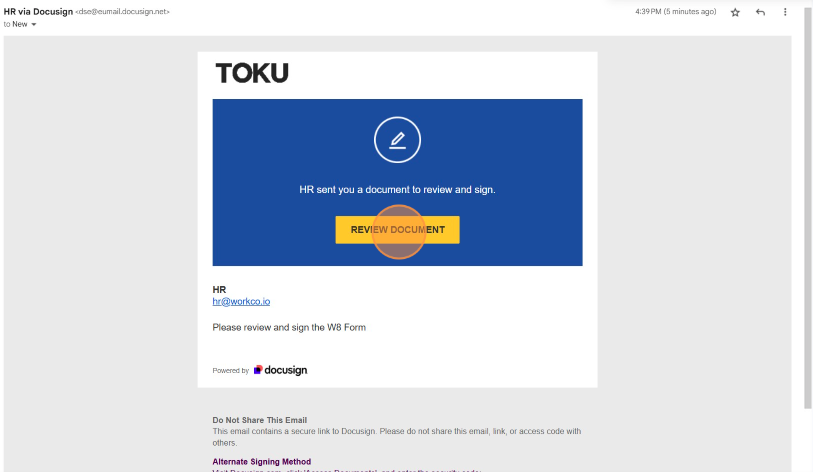
- Receive DocuSign email for relevant tax documents & click “Review Document”
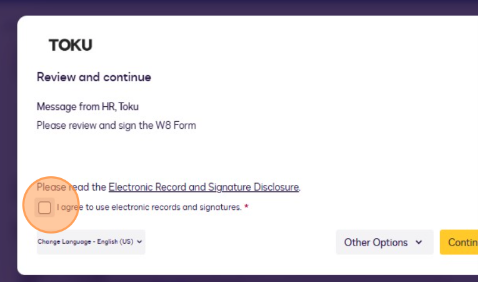
- Click “I agree to use electronic records and signatures.”
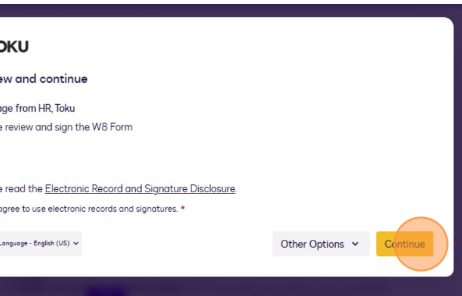
- Click “continue”
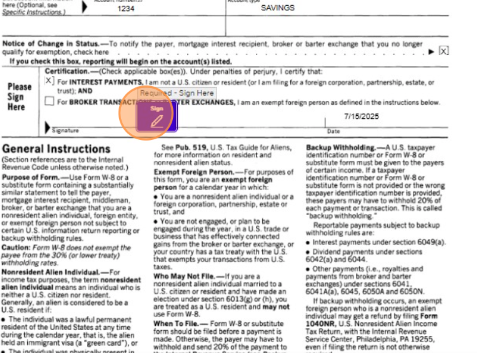
- Click “Sign
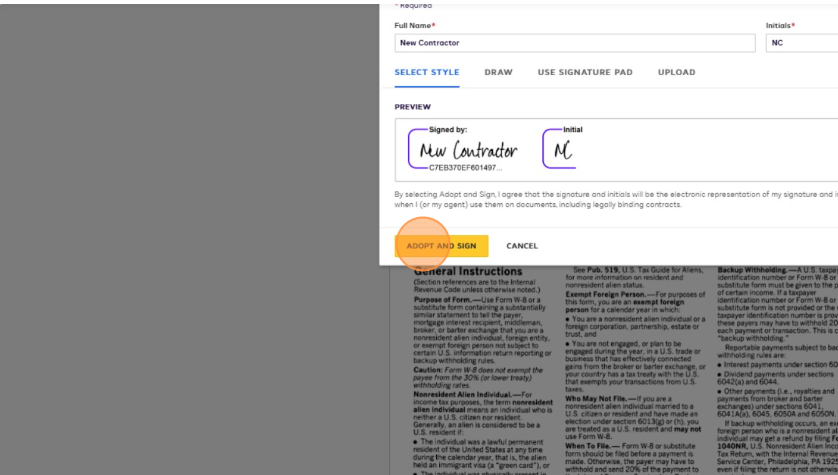
- Click “Adopt and Sign”
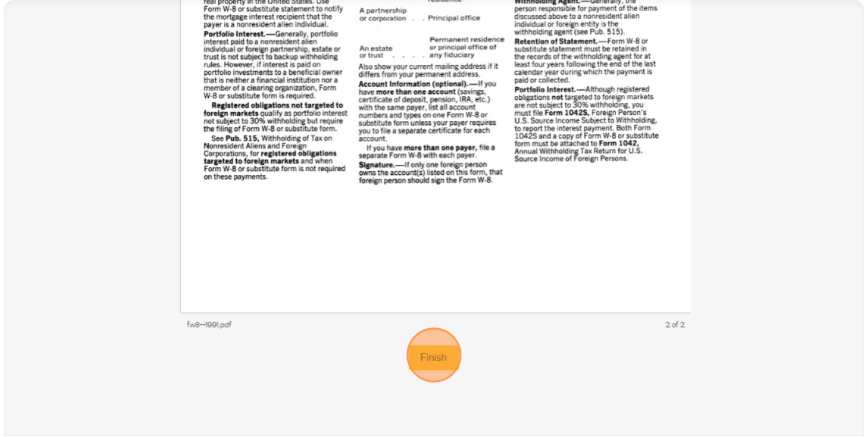
- Click Finish
💡 Congratulations! You have completed the onboarding process. You will receive an activation email once our onboarding team has received your submission.