
 1 MIN READ
 UPDATED OCT 30, 2026
Time tracking is enabled per employee, from the People tab of the Time Tracking page. Their country then decides which working-time rules apply.
The People tab
Open Time Tracking → People. The table shows every employee with their country, the country's recording obligation, and whether tracking is on.
Watch the red badges. An employee in a country that requires records who is not being tracked is a compliance gap - they generate no timesheets, so this tab is the only place they will ever surface. Gaps sort to the top, a banner counts them, and Filters → Compliance isolates them.
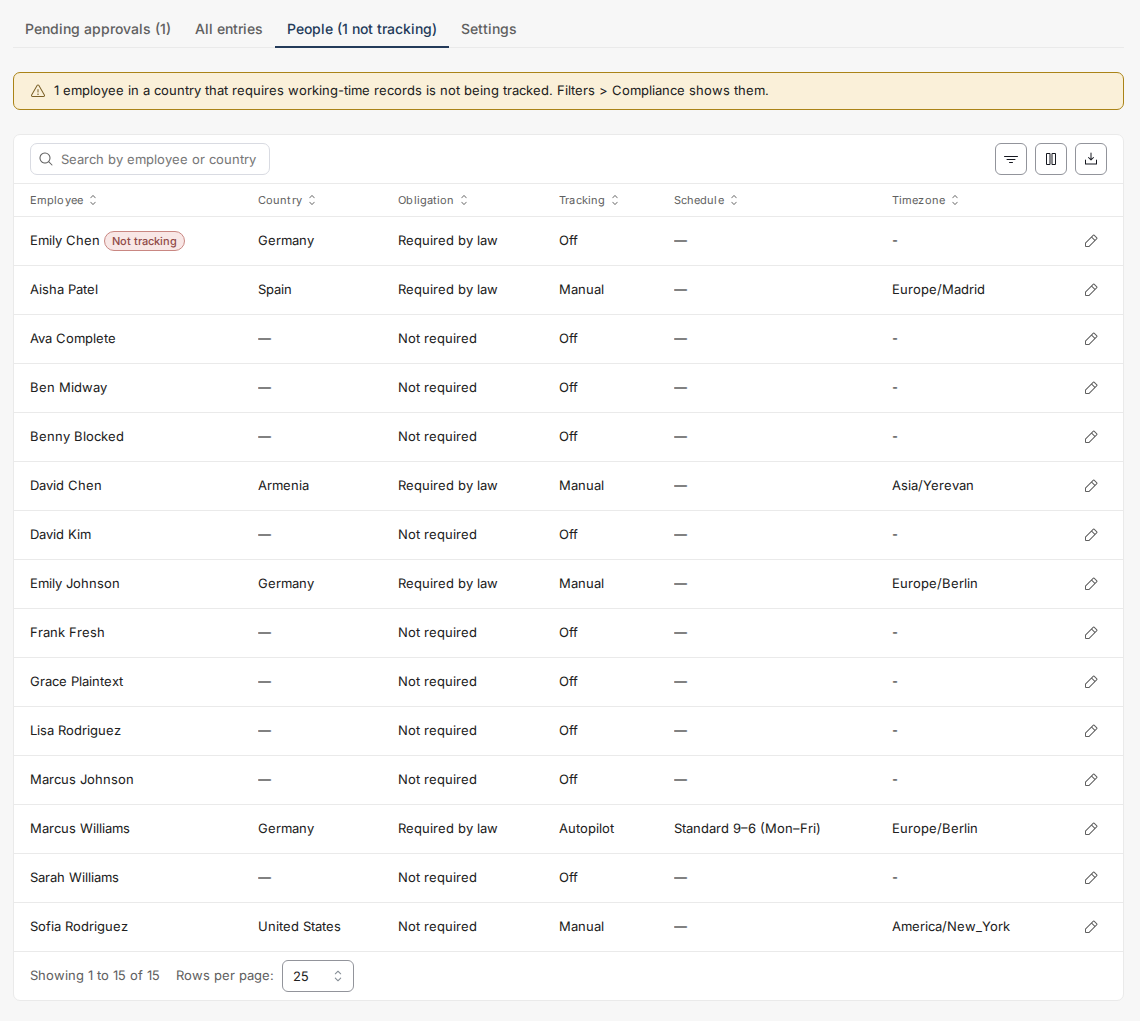
Enrol an employee
- Click the pencil icon (Enable) at the end of the employee's row and set Time tracking to On.
- Choose the mode: Manual entry (the employee types their times, signs weekly) or Autopilot (Toku generates days from a fixed schedule, the employee reviews and signs monthly). Autopilot needs a schedule template and is only available where the country's rules permit it.
- Check the timezone. It is pre-filled from the employee's country - change it if they work from somewhere else. Days and weeks are measured in this zone, so a wrong zone produces false rest-period findings.
- Set the Tracking period: a start date (and an end date, if tracking should stop on a known date), then Save.
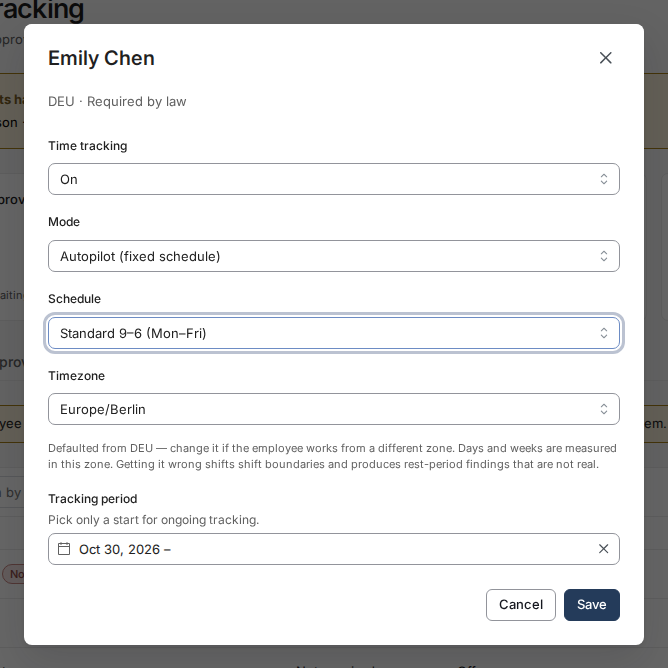
The form will refuse, with a specific reason shown in the dialog, to enrol contractors (employees only in this release), terminated employees, Autopilot without a schedule, or Autopilot in a country whose rules do not allow declared schedules.
Questions not covered here? Email customer-success@toku.com.