
 2 MIN READ
 UPDATED OCT 30, 2026
📘 For employees and organization administrators on Toku. Last updated October 30, 2026.
Access your completed and signed I-9 form in the Documents section of Toku.
Before you start
- In most organizations, your HR or admin team uploads your signed I-9 to your Documents once it's complete. If your organization uses Toku's e-signature flow for I-9s, it's added automatically once every required signer - including Toku's compliance team, who complete Section 2 - has signed.
- Don't see an I-9 you're expecting? Email customer-success@toku.com with your name, organization, and when the form was completed.
Find your I-9 as an employee
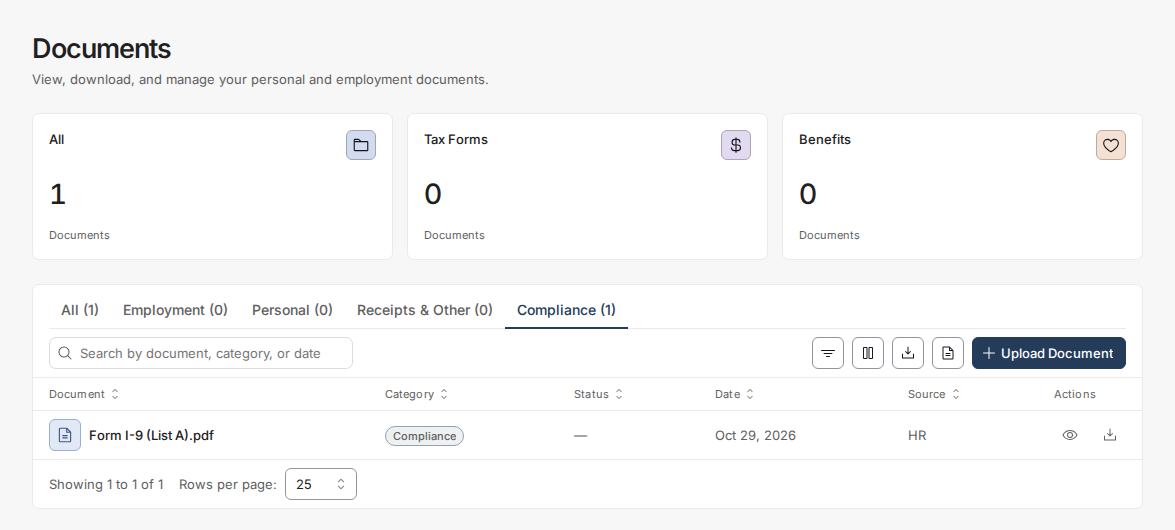
- Open Documents in the left-hand menu.
- Click the Compliance tab above the table to filter your documents down to it.
- Click the eye icon to view it, or the download icon to save a copy to your computer.
View employee I-9 forms as an administrator
- Open Documents in the left-hand menu.
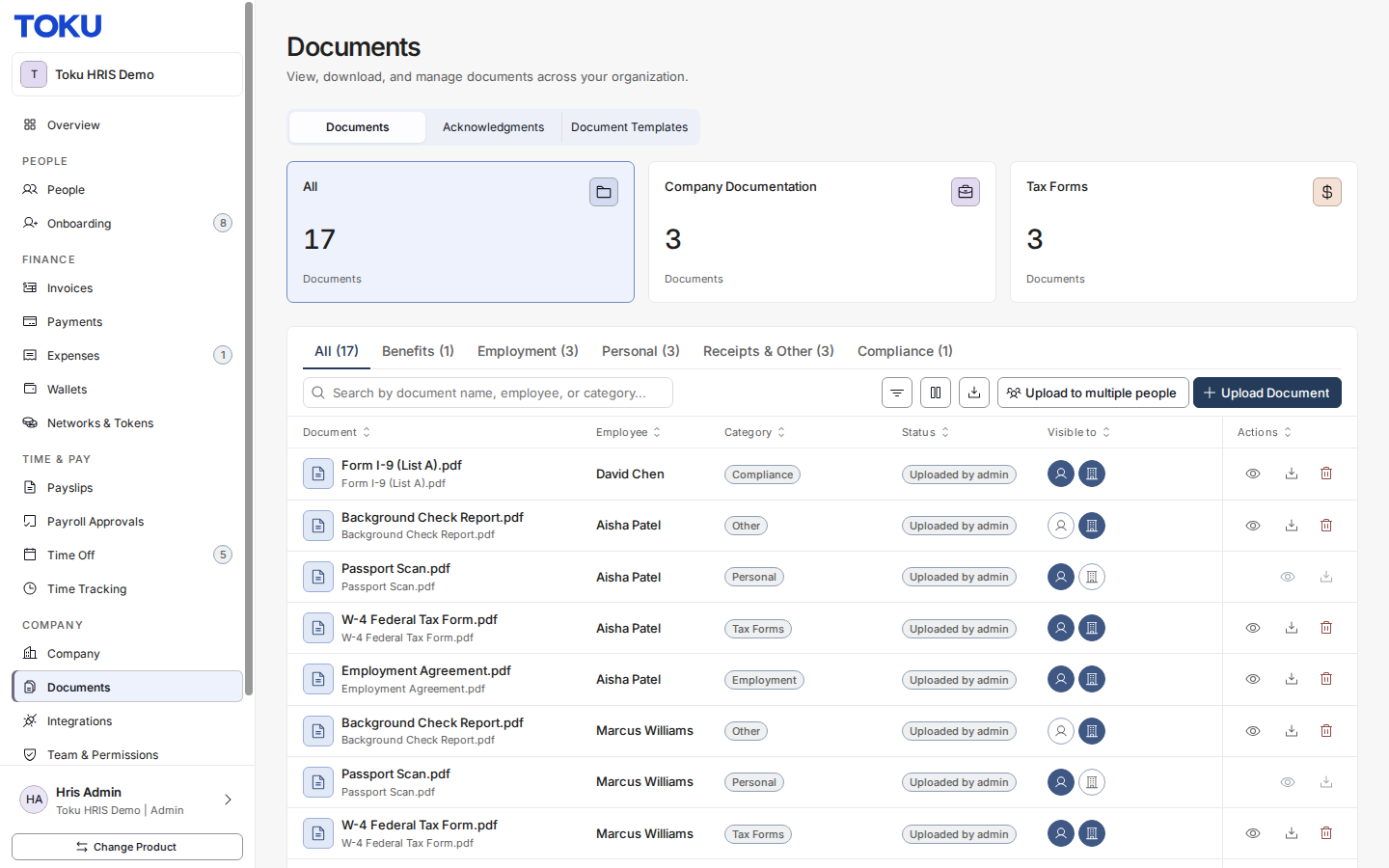
- Click the Compliance tab above the table, or use the search bar, to narrow the table to I-9 forms.
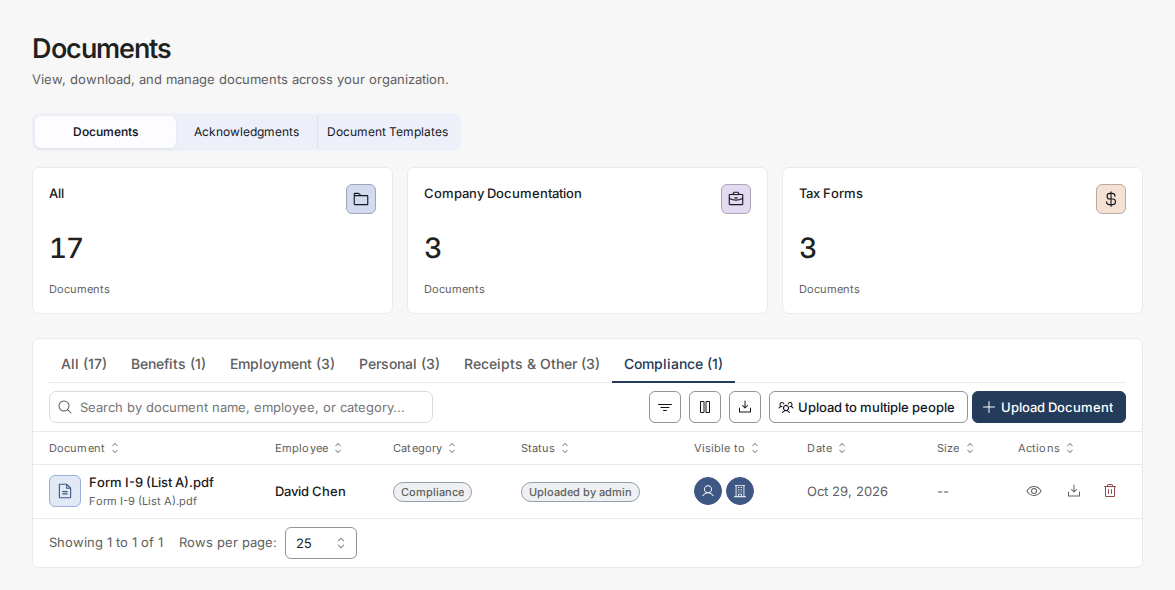
- Each row shows the employee, category, date, and size (some documents show "-" for size); click the eye icon to view it or the download icon to save it.
Good to know
- The signed I-9 lives in the Compliance category. Its name depends on how it was added - a manually uploaded I-9 keeps the name your admin gave it (e.g. "Form I-9 (List A)"); one added automatically through e-signature is typically named after the signed template, followed by "(Signed)".
- If an I-9 is missing, ask your HR/admin team whether it's been uploaded yet. If your organization uses e-signature for I-9s, it may still be awaiting a signer - including Toku's compliance team, who complete Section 2.
- Each I-9 shows the date it was added to Documents and is stored securely for your records.
⚠️ If you believe an I-9 completed before you started using Documents is missing and should be there, contact customer-success@toku.com with your name, organization, and when the form was completed.
Still stuck?
You can email customer-success@toku.com to reach our support team. Please include your email address, organization name, and a description of what happened. Screenshots and videos are always welcome to speed up the troubleshooting process. Feel free to reach out any time for further assistance.