
 8 MIN READ
 UPDATED OCT 30, 2026
⚠️ Contractor invoice and payment deadlines: late action means late payment
- Contractors: submit invoices by the 19th of each month. A saved draft is not a submitted invoice.
- Admins: approve invoices by the 21st of each month. Submission alone does not authorize payment.
- Funding: Toku must receive cleared funds 4 - 5 business days before payout. Initiating a transfer or sending proof of payment does not meet the deadline.
- Standard monthly payout: the last day of the month, provided submission, approval, and funding deadlines are met. Late submission, approval, or funding will delay payment. Every day of delay pushes payment back by at least one day. A missed payment cycle can cause a longer delay; the invoice due date is not a guarantee of payment.
Automation does not remove these deadlines. Earlier published holiday deadlines take precedence; see Toku: 2026 End-of-Year Payroll & Payment Guide.
📘 For contractors on Toku. Last updated October 30, 2026.
Find out whether your next invoice will be paid to your bank account or crypto wallet, and ensure your payment details are set up correctly so payouts never get stuck.
Before you start
- You must be signed in to your Toku contractor account at app.toku.com.
- Your organization must have invited you and you must have finished your account onboarding.
- For crypto payouts: ask your organization administrator if they support crypto payments.
See your payment methods
- Open your browser and go to app.toku.com. You see Welcome back and a single Email box - there are no Token Grants, Stablecoin Payroll or Employment tabs any more. Toku takes you to the right product after you sign in.
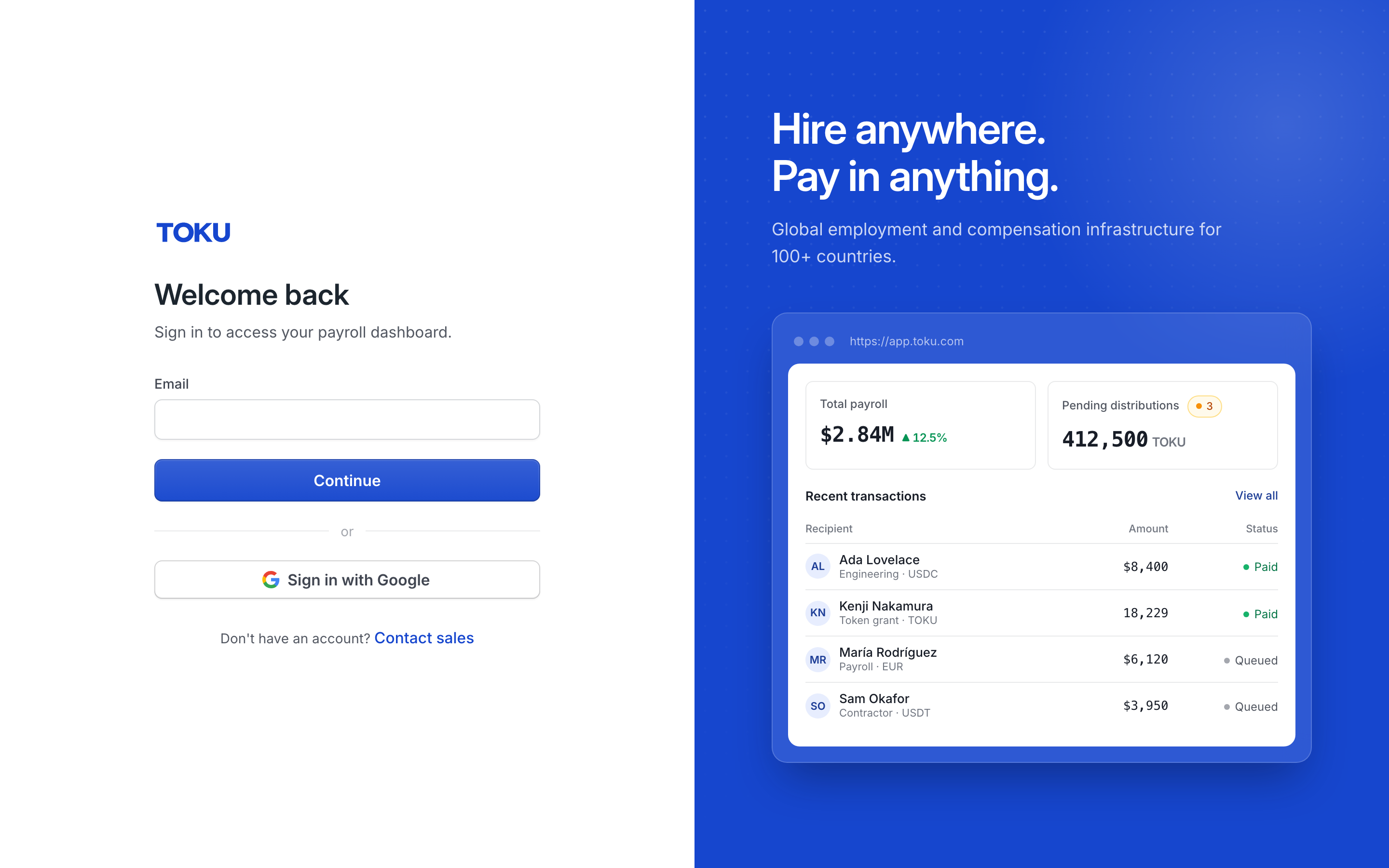
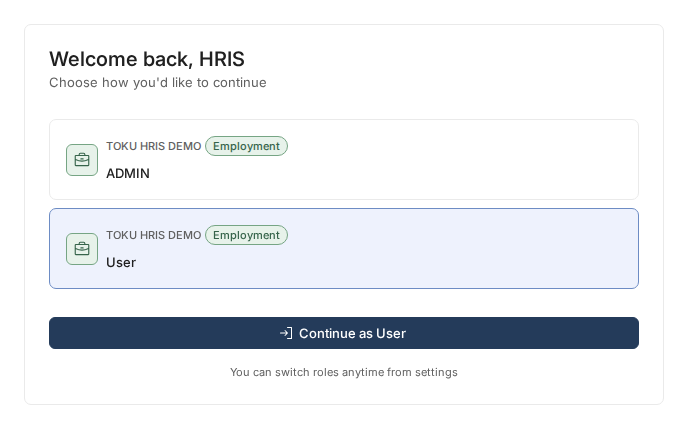
- Type your email and select Continue, then enter your password and click Sign in. If you work with multiple organizations, select the one paying this invoice and click Continue as User.
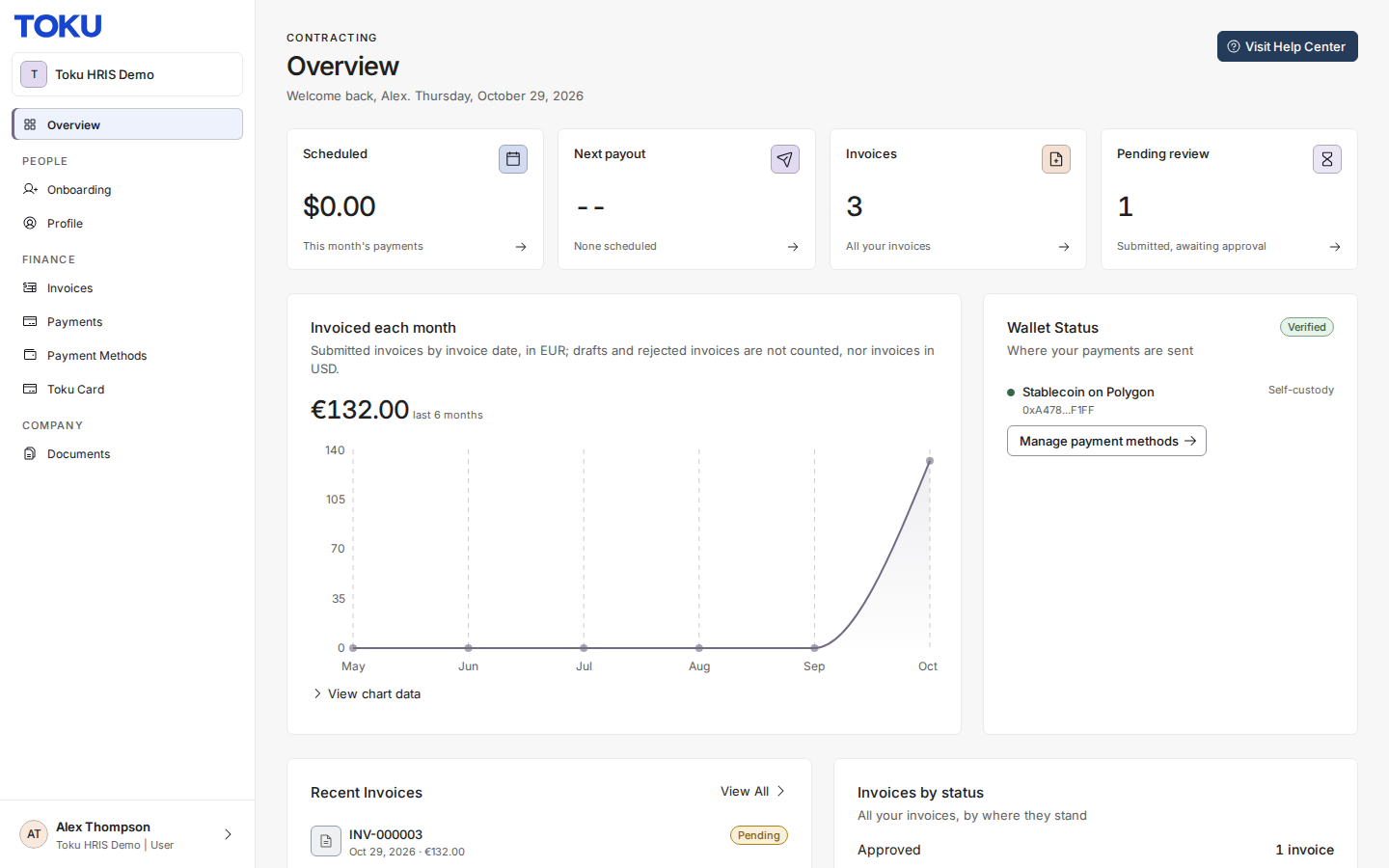
- Click Payment Methods in the left-hand menu (above Toku Card). The page shows "Manage the wallets you use to get paid."
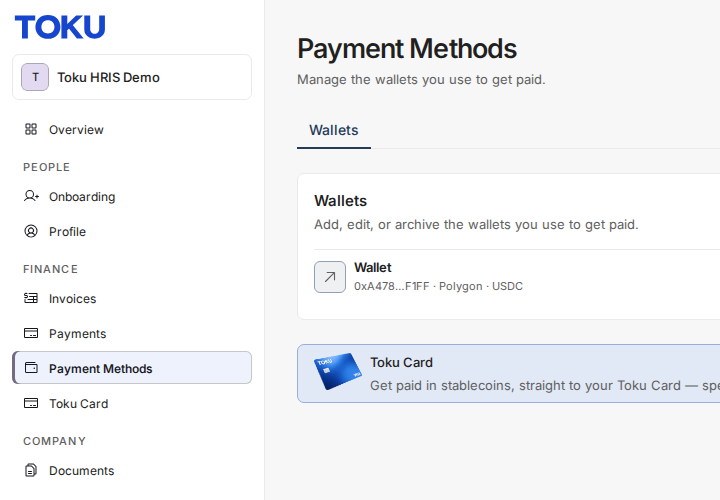
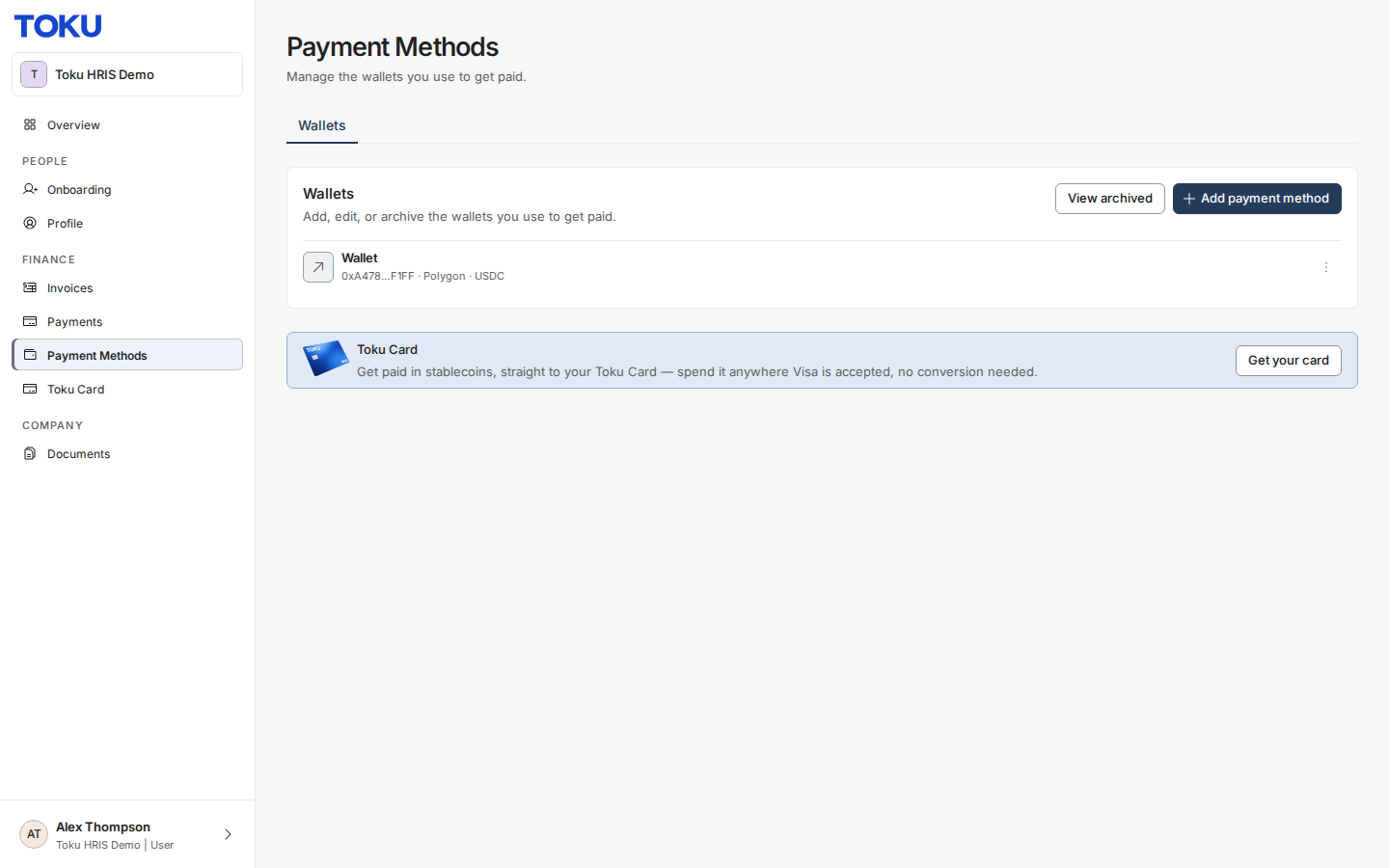
- On the Payment Methods page, look at the Wallets section (called Wallets & Bank Accounts if you also have a bank account on file). Each row shows your wallet address (like 0xA478...F1FF), the network (like Polygon), and the currency (like USDC). This is exactly what Toku will use for a crypto payout.

Get paid in crypto
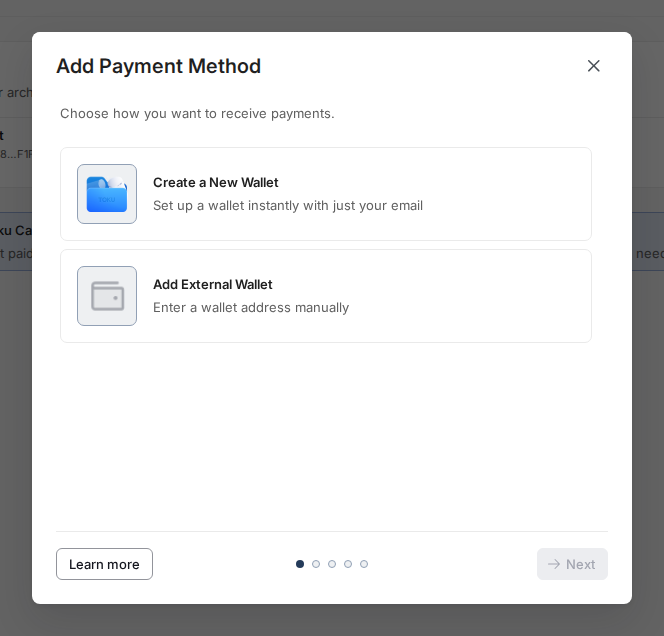
- To add a wallet, click the blue Add payment method button. A guided window opens with two choices: Create a New Wallet, which sets one up from your email address, or Add External Wallet, where you paste in an address you already control. A newly added wallet shows a yellow Pending label until verification completes.
Get paid by bank transfer
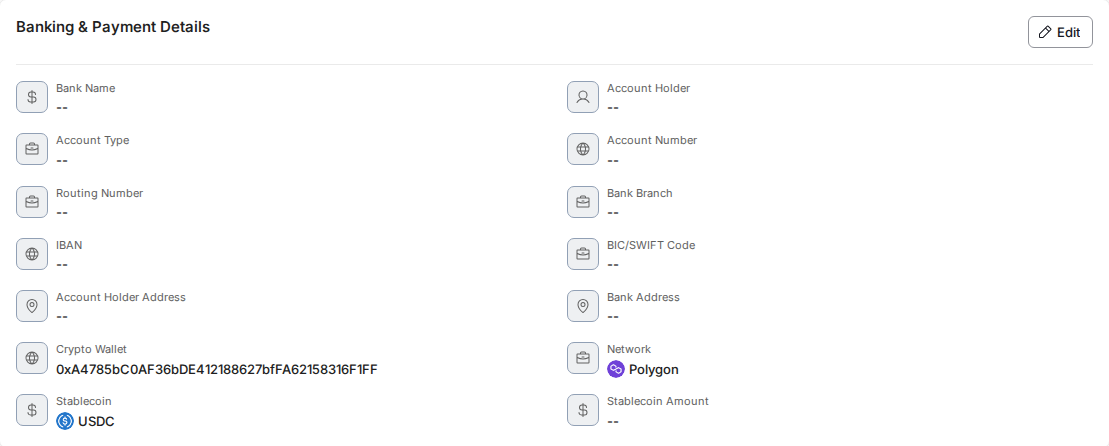
- Click Profile in the left-hand menu and scroll to the Banking & Payment Details box. Check that every field has a value: Bank Name, Account Holder, Account Type, Account Number, and (depending on your country) Routing Number, IBAN, or BIC/SWIFT Code. A "-" means that detail is missing.
Which wallet an invoice pays to
The invoice no longer borrows the first wallet on your profile: it looks for a verified wallet that matches the token and network on the line item, and when there isn't one it says which token and network is missing and links you to Payment Methods.
- The Payment Destination panel names the route it resolved. It shows the token and network, then the wallet address that route will pay, for example USDC on POLYGON above 0xA478...F1FF. Click the address to copy it.
- When nothing matches, the panel says so rather than showing another wallet. It turns red and reads "No verified USDT on Ethereum wallet", with "Add a wallet for this currency and network in Payment Methods, then submit." An invoice with no crypto line item reads "No crypto line items on this invoice."
- The token and network dropdowns list every route your organization supports, not only the ones you hold a wallet for. Routes you can be paid on sort to the top; the rest are marked "No wallet", "Pending verification" or "Verify wallet", so you can see why one is unavailable instead of wondering where it went.
- You find out before you submit. Choosing a route you hold no verified wallet for shows a line under the crypto fields straight away: "You have no USDT wallet on Ethereum, so this invoice cannot be paid", followed by an "Add a wallet" link.
- A wallet still in review is not treated as a missing wallet. The message names your token and network, says the wallet is awaiting verification, and tells you that you can save the invoice as a draft and submit it once the wallet is verified. If it is waiting on you to confirm a test transaction, it says that instead and the link reads "Verify your wallet".
- If you submit anyway, the refusal names the route. For a missing wallet it reads "This invoice pays in USDT on Ethereum, but you do not have an active wallet for that token and network. Add one on your Payment Methods page, then submit again." It appears as a banner that stays on screen with a link to Payment Methods, rather than a message that clears itself after a few seconds.
Fix payment issues
- If a wallet shows a yellow Pending label, it is not yet usable for payouts. If it stays pending for more than a day, contact support. A ready wallet shows a green Verified label or no label at all.

Quick check: what's on file
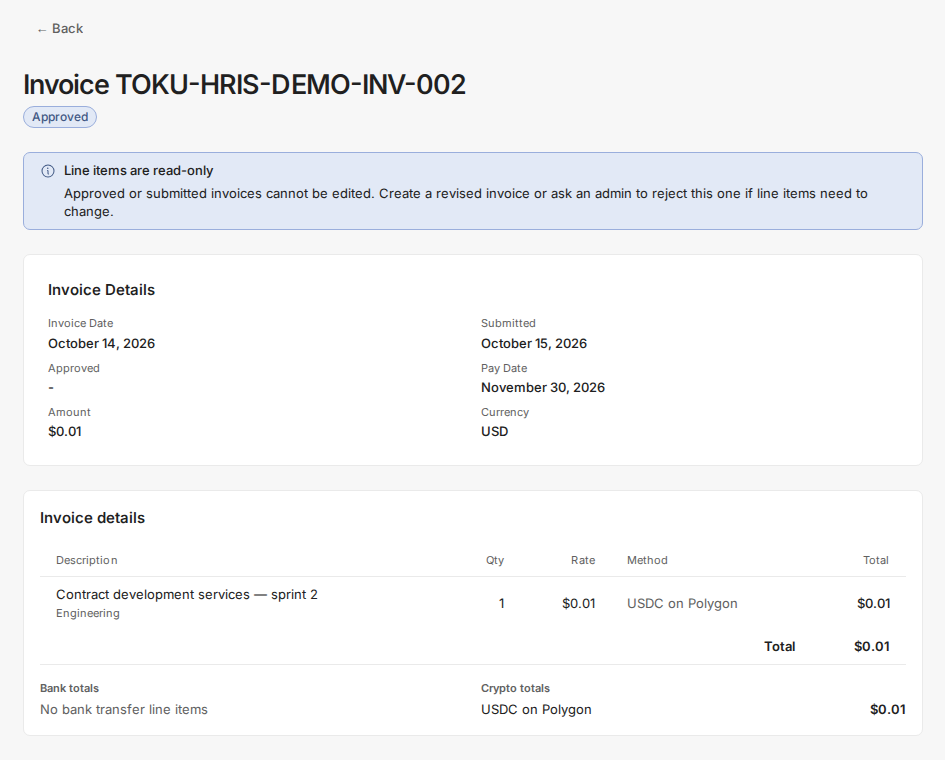
- To see which payment route an invoice uses, open Invoices, click an invoice row, and look at the Method column (for example "USDC on Polygon"). The token and network come from the route selected for the invoice, and Toku confirms the exact wallet destination when the invoice is approved. "Bank totals" and "Crypto totals" show how much is routed through each payment method.
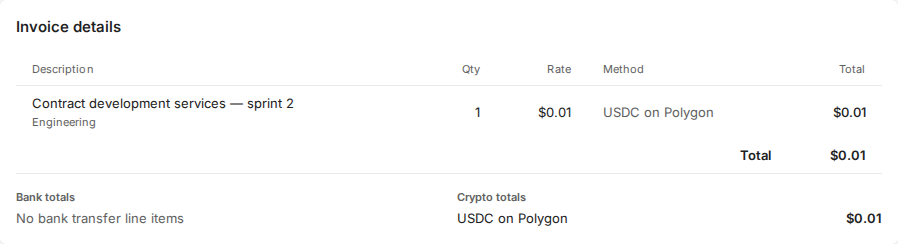
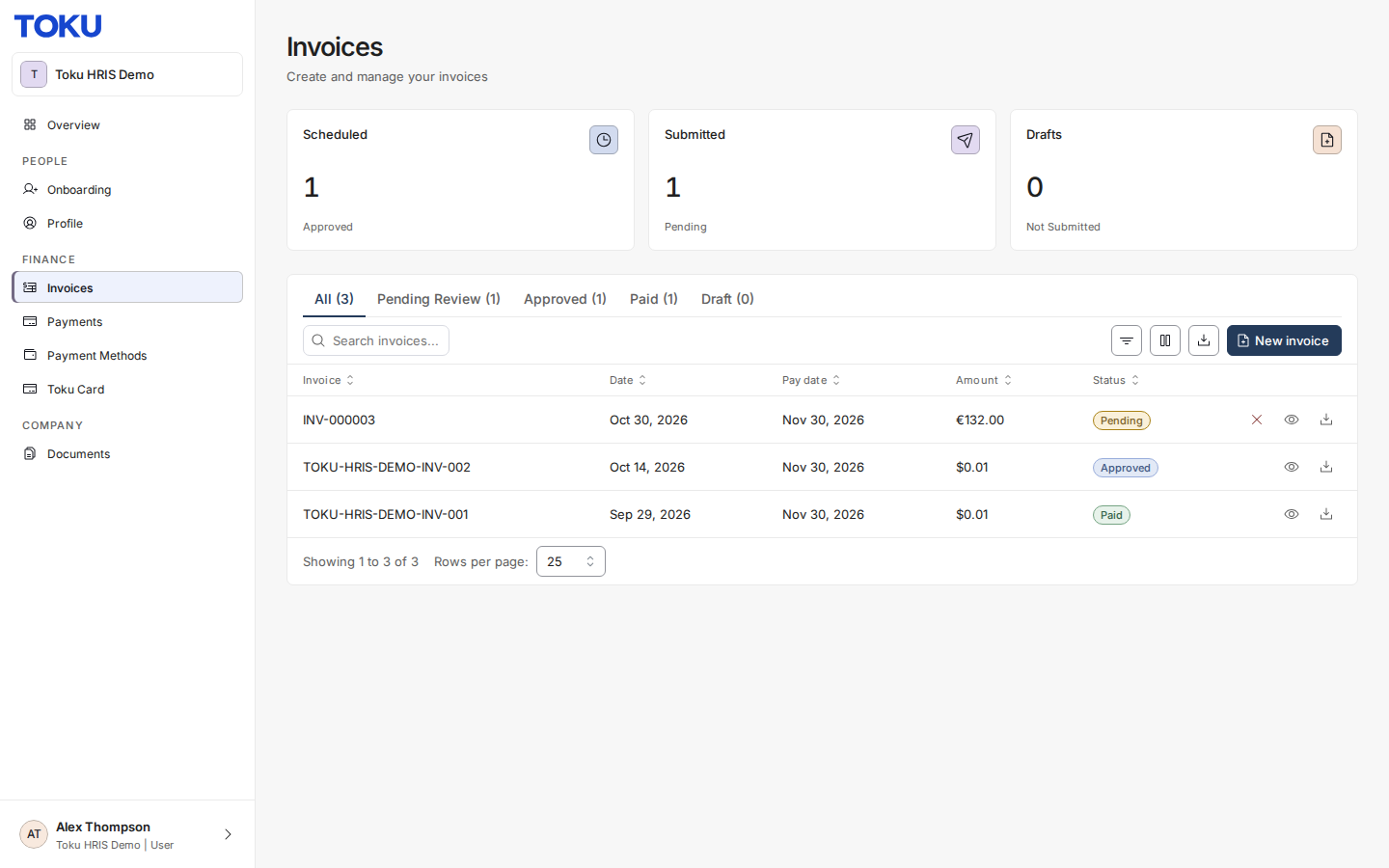
- Click Invoices in the left-hand menu to see your list with amounts and statuses. Click any invoice row to see its payment route and confirm it will be paid as expected.
- Click Profile and scroll to Banking & Payment Details. Your bank details appear in the top rows; your crypto wallet address, network, and currency appear at the bottom of the same box.

- On an invoice's details page, the Currency field shows the currency the invoice was created in, such as USD, even when the Method is a crypto wallet. If the invoice currency is USD or another USD-pegged stablecoin and the payout token is also USD-pegged, Toku pays the amount 1:1: a 100 USD invoice pays 100 tokens, with no FX conversion or exchange rate. For any non-parity currency and token pair, Toku must lock an FX rate before the invoice can be batched. The invoice continues to show its own currency, including in Crypto totals, which totals invoice amounts routed to wallets rather than the number of tokens sent. The contractor invoice does not display an exchange rate.
Good to know
- Toku uses the payment route selected for the invoice and confirms the exact bank account or wallet when the invoice is approved. Payment details are not taken from text typed into the invoice.
- A crypto line item pays only when you hold a verified wallet for that exact token and network. A verified USDC wallet does not cover a USDT line item, and a wallet on one network does not cover the same token on another.
- An invoice's currency and its payout method are independent. A USD invoice paid in a supported USD-pegged stablecoin stays labeled USD and pays 1:1, so there is no conversion or exchange rate. Non-parity currency and token pairs require a locked FX rate before payment batching.
- A wallet with a Pending status does not count yet. Newly added wallets need verification before they can receive payouts.
- Changing a saved payment method does not silently redirect an approved invoice. Toku re-checks the confirmed destination before batching; if it no longer matches or is no longer eligible, the invoice must be re-planned before payment. Contact support if you changed payment details after submitting an invoice.
- Missing or incomplete bank details are the most common reason a bank payout cannot be sent.
Still stuck?
You can email customer-success@toku.com to reach our support team. Please include your email address, organization name, and a description of what happened. Screenshots and videos are always welcome to speed up the troubleshooting process. Feel free to reach out any time for further assistance.