
 5 MIN READ
 UPDATED OCT 30, 2026
⚠️ Contractor invoice and payment deadlines: late action means late payment
- Contractors: submit invoices by the 19th of each month. A saved draft is not a submitted invoice.
- Admins: approve invoices by the 21st of each month. Submission alone does not authorize payment.
- Funding: Toku must receive cleared funds 4 - 5 business days before payout. Initiating a transfer or sending proof of payment does not meet the deadline.
- Standard monthly payout: the last day of the month, provided submission, approval, and funding deadlines are met. Late submission, approval, or funding will delay payment. Every day of delay pushes payment back by at least one day. A missed payment cycle can cause a longer delay; the invoice due date is not a guarantee of payment.
Automation does not remove these deadlines. Earlier published holiday deadlines take precedence; see Toku: 2026 End-of-Year Payroll & Payment Guide.
📘 For contractors on Toku. Last updated October 30, 2026.
Learn to create an invoice from scratch, fill in the required details, attach supporting files, and submit it for approval.
Before you start
- You need an account with an email address and password set up when you accepted your Toku invitation.
- Add a bank account or active wallet under Payment Methods in the left menu before creating your first invoice - the form won't accept submissions without payment details on file.
- Have your contract handy so you know the currency, amount, and billing terms to use.
Sign in to your account
- Go to app.toku.com. You see a page headed Welcome back with a single Email box - there are no product tabs to choose. This address replaced tga.app.toku.com in August 2026.
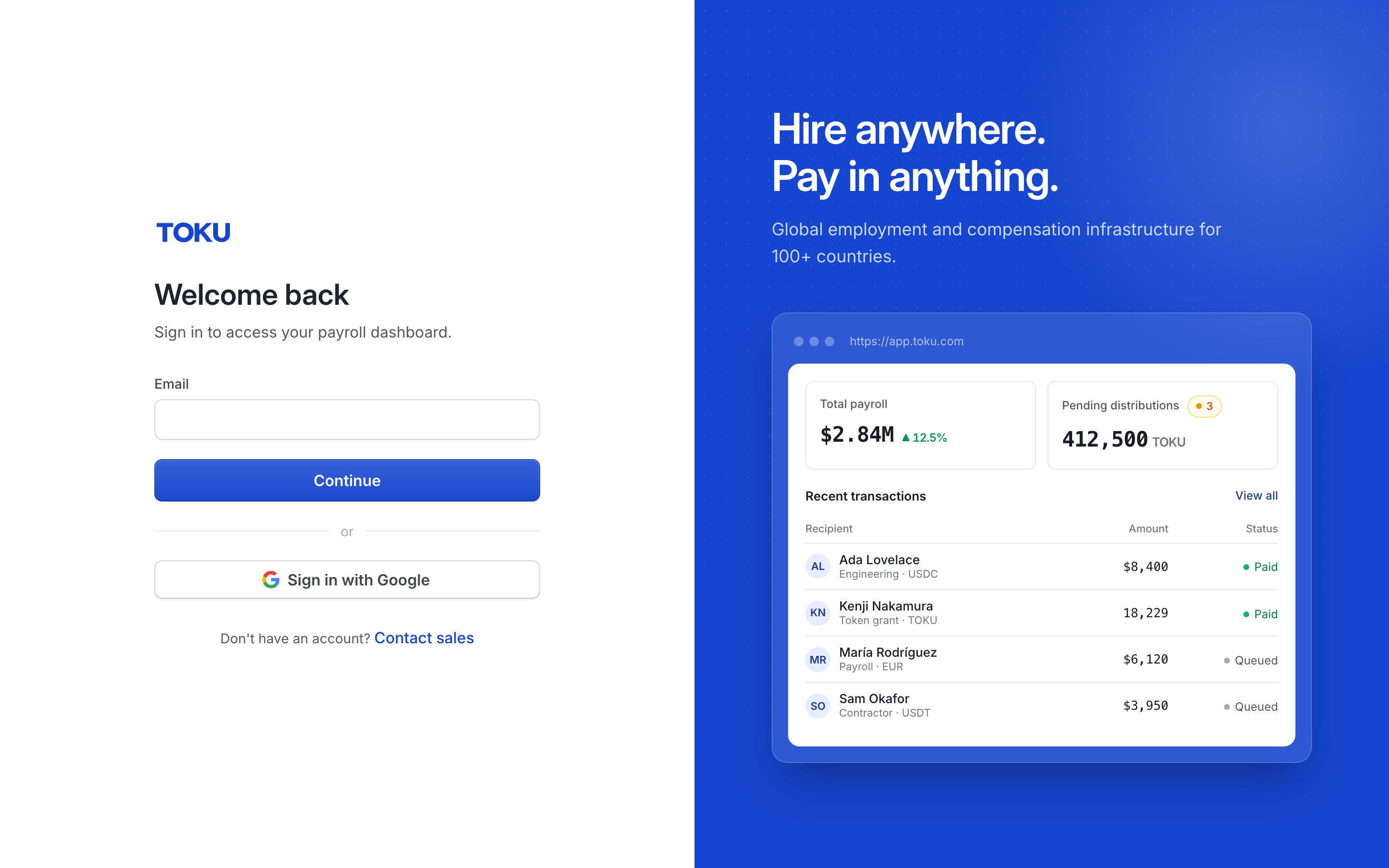
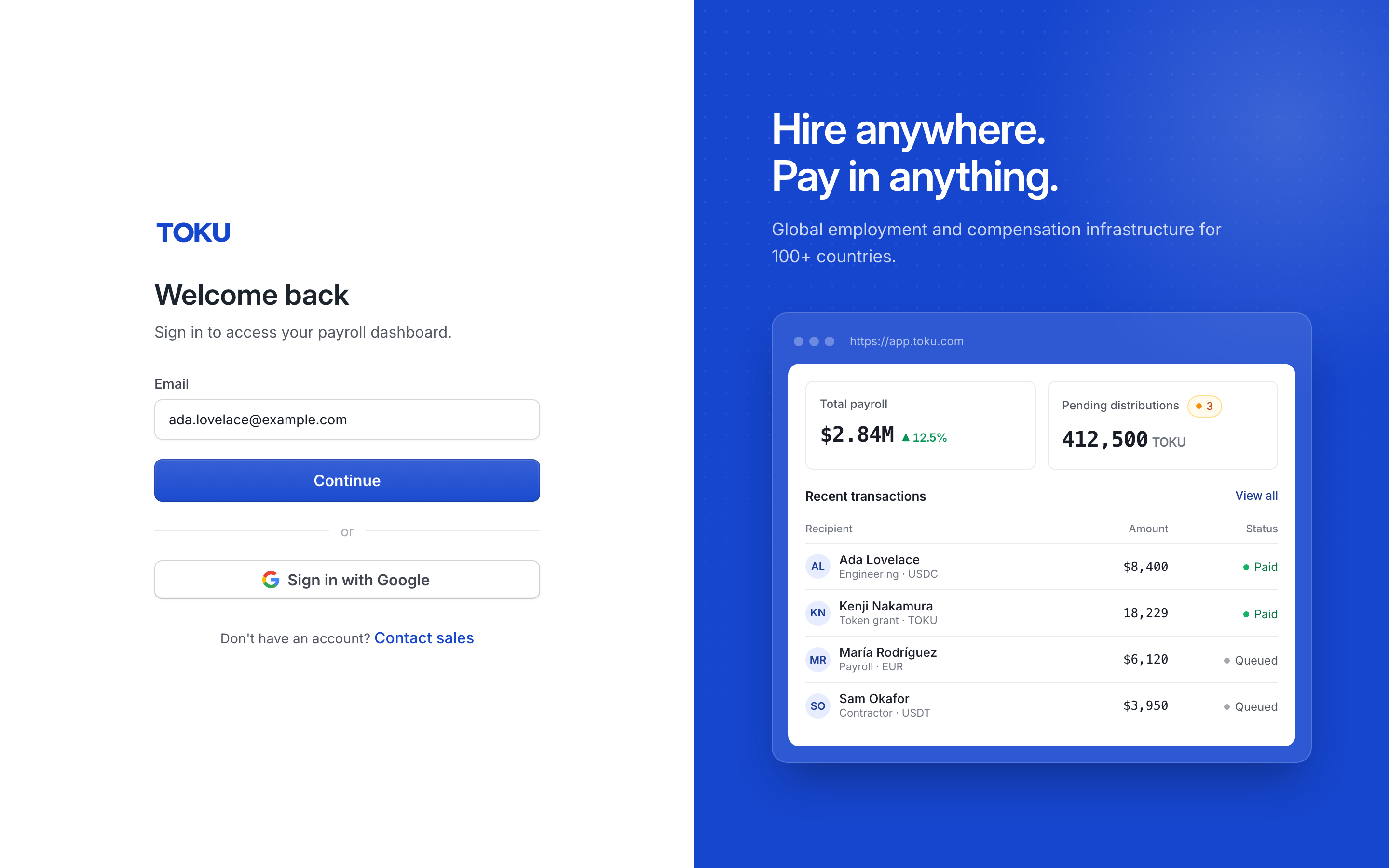
- Enter your email and click Continue, then enter your password and click the blue Sign in button. (You can also use Sign in with Google, or ask Toku to email you a one-time sign-in link.)
- If a screen appears listing multiple organizations or roles, select the one you want to work with.
Open the invoice form
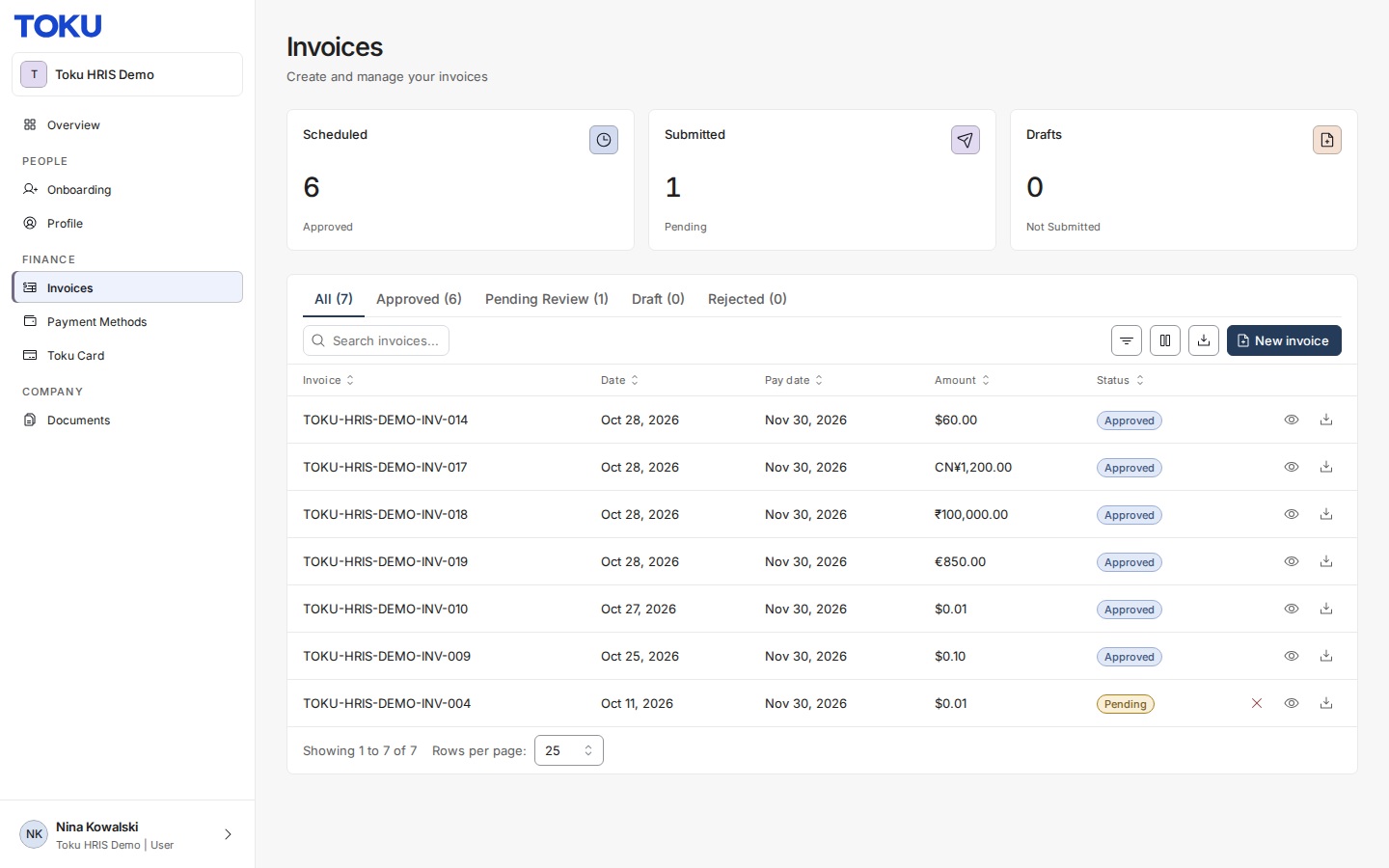
- In the left menu, click Invoices. Click the blue New invoice button in the top-right corner.
Choose the invoice type and month of service
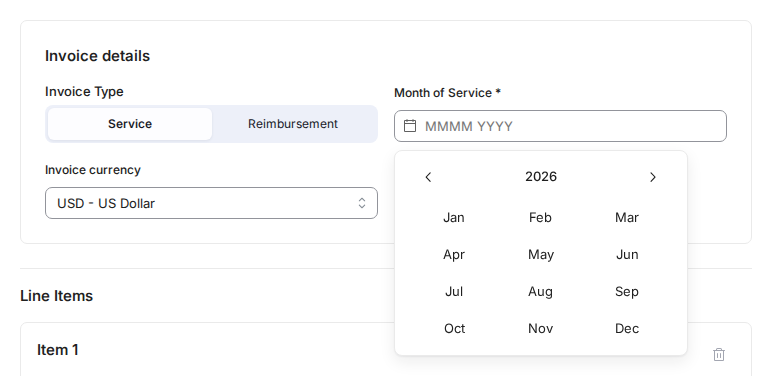
- At the top of the form, under Invoice Type, choose Service for regular work under a contract, or Reimbursement for out-of-pocket expenses.
Set the currency
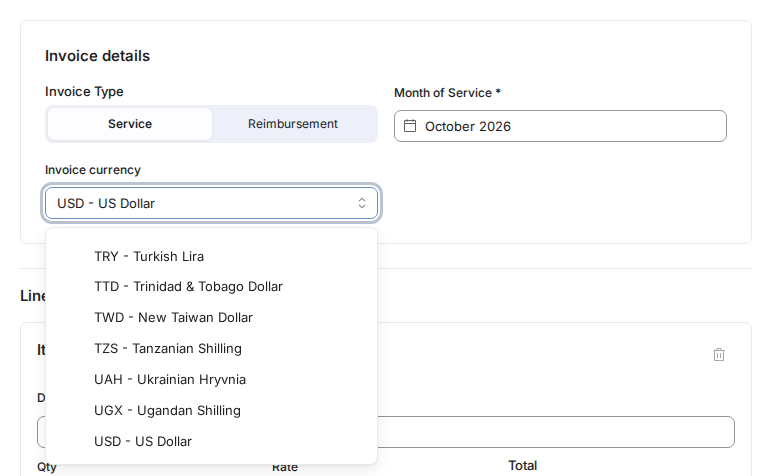
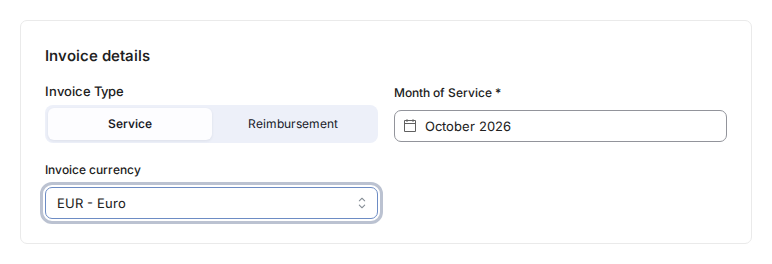
- Click the Invoice currency dropdown and select the currency from your contract.
- There is no due date to fill in. Toku sets the due date for you, from the monthly submission deadline. Submit on or before the 19th of the month and the invoice is due on the last day of that same month. Submit from the 20th onwards and it moves to the last day of the next month. Nothing on the form asks you for it, and a draft you have not submitted yet has no due date at all.
When your invoice is due
Toku sets the due date for you, from the monthly submission deadline. Submit on or before the 19th of the month and the invoice is due on the last day of that same month. Submit from the 20th onwards and it moves to the last day of the next month.
- Submitted on or before the 19th — due the last day of that month. An invoice sent on the 3rd and one sent on the 19th share the same due date.
- Submitted from the 20th — due the last day of the next month, because it has missed that month's payment run.
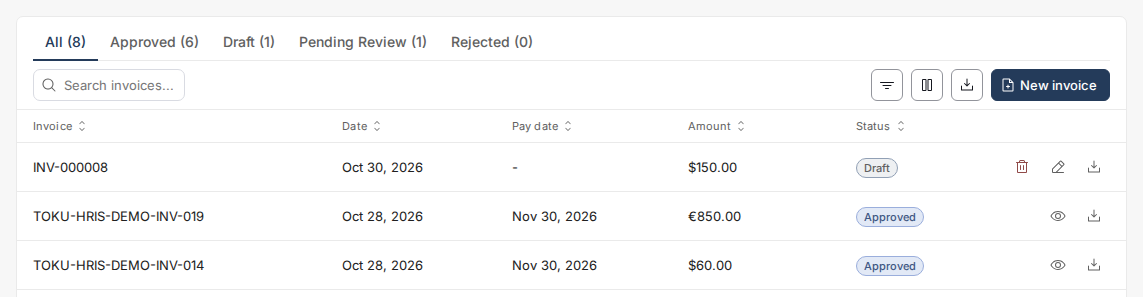
- Saved as a draft — no due date, shown as a dash in the Pay date column of your Invoices page. The date is worked out at the moment you submit, so a draft you finish weeks later is dated from that later day, not from when you started it.
💡 The date is worked out in UTC, so it does not shift with your own time zone. If you are submitting late on the 19th somewhere far ahead of UTC, submit a day early to be safe.
Add line items
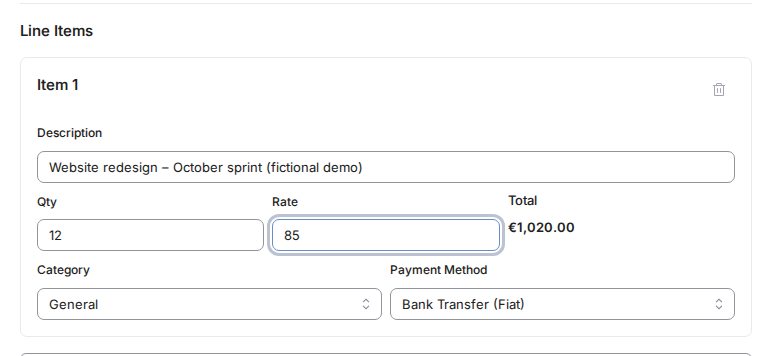
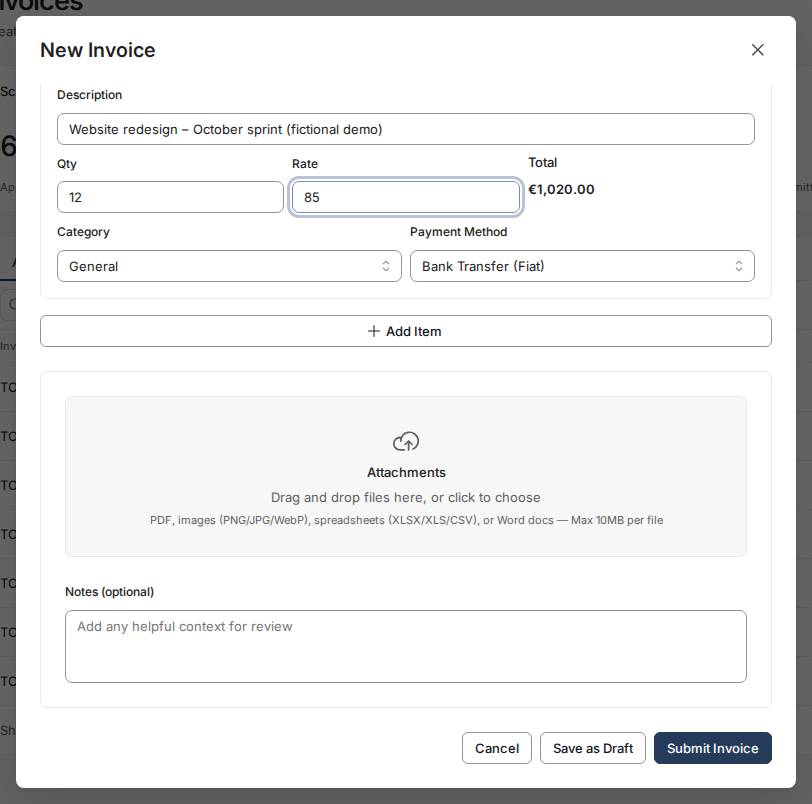
- Under Line Items, type what you did in Description, the number of hours or items in Qty, and the amount per unit in Rate.
Add attachments and notes
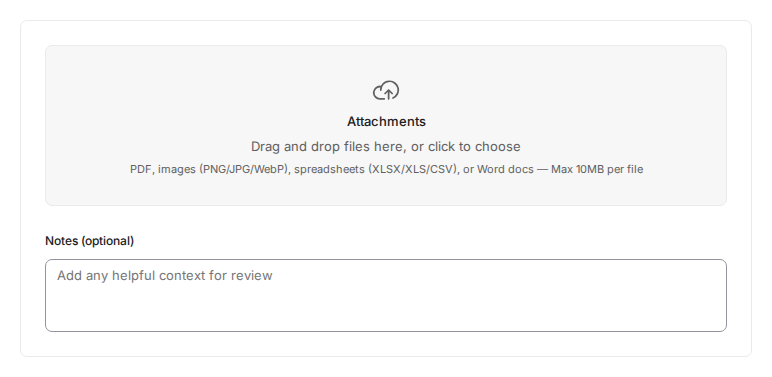
- Optionally, drag files into the Attachments box or click to browse. Supported formats are PDF, images (PNG, JPG, or WebP), spreadsheets (XLSX, XLS, or CSV), or Word documents, up to 10 MB per file.
Submit for approval
- Click Submit Invoice at the bottom. You'll see a green confirmation message, and your invoice is now waiting for your client to review and approve.
Good to know
- You can only submit a Service invoice if you've chosen a month of service.
- Reimbursement invoices require a receipt attachment before submission.
- If your contract's currency is missing from the list, contact support before submitting in a different currency.
Still stuck?
You can email customer-success@toku.com to reach our support team. Please include your email address, organization name, and a description of what happened. Screenshots and videos are always welcome to speed up the troubleshooting process. Feel free to reach out any time for further assistance.