
 2 MIN READ
 UPDATED OCT 30, 2026
You can now start receiving a portion of your pay in WTGXX in a few short steps.
✅ Enabling Stablecoin Payroll as a Employee
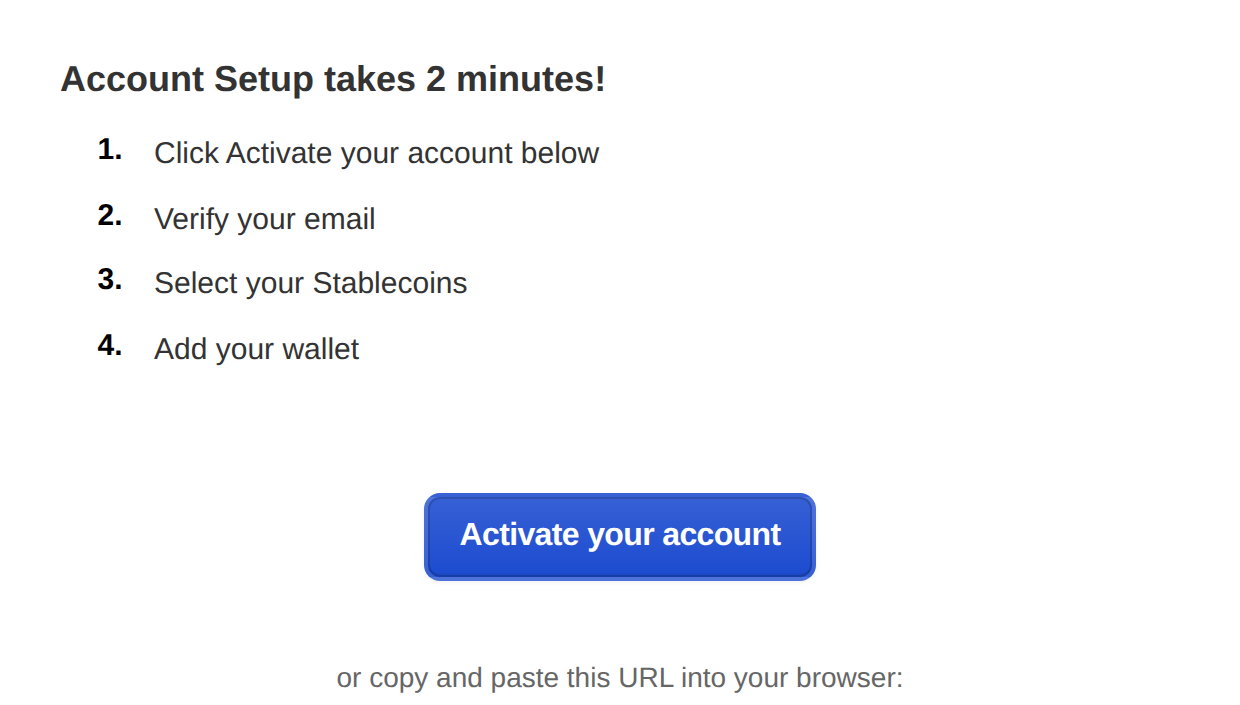
- Keep an eye out for your onboarding email with a subject line of “Welcome to Toku's Stablecoin Payroll”
- Click “Activate your account” to set up your password to login for the first time
- Log in to your Toku Account: https://app.toku.com
- Follow the on-screen instructions to set up your wallet
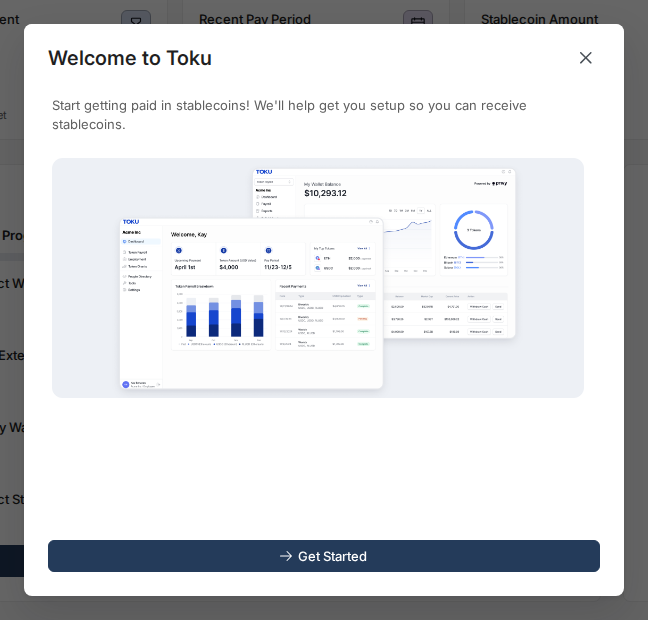
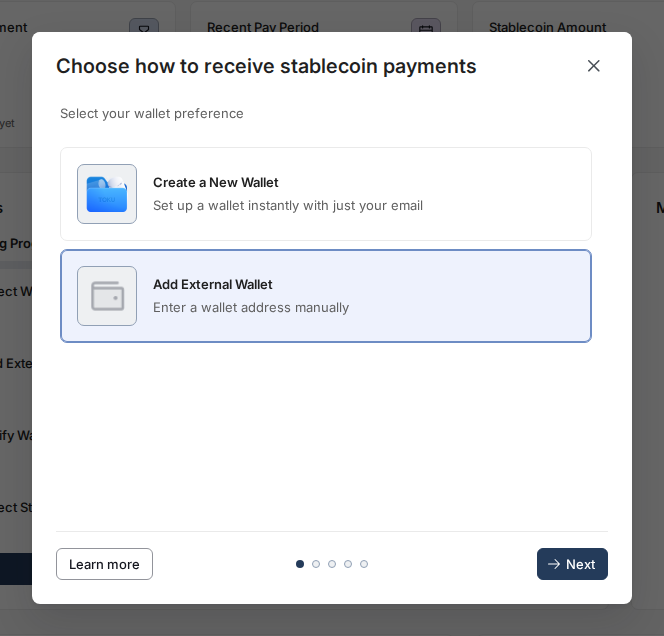
- Once you select “Get Started” please select “Add External Wallet”
- Select “Add External Wallet”
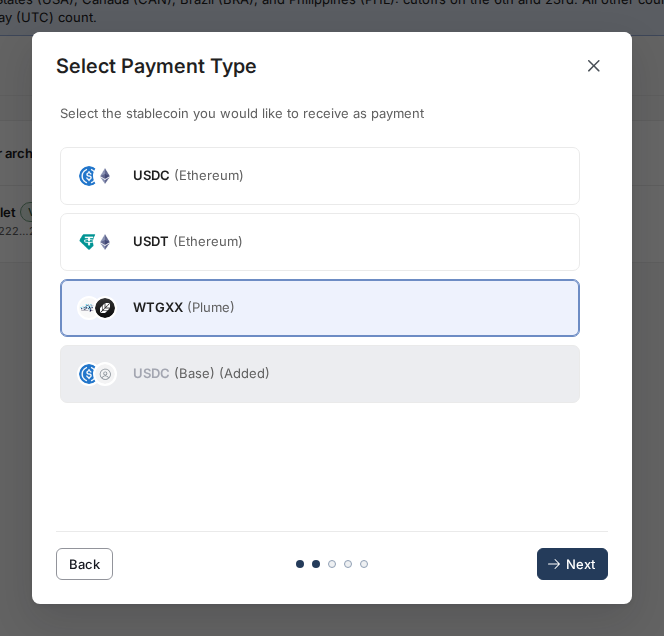
- Select WTGXX on Plume
- Navigate to your Wisdom Tree App on your phone and select “Receive”
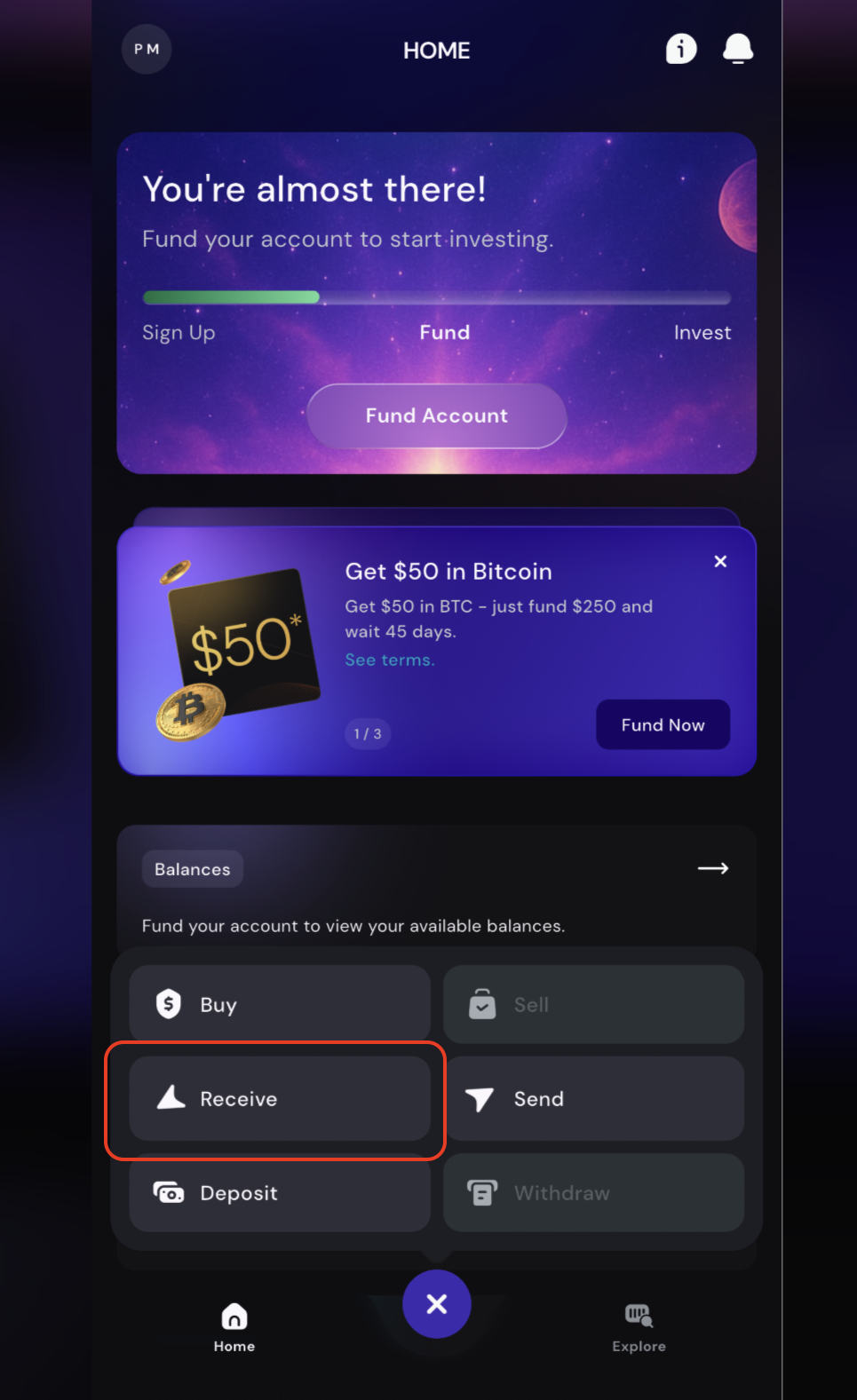
- Select Continue
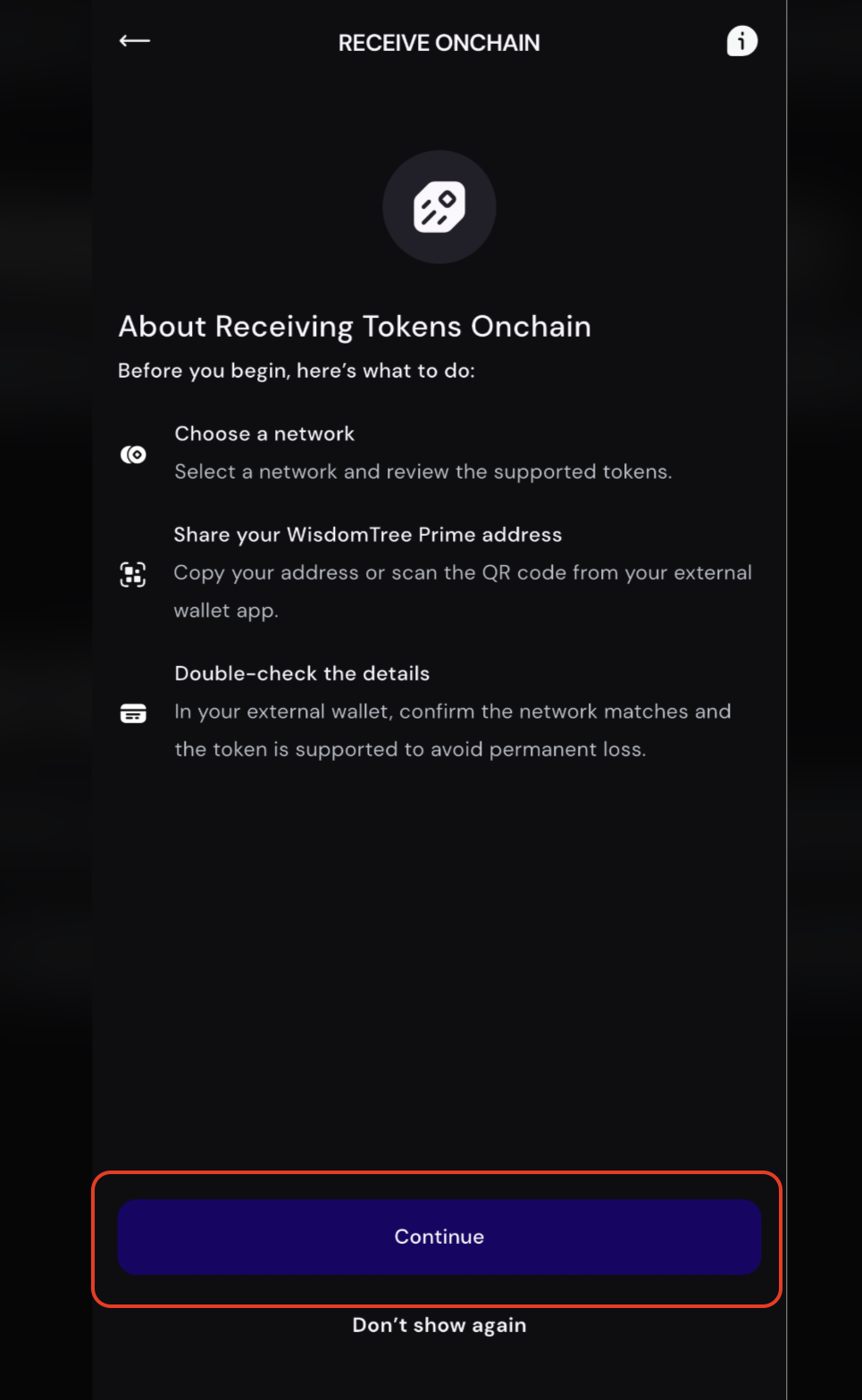
- Select “Plume” as your Network
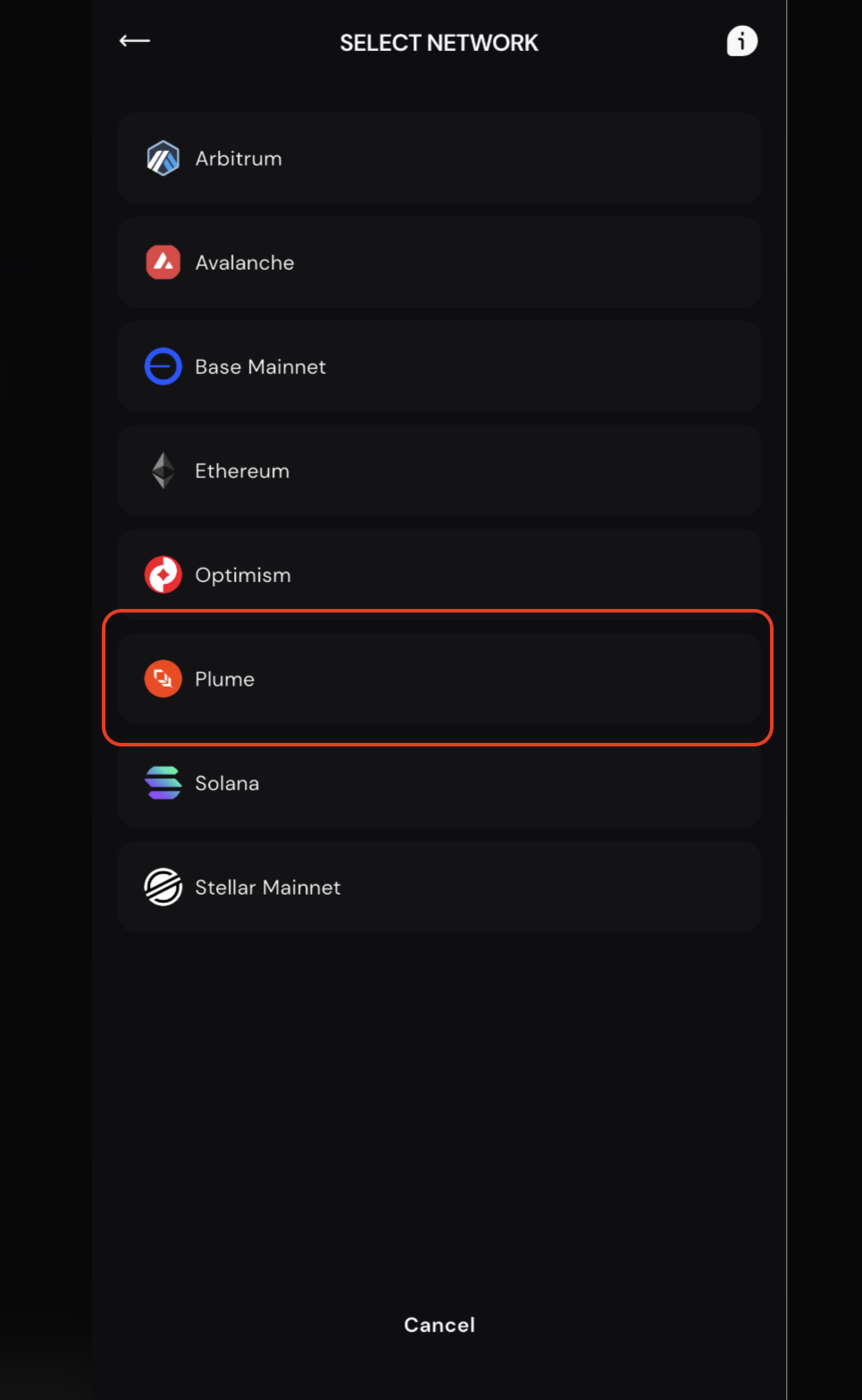
- Select “Continue”
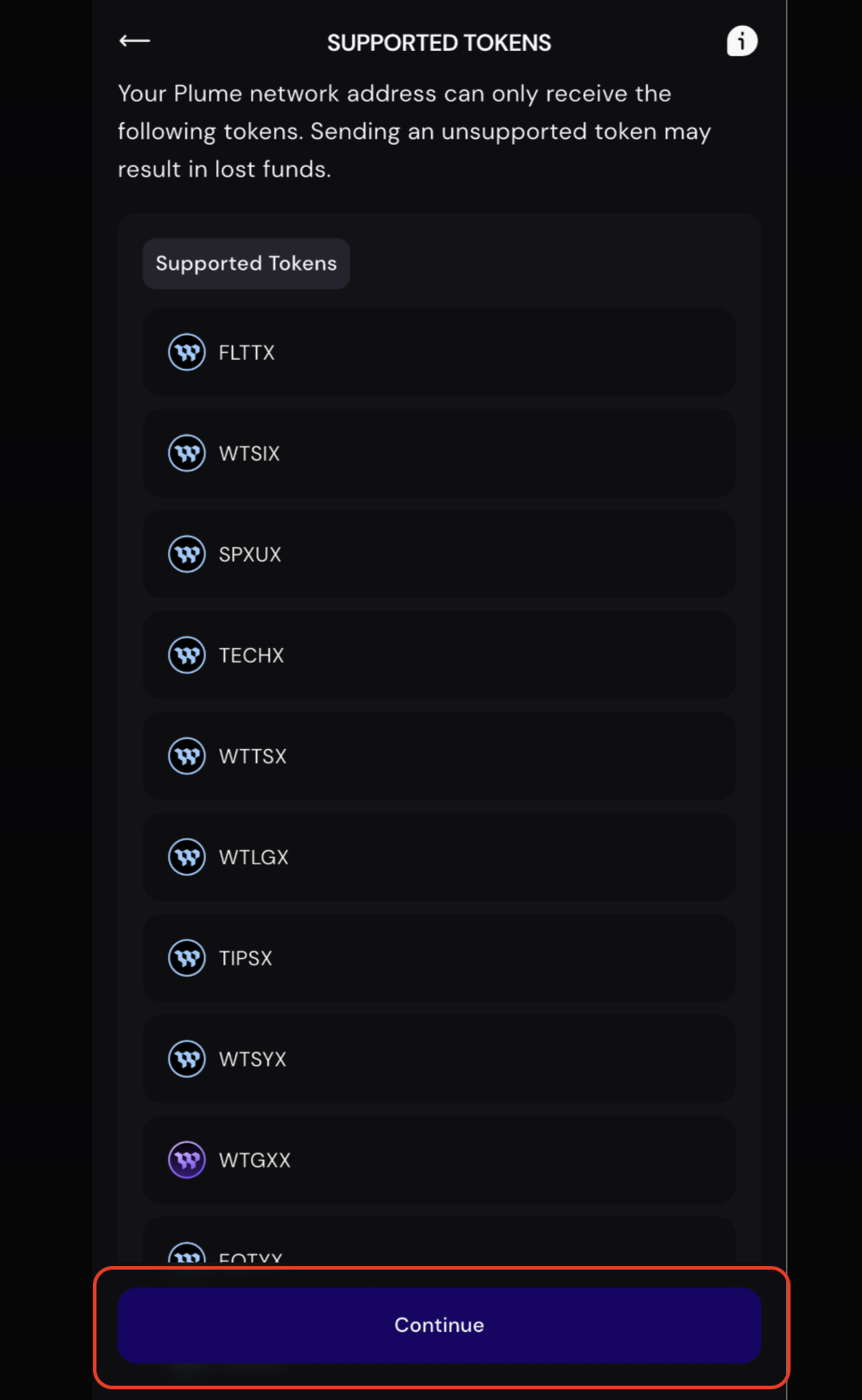
- Copy your wallet address
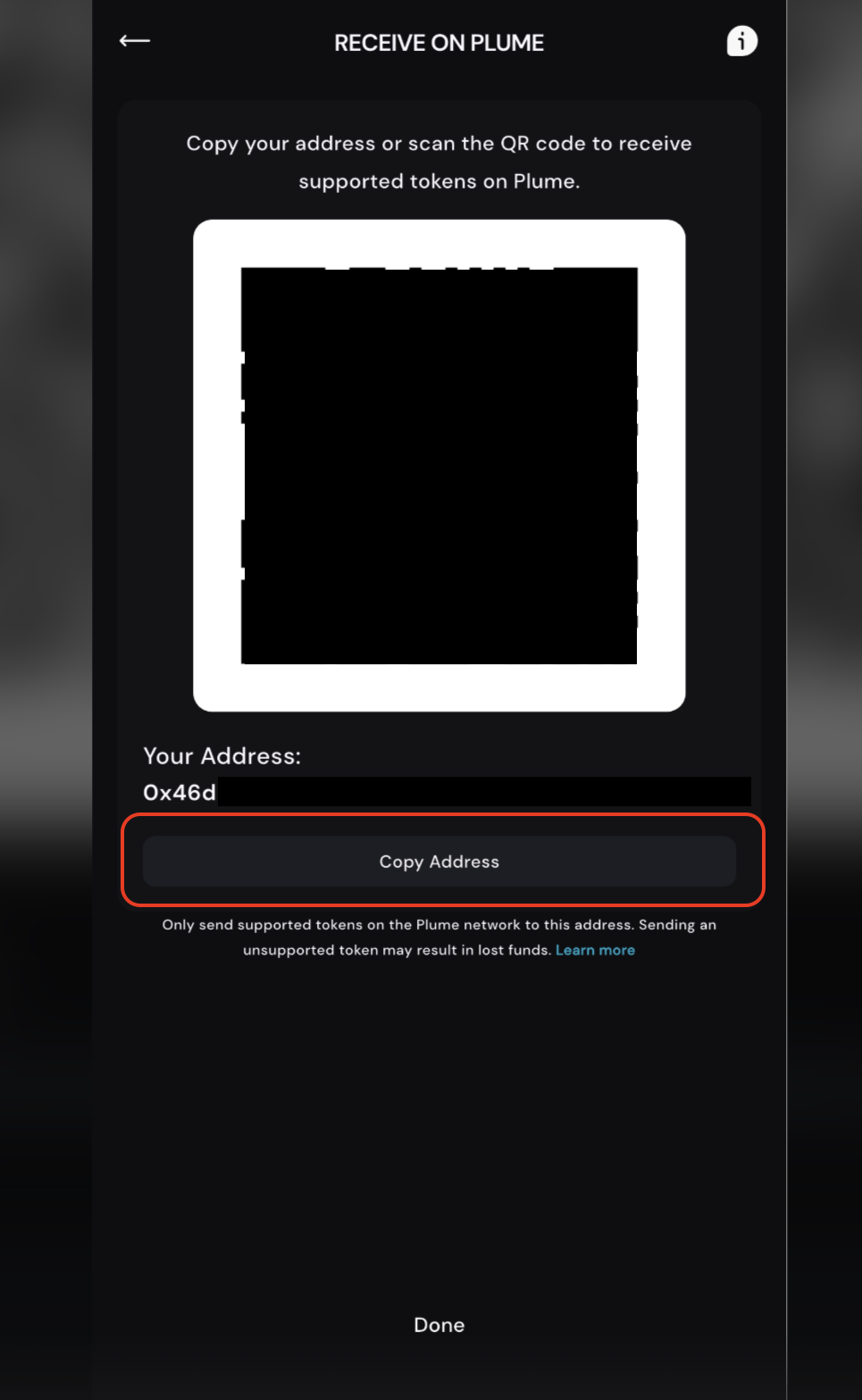
- Return to Toku and paste your wallet address
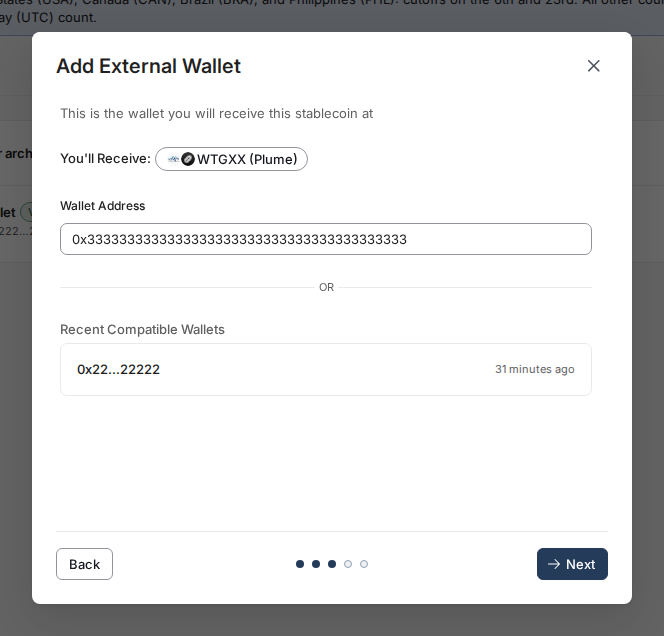
- Check your wallet and select “Verify” once you have received the test transaction of 0.01 WTGXX to your WisdomtTree wallet.
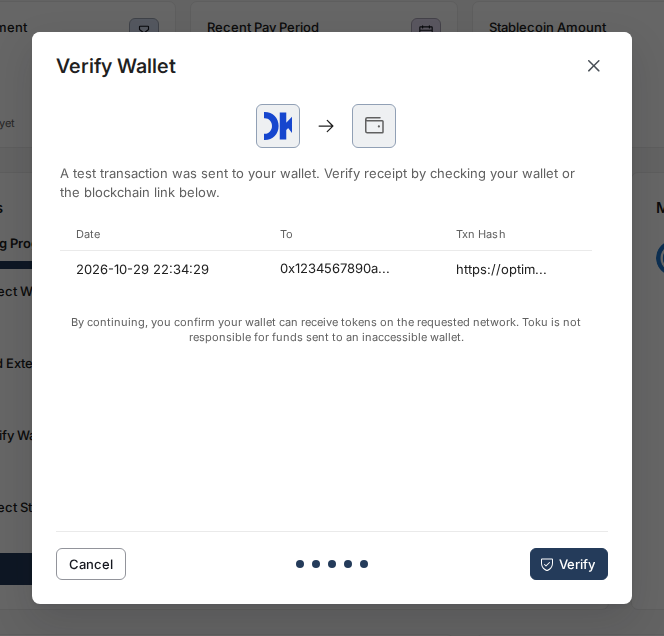
Optional - Stablecoin Payroll Allocation:
If your employer has enabled this functionality on your account you will have the option to opt in to receive a portion of your pay in Stablecoins. Follow these steps below to complete this action:
Select “Setup Paycheck Allocation”
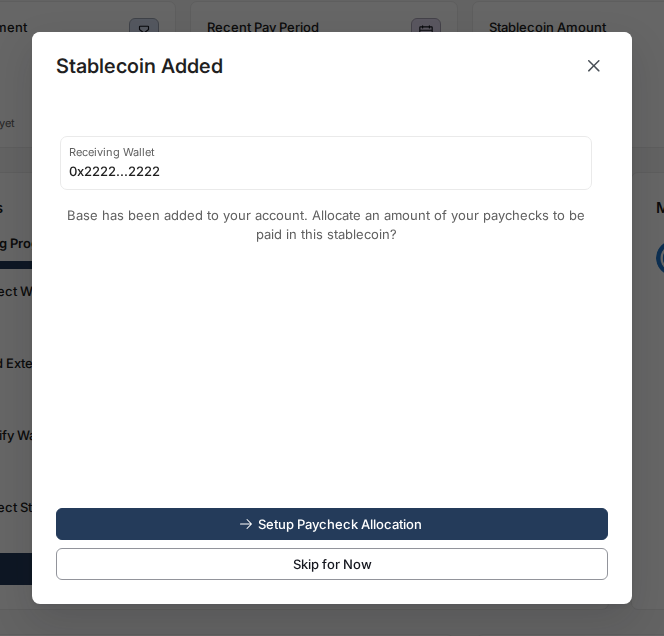
- Type in the amount you would like to receive in stablecoins instead of fiat each check
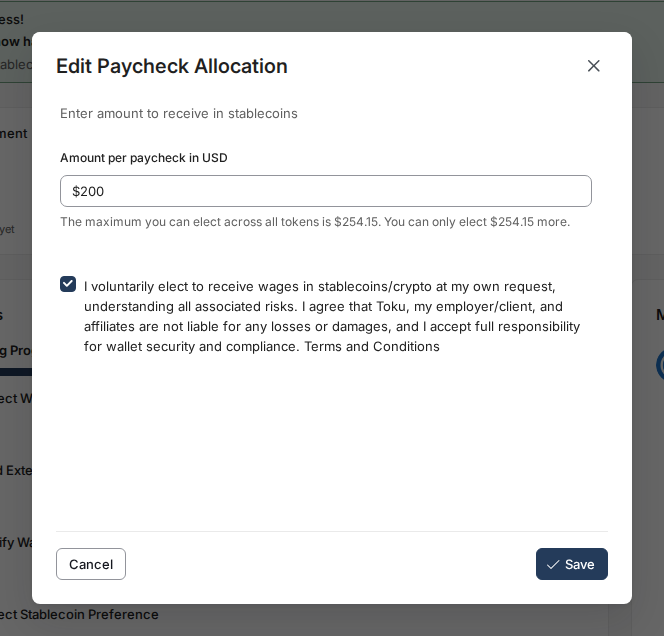
- Read and agree to Toku’s “Terms and Conditions” and hit “Save”
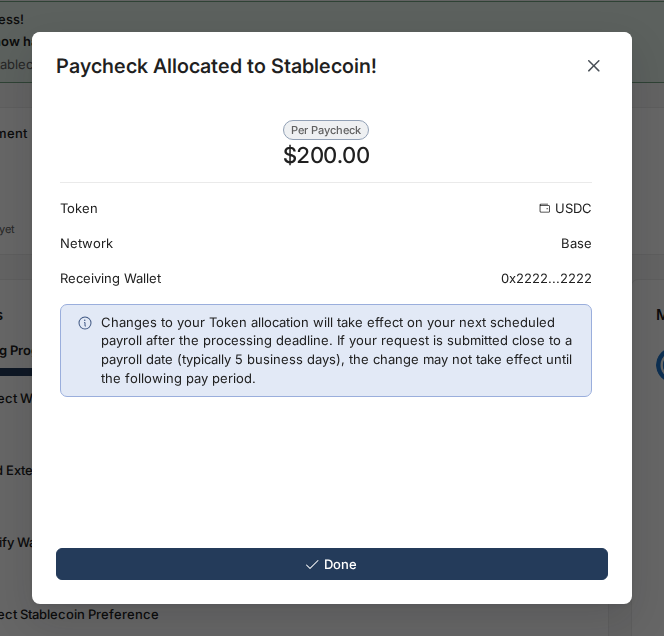
- You will now receive this amount of all future payments in the stablecoin of your choosing!