
 3 MIN READ
 UPDATED OCT 30, 2026
ℹ️ This guide replaces the Fireblocks API user that lets Toku propose payouts from your Fireblocks workspace. It takes about 15 to 30 minutes, plus the time your team needs to approve the new API user. Payouts through Toku pause from step 2 until step 5.
Before you start
- Who you need: someone who manages your organization's payment integrations in Toku, and a Fireblocks admin who can add and approve API users.
- When: pick a time when no Toku payment batches are being submitted or waiting for approval.
- No private keys involved: Toku creates the signing key and only gives you a certificate signing request (CSR) file to upload. Never share private keys, seed phrases or passwords with anyone, including Toku.
Steps
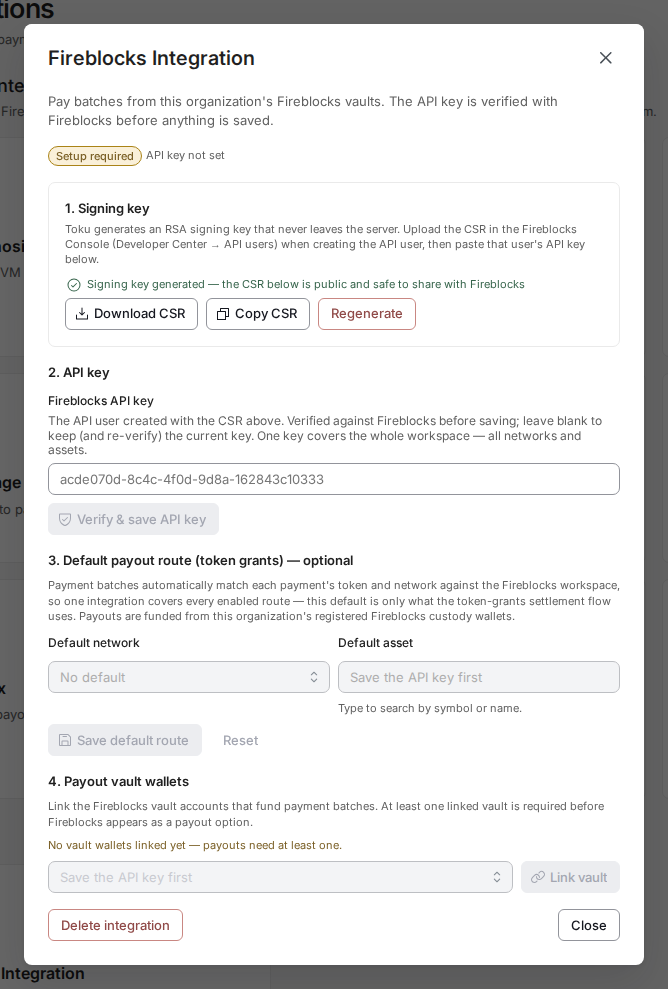
- Open the Fireblocks integration in Toku. Go to Admin Integrations (or Settings → Integrations) and, under Payment Integrations, select the Fireblocks card.
- Create a new signing key. In 1. Signing key, select Regenerate and confirm. Copy or download the new CSR. Your current Fireblocks connection stops working at this point.
- Add a new API user in Fireblocks. In the Fireblocks Console, go to Developer Center → API users → Add API user.
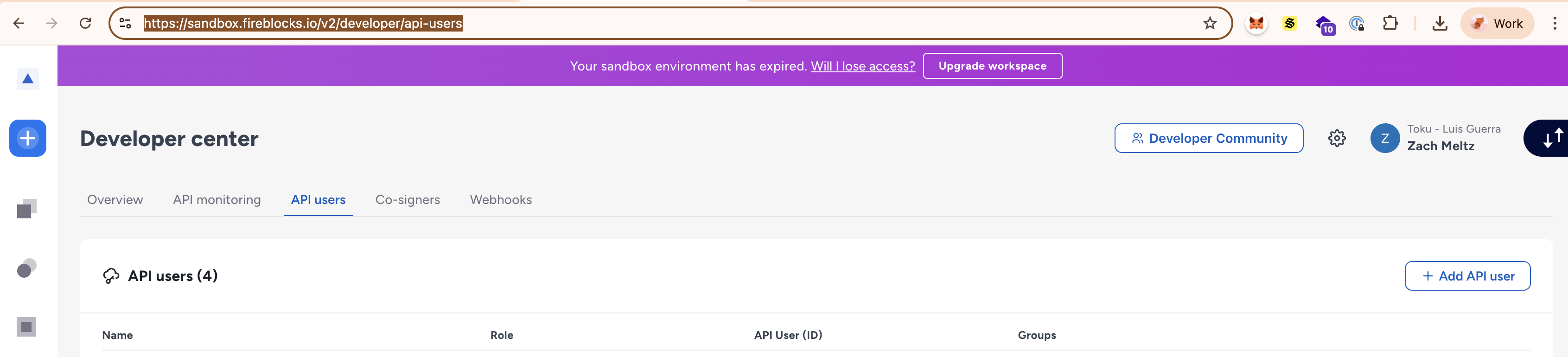
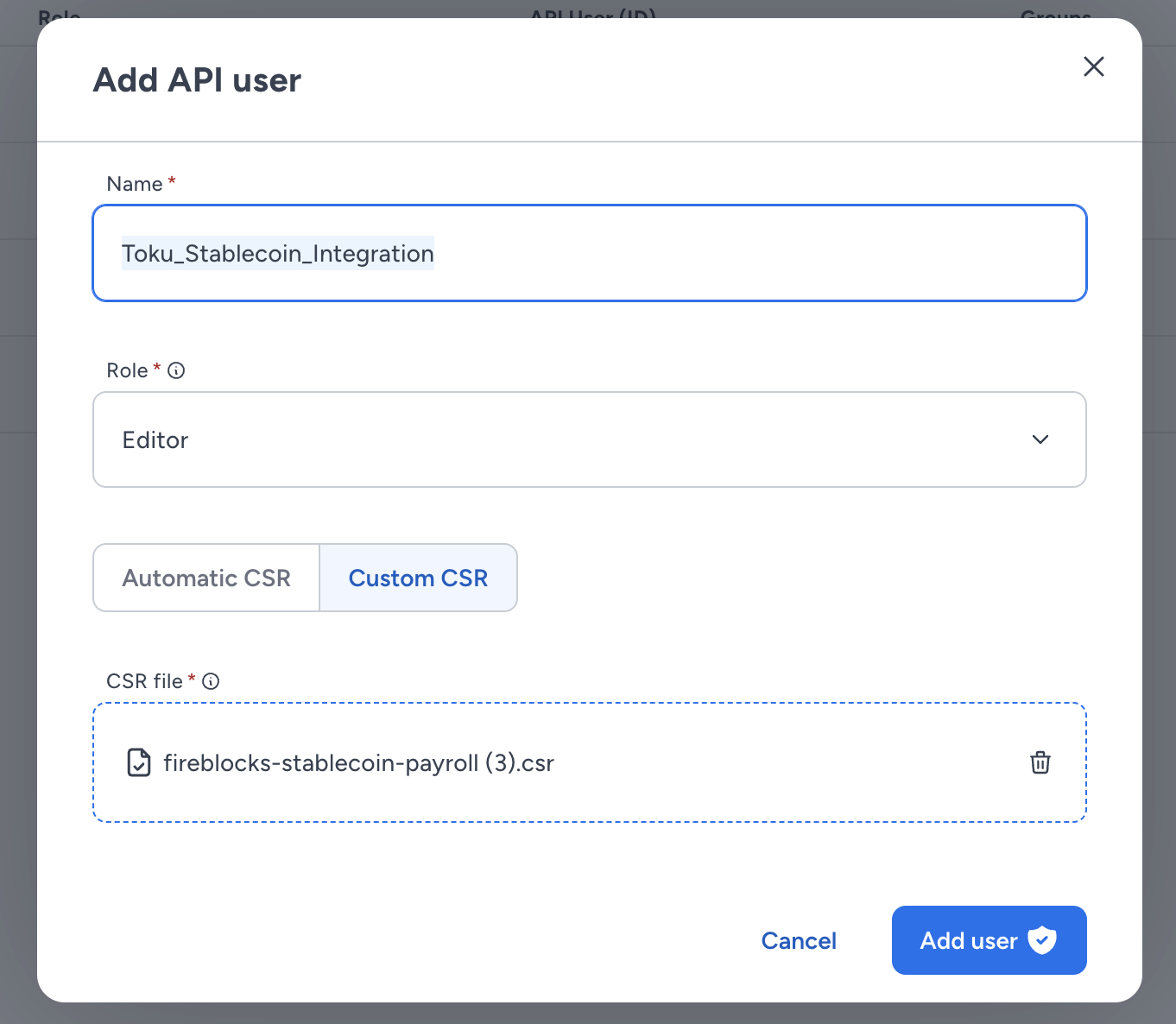
- Name: something recognizable, for example "Toku - October 2026".
- Role: Editor. Toku only proposes transactions; your team keeps approving and signing them.
- CSR: select Custom CSR and upload the file from step 2.
- IP addresses: add
34.121.147.189,34.170.123.38,143.198.239.226, and146.190.145.238(Toku's servers), each as a single address. Add the two new addresses before October 26, 2026. Keep the existing addresses and any other currently approved entries until Toku confirms they can be removed. - Select Add user and complete your approval quorum. Copy the API key once it appears.
- Update your Transaction Authorization Policy. Add the new API user to every rule that included the previous Toku API user, then publish the policy. We recommend limiting it to the vault(s) you pay from and to whitelisted destinations, and keeping your approval and signing steps.
- Connect the new API key in Toku. Back in Toku, in 2. API key, paste the new key and select Verify & save API key. Toku checks the key with Fireblocks before saving it. Please paste the key into Toku yourself rather than sending it to anyone.
- Check that it works.
- Your vaults are still listed under 4. Payout vault wallets.
- Your next payment batch (or a small test payment) is proposed and appears in Fireblocks for approval.
- Disable the old API user in Fireblocks. In Developer Center → API users, disable or remove the previous Toku API user, and any older Toku API users you no longer use.
Troubleshooting
- Verify & save API key fails: make sure the API user was created with the CSR from step 2 and has been fully approved. Don't select Regenerate again: that creates a new CSR, and you would need to repeat step 3.
- Payments come back "blocked by policy": the new API user isn't in your Transaction Authorization Policy yet (step 4).
- Requests are rejected because of the IP address: check that all four Toku IP addresses listed above were added to the API user.
- Questions: contact your Toku account manager.