
 2 MIN READ
 UPDATED JUL 29, 2026
📘 For finance and operations teams on Toku. Last updated July 23, 2026.
💡 This article covers Toku's Token Grants product (custody vaults / Anchorage Digital integration). If you are looking for how employees and contractors are paid on the Employment platform, see Where your invoice gets paid - bank or crypto.
Create an API key in Anchorage Digital to allow Toku to propose token transfers from your custody vaults.
Before you start
- You need admin access to your Anchorage Digital Web account.
- Toku will need the resulting API key and public key to complete the integration.
Create an API Permission Group
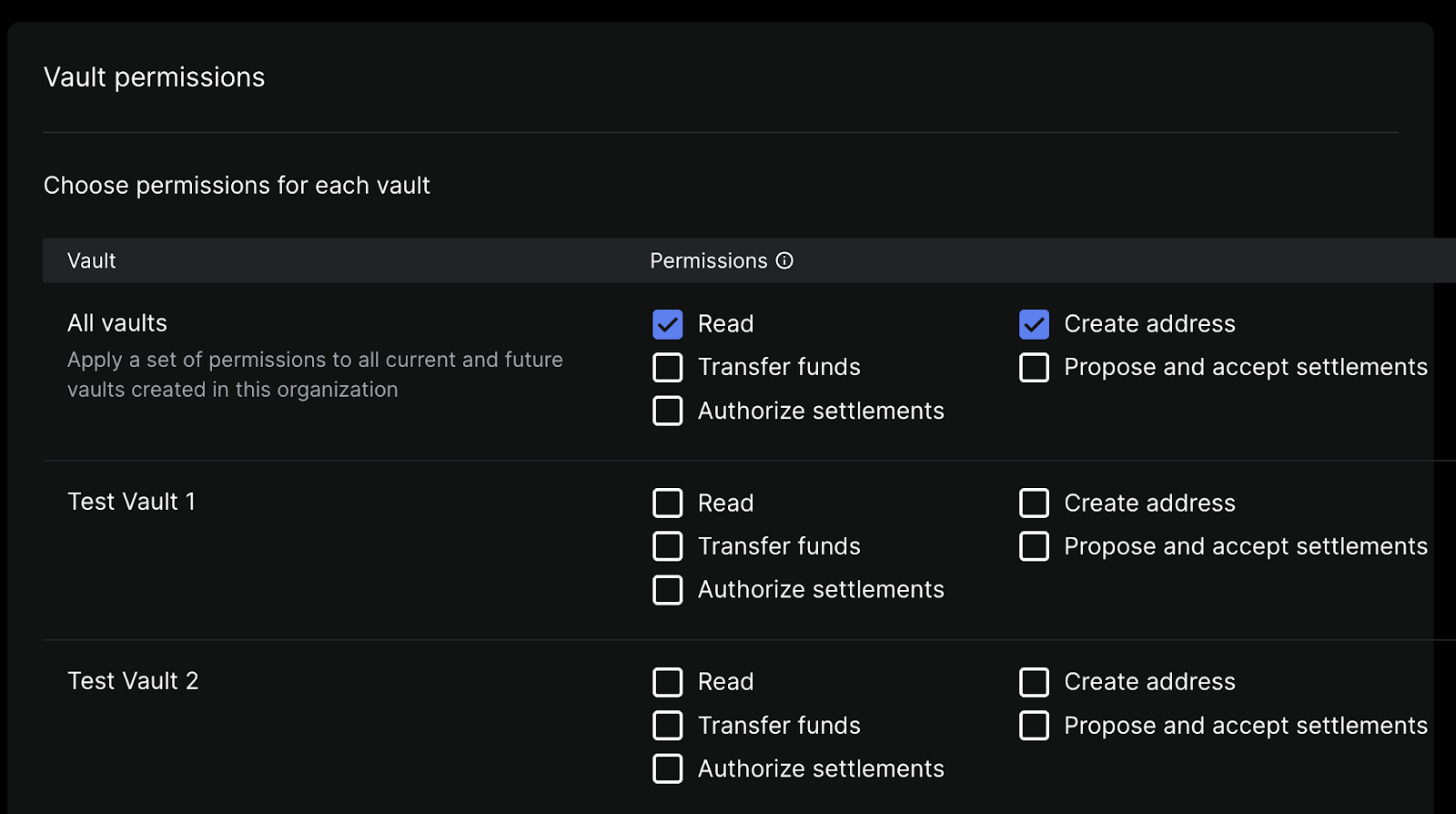
- Log into Anchorage Digital Web and navigate to the API section.
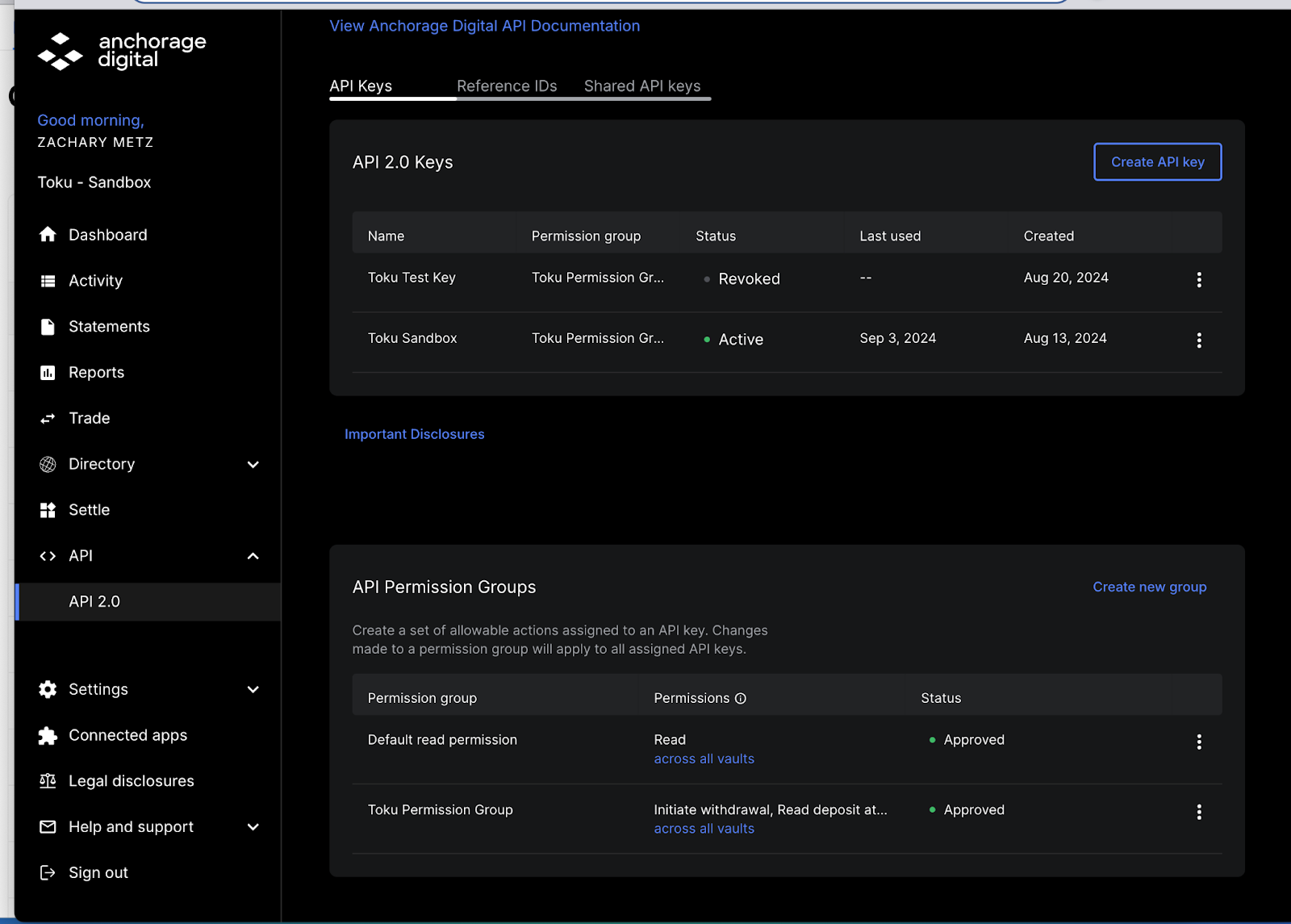
- Under Global permissions, enable Initiate Withdrawal. This allows Toku to propose transactions but does not grant approval rights.
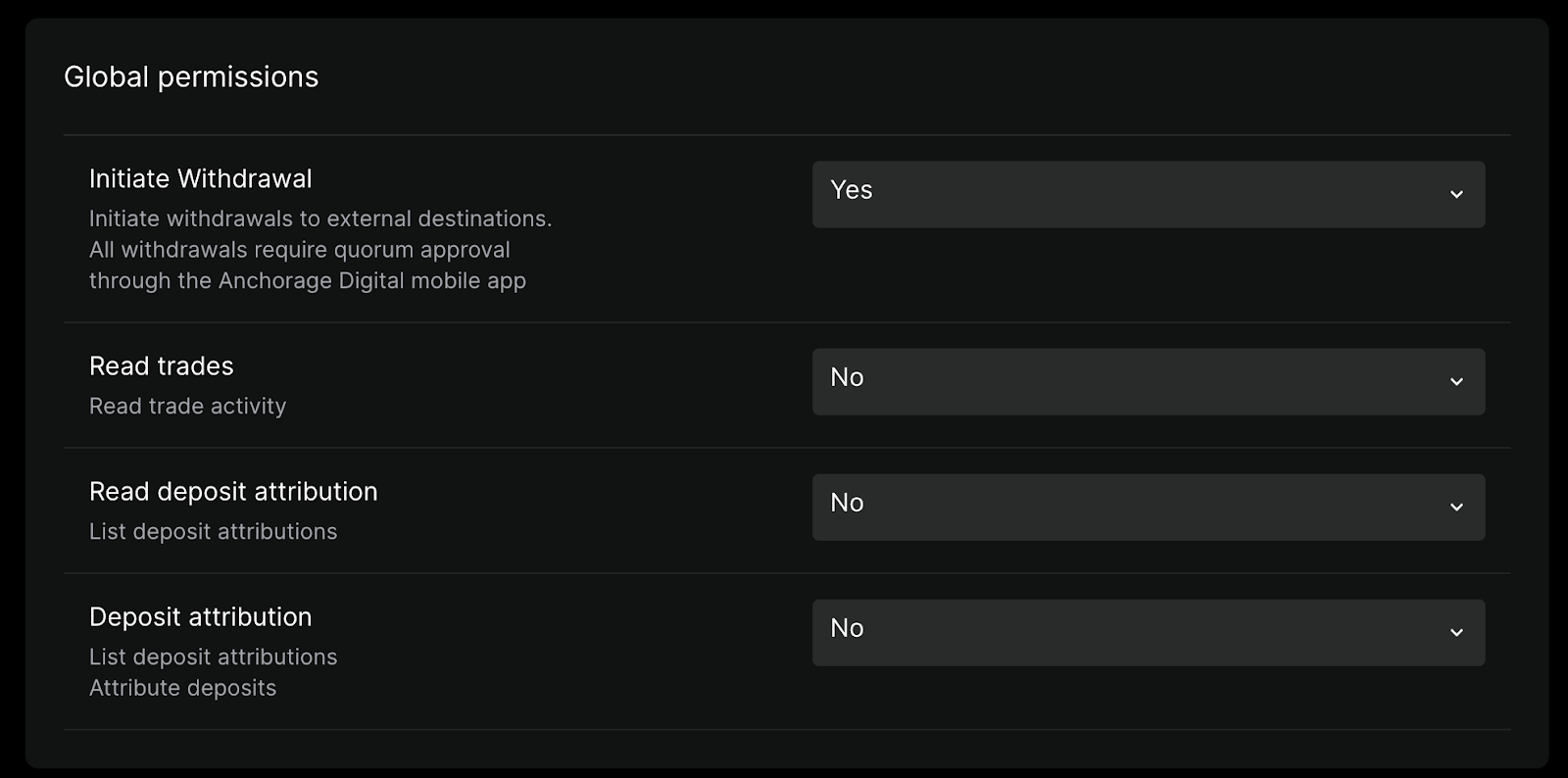
- Under Vault permissions, select Read and Create address for all vaults containing wallets connected to your team.
Create the API Key
- Click Create API key in the API 2.0 Keys section.

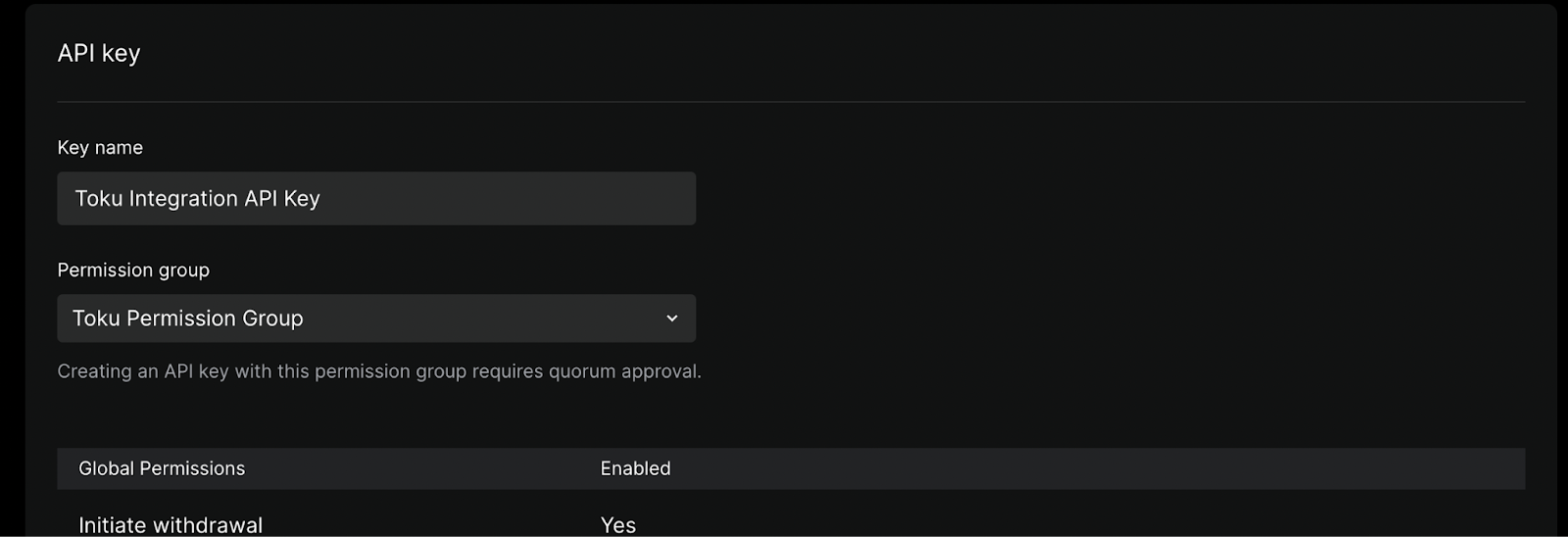
- Enter a name (e.g. "Toku Integration API Key") and select your Permission Group from the dropdown.
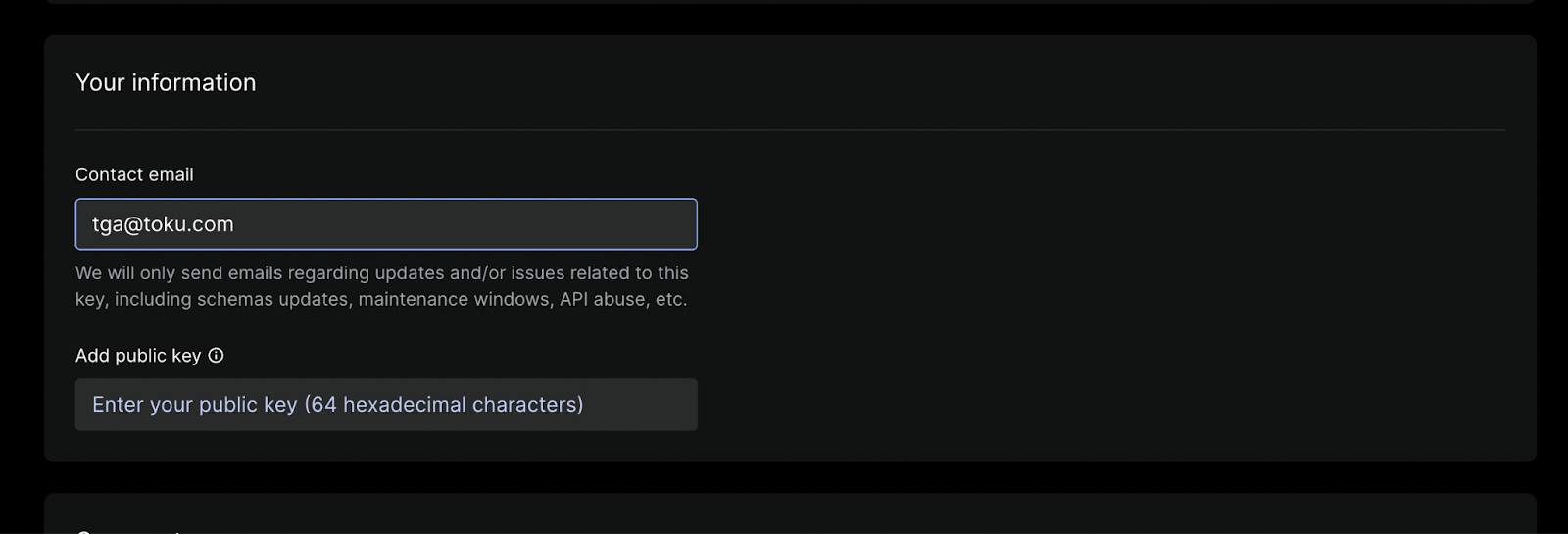
- Enter tga@toku.com as the contact email and paste the public key you received from Toku support.
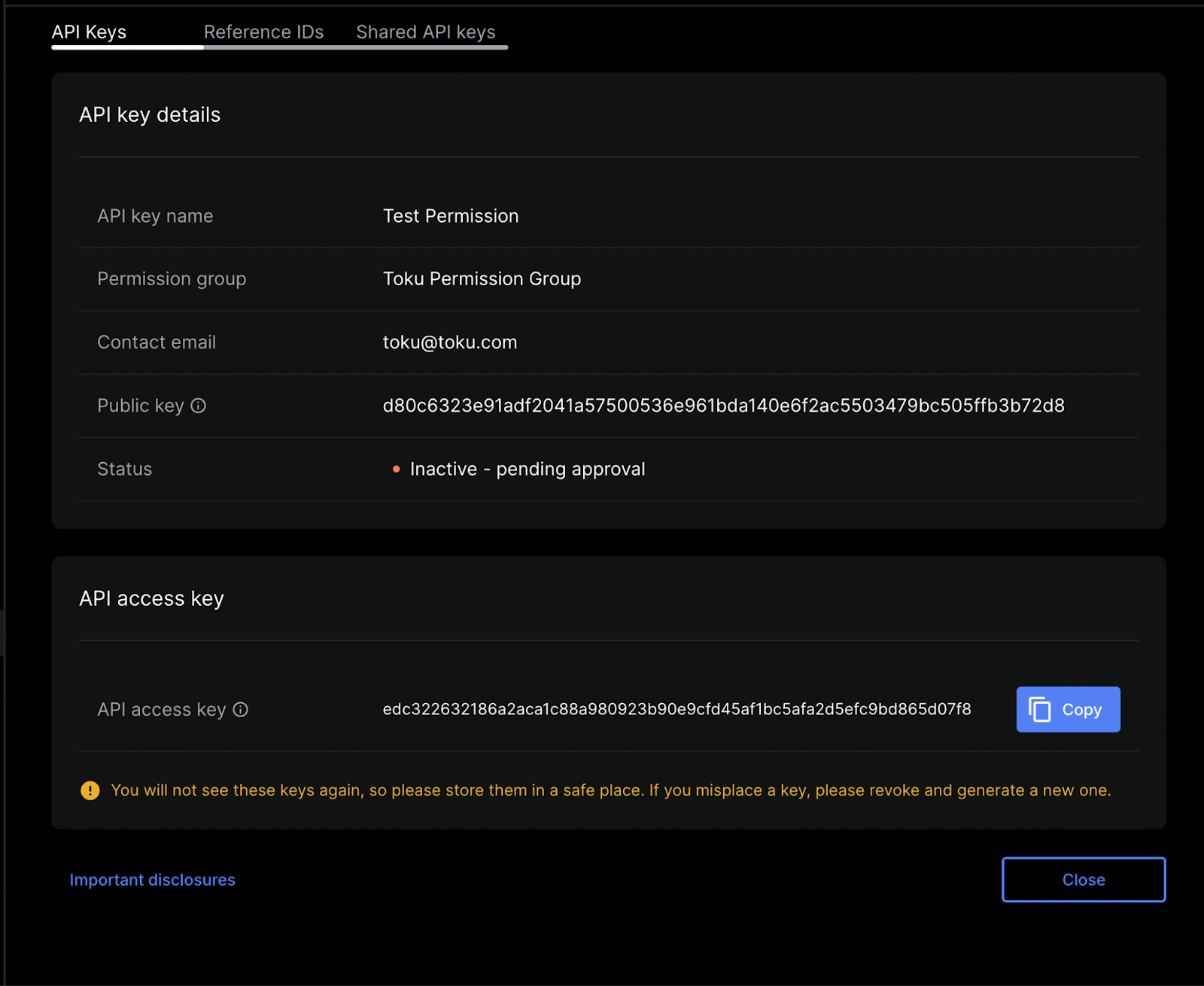
- Submit the endorsement. Once approved, copy the API access key and send it to support@toku.com - it will only appear once.
Good to know
- All token transfers still require quorum approval through the Anchorage mobile app - Toku cannot approve transactions without additional signers.
- API keys are shown only once after creation. Store yours in a secure location and revoke old keys when no longer needed.
Still stuck?
You can email customer-success@toku.com to reach our support team. Please include your email address, organization name, and a description of what happened. Screenshots and videos are always welcome to speed up the troubleshooting process. Feel free to reach out any time for further assistance.