
 4 MIN READ
 UPDATED OCT 30, 2026
📘 For organization administrators on Toku. Last updated October 30, 2026.
Add multiple team members at once by uploading a spreadsheet with employee and contractor information.
Before you start
- You need a CSV file (.csv, .xlsx, or .xls) with employee and contractor data. Download the template provided in the bulk import window to ensure your data is formatted correctly.
- Bulk import is located under People in the left-hand menu. You must be an organization administrator to access this feature.
Download the template and prepare your data
- Open People from the left-hand menu.
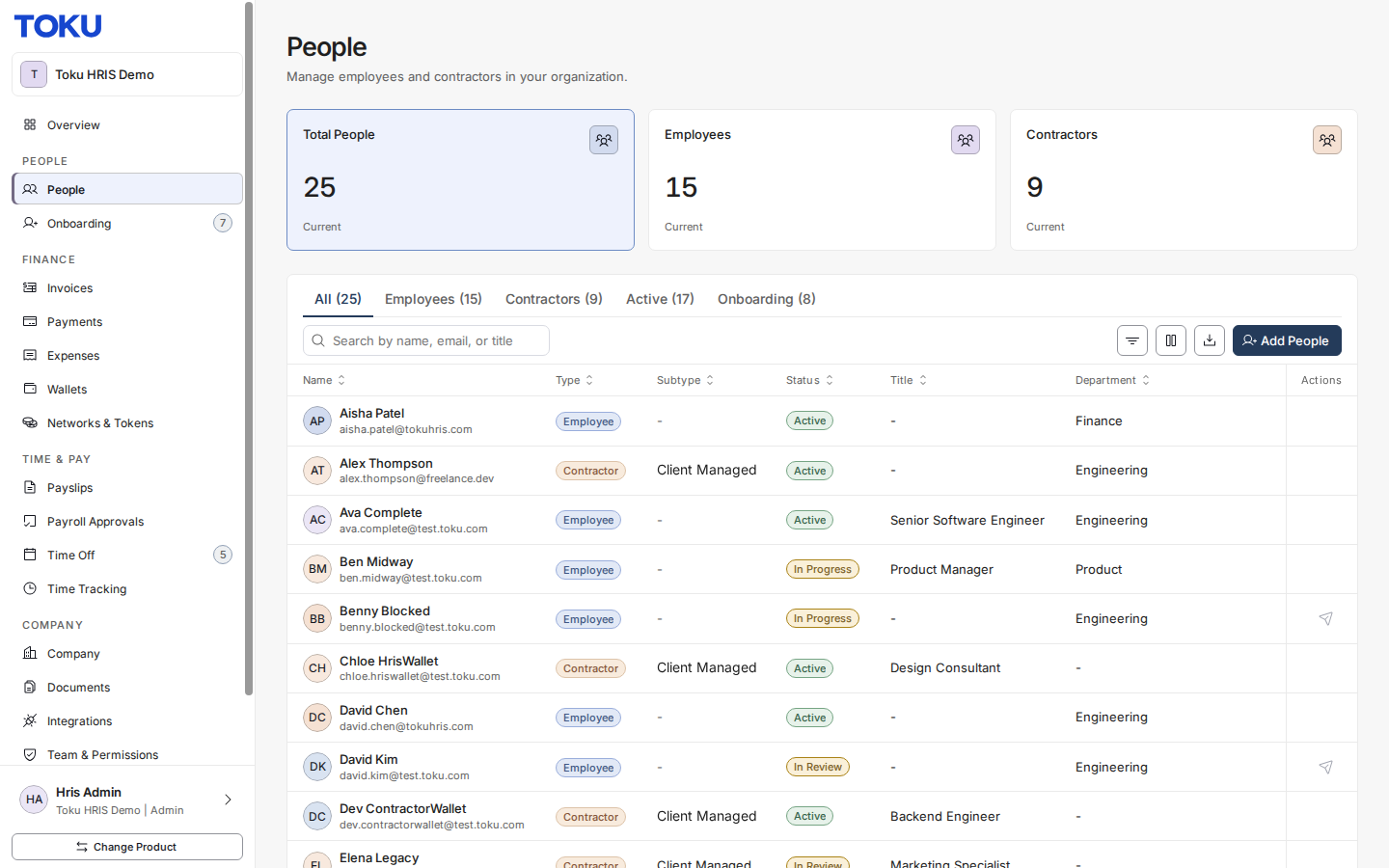
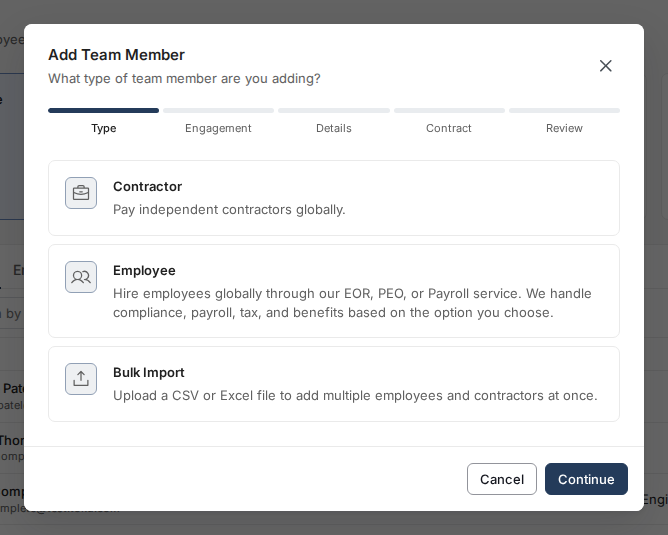
- Click Add People, select Bulk Import, and click Continue to open the upload window. The window displays all required and optional fields you can include in your spreadsheet.
- Click Download CSV to download the template. This template includes example rows (one employee and one contractor) that re-upload cleanly and shows you exactly how to format each field.
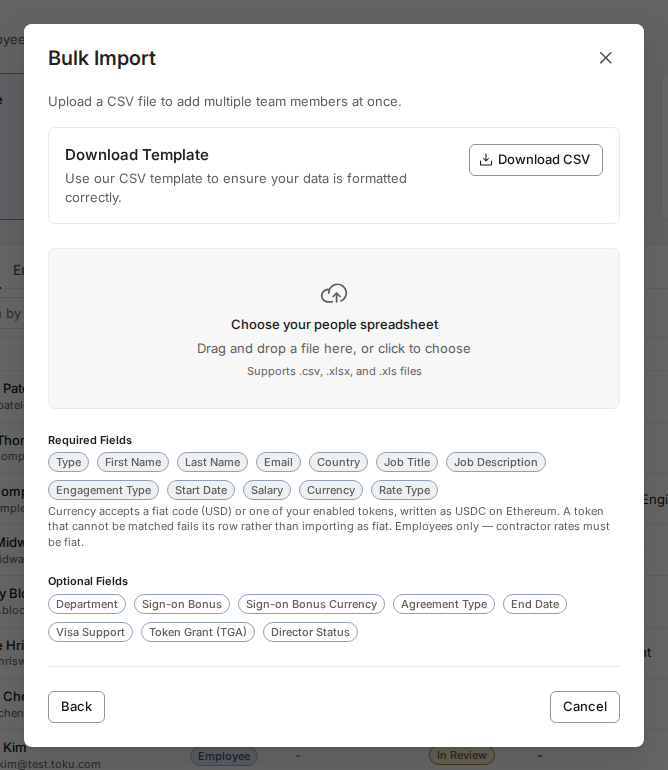
- Open the template in your spreadsheet application and fill in your team member data. Include only the columns you need - optional fields can be left blank. For contractors, note that Rate Type is required.
Upload and validate your spreadsheet
- Return to the bulk import window and drag your completed spreadsheet into the upload area or click to browse your computer and select your file.
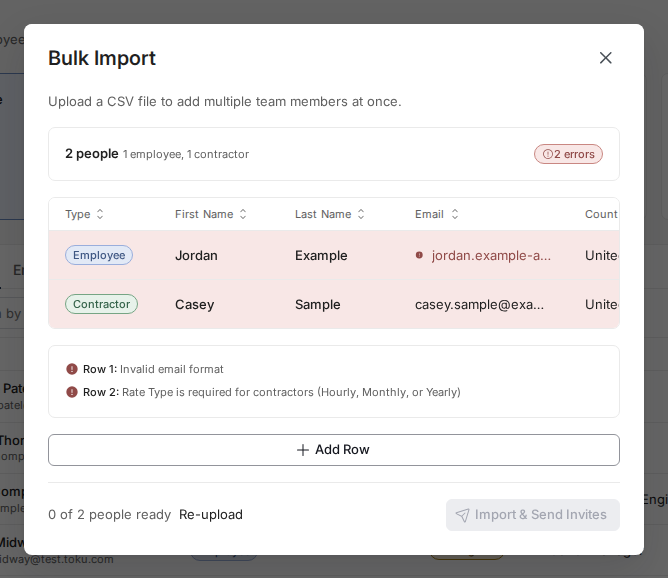
- Toku will validate your data automatically. Once validation completes, you'll see how many people are ready to import and how many errors require fixing (if any).
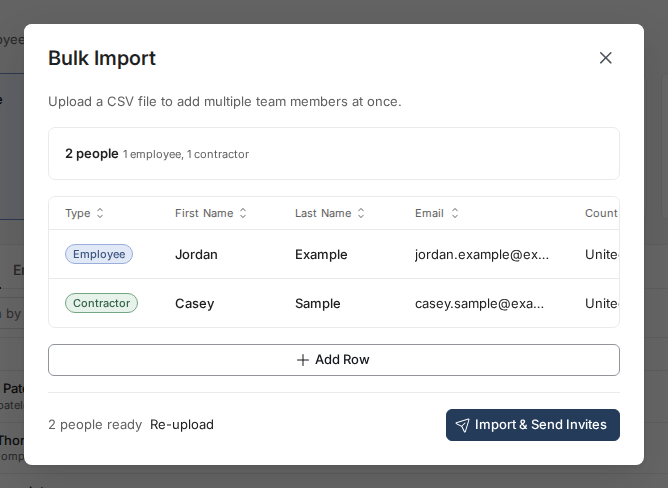
- If there are errors, the affected rows are highlighted in the review grid and the errors are listed below it. Each error shows the row number and what needs to be corrected. Fix these issues in your spreadsheet and upload again by clicking Re-upload.
Review and edit before importing
- Once all rows are valid, review the data in the grid. Every imported field is visible and can be edited directly inline - click any cell to change values, select dates from a picker, or choose from dropdowns for currency, agreement type, and yes/no fields.
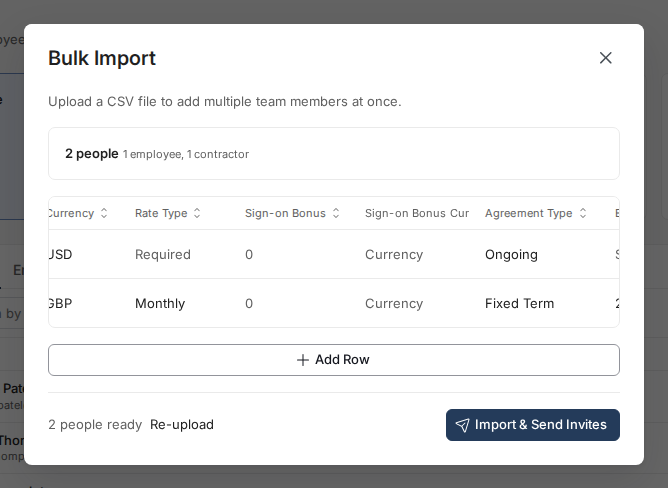
- Use the Re-upload link to go back and upload a new spreadsheet if you need to make large changes, or edit individual cells here for minor adjustments.
- When everything looks correct, click Import & Send Invites to add all team members to your organization and send them invitation emails.
Good to know
- The template clearly marks which fields are Required, Optional, or Required for Contractors. Contractors must always have a Rate Type specified.
- End dates are only required if the agreement type is Fixed Term. If you leave the agreement type blank and provide an end date, Toku will assume Fixed Term.
- Dates must be valid calendar dates. The template accepts dates in multiple formats (such as M/D/Y from Excel or ISO format), but Toku will normalize all dates to YYYY-MM-DD format internally.
- Visa Support and Token Grant default to No and never block an import - you can always update these for individual team members later if needed.
- Bonus currency is only required if you're providing a sign-on bonus amount. If you specify a bonus currency without an amount, validation will catch it.
⚠️ Only organization administrators can initiate bulk imports. Team members will receive invitation emails after import completes, allowing them to set up their accounts and access payroll, wallet, and other features. Coordinate bulk imports during onboarding windows to avoid sending invitations at unexpected times.
Still stuck?
You can email customer-success@toku.com to reach our support team. Please include your email address, organization name, and a description of what happened. Screenshots and videos are always welcome to speed up the troubleshooting process. Feel free to reach out any time for further assistance.