
 6 MIN READ
 UPDATED OCT 30, 2026
📘 For organization administrators and employees who need visa sponsorship on Toku. Last updated October 30, 2026.
Request visa or work authorization support during employee onboarding or when updating an existing employee's work authorization details.
Before you start
- This feature is available in the People section when adding new employees or editing their work authorization details.
- Organization administrators can submit visa support requests on behalf of employees.
Request visa support when adding a new employee
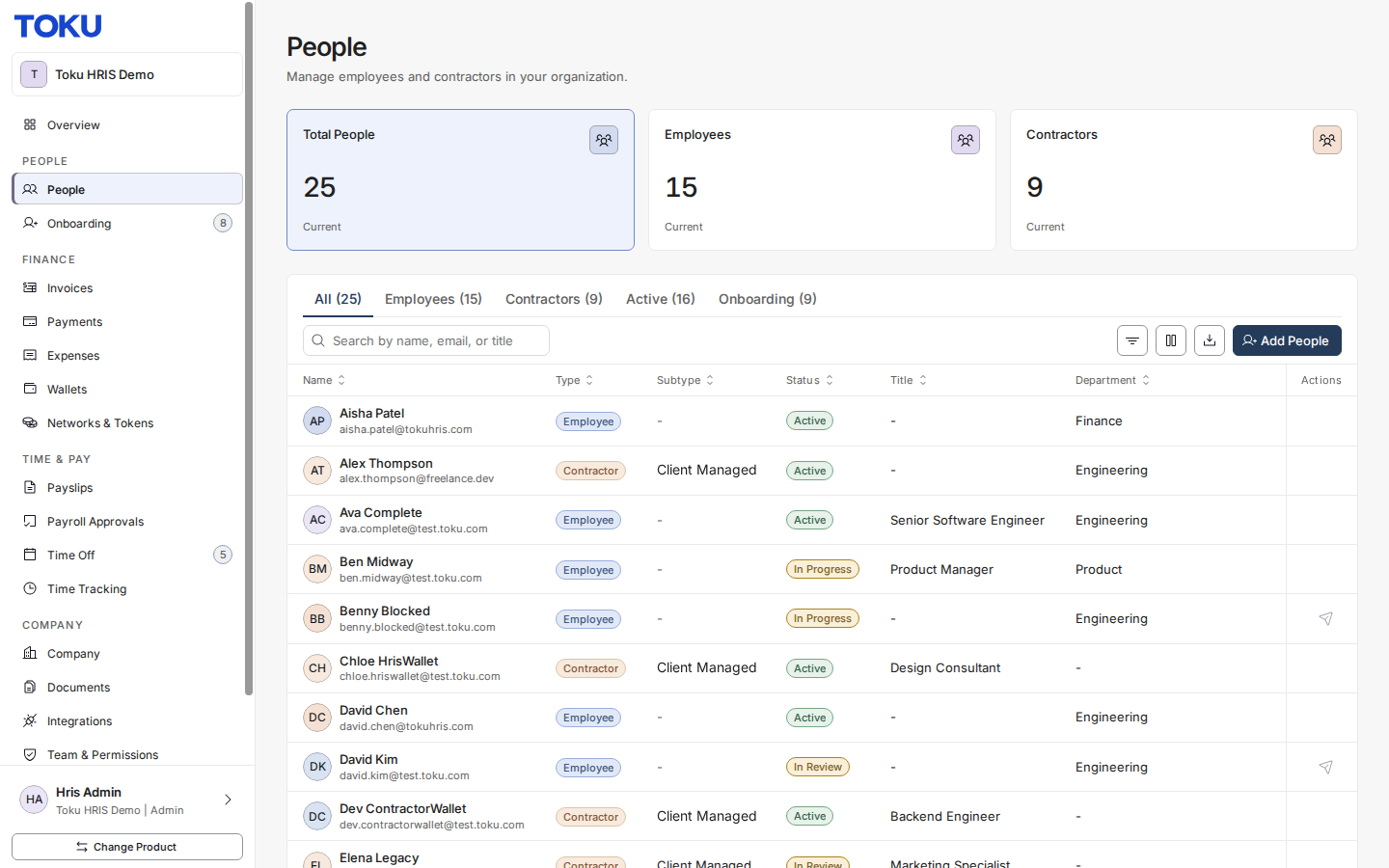
- Open People in the left-hand menu, then click Add People to begin the onboarding process.
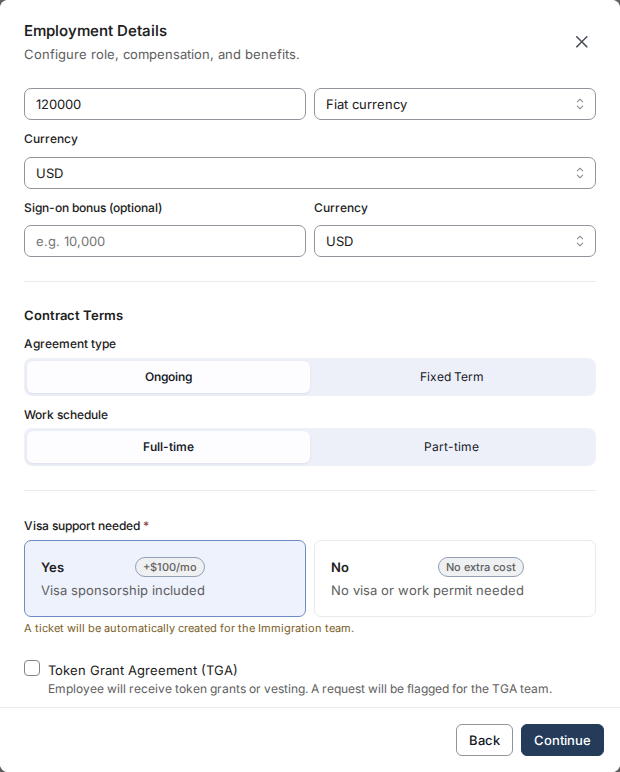
- Fill out the employee's basic information (name, email, title, compensation). When you reach Visa support needed, select Yes to indicate the employee requires visa sponsorship.
- Continue to the review step. You'll see Immigration ticket will be created highlighted in yellow, confirming that a ticket will be automatically routed to the immigration team.
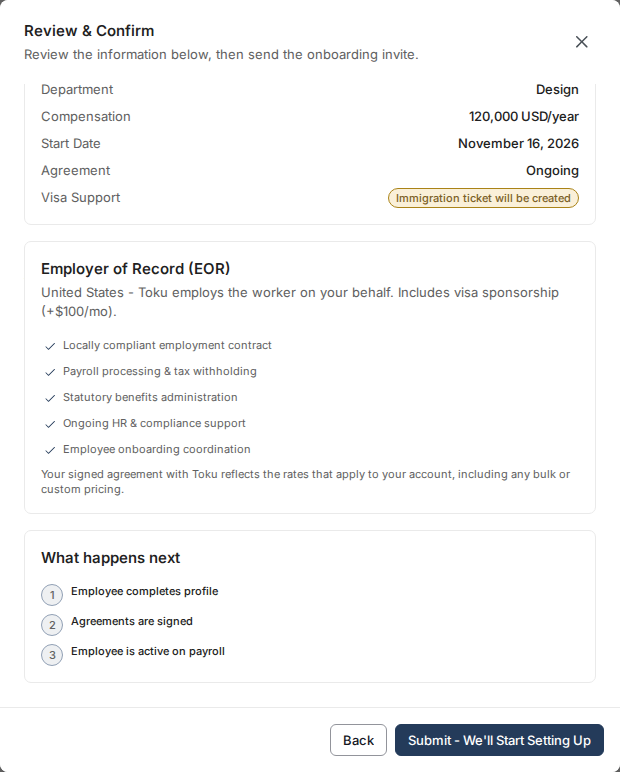
- Click Submit - We'll Start Setting Up to complete the onboarding. The immigration team will automatically receive a notification.
Update work authorization details
- Open People in the left-hand menu and select the employee you want to update.
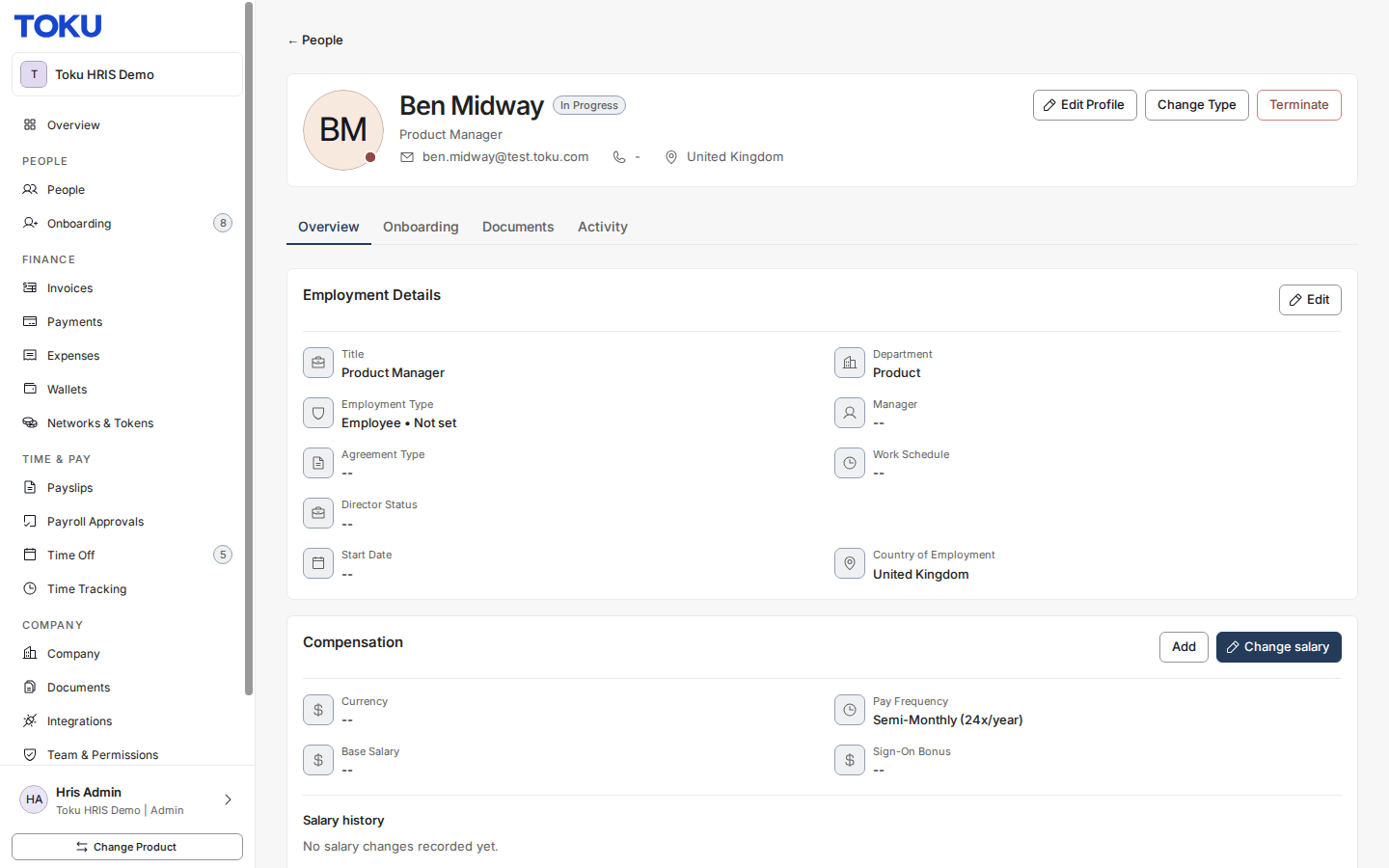
- Scroll down to the Work Authorization section and select Edit. Choose the Authorization Status from the list - it offers the statuses that apply in that person's own country, so there is nothing to type and nothing to spell. Add the Authorization Subtype (for example H1B or Skilled Worker) if the status needs one, and set Sponsorship Requested to Yes if sponsorship is needed. For people in most countries other than the United Kingdom, Australia, the United Arab Emirates and Brazil, Edit opens a window instead: choose the status there from the same country list and select Save, then choose when the change takes effect (for example Immediately) and select Confirm.
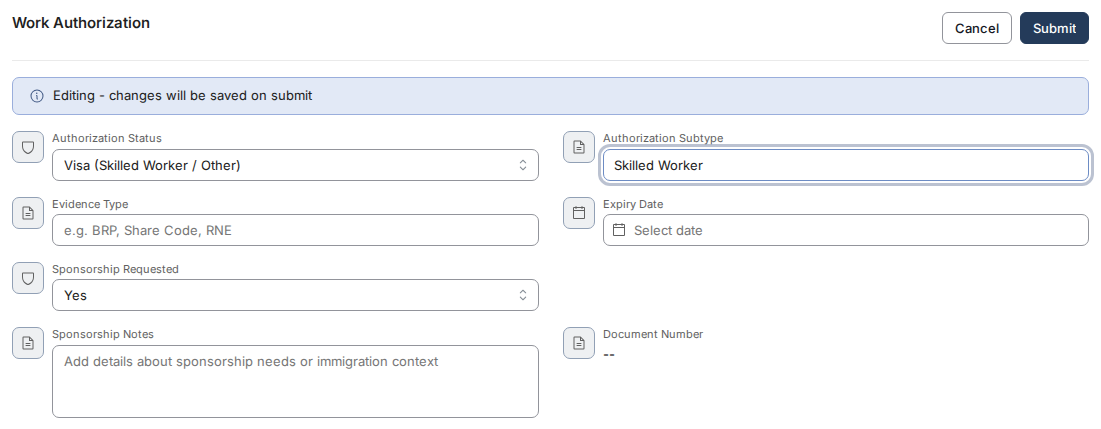
- Click Submit. A change request notification will automatically be sent to the immigration team.
The status list is your employee's country's own
Toku does not offer one global list of statuses. Each country has its own, the same one that person answered during onboarding, so a British employee is never offered American statuses and the other way round.
- United Kingdom — UK or Irish Passport, EU Settled Status (share code), EU Pre-Settled Status (share code), Biometric Residence Permit (BRP), Visa (Skilled Worker / Other), Certificate of Registration / Naturalisation.
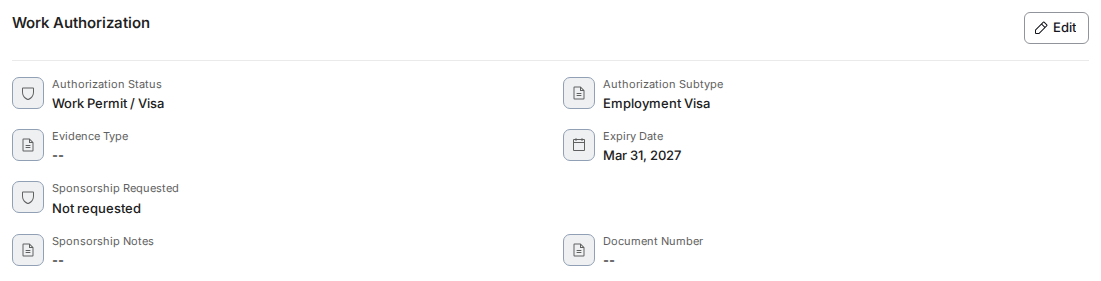
- Countries without their own list — Citizen, Permanent Resident, Work Permit / Visa, Pending - work authorization in progress, Requires Sponsorship. This is what an employee in India, for example, sees.
- The United States, the United Arab Emirates and Australia each have their own list too. If a country's flow does not collect a status at all, the field stays a plain text box so the record can still be kept.
"Unrecognized - needs correcting"
If a status reads something like haha (unrecognized - needs correcting), the value on the record is not one this person's country recognises. Older records could be saved with anything typed into the field, and those are the ones this flags.
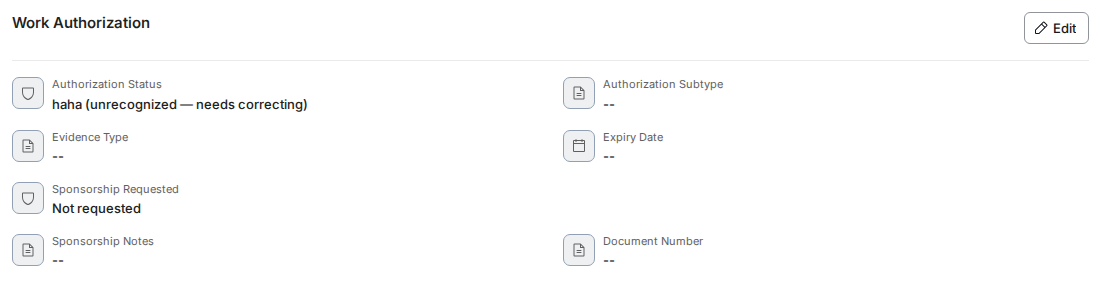
- Select Edit on the Work Authorization card and pick the correct status from the list.
- Take care if you open this card to change something else - an unrecognized status does not carry into the editor, so the control reads Select… and saving would clear it. Set the status at the same time.
See who changed a work authorization, and when
Every work authorization change is recorded against the person it was made for, with the old status, the new status, the date, and the name of whoever made it. As an Employer of Record, Toku has to be able to answer that question, so the record is on the profile rather than somewhere only support can reach.
- Open People, select the person, and choose the Activity tab.
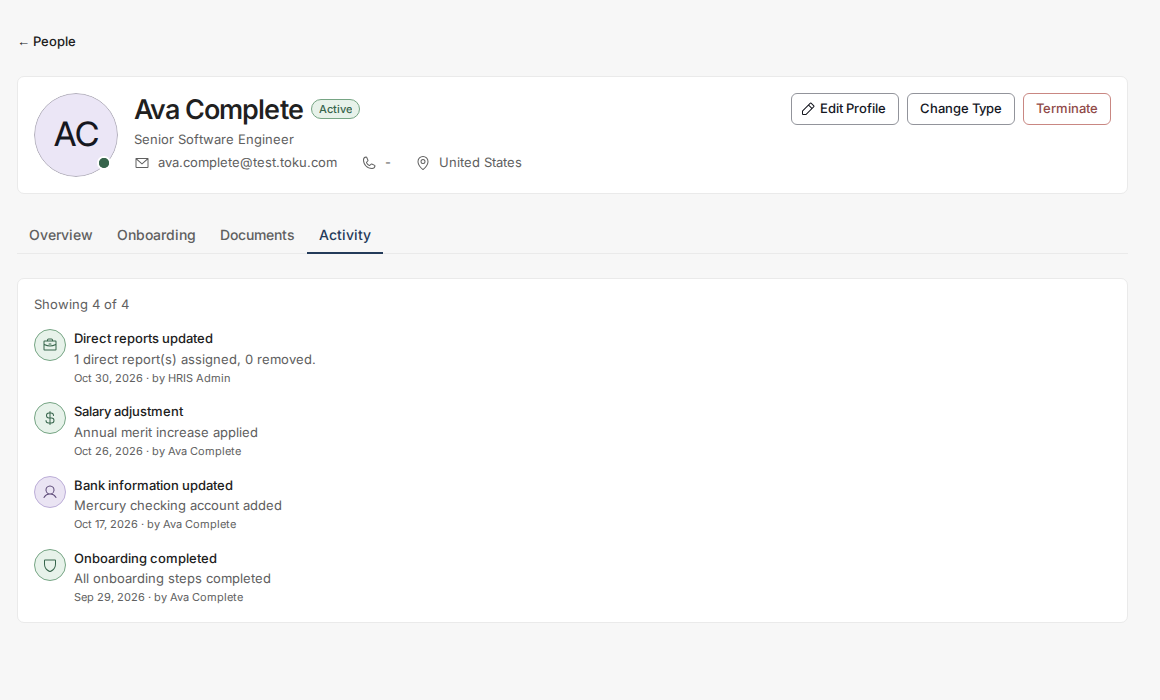
- Read the entry. A work authorization change spells out the move - for example Authorization Status: CITIZEN → WORK_PERMIT — and the line beneath gives the date and the person: Oct 30, 2026 · by HRIS Admin.

- Work authorization entries name the statuses because a right-to-work claim is a compliance record. Entries for other kinds of change say how many fields moved rather than what they became - "Auto-approved change for 2 field(s)" - so that tax identifiers, dates of birth and similar details are not repeated into the feed. Both kinds still name the person and the date.
- An entry with no name against it was not made by a person - those are system or automatic changes, and the line shows only the date.
💡 If a change is rejected when you submit it, the reason now appears in full across the top of the card rather than as a generic "please try again". Read it before retrying - a value the person's country does not accept will be refused every time, however often you resubmit it.
Good to know
- Visa support requests (both from new-hire onboarding and work authorization changes) are automatically routed to the immigration team.
- You can edit work authorization details at any time. The card shows an "Editing - changes will be saved on submit" banner: nothing is sent until you select Submit, and the edit then goes for review like any other profile change and triggers a notification.
Still stuck?
You can email customer-success@toku.com to reach our support team. Please include your email address, organization name, and a description of what happened. Screenshots and videos are always welcome to speed up the troubleshooting process. Feel free to reach out any time for further assistance.