
 5 MIN READ
 UPDATED NOV 3, 2026
⚠️ Contractor invoice and payment deadlines: late action means late payment
- Contractors: submit invoices by the 19th of each month. A saved draft is not a submitted invoice.
- Admins: approve invoices by the 21st of each month. Submission alone does not authorize payment.
- Funding: Toku must receive cleared funds 4 - 5 business days before payout. Initiating a transfer or sending proof of payment does not meet the deadline.
- Standard monthly payout: the last day of the month, provided submission, approval, and funding deadlines are met. Late submission, approval, or funding will delay payment. Every day of delay pushes payment back by at least one day. A missed payment cycle can cause a longer delay; the invoice due date is not a guarantee of payment.
Automation does not remove these deadlines. Earlier published holiday deadlines take precedence; see Toku: 2026 End-of-Year Payroll & Payment Guide.
📘 For organization administrators on Toku. Last updated October 30, 2026.
Remove a person whose onboarding needs to start over, then add them back yourself with the same email address. You do not need to contact Toku for either step.
Before you start
- Sign in at app.toku.com as an administrator of the organization.
- Both steps happen on your organization's own Onboarding tracker at app.toku.com/hris/onboarding.
- Removing someone does not delete their records. Their role is switched off, which is what takes them off the Onboarding tracker, the People list and your user list. Everything they had already submitted is kept.
Remove someone from onboarding
- Open the Onboarding tracker at app.toku.com/hris/onboarding.
- Find the person's row and look at the action icons at the end of it. Alongside Resend Invite (paper plane) and View Progress (eye) you will see Delete (bin).
- Select Delete, read the confirmation window, and confirm. Before the removal completes, Toku voids any document that was sent to that person but not yet signed. If that voiding does not succeed, the whole removal is abandoned and nothing changes, so you can try again rather than being left half-removed. Any open Toku tasks for them and any draft invoice payments are cancelled in the same step.
If the removal is refused
Removal is meant only for an onboarding that is still in progress, so anyone further along is blocked and told why. The messages you are most likely to see:
- "Only workers can be removed from onboarding." An administrator you added in Team & Permissions holds an administrator role, not a worker record, so they never appear on this tracker in the first place.
- "This person has already been removed."
- "Completed onboarding cannot be removed."
- "This person is an active worker, not an in-progress onboarding - contact Toku support."
- "This person has signed documents - contact Toku support."
- "This person has invoices awaiting approval or payment. Reject or cancel those invoices, then remove this person." This is the one case you can clear yourself and then retry.
- "This person has payment history and cannot be removed from onboarding."
- "This person has open expense reports - contact Toku support."
- "This person has pending or approved time off - contact Toku support."
Add the same person back
- On the Onboarding tracker, start adding a person the way you normally would.
- On the first step, Type, choose the employment type you want. It does not have to be the type they had before: someone removed while onboarding as an employee can be added back as a contractor.
- On the Details step, enter the same email address they used before. It is accepted.
Choose invoice automation before review
When adding a contractor through People → Add People, complete Contract, then choose invoice preferences on Invoices before Review. This step appears for Client Managed and Agent of Record contractors; available options depend on the contract and your organization’s settings.
Choose creation, submission, and approval independently, then select Continue to review, or choose Set up later to preserve your organization’s defaults. On Review & Confirm, check Invoice preferences and click Add contractor to save; Back lets you revisit earlier steps.
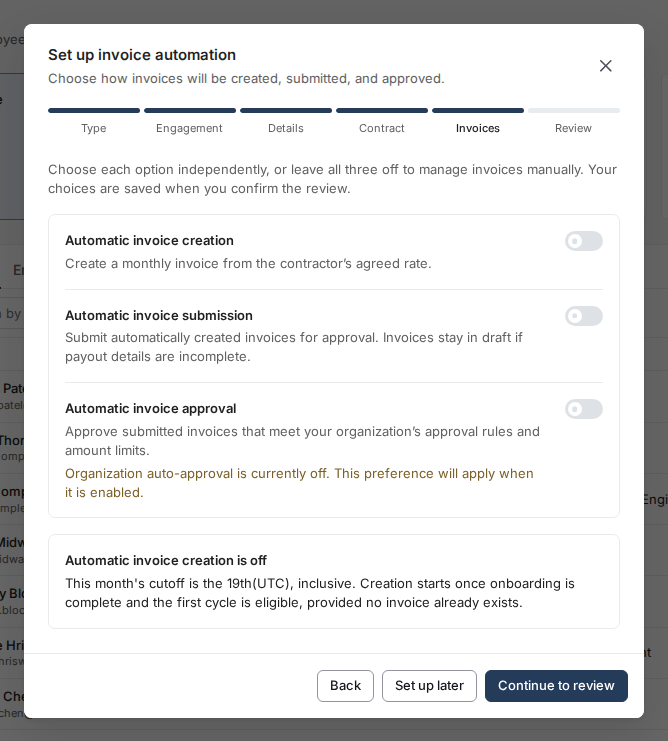
Automatic creation waits until onboarding is complete and the first cycle is eligible; the monthly cutoff is the 19th (UTC), inclusive. Hourly invoices need hours entered manually, submission waits for complete payout details, and automatic approval still follows your organization’s rules and amount limits.
See the illustrated contractor onboarding walkthrough.
- For a contractor, complete Contract, choose invoice preferences on Invoices, and click Add contractor on Review & Confirm. For an employee, finish the remaining steps and submit. Their role is switched back on in place, a fresh set of onboarding steps is created, and a new invitation goes out. They start from the beginning. Everything they submitted the first time round is still stored.
If adding them back is refused
This email was used by , whose role in your organization has been revoked. Contact Toku support to re-onboard them.
That message means the role was switched off by something other than Delete on the Onboarding tracker, or the person had already finished onboarding. Adding someone back yourself covers a person who was removed from the tracker while their onboarding was still in progress, was never terminated, and had not started self-serve contractor onboarding. Anything else needs Toku, and the message is correct rather than a fault.
You may also see:
This email belongs to , who was terminated. Find them in the People tab by email, or contact Toku support to rehire them.
Good to know
- Removing someone and adding them back is the supported way to change their employment type while they are still onboarding.
- A person whose role has been switched off has no row on the Onboarding tracker or the People list, so there is nothing to resend an invitation from. They have to be added back first.
- Adding someone back reuses their existing record rather than creating a second one, so they do not end up with two profiles in your organization.
Still stuck?
You can email customer-success@toku.com to reach our support team. Please include your email address, organization name, the email address of the person you were removing or adding back, and what the screen said. Screenshots are always welcome and speed up troubleshooting.