
 4 MIN READ
 UPDATED OCT 30, 2026
📘 For organization administrators on Toku. Last updated October 30, 2026.
When you add a client administrator, Toku emails them their onboarding invitation straight away. This guide covers how to add them, plus what to do if an invitation never arrived.
Before you start
- You need administrator access to your organization on Toku.
- Have the new administrator's first name, last name, and email address ready. The invitation goes to the address you enter, so double-check it.
- Everyone you add from Team & Permissions becomes an administrator and is sent the onboarding invitation as soon as you select Send Invite.
Add an administrator and send the invitation automatically
This is the only way to add an administrator: the invitation email always goes out straight away.
- Log in at app.toku.com and open Team & Permissions in the left-hand menu.
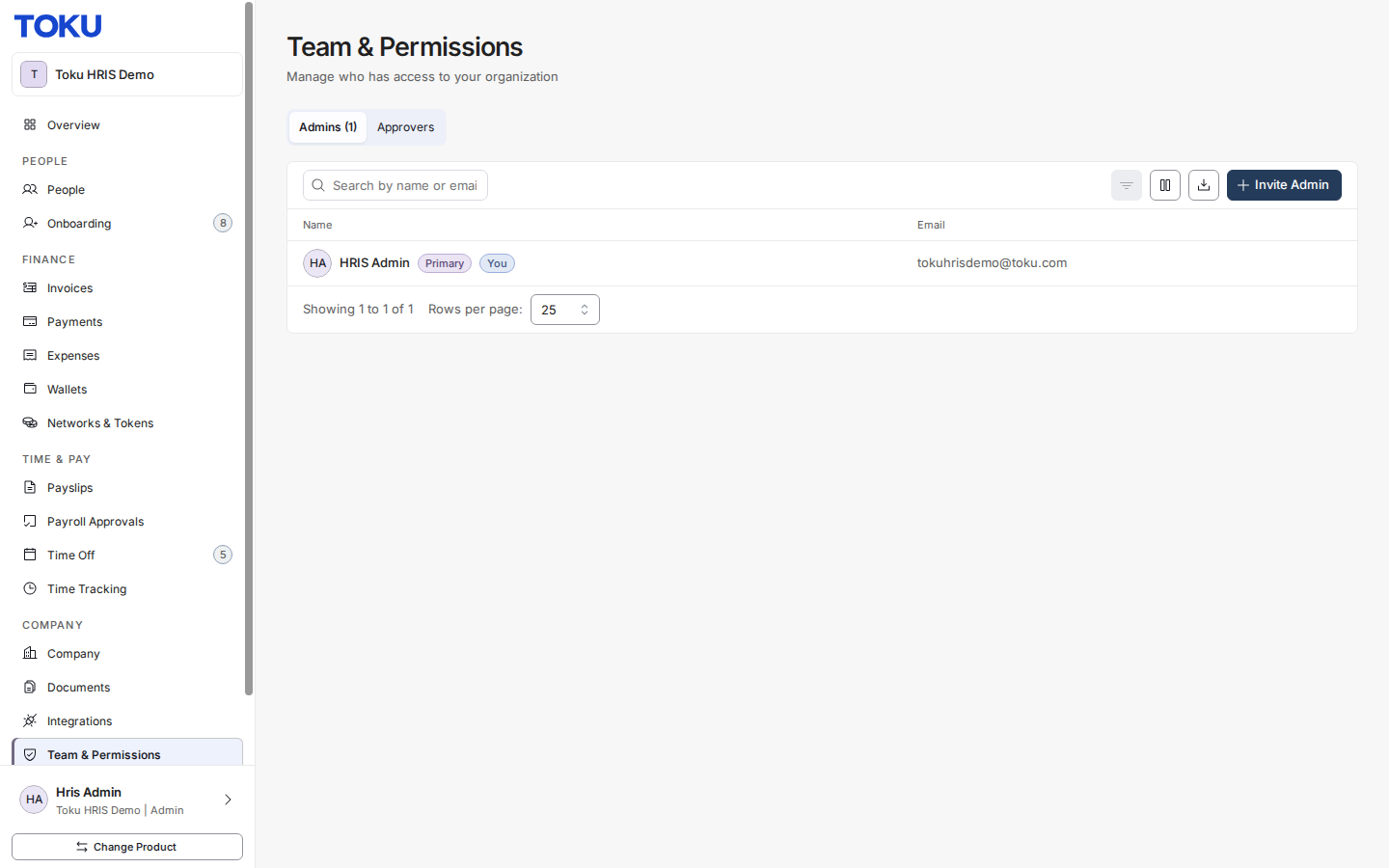
- Select Invite Admin, at the top right of the admin list.
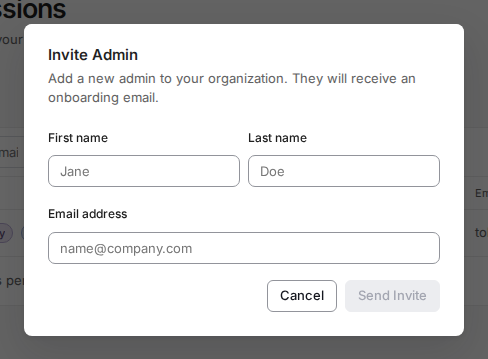
- Enter the First name, Last name, and Email address.
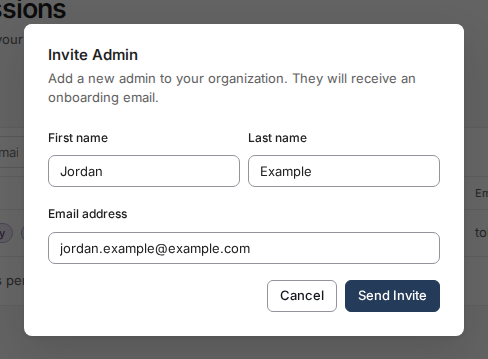
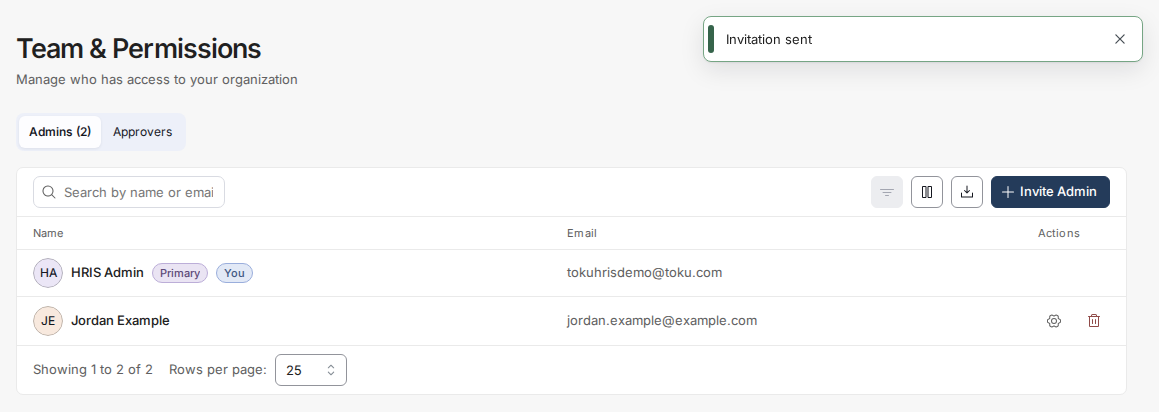
- Select Send Invite. Toku creates the administrator and sends the invitation immediately. Toku confirms with Invitation sent, and the new administrator appears in your Team & Permissions list right away.
Add an administrator without sending the invitation
Team & Permissions no longer has this option: selecting Send Invite always emails the new administrator straight away. If someone should not get their invitation yet - for example, someone who starts next month - invite them on the day you want the email to go out.
💡 An administrator who has not received their invitation cannot set a password, so they cannot sign in yet. Their access only becomes usable once the invitation is sent and they complete setup.
Resend an invitation
There is no Resend button on the admin list. If the invitation hasn't arrived and isn't in the recipient's spam or quarantine folder, remove the administrator and invite them again:
- Find the administrator in Team & Permissions.
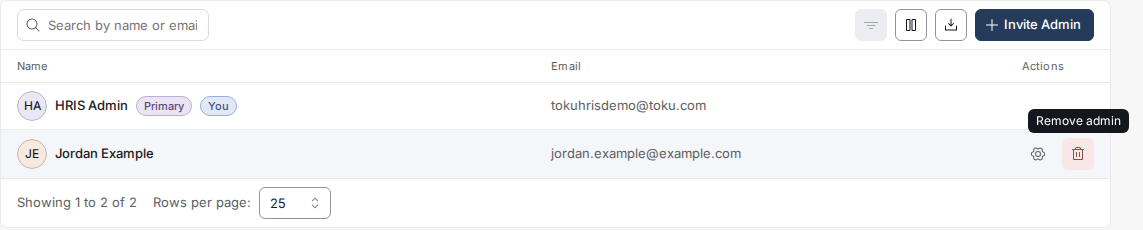
- In the Actions column, select the bin icon (Remove admin) on their row.
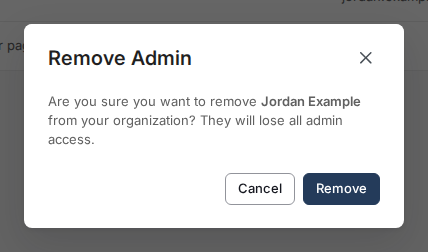
- In the Remove Admin confirmation dialog, select Remove.
- Select Invite Admin and add them again with the same details. Toku sends a fresh invitation with a new setup link and confirms with Invitation sent. Removing and re-adding someone resets their page access to the default (Full Access), so check it under Manage permissions afterwards.
What the new administrator receives
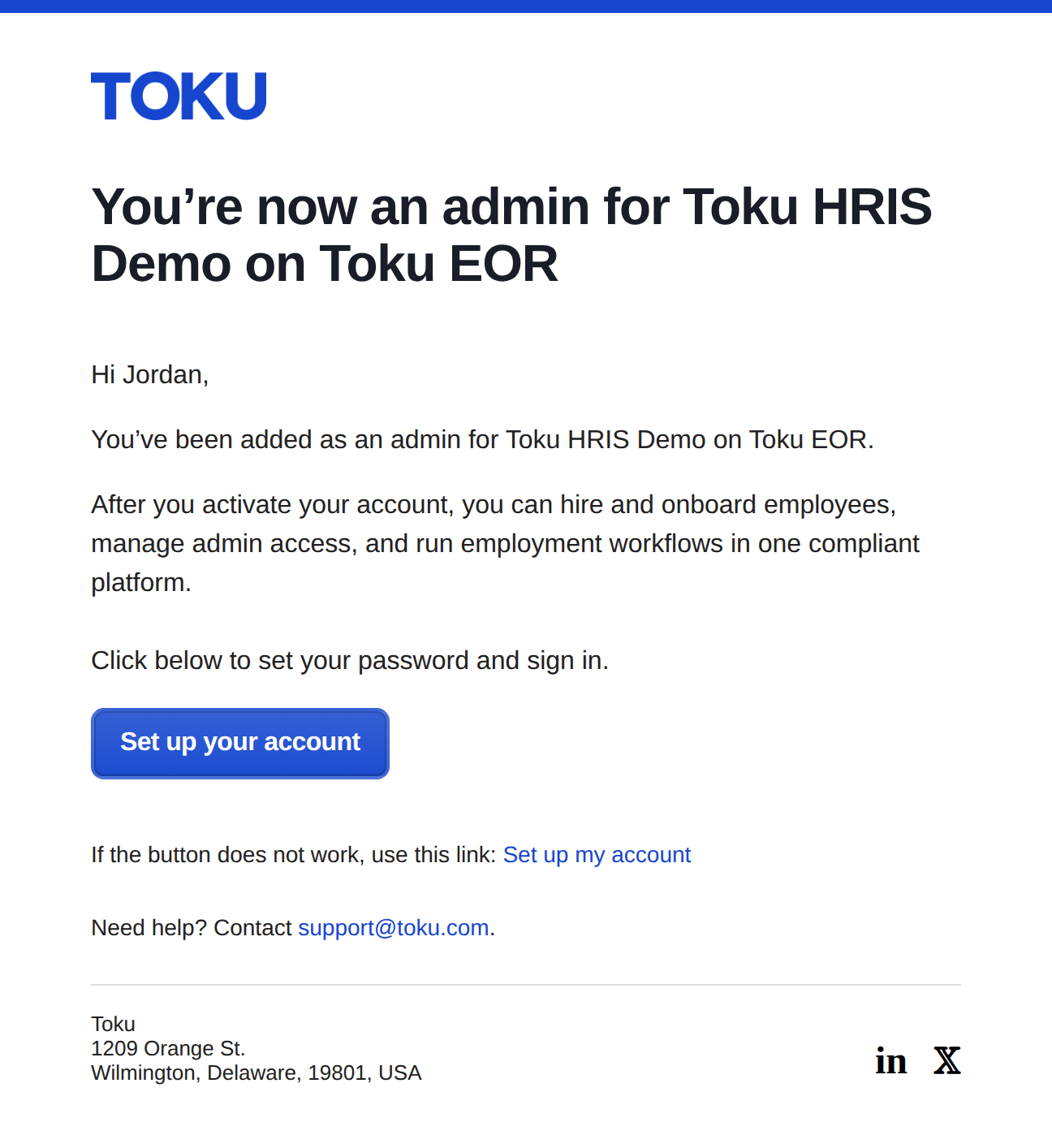
The invitation asks them to set a password and sign in. The subject line depends on which Toku product your organization uses:
- Employment (HRIS) organizations: "You're now an admin for [your organization] on Toku EOR"
- Token Grants and Stablecoin Payroll organizations: "Your Token Grant Admin account is now ready on Toku!" The email contains a Set up your account button and a backup Set up my account link. If the recipient cannot find it, ask them to check their spam and quarantine folders before you resend.
If the invitation cannot be sent
- The person is already an administrator and has already been invited. Toku blocks the duplicate and shows an Invite failed error. To send them a fresh invitation, follow Resend an invitation above instead of adding them again.
- The person was added earlier without an invitation. Inviting them again simply sends the invitation to the entry that already exists. No duplicate row is created and your administrator count does not change.
- The email address has a typo. Remove the administrator and add them again with the correct address. Editing the address on an existing entry does not resend the invitation.
Good to know
- The email address you enter on this page is not case-sensitive.
Jane.Doe@company.comandjane.doe@company.comare matched to the same administrator, so capitalising the address differently will not create a second entry. - New administrators start with Full Access to your organization's pages. You can narrow this at any time with Manage Permissions — see How to Edit an Administrator's Page Permissions.
- Every invitation sent or resent is recorded in your organization's activity log, including who sent it.
- To remove an administrator's access completely, select the bin icon next to their name.
⚠️ Administrators can view employee and pay information for your organization. Only add people who should have this level of access, and only send invitations to addresses you have verified.
Still stuck?
You can email customer-success@toku.com to reach our support team. Please include your email address, organization name, and a description of what happened. Screenshots and videos are always welcome to speed up the troubleshooting process. Feel free to reach out any time for further assistance.