
 3 MIN READ
 UPDATED NOV 6, 2026
For admins and employees on Toku Employment Platform (HRIS). Last updated November 6, 2026.
Some countries require employers to pay extra salaries each year, such as Mexico's aguinaldo or the 13th month pay in the Philippines. Toku shows these statutory 13th and 14th month salaries on the employee's profile, with an estimated amount and due date, so nobody is surprised by them. Admins can also put a payment on record with one click.
Before you start
- The section appears only for employees in a country where Toku has set up the statutory 13th or 14th month rules. If you don't see it for an employee, that country isn't set up yet. Contact customer-success@toku.com to ask about a country.
- It shows for employees, not contractors.
- Amounts are estimates. The payroll register, and the employee's payslip, show the amount actually paid.
- Nothing is paid automatically. Your payroll runs as before unless an admin schedules a payment.
See an employee's statutory extra salaries (admins)
- Go to People and open the employee's profile.
- Scroll to the Compensation card. Under the salary details you'll see Statutory extra salaries, marked Estimate.
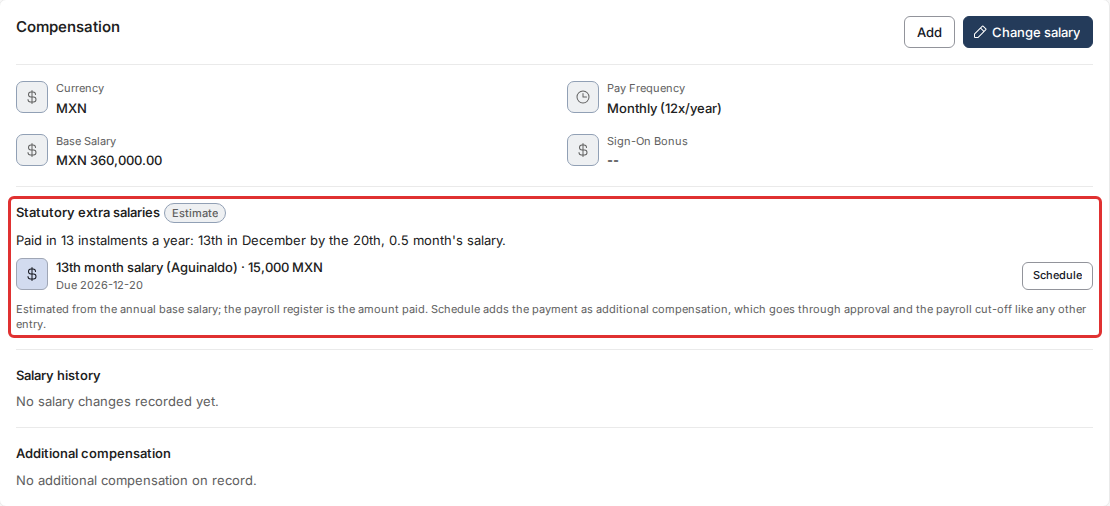
The first line sums up the country's rules, for example "Paid in 13 instalments a year: 13th in December by the 20th, 0.5 month's salary." Below it, each payment due in the next 12 months shows its name, estimated amount and due date. When a country pays a salary in two equal parts (for example in November and December), each part is listed on its own.
Schedule a payment (admins)
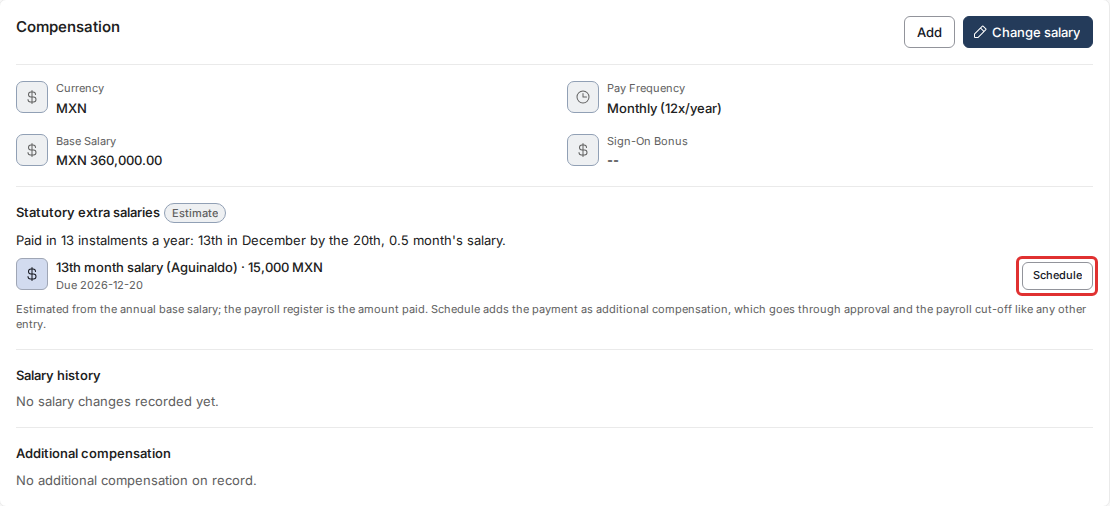
- In Statutory extra salaries, click Schedule next to the payment.
- The Add Additional Compensation form opens already filled in: the estimated Amount, the salary Currency, Type set to Bonus, a One-time schedule, the due date as the Effective Date and a Note naming the payment.
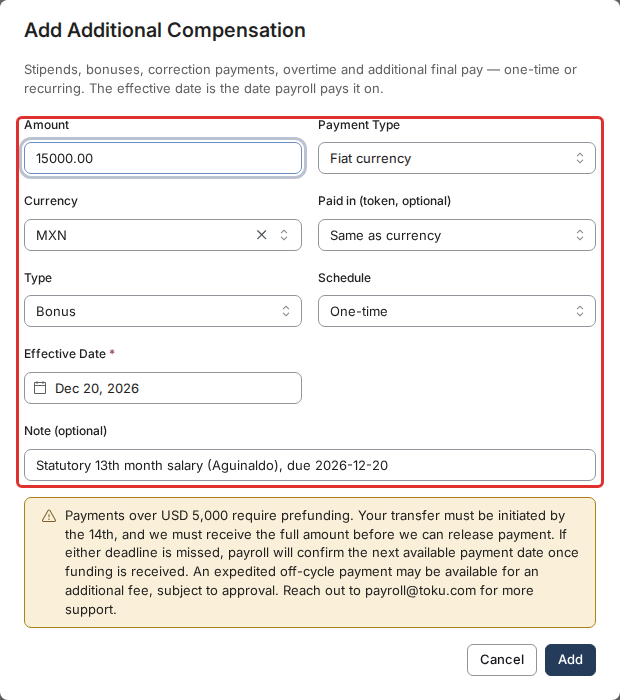
- Check the amount against your payroll figures and change anything you need.
- Click Add. The payment is added to Additional compensation and goes through the same approval and payroll cut-off as any other entry. Once it's on record, the statutory payment shows Scheduled and the Schedule button goes away, so it can't be added twice.
What employees see
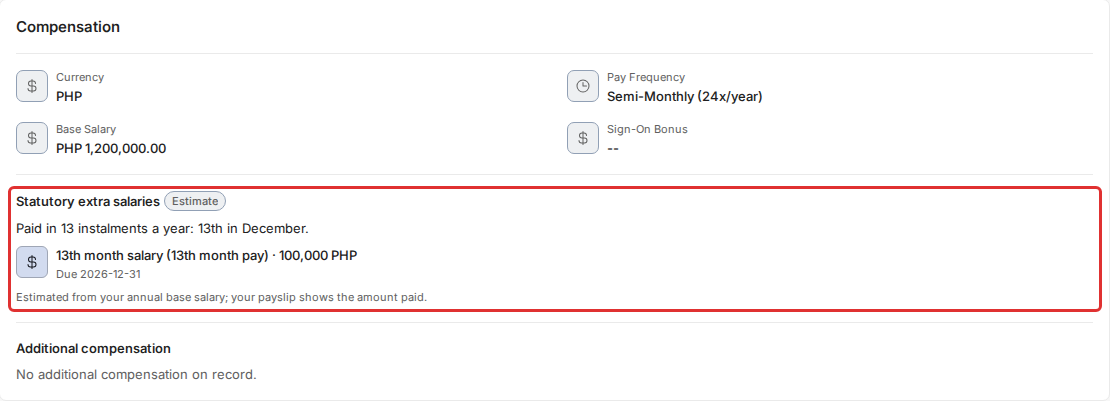
Employees see the same section on their own profile, under Compensation, with the estimated amount and due date of each payment. They can't schedule anything.
Good to know
- How the estimate works. Toku starts from the employee's annual base salary. If the salary already includes the 13th or 14th month, Toku takes that into account when it works out one regular month. Hourly salaries get no estimate.
- New starters. If the employee started part way through the year the payment covers, the estimate is prorated by the days they were employed.
- Leavers. A payment due after the employee's end date isn't listed, because their share is settled in final pay.
- Salaries paid in stablecoins. No Schedule button is shown when the salary is held in a stablecoin. Use Add on the Compensation card to enter the payment yourself.
Still stuck?
Email customer-success@toku.com and we'll help.