
 3 MIN READ
 UPDATED NOV 4, 2026
For admins on Toku Employment. Last updated November 4, 2026.
Workforce trends shows how your team has changed over time: headcount at the end of each month, who joined and who left, voluntary and involuntary exits, and your turnover rate. You can look at everyone or one department, country, entity or worker type, and download the figures as a spreadsheet.
Before you start
- You need access to Reports. If you can't open Reports, ask an admin on your account to give you access in Team & Permissions.
- If your access covers only your team, Workforce trends shows only the people in your team.
- The figures come from each person's start date and last working day. People with no start date on record, and people who left with no last working day on record, can't be placed in a month. The page tells you how many there are, so you can fill in the missing dates on their profiles.
Open Workforce trends
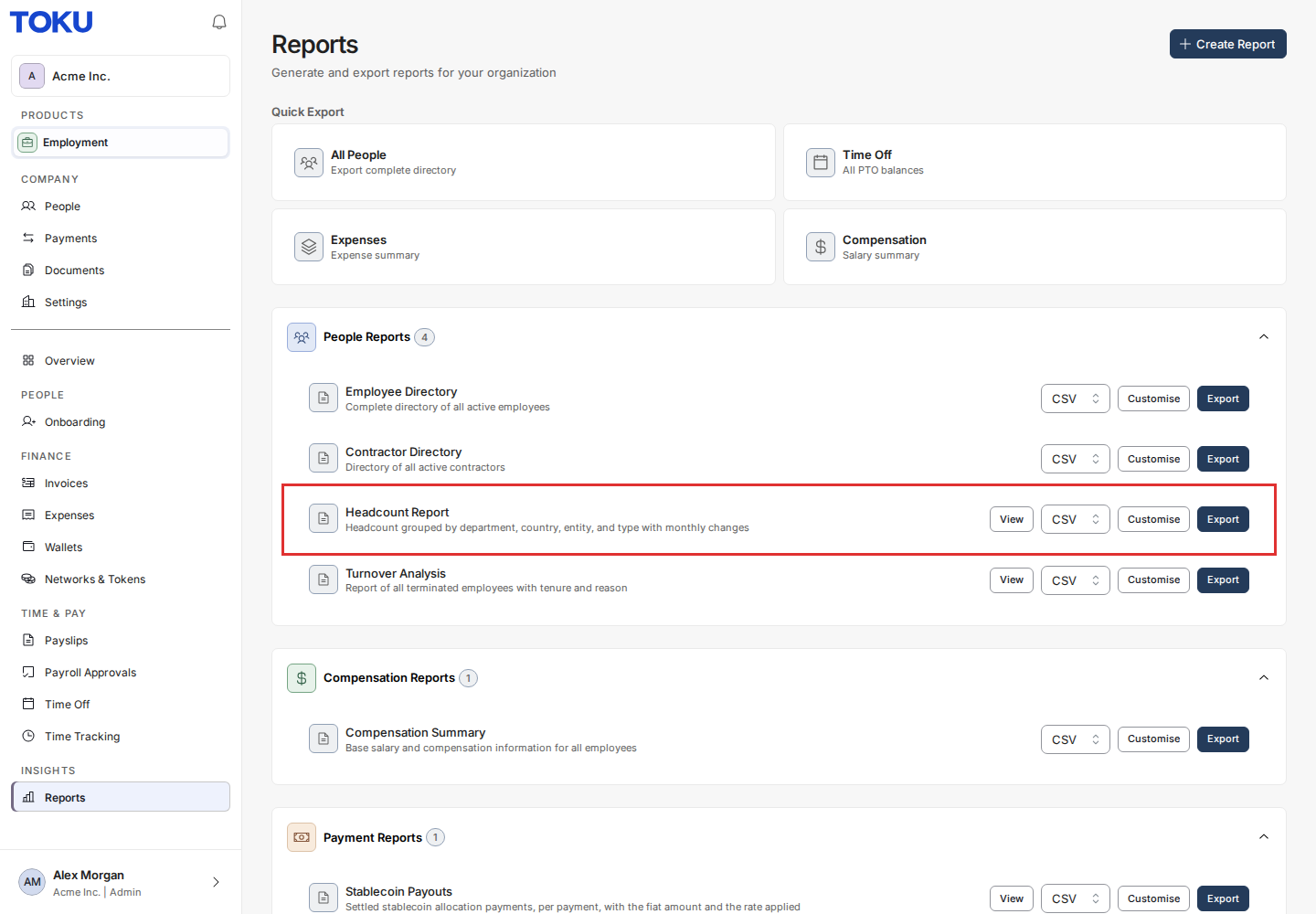
- In the left menu, click Reports.
- Under People Reports, click View next to Headcount Report. To go straight to the turnover figures, click View next to Turnover Analysis instead.
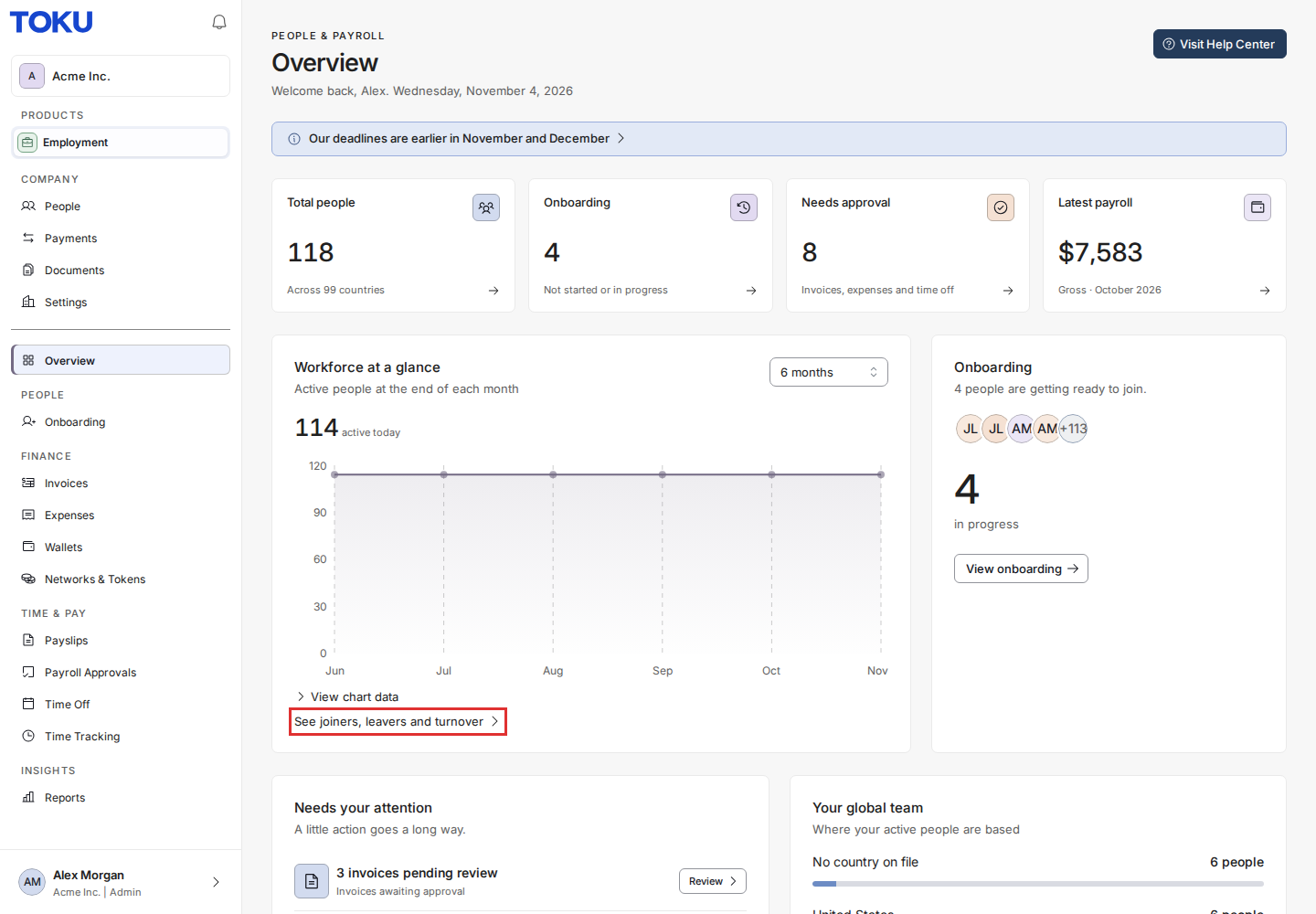
You can also open it from your Overview page: under the Workforce at a glance chart, click See joiners, leavers and turnover.
Read your headcount
- Make sure Headcount is selected at the top of the page.
- Choose who to include (Everyone, Employees or Contractors) and the period (6 months, 12 months or 24 months).
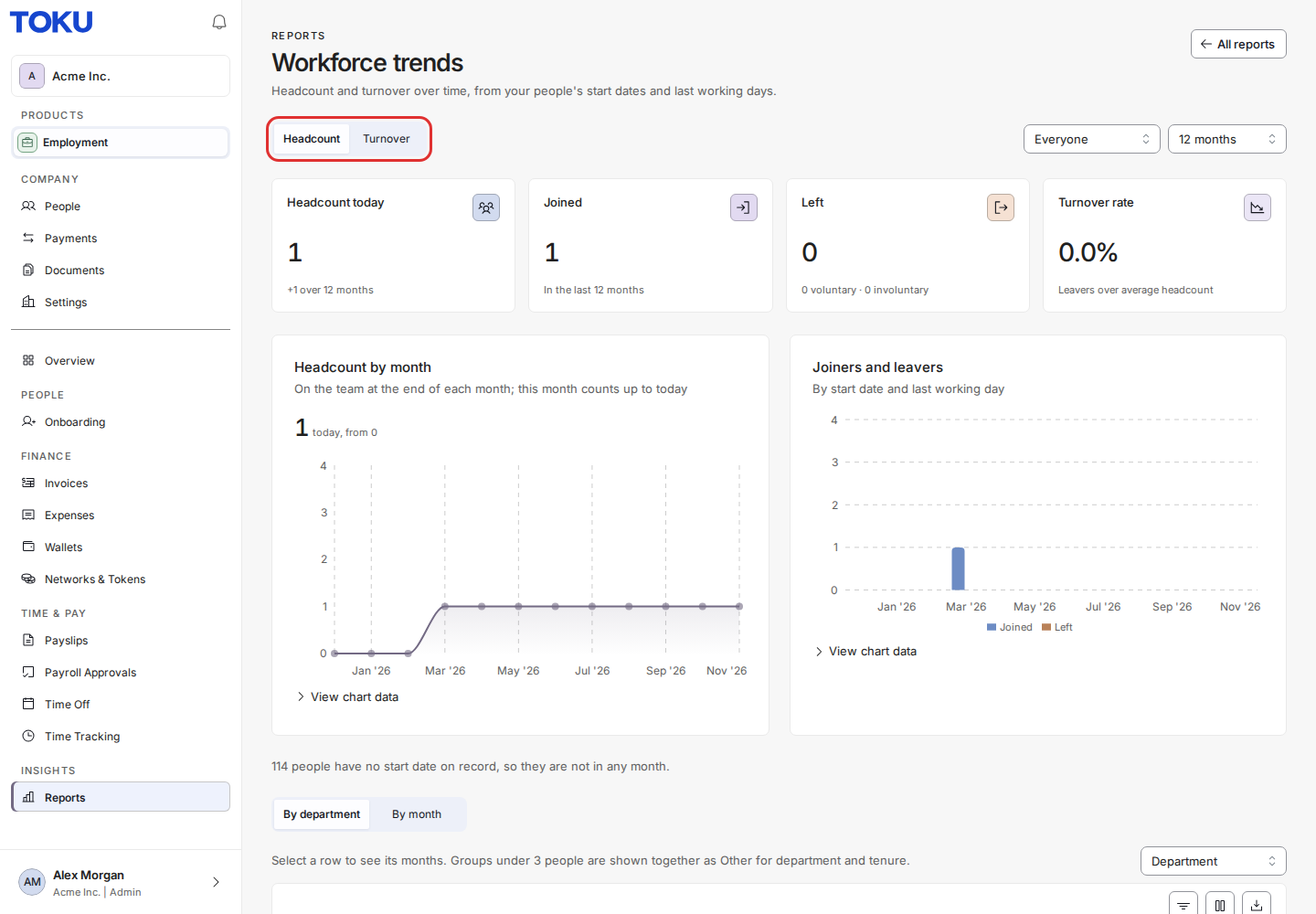
The four figures at the top show your headcount today and how it changed over the period, how many people joined, how many left (with the voluntary and involuntary split), and your turnover rate.
- Headcount by month shows how many people were on your team at the end of each month. The current month counts up to today.
- Joiners and leavers shows, for each month, how many people started and how many had their last working day. Click View chart data under a chart to see its figures as a table.
Read your turnover
- Click Turnover at the top of the page.
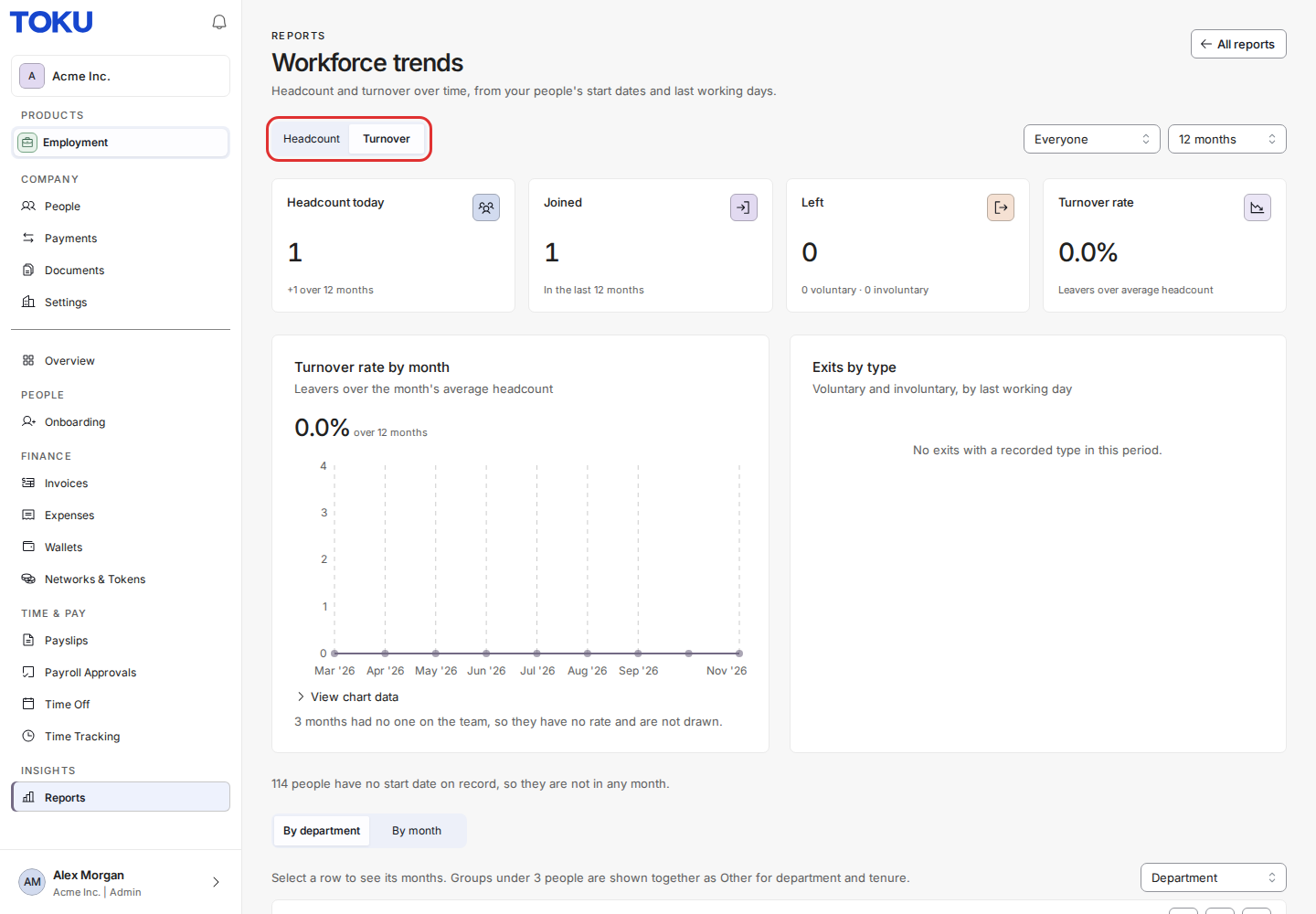
- Turnover rate by month is the number of people who left that month, divided by the average of the headcount at the start and the end of the month.
- Exits by type shows voluntary and involuntary exits each month. An exit with no termination type on record is counted as a leaver but not as voluntary or involuntary.
Break it down
- Scroll down to the table and choose a breakdown in Break down by: Department, Country, Entity, Worker type or Tenure.
- To see the monthly figures and charts for one group, click its row. Click Show everyone to go back.
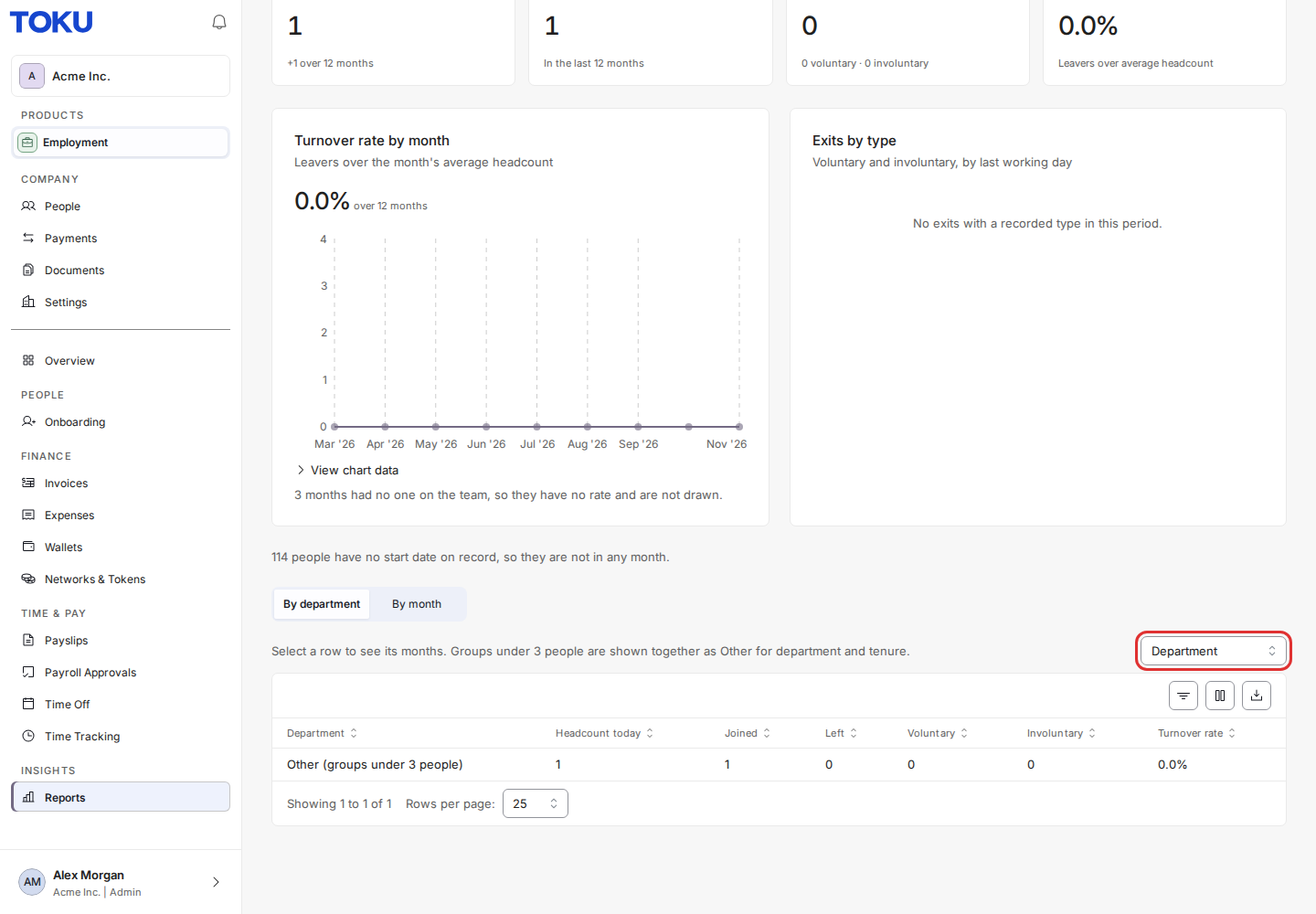
For each group, the table shows headcount today, joiners, leavers, voluntary and involuntary exits, and the turnover rate for the period. In the department and tenure breakdowns, groups with fewer than 3 people are shown together as Other.
Download the figures
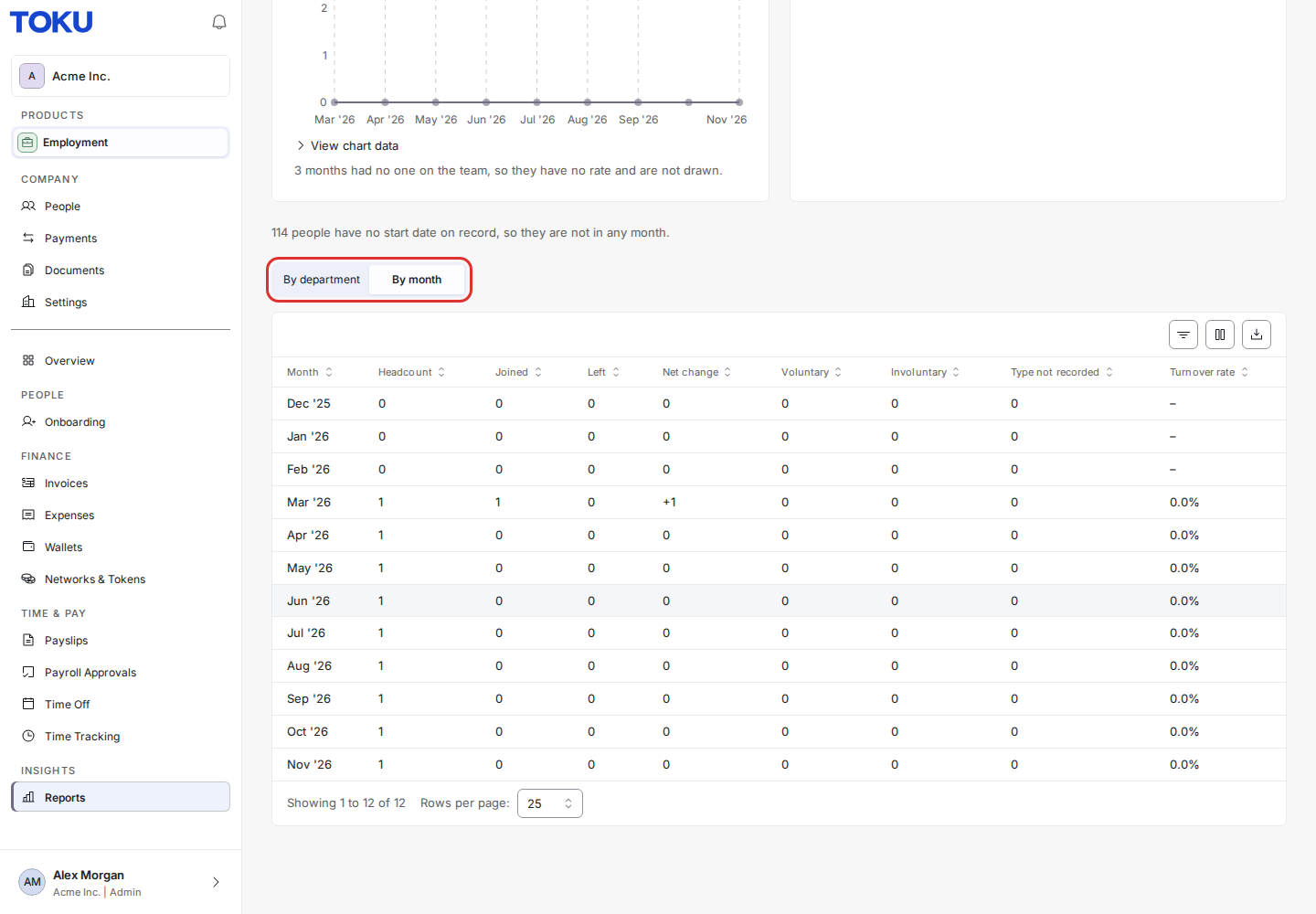
- Click By month to see every month's figures in one table, or stay on the breakdown table.
- Click the download button above the table to save it as a spreadsheet.
Good to know
- Someone counts as having left on their last working day. A termination that hasn't taken effect yet, for example while someone is serving notice, is not counted as an exit.
- Tenure counts from the start date, or from the continuous service date where one is recorded.
- People who were removed from your account don't appear in any month.
- Termination reasons are never shown on this page, only counts by type.
Still stuck?
Email us at customer-success@toku.com and we'll help.