
 3 MIN READ
 UPDATED NOV 5, 2026
For admins on Toku Employment. Last updated November 5, 2026.
Import history shows every bulk import your team has run from a spreadsheet: who ran it, when, which file, and how many rows went in. You can open any import to see which rows were skipped or failed, why, and download that list as a CSV to fix your file.
Before you start
- You need admin access to the page the import belongs to: People for people imports, Time off for time off imports.
- If your access is limited to a team, you see only the imports you ran yourself.
- Import history covers imports run from now on. Imports run before this feature was added are not listed.
Open the import history
- Go to People (for people imports) or Time Off (for time off imports).
- In the table toolbar, click the clock icon Import history.
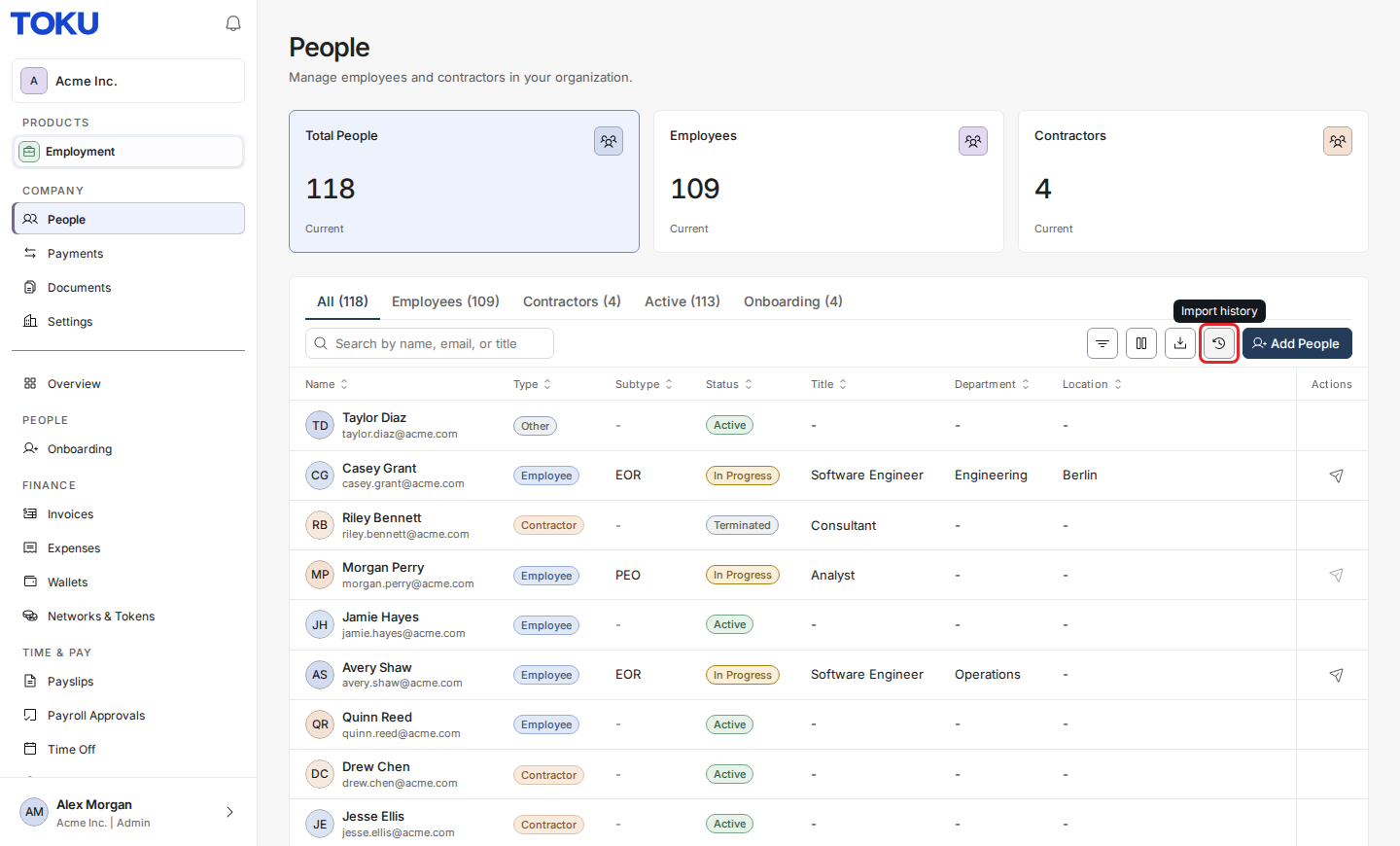
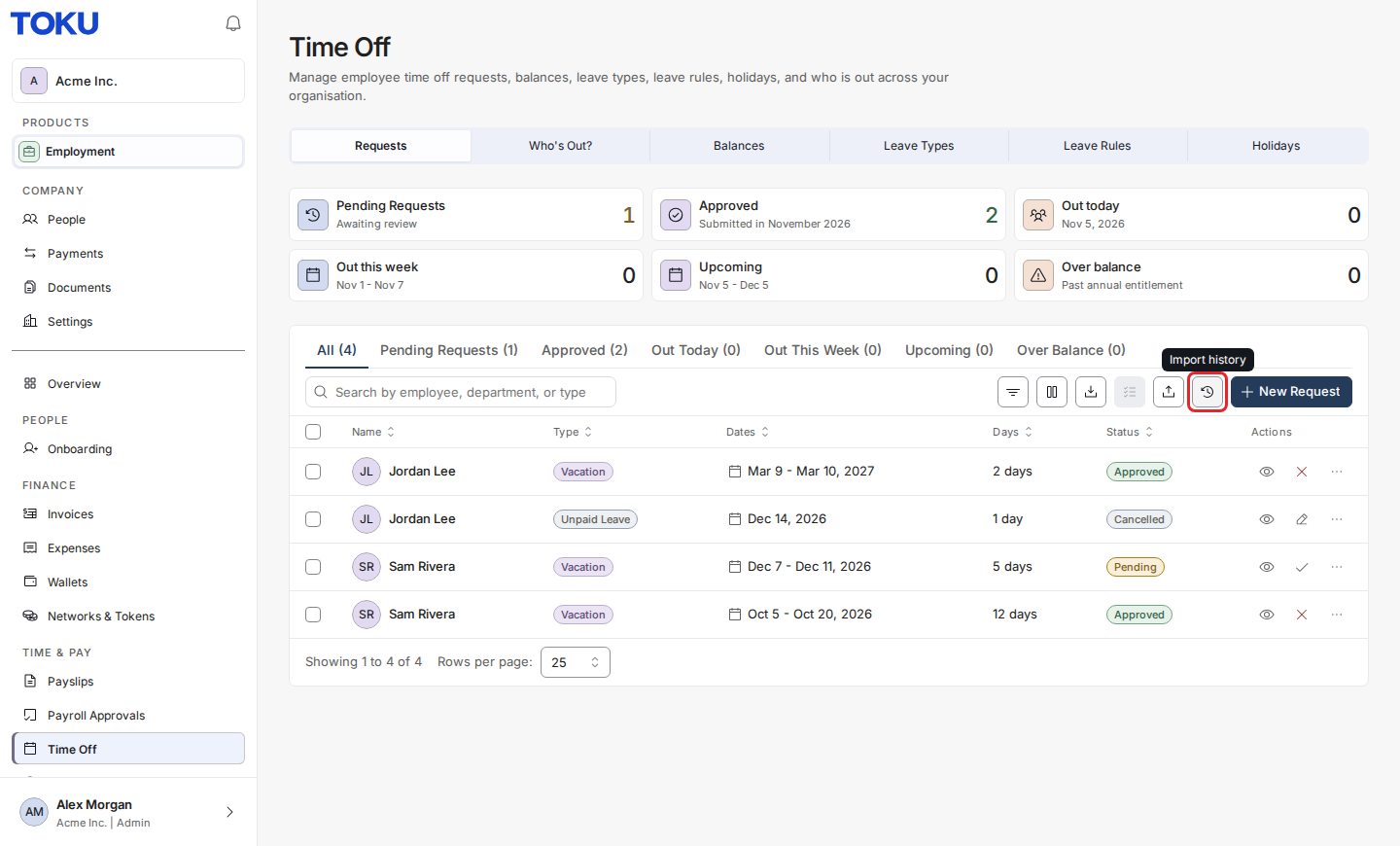
- The list shows your imports, newest first: Started, File, Ran by, Status, and how many rows were Imported, Skipped and Failed. Use the search box to find an import by file name or by who ran it.
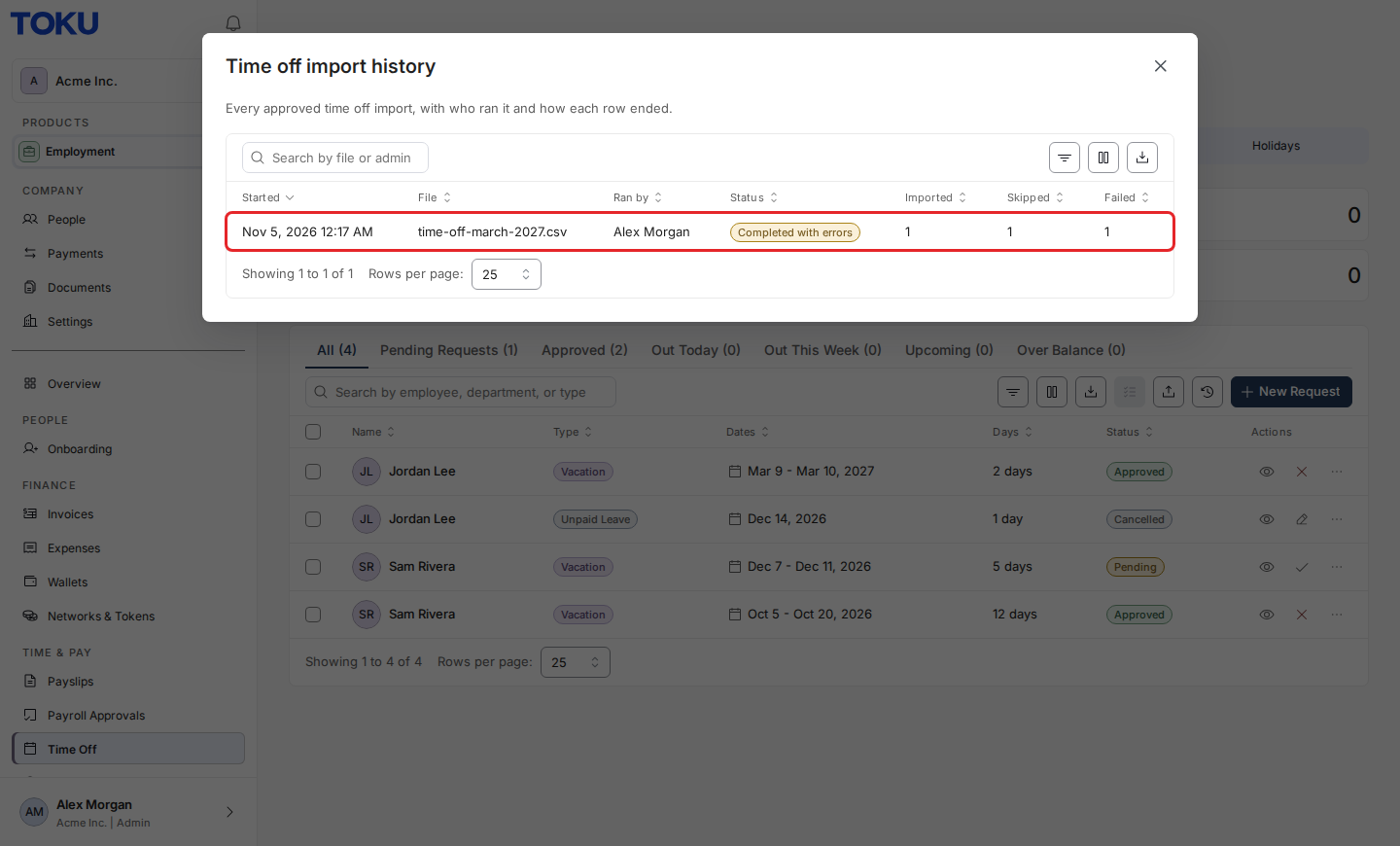
See what happened to each row
- Click an import in the list.
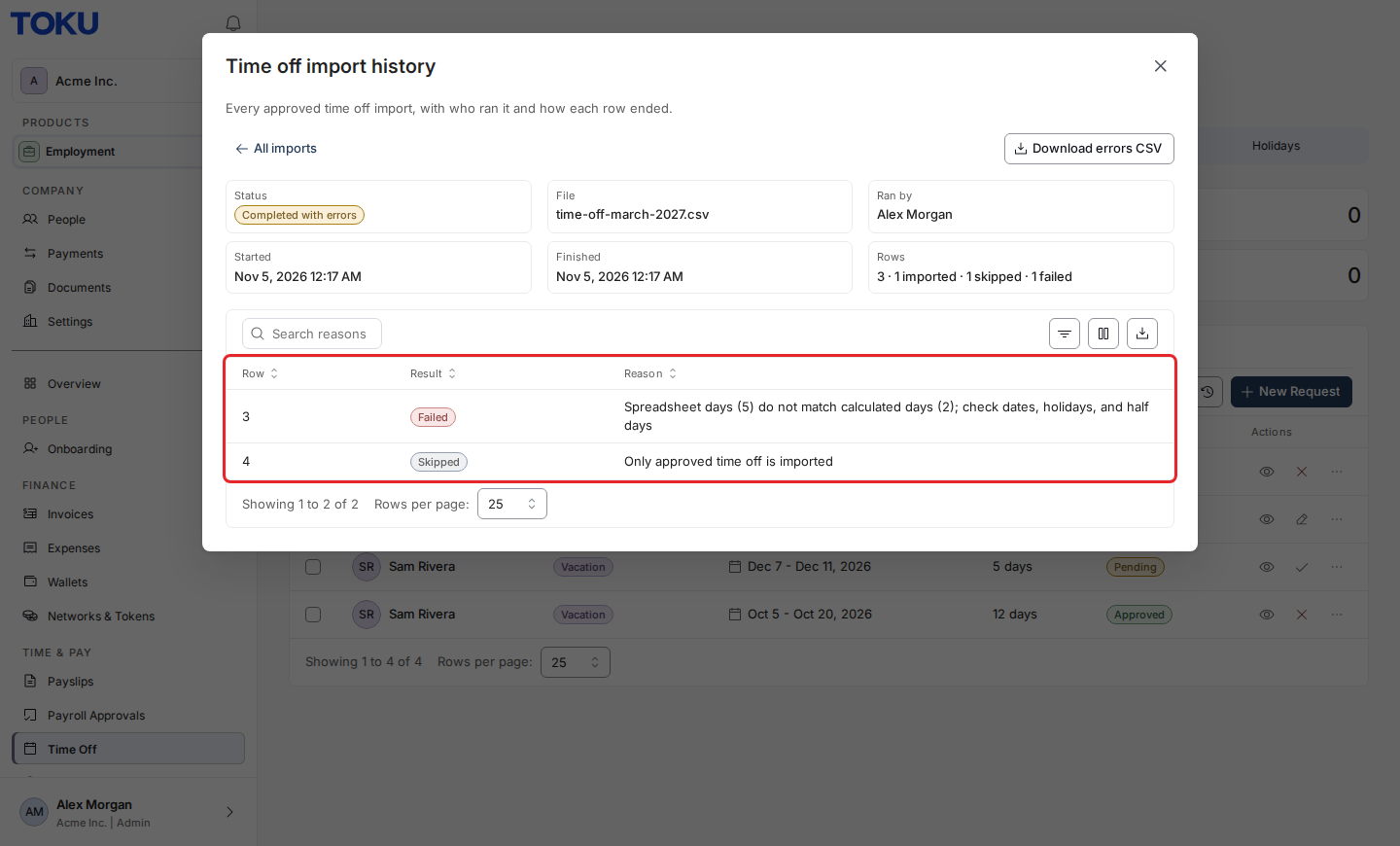
- The details show its status, file, who ran it, when it started and finished, and the row counts.
- The table lists every row that was skipped or failed, with its row number in your spreadsheet and the reason.
- Click Download errors CSV to save those rows, then fix them in your file and import them again.
- Click All imports to go back to the list.
What the statuses mean
- Completed: every row was imported, or skipped for an expected reason (for example the person already exists, or the time off was not approved).
- Completed with errors: some rows went in and some failed.
- Failed: no rows went in and at least one row failed.
- In progress: the import is still running.
- Did not finish: the import stopped before it reported its results, for example because the browser tab was closed. Check the list for what it added before you run it again.
Good to know
- Row numbers match your spreadsheet: the header is row 1, so the first person or entry is row 2.
- The reasons are the same messages the import showed when you ran it. Email addresses are not shown in the history.
- For time off, rows you left unchecked and rows that were not approved are listed as skipped, so the history covers the whole file.
- Imports run by Toku support on your behalf are marked (Toku support).
Still stuck?
Email customer-success@toku.com with the file name and the time of the import, and we will help.