
 4 MIN READ
 UPDATED OCT 30, 2026
📘 For employees on Toku. Last updated October 30, 2026.
Submit your work-related expenses for reimbursement through Toku's built-in expense tool.
Before you start
- You need an employee account with access to the Expenses page.
- Have your receipt or invoice ready - you'll need to upload it with each expense claim.
Open the Expenses page
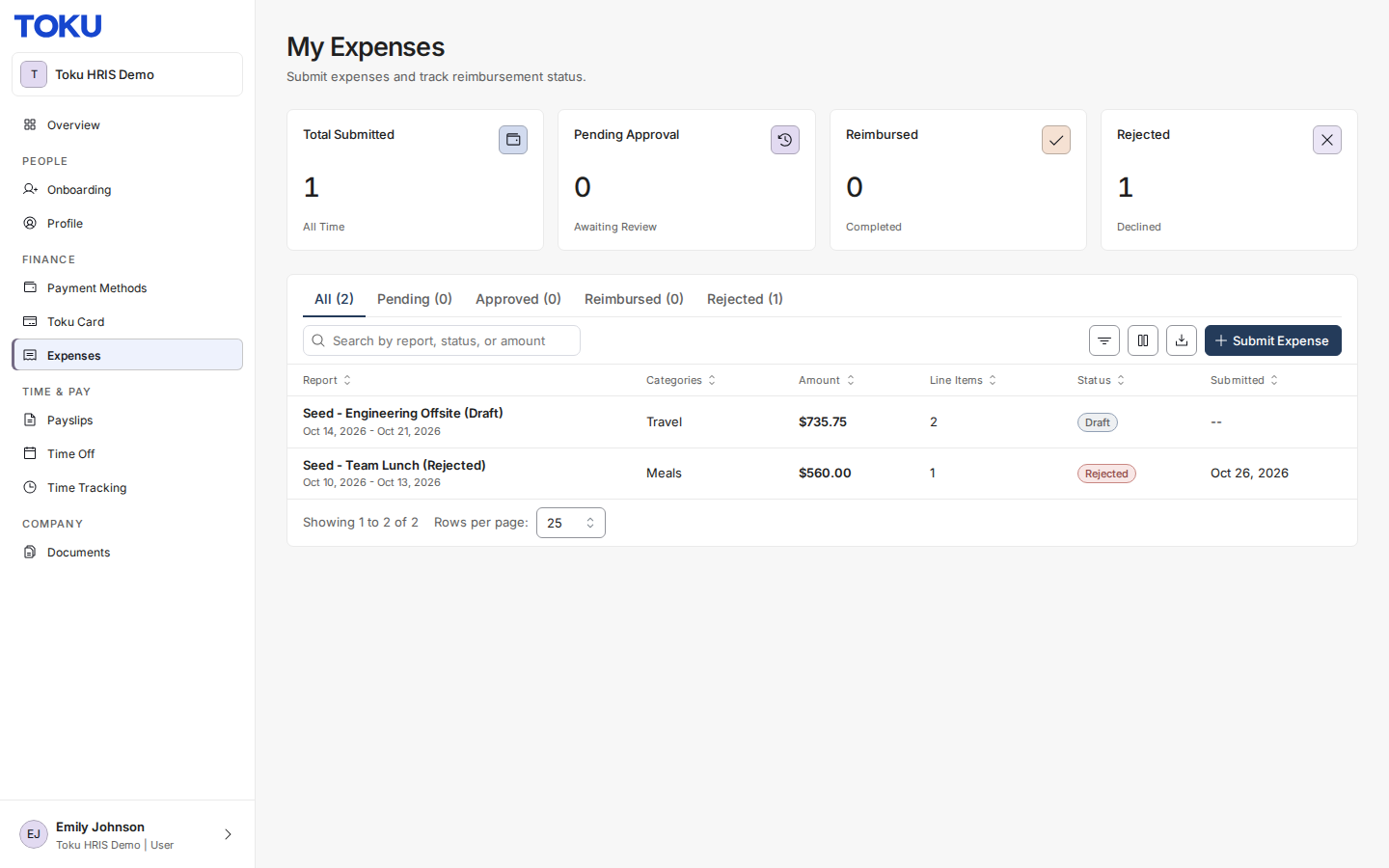
- Sign in to Toku at app.toku.com. Select Expenses in the left menu to open My Expenses.
Create a new expense report
- Click the blue Submit Expense button. The Expense Report window opens.
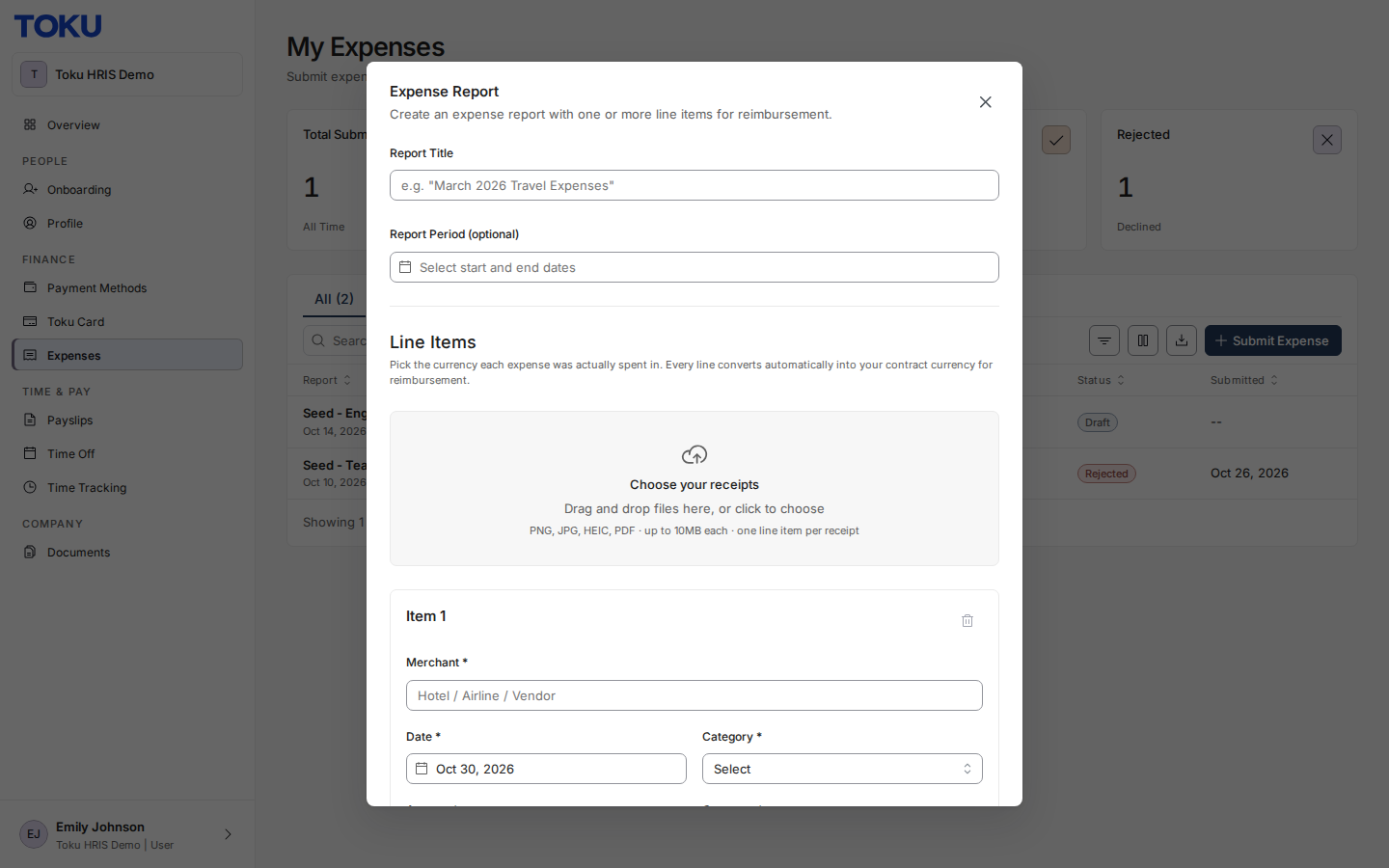
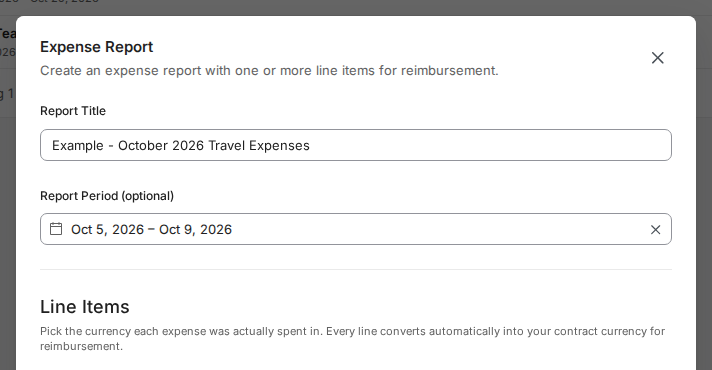
- Type a name in Report Title (for example, "March 2026 Travel Expenses"), and optionally set the Report Period (start and end dates) the report covers.
Add expense line items
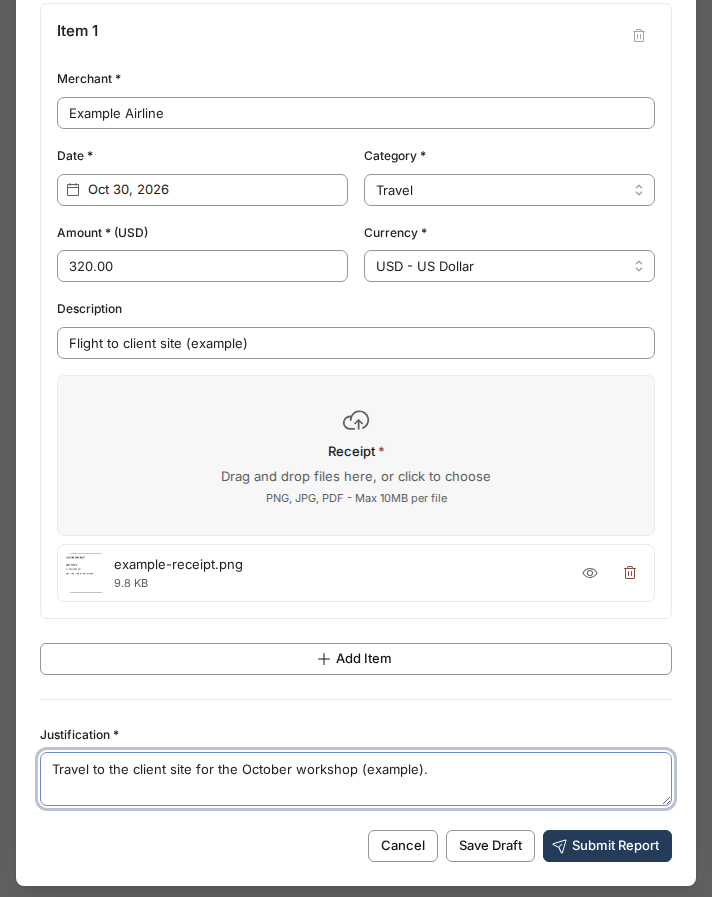
- Under Line Items, fill in each expense: Merchant (where you spent the money), Date, Category, Amount, Currency (the currency you actually paid in - Toku converts each line to your contract currency automatically for reimbursement), and a short Description. Amount only accepts the number of decimal places the line's currency uses.


- Upload your receipt or invoice file in the Receipt field - it is required.
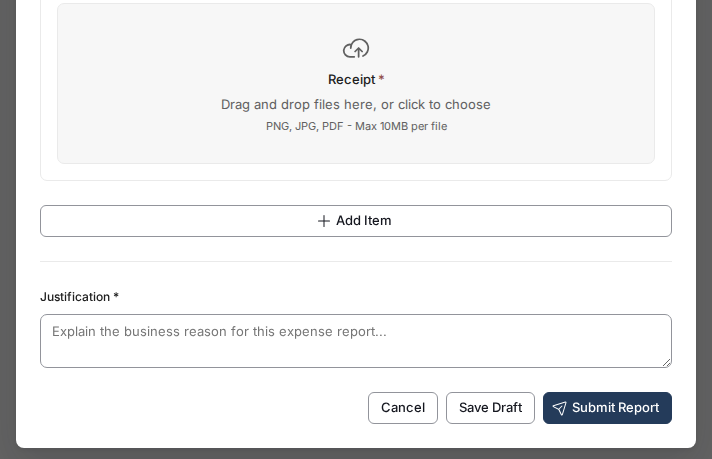
- Complete the field below the line items. If your organization requires a business reason, it is labeled Justification * and you cannot submit with it empty. Otherwise, it is Notes (optional).
Submit your report
- Add more items if needed, then select Submit Report at the bottom of the form. Not ready yet? Select Save Draft instead - see How to Save an Expense Report as a Draft. Reports at or below the auto-approval limit your organization has set are approved immediately, with no review or notification. Otherwise, Toku sends the report to the approver assigned for its amount. Organization administrators are also notified only when your organization enabled admin submission notifications, or when no approver could be assigned.
Good to know
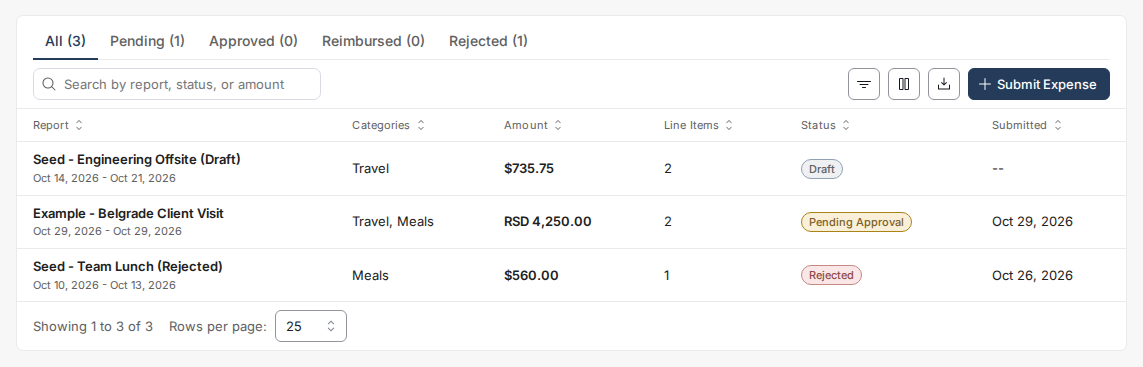
- Track progress on the My Expenses page. Each report shows one of these statuses: Draft, Pending Approval, Info Requested, Approved, Processing, Reimbursed, or Rejected. The tabs above the list - All, Pending, Approved, Reimbursed and Rejected - filter the list by stage, so Pending there is a tab, not a report status. If you cancel a report while it is still Pending Approval, it disappears from this list rather than showing a Cancelled status.
- Info Requested means your reviewer needs something from you: they have asked for more detail and left a comment saying what they need. Open the report, add what was asked for, and submit it again - it stays with you until you do. Draft and Rejected reports are also yours to act on: both can still be edited and submitted again.
- Amount follows your currency's own decimal precision: whole numbers for zero-decimal currencies such as JPY, KRW, and VND; two decimals for most currencies, including USD; three decimals for currencies such as KWD and BHD.
If you spent in a different currency
When you paid in one currency but are reimbursed in another, your report shows both. Your reimbursement currency is set automatically to your contract currency - it is not something you choose.
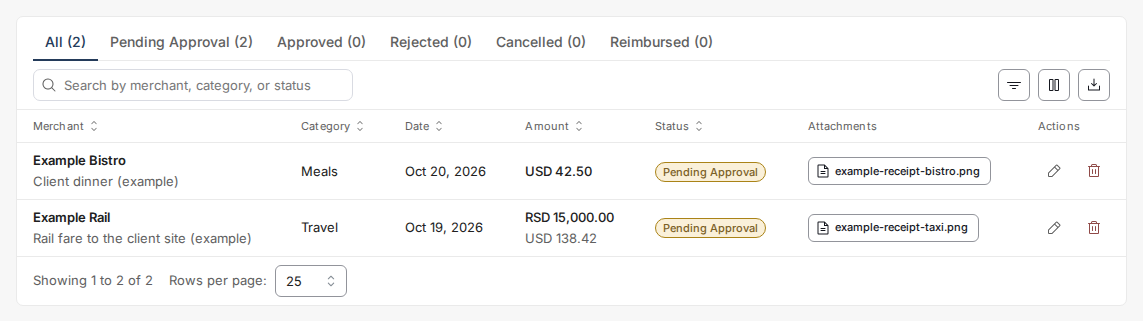
- The top figure is what you actually spent, in the currency you spent it in - RSD 15,000.00 in the example.
- The second figure is what you will be reimbursed, in your contract currency - USD 138.42 in the example. This is the amount that reaches you.
- A line with only one figure means you spent and are reimbursed in the same currency, so there is nothing to convert.
💡 The conversion uses the rate for the date on your receipt, not the date you submitted or the date you were paid - so the second figure does not move while the report waits for approval. See Expense reimbursement timeline and policy.
Still stuck?
Before submitting, review the form for a missing receipt or another required field. For an Info Requested, Draft, or Rejected report, open it, make the needed changes, and submit it again.