
 6 MIN READ
 UPDATED OCT 30, 2026
ℹ️ Country availability: Stablecoin payments are not supported in Japan, Kenya, Serbia, Denmark, or Argentina at this time. Token compensation through payroll remains unavailable for EOR arrangements in Kenya, Serbia and Argentina. For Finland and Vietnam, contact Toku to confirm whether your individual employment arrangement supports these options before enabling them. A platform setting or invitation does not confirm eligibility. Separate token grant programs require individual review.
Toku now offers Stablecoin Payroll, allowing employees to receive bonuses or a portion of their salary in Stablecoins. You can now start receiving instant, secure payouts in crypto in a few short steps.
✅ Enabling Stablecoin Payroll as an EOR Employee
- Log in to your Toku Account: https://app.toku.com/login
- From the left menu, open Payment Methods and click “Add payment method” to set up your stablecoin allocation:
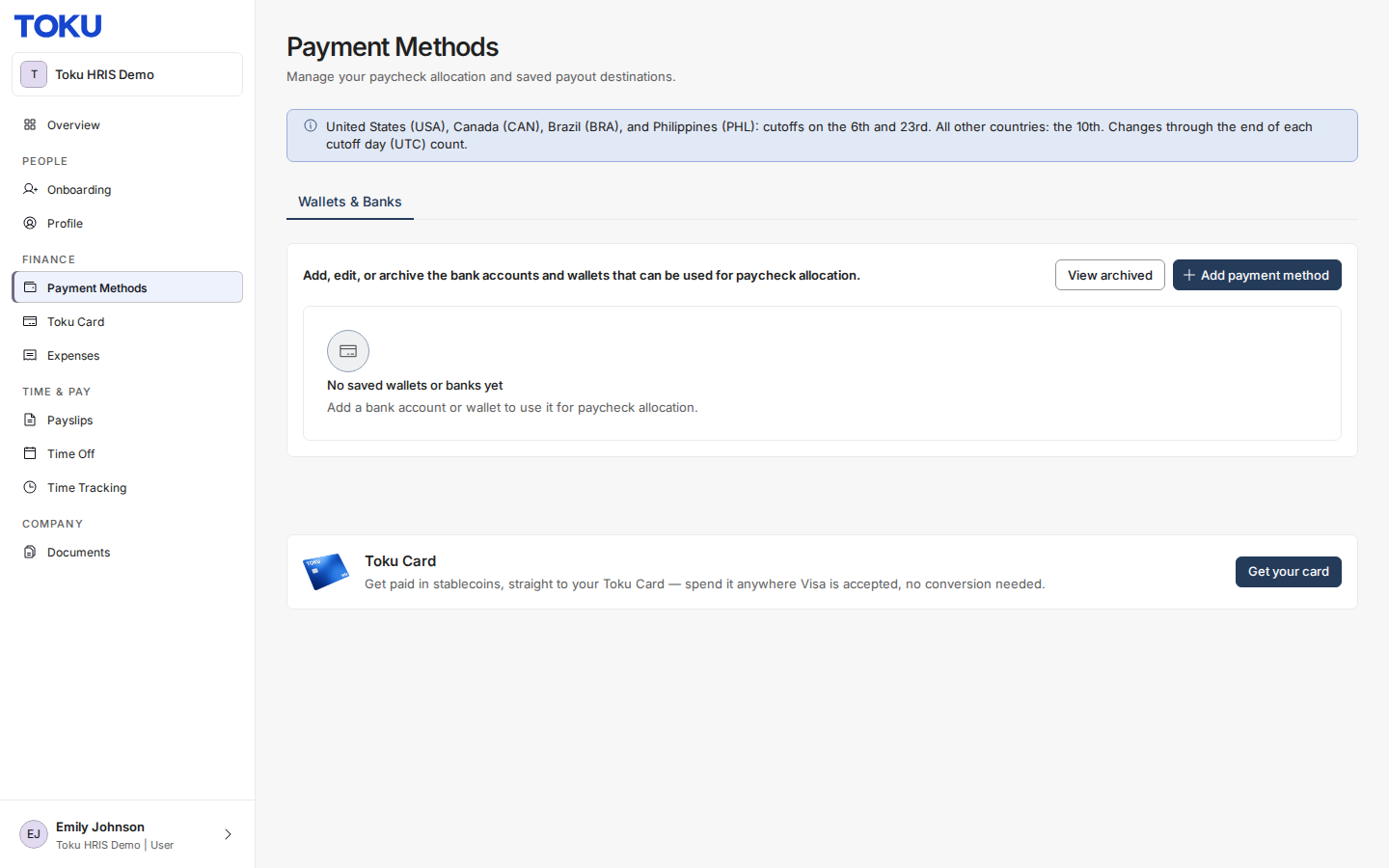
- Follow the on-screen instructions to set up your wallet
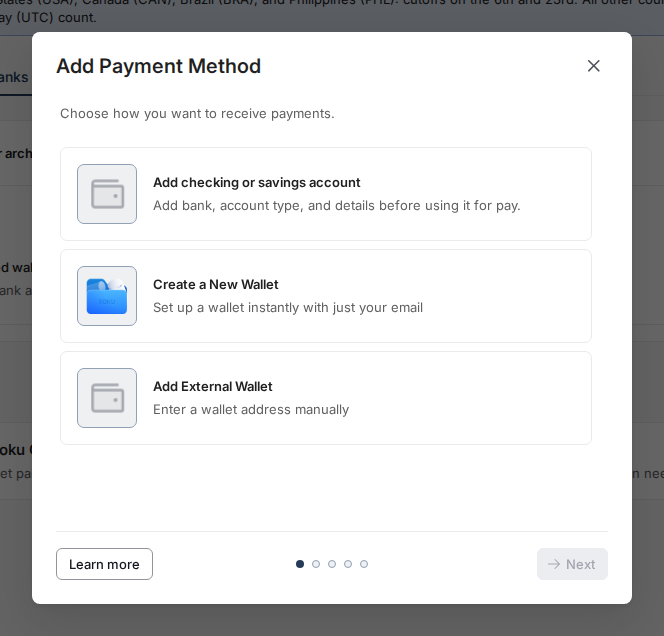
- In the “Add Payment Method” window you will see two wallet options (“Add checking or savings account” adds a bank account instead). Expand the option below for detailed instructions or simply follow the the on-screen prompts:
Create a New Wallet: Select this option if you do not current have a wallet you would like to deposit funds into. You can do this directly through Toku!
- Select “Create a New Wallet”
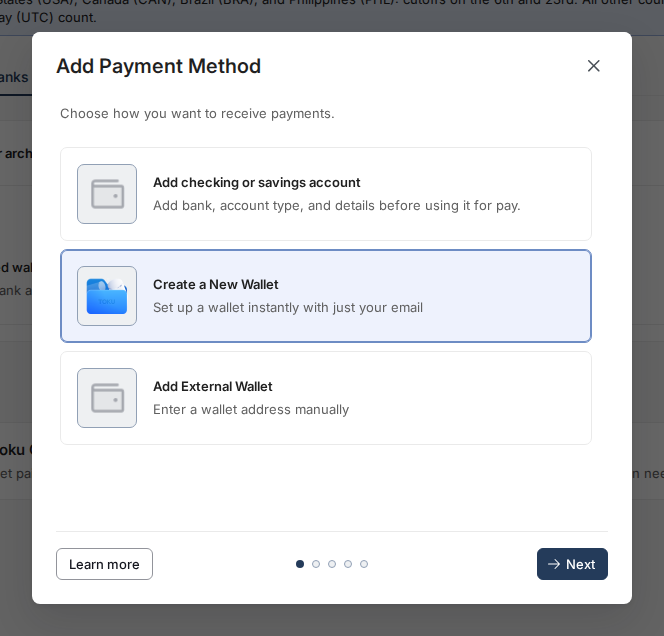
- Select your desired Network and Stablecoin combination
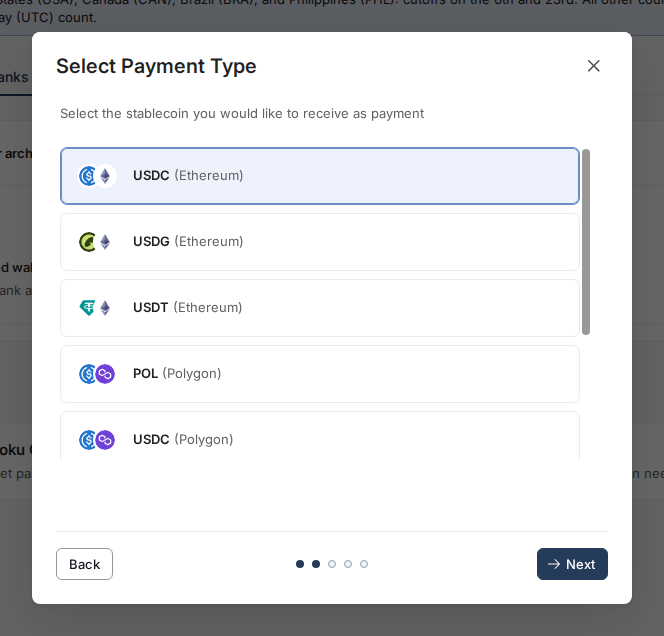
- You can click here to learn more about networks and stablecoins
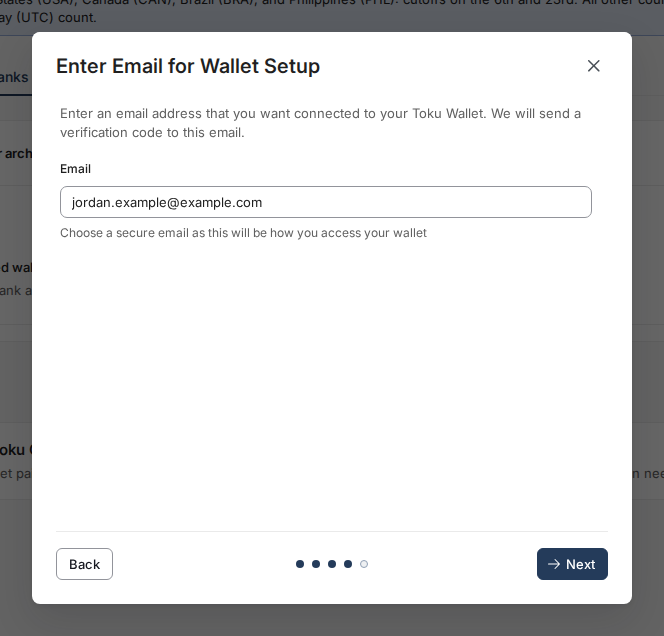
- Enter the personal email address where you would like to access your funds
- Enter the verification code sent to your email address
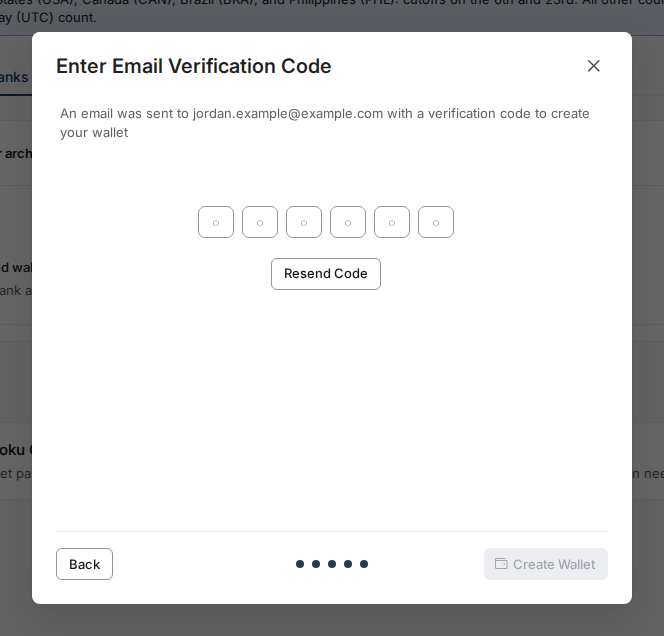
- Hit “Create Wallet”
Optional - Stablecoin Payroll Allocation:
If your employer has enabled this functionality on your account you will have the option to opt in to receive a portion of your pay in Stablecoins. Follow these steps below to complete this action:
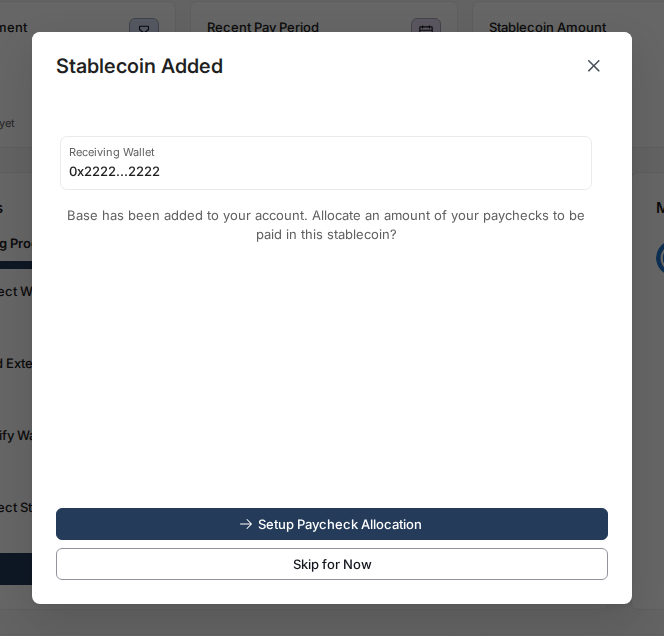
Select “Setup Paycheck Allocation”
- Type in the amount you would like to receive in stablecoins instead of fiat each check
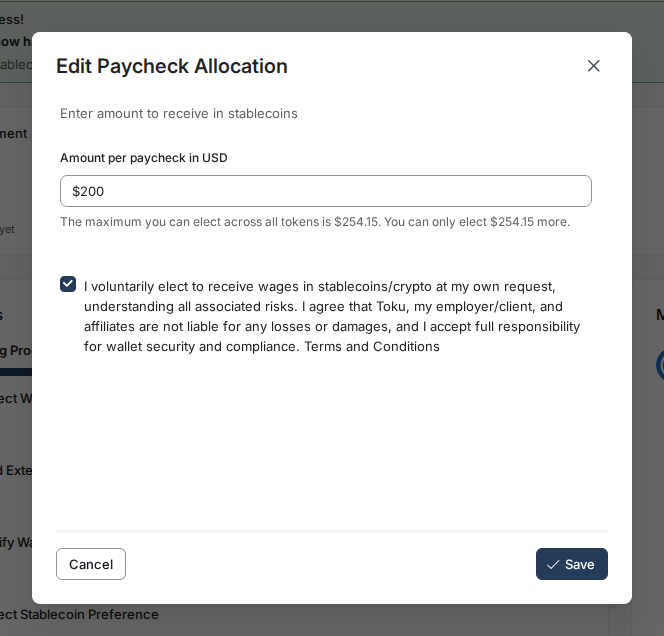
- Read and agree to Toku’s “Terms and Conditions” and hit “Save”
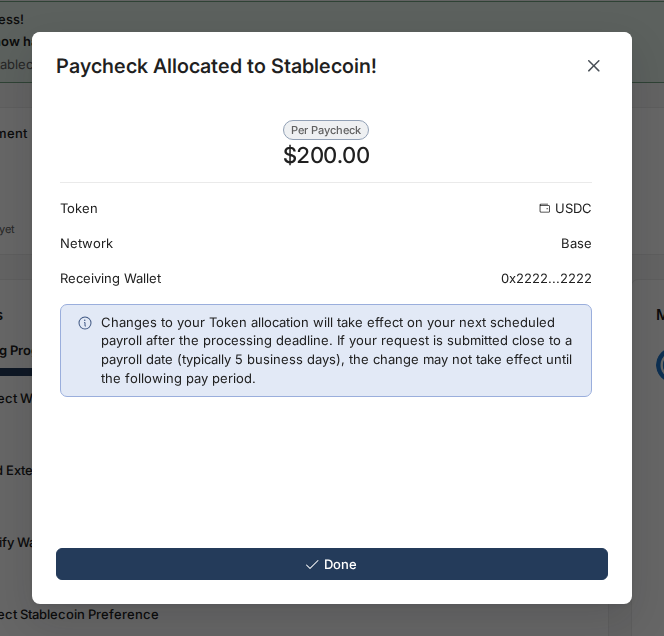
- You will now receive this amount of all future payments in the stablecoin of your choosing!
Add External Wallet: Select this option if you have an existing wallet you want to paste in manually.
- Select “Add External Wallet”
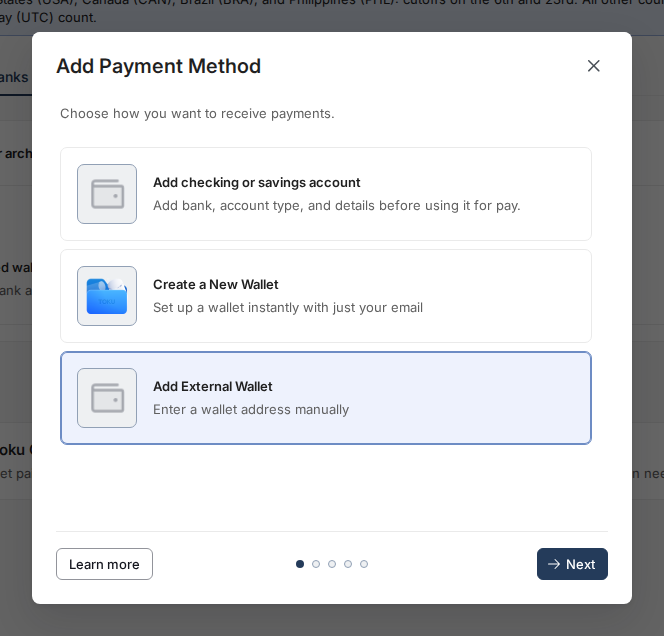
- Select your desired Network and Stablecoin combination
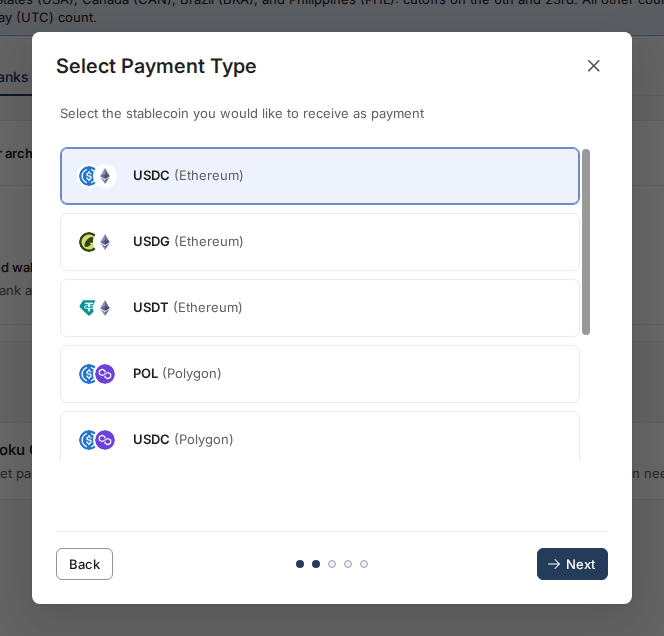
- Click here to learn more about networks and tokens
- Copy and Paste your wallet address
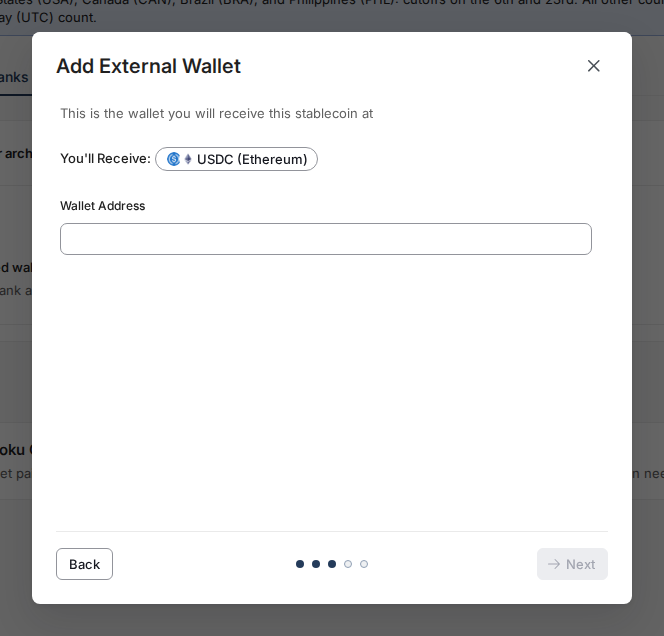
- Check your wallet and select “Verify” once you have received the test transaction
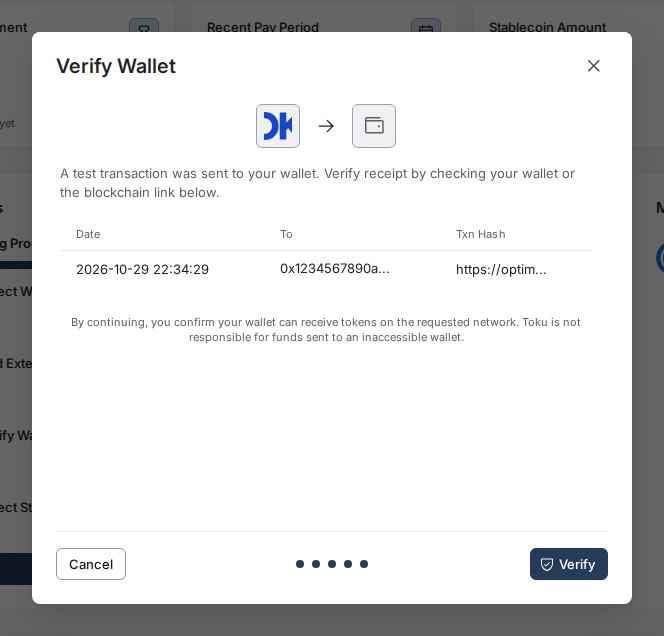
Optional - Stablecoin Payroll Allocation:
If your employer has enabled this functionality on your account you will have the option to opt in to receive a portion of your pay in Stablecoins. Follow these steps below to complete this action:
Select “Setup Paycheck Allocation”
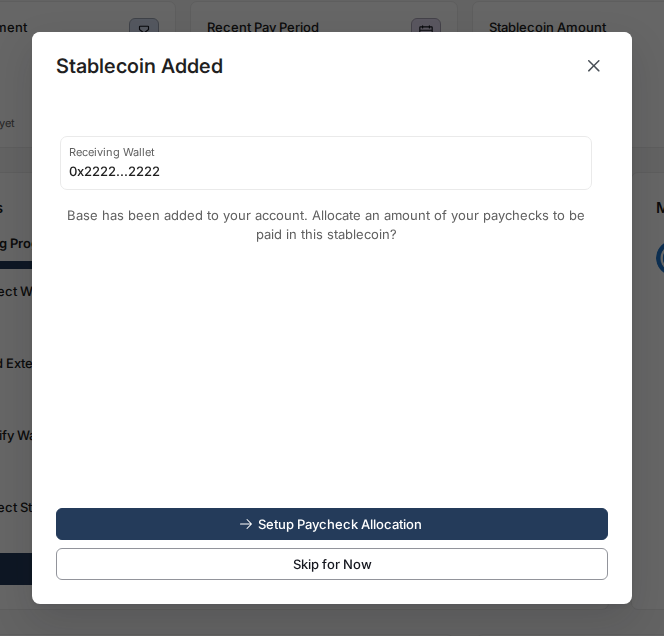
- Type in the amount you would like to receive in stablecoins instead of fiat each check
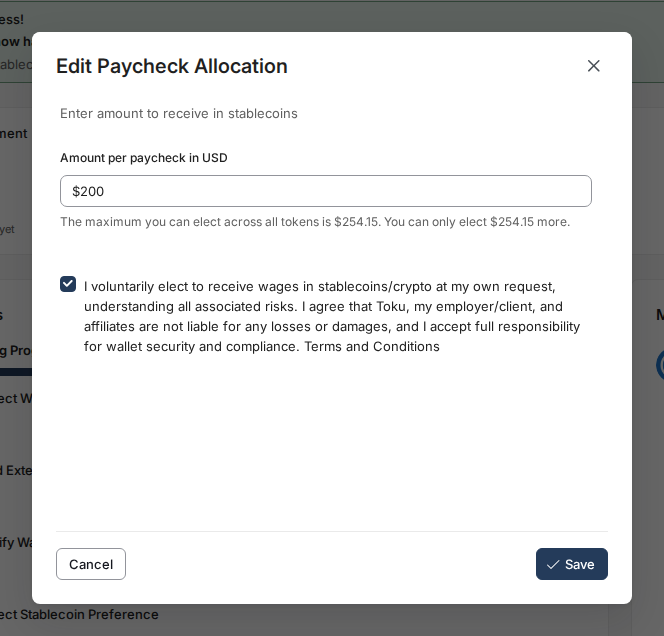
- Read and agree to Toku’s “Terms and Conditions” and hit “Save”
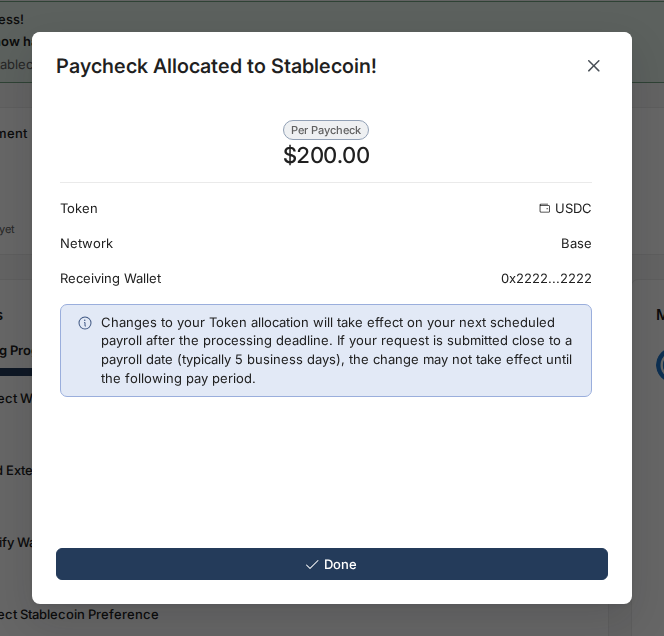
- You will now receive this amount of all future payments in the stablecoin of your choosing!
Note for European Union (EU) Residents:
Due to local regulations (such as the EU Transfer of Funds Regulation), you may be required to provide additional information when selecting self-custody for your stablecoin deduction. If you see this requirement during onboarding, please reach out to our support team at customer-success@toku.com and we’ll provide the necessary details.
Common Questions:
When can I start receiving Stablecoins?
As soon as you have a verified wallet in the Stablecoin of your choosing you are eligible to receive payments in Stablecoins. Speak with your account administrator if you have any questions about upcoming payments.
How much of my paycheck can I allocate to Stablecoins?
We limit your maximum Stablecoin allocation to just above the minimum wage for your country and classify this as a voluntary deduction. This ensures compliance in every jurisdiction while giving you the flexibility to elect for a large portion of your pay to be Stablecoins.
How are these Stablecoins taxed?
Stablecoins are allocated only on your Net pay. This means that taxes come out of your pay the same way they normally would prior to these Stablecoins being paid out, no additional calculations needed!
What is the conversion rate being used?
On the day of distribution we pull the conversion rate for your Stablecoin allocation directly from coinmarketcap.com. We do this within the same day of distribution to ensure the closest possible exchange rate to the time of receipt.
Is this a one time deduction or recurring deduction?
Recurring! This will be deducted from every regular pay period, meaning this is not a one time deduction. To make changes to the deduction amount, please update your allocation following the same steps above.
Why can't I select USDG as a payment option for my salary?
We have limited the direct distribution of USDG in New York due to New York's "BitLicense" regulations. Currently, only stablecoins approved on the New York Department of Financial Services (NYDFS) green list are available for distribution in New York, which is why you're seeing PYUSD as an option instead.
Where can I see which virtual currencies are approved in New York?
You can view the list of approved virtual currencies and licensed businesses on the New York Department of Financial Services website.
Will USDG be available in the future?
USDG availability will depend on the New York Department of Financial Services updating their green list to include USDG. Once USDG is added to the approved list, we will work with our clients to enable it as a payment option.
How will I know when USDG becomes available?
You can select “Add payment method” from the Payment Methods page to see what sSablecoins are available to you