
 7 MIN READ
 UPDATED OCT 31, 2026
📘 For employees on Toku. Last updated October 31, 2026.
The stablecoin pay simulator lets you see what it would look like to receive part of each paycheck in stablecoins, before you set anything up. You choose a share of your pay and the simulator shows how much would go to a wallet each payday and over a year. It is a preview only: nothing is saved, and your pay does not change.
Before you start
- You can sign in at app.toku.com with your work email.
- You don't have a wallet on Toku yet. The simulator is for trying stablecoin pay before you set it up. Once you add a wallet, you choose your real amount on the Paycheck Allocation tab instead (see Toku: Receive part of your paycheck in stablecoins).
- If you don't see the simulator, check Why don't I see the simulator? further down.
Open the simulator
- Go to app.toku.com. You see Welcome back and a single Email box.
- Enter your email and select Continue, then enter your password and click Sign in.
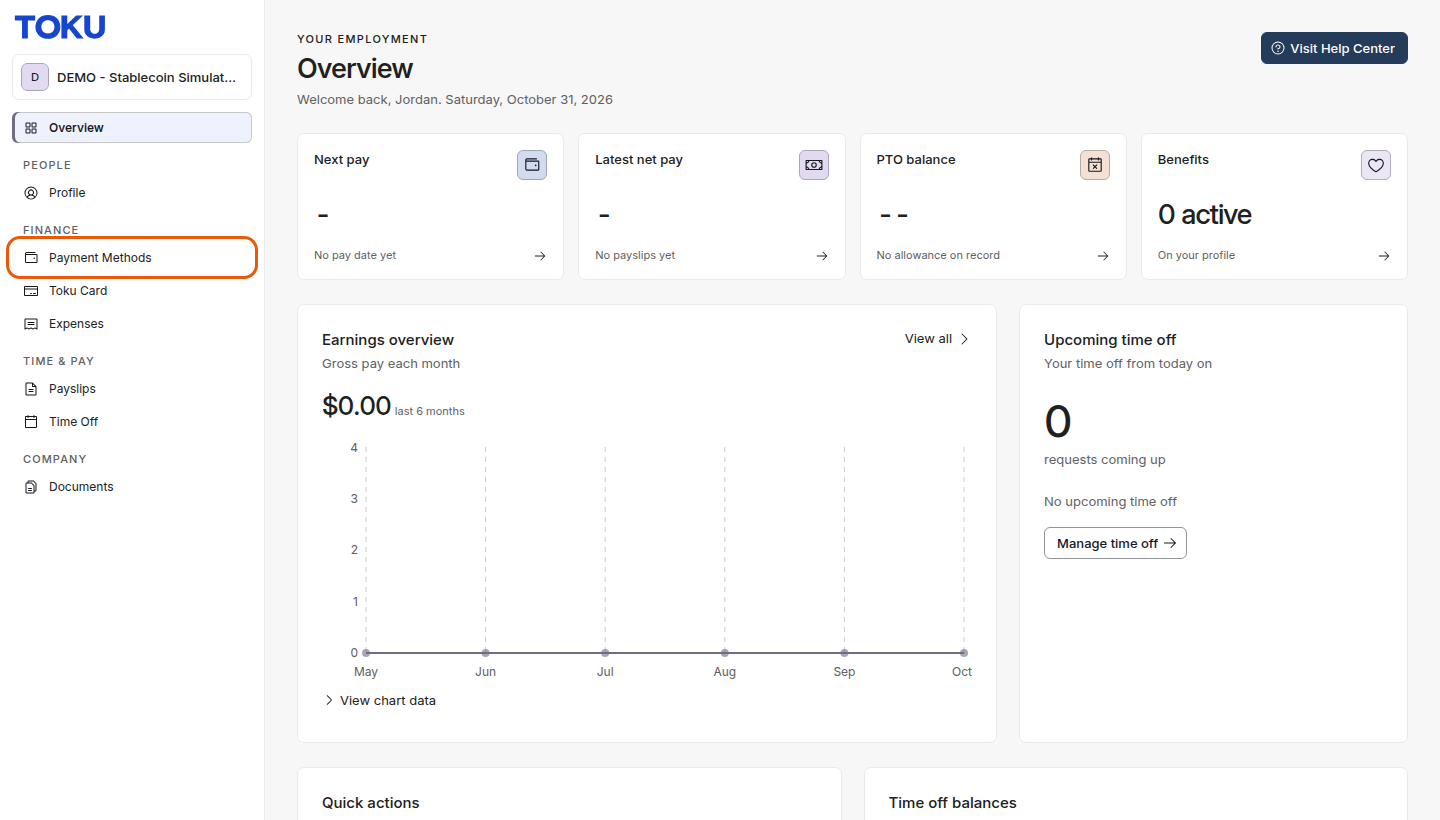
- Click Payment Methods in the left-hand menu.
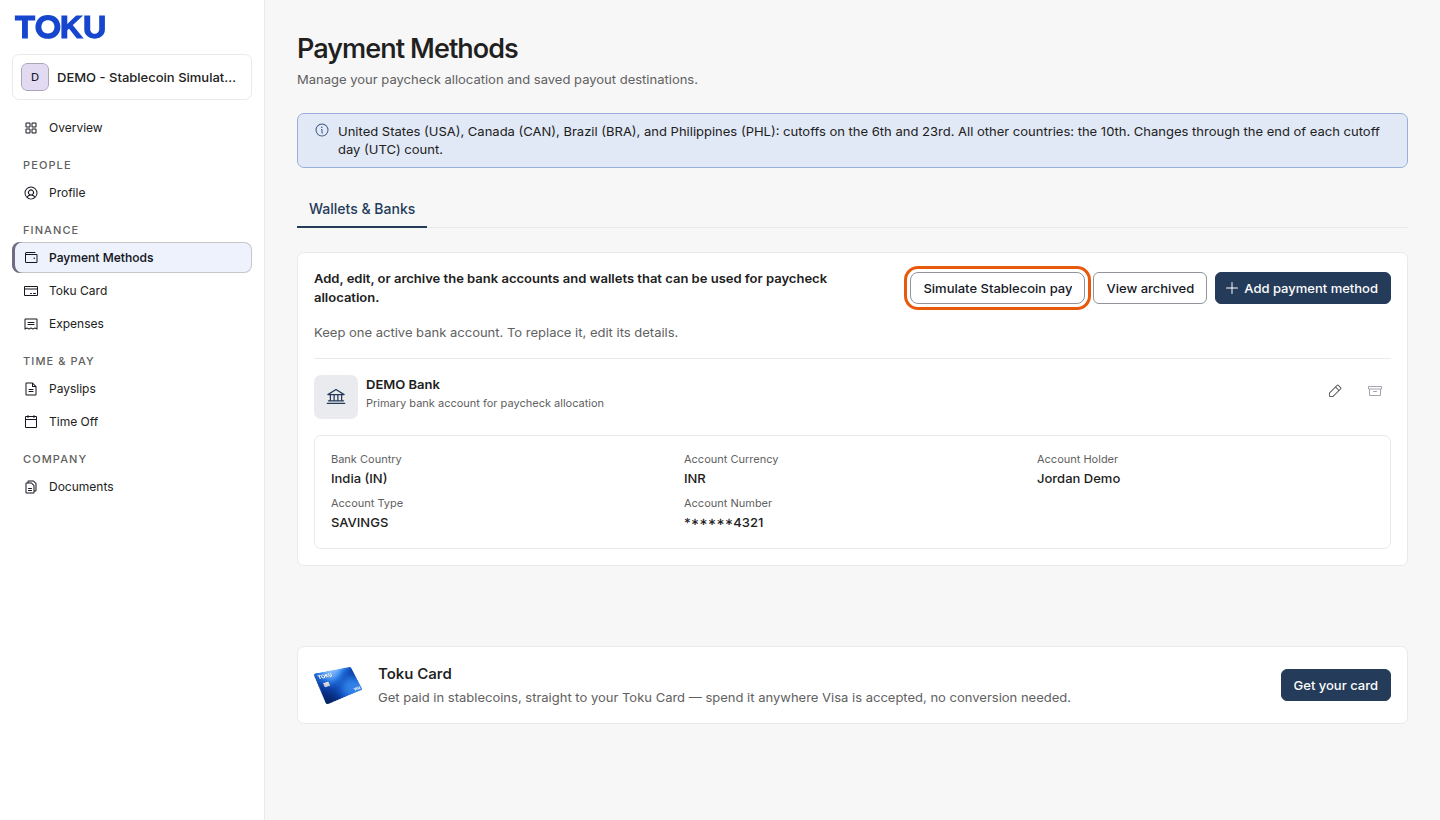
- On the Wallets & Banks tab, click Simulate Stablecoin pay. It sits next to View archived and Add payment method. A window titled Simulate Stablecoin pay opens, marked Simulation.
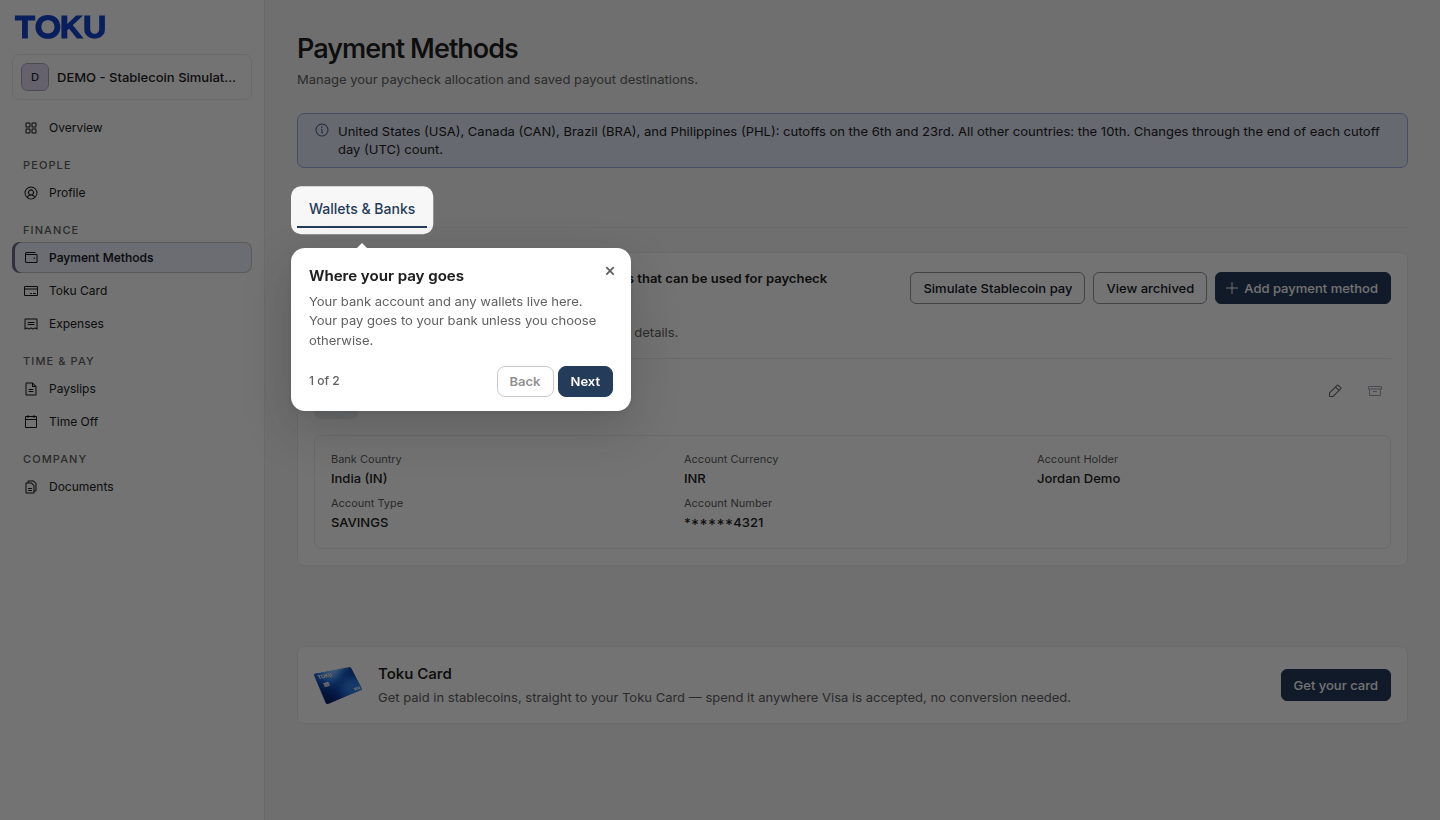
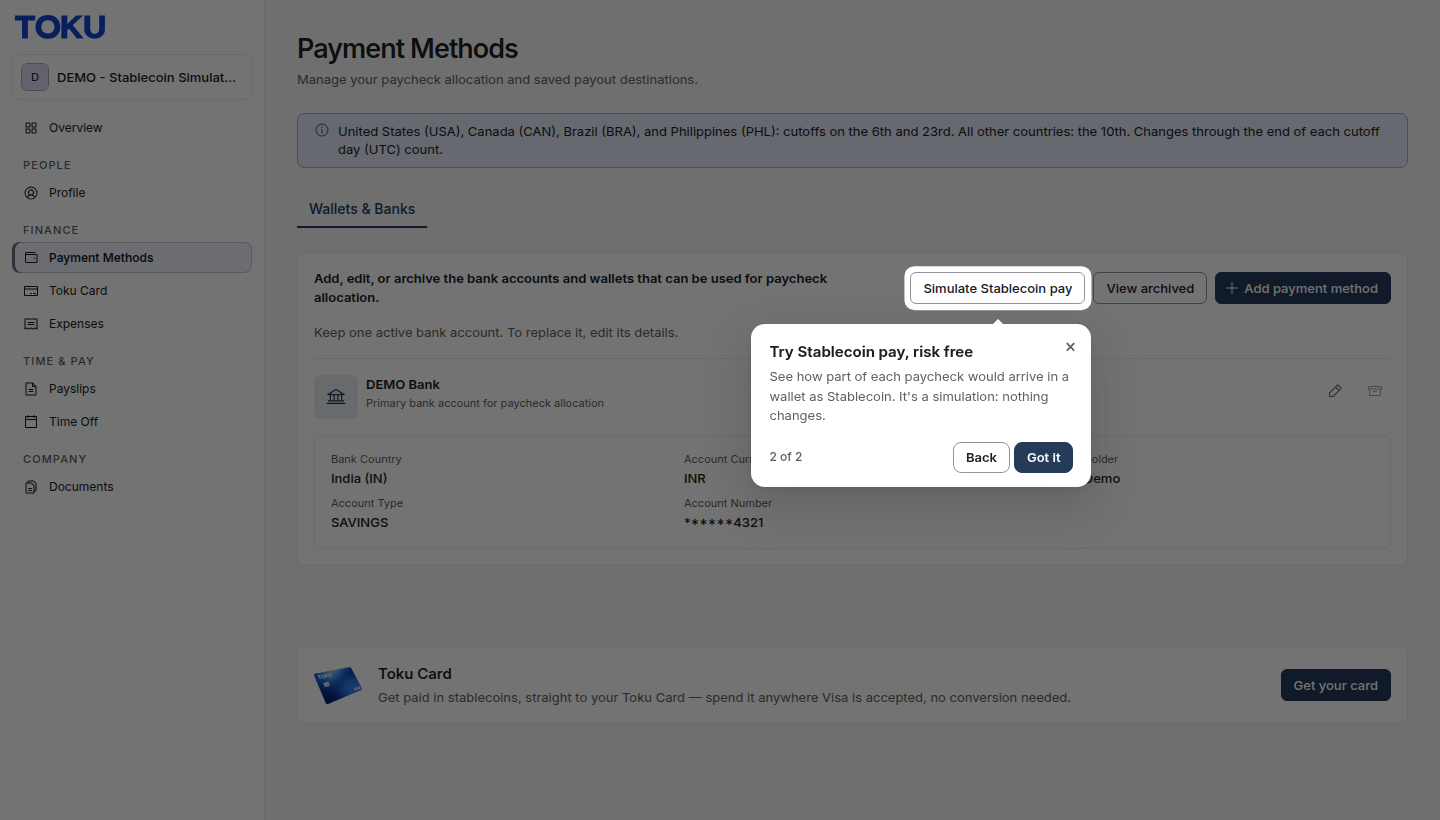
The first time you open Payment Methods, a short two-step tour shows you where your pay goes today and where to find the simulator. Click Next to move through it, Back to return to the first step, and Got it to finish. You can close it at any time with the × button or the Esc key. The tour appears once on each browser you use.
Try different amounts
- Use the Share of each paycheck slider to choose how much of your pay to send to a wallet. It starts at 20%, or at your limit if your limit is lower. Drag the handle, or click it and use the arrow keys. The Home and End keys jump to 0% and to your limit.
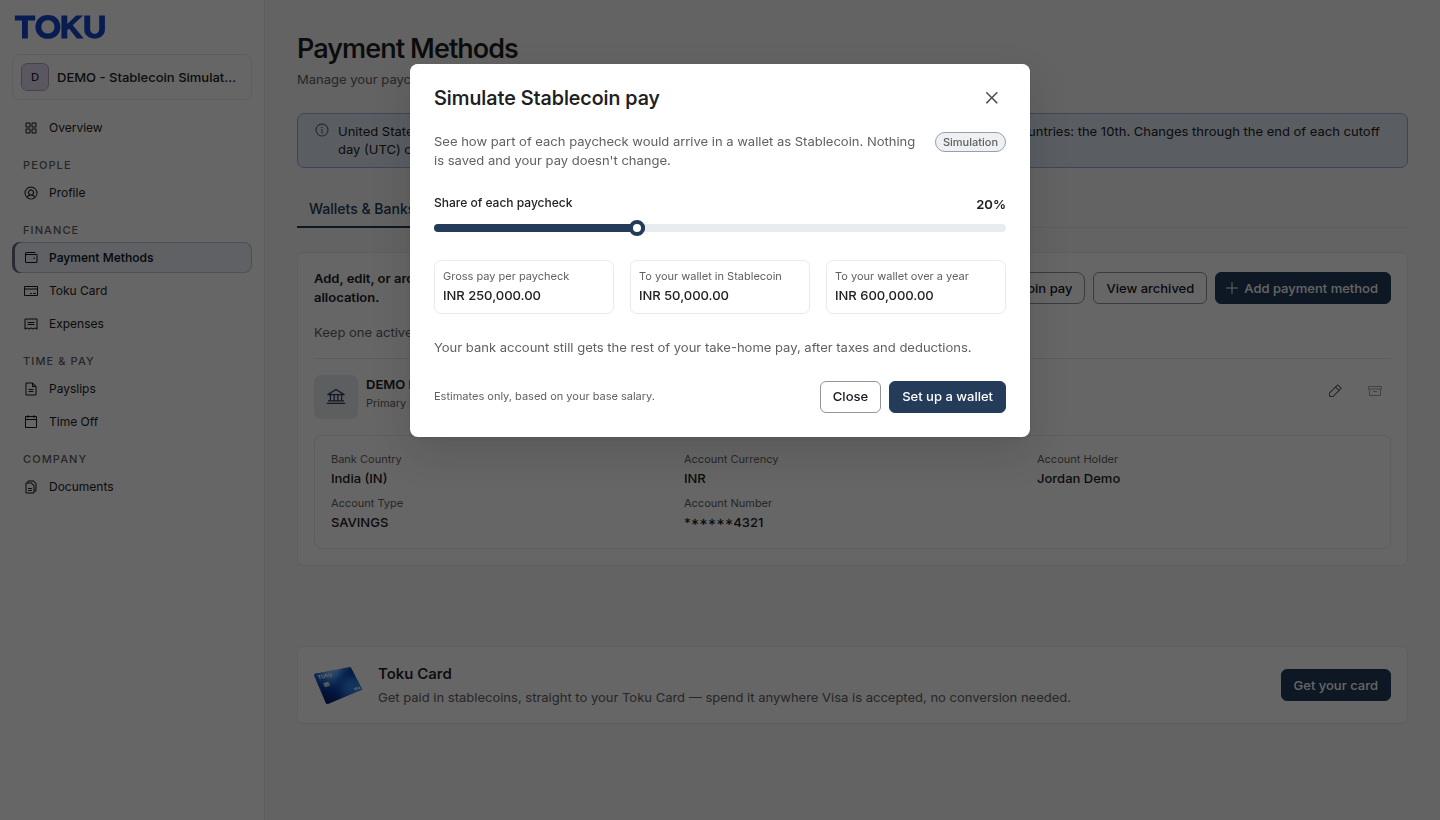
- Watch the three figures under the slider update as you move it:
- Gross pay per paycheck: your salary for one pay period, before tax and deductions.
- To your wallet in Stablecoin: the amount that would go to your wallet each payday.
- To your wallet over a year: that amount added up across all your paychecks in a year.
- Read the line under the figures: your bank account still receives the rest of your take-home pay, after taxes and deductions, exactly as it does today.
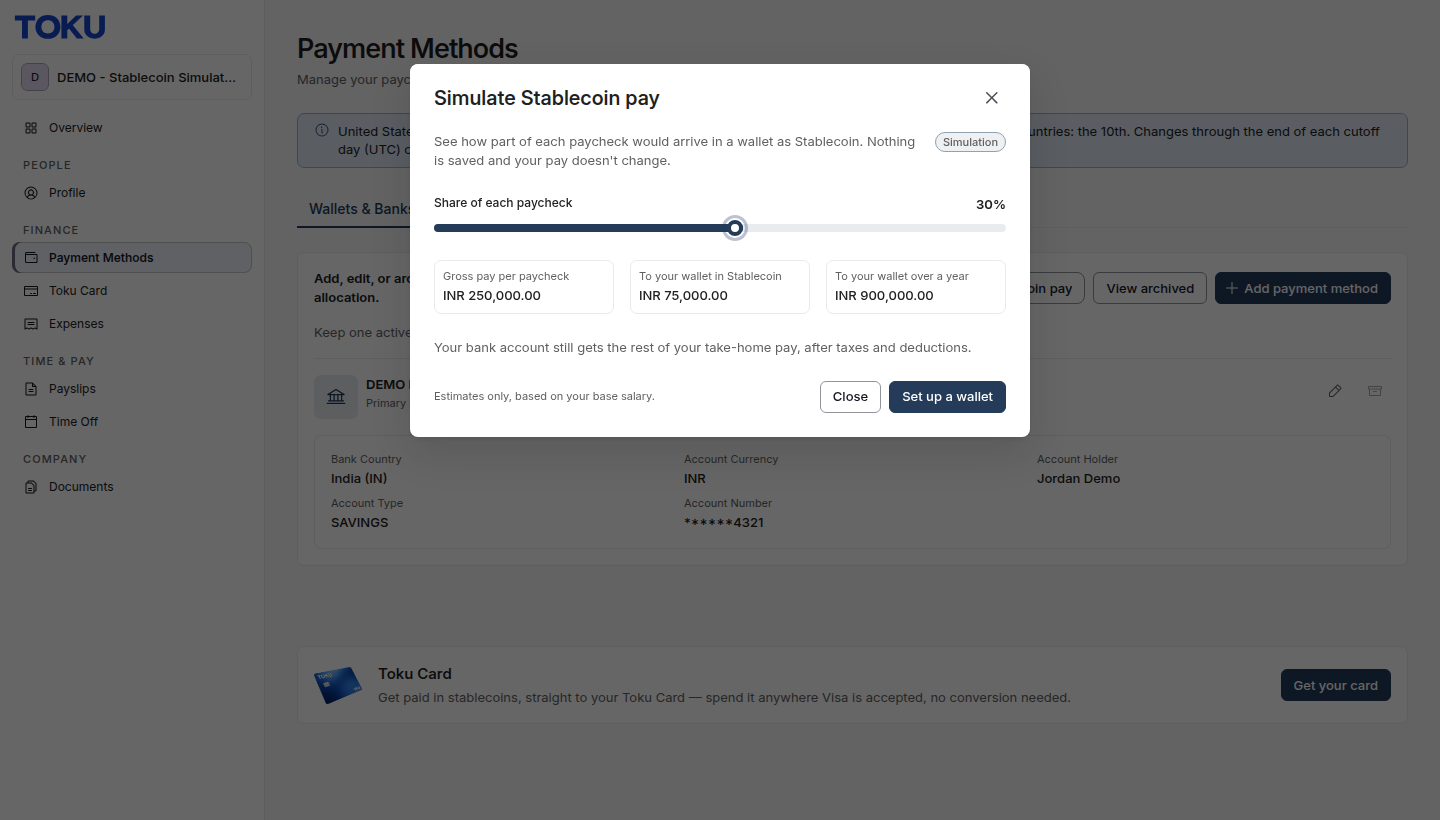
- When you are done, click Close. Nothing is saved. To set up stablecoin pay for real, click Set up a wallet instead (see below).
How the figures are worked out
- Gross pay per paycheck is your yearly base salary divided by the number of paychecks you receive in a year. In most countries that is 12 (paid monthly). In the United States, Canada, Brazil, and the Philippines it is 24 (paid twice a month).
- To your wallet in Stablecoin is the share you chose multiplied by your gross pay per paycheck. It is rounded down to the nearest cent.
- To your wallet over a year is the per-paycheck amount multiplied by your number of paychecks in a year.
- All amounts are shown in the currency your salary is set in, as a currency code followed by the figure, for example INR 50,000.00 or USD 1,250.00.
Your limit
There is a limit on how much of each paycheck can go to wallets. It is worked out from your salary and the rules of the country you are paid in, so that enough of your pay stays in your local currency to cover income tax and the local minimum wage.
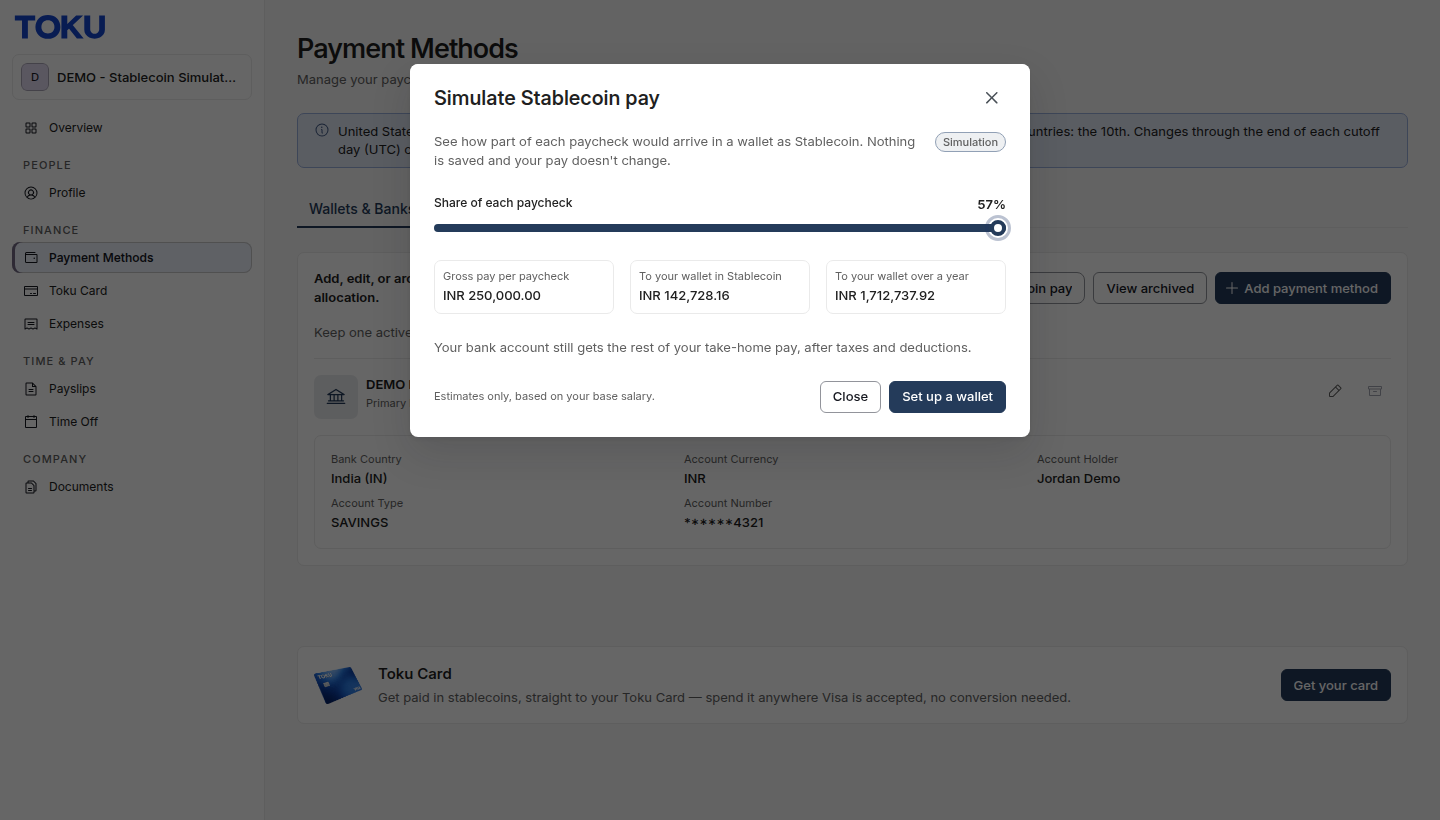
The slider stops at your limit, so you can't simulate more than you could really set up. It is the same limit Toku applies when you set your real paycheck allocation. If your limit isn't a whole percentage, the far right of the slider is exactly your limit and the percentage is shown with a decimal, for example 33.3%.
Turn it into real stablecoin pay
When you like what you see, you can set it up in a few steps.
- In the simulator, click Set up a wallet. (You can also click Add payment method on the Wallets & Banks tab.) The Add Payment Method window opens.
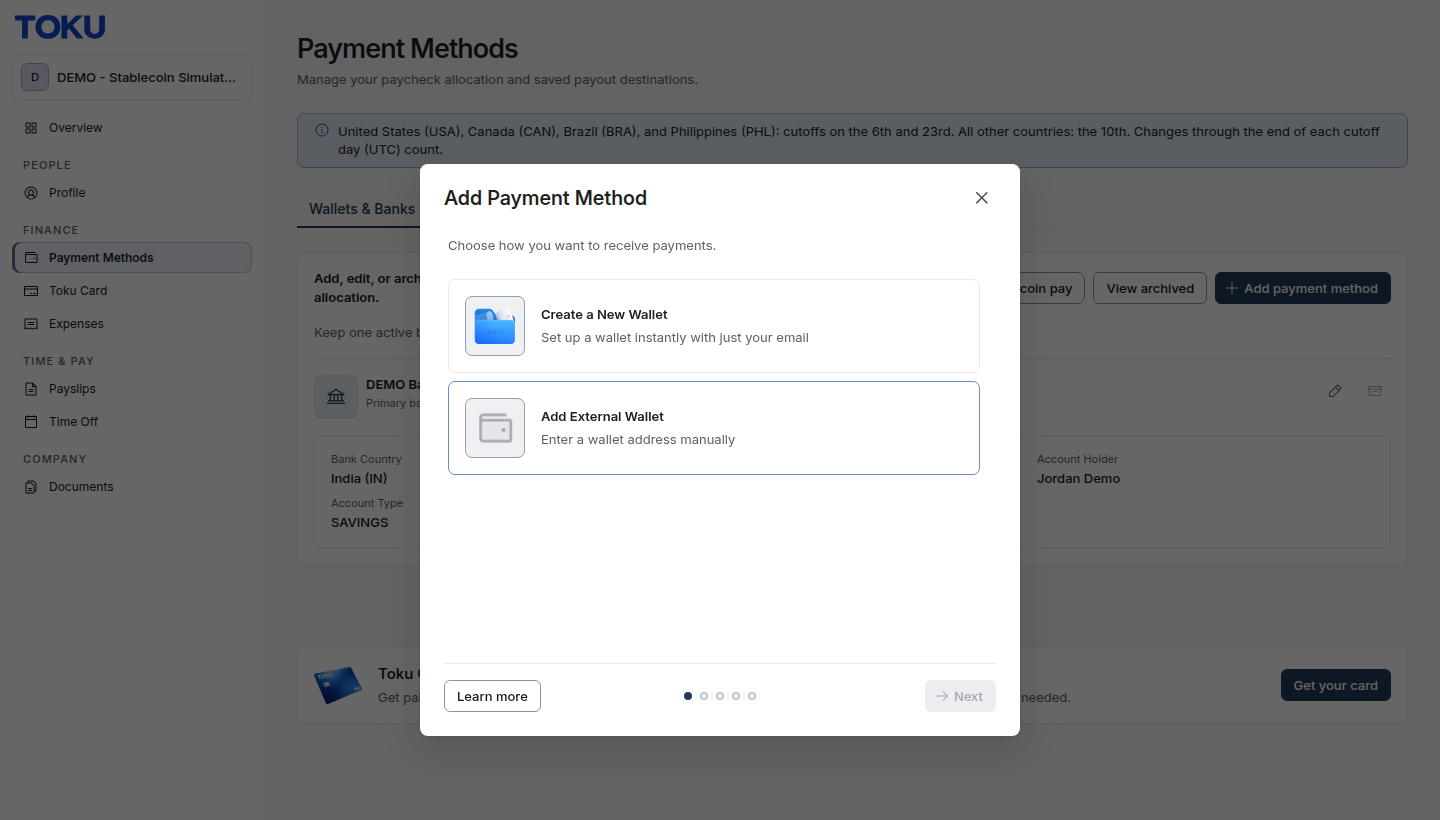
- Choose Create a New Wallet to set up a wallet instantly with just your email, or Add External Wallet to enter the address of a wallet you already use. The full steps are in Toku: How to add your payout wallet.
- Wait until your wallet shows a green Verified status. Only verified wallets receive pay.
- Open the Paycheck Allocation tab at the top right of Payment Methods. It appears once you have a wallet.
- Click Edit paycheck allocation, type the amount you want to receive each payday into the wallet's Paycheck amount field, and click Save. The Paycheck Allocation tab asks for an amount rather than a percentage. Use the To your wallet in Stablecoin figure from the simulator as your amount. The full steps are in Toku: Receive part of your paycheck in stablecoins.
Why don't I see the simulator?
The Simulate Stablecoin pay button only appears when the simulator has something useful to show you. If you don't see it, one of these usually explains why:
- You already have a wallet on Toku, including one that is still being verified. Use the Paycheck Allocation tab to choose your real amount instead.
- Your salary isn't set up for stablecoin pay yet, for example because your salary details are still being entered, or your salary is set in a digital token rather than a regular currency.
- Your limit is very small (less than 1% of a paycheck). This can happen when your pay is close to the minimum wage after tax in the country you are paid in.
- You are signed in as a contractor. The simulator is for employees on payroll. If none of these apply, ask your administrator or contact us (see below).
Good to know
- The simulator never saves anything. You can open it as often as you like and try any amount up to your limit.
- The figures are estimates based on your base salary. They don't include bonuses, expenses, or other one-off payments.
- When you set up real stablecoin pay, the amount you choose is in your salary currency and is converted to your stablecoin at the rate used for that payroll.
- Allocation changes have cut-offs: the 6th and 23rd of each month if you are paid in the United States, Canada, Brazil, or the Philippines, and the 10th everywhere else. A change made by the end of a cut-off day (UTC) counts for that pay run; a later change is paid from the next one.
- Your company may use its own name for stablecoins, such as Digital assets. If so, you see that name in the button, the simulator, and the tour instead of Stablecoin.
- The stablecoins and networks you can choose when you add a wallet are the ones your company has enabled. If a coin you expect is missing, contact your administrator.
Still stuck?
You can email customer-success@toku.com to reach our support team. Please include your email address, organization name, and a description of what happened. Screenshots and videos are always welcome too.