
 4 MIN READ
 UPDATED OCT 30, 2026
📘 For employees, contractors, and organization administrators on Toku. Last updated October 30, 2026.
Fix common 2FA problems: invalid codes, locked accounts, lost phones, and understanding when 2FA is required.
Before you start
- Have your email address and Toku password ready.
- If you saved your recovery key during setup, have it available. It is a 16-character code made up of letters and numbers, for example
B43BD7CB65EA300E.
Understand when 2FA is required
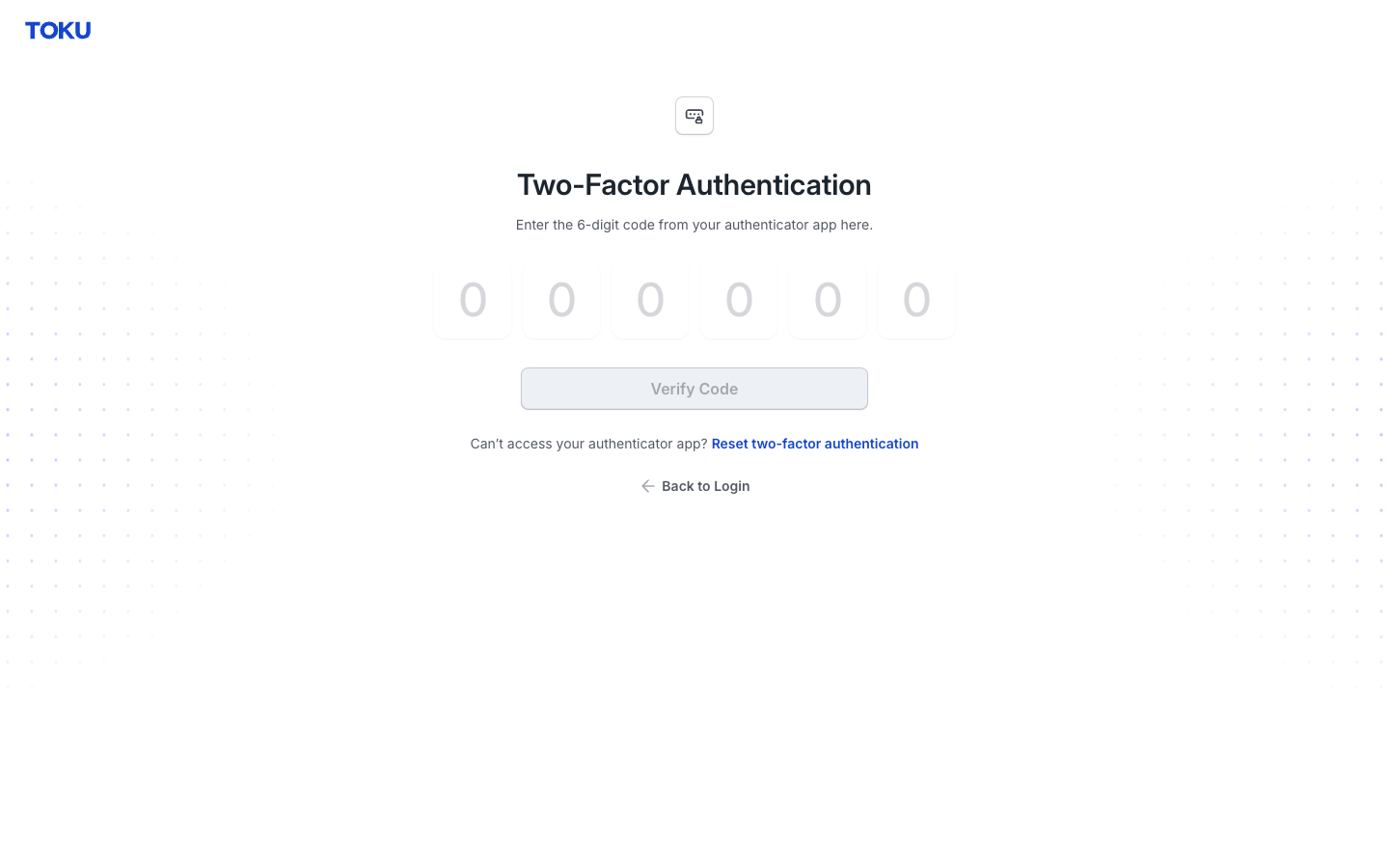
- Once 2FA is enabled, Toku asks for a 6-digit code from your authenticator app every time you sign in with a password, on the screen shown below. Separately, if your organization has made 2FA mandatory but you have not enrolled yet, you will instead see the message "Your organization requires two-factor authentication, but it isn't set up on your account yet. Please enable 2FA in your account security settings, then come back here to add your wallet." In that case, complete enrollment first using Set up two-factor authentication, then return to what you were doing.
Fix 'That code didn't work' errors
- Make sure you're reading the most recent Toku entry in your authenticator app. After platform updates, some people have two or more Toku entries; old ones produce codes that don't work. Use only the newest entry.
- Enter the code before it expires. Your authenticator app replaces each code every 30 seconds and shows its own countdown - if the code changes while you are typing, clear the boxes and enter the new one. The Toku screen does not show a countdown.
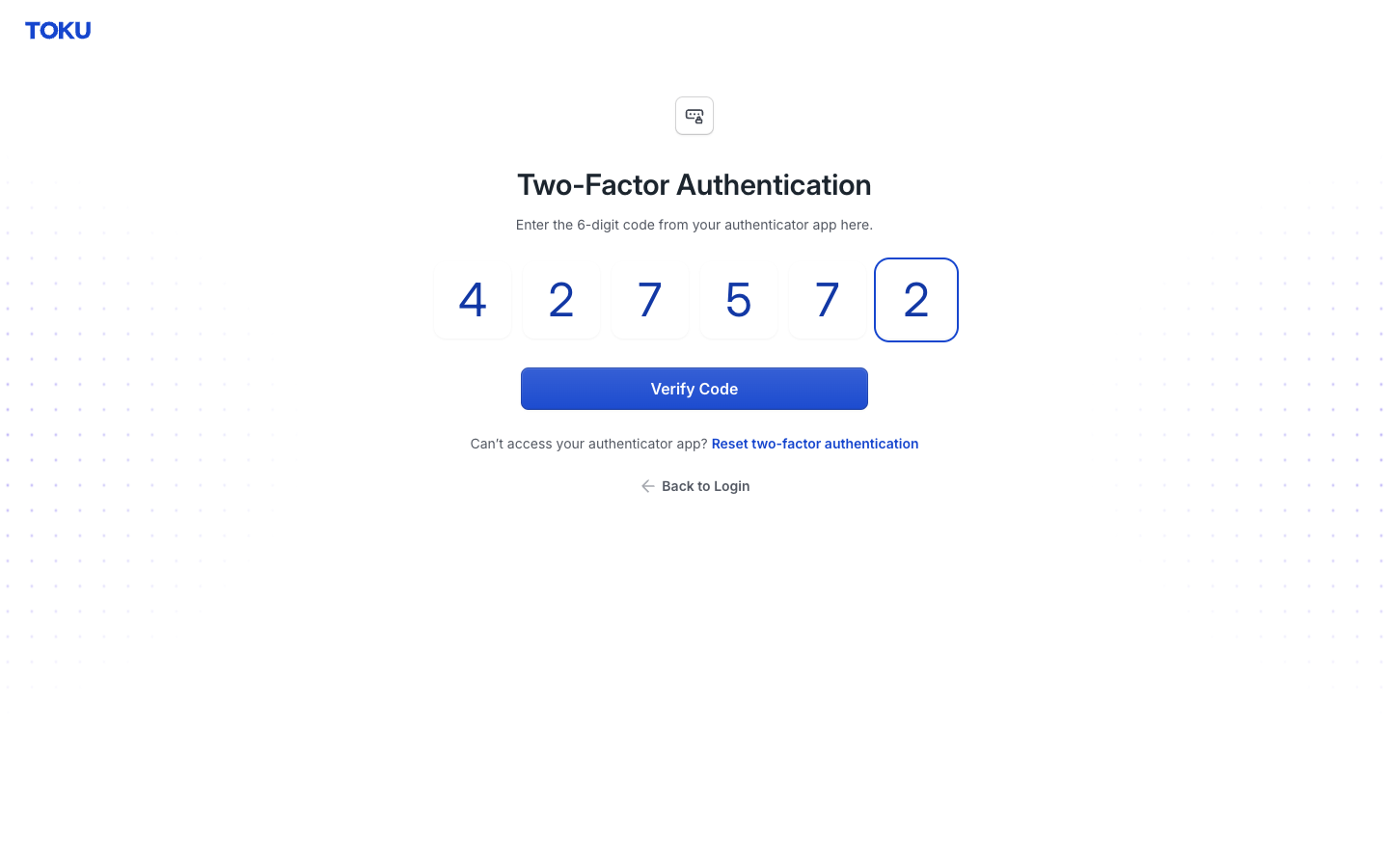
- Check your phone's clock. Authenticator codes depend on your phone's time being accurate to the second. Turn on your phone's automatic time setting (or in Google Authenticator, use the built-in Time correction for codes option), then try again.
- If you enter too many wrong codes, you'll see Too many attempts: "We've stopped accepting codes for this sign-in after too many incorrect attempts. Sign in again to start over." Select Back to sign in and sign in again. After 5 wrong codes, Toku may keep refusing codes for up to 15 minutes, so wait before trying again.
- During initial setup, you get a limited number of tries. If you run out, close the setup and restart from the beginning, scanning the QR code again.
Recover access if you lost your phone
- On the sign-in code screen, select Can't access your app? Use your recovery key. Enter your 16-character key in the Recovery key box, then select Verify code. The recovery key signs you in once and then stops working; your authenticator setup is kept as it is. If your phone is gone for good, follow step 2 to have 2FA reset so you can set up a new authenticator and get a new recovery key.
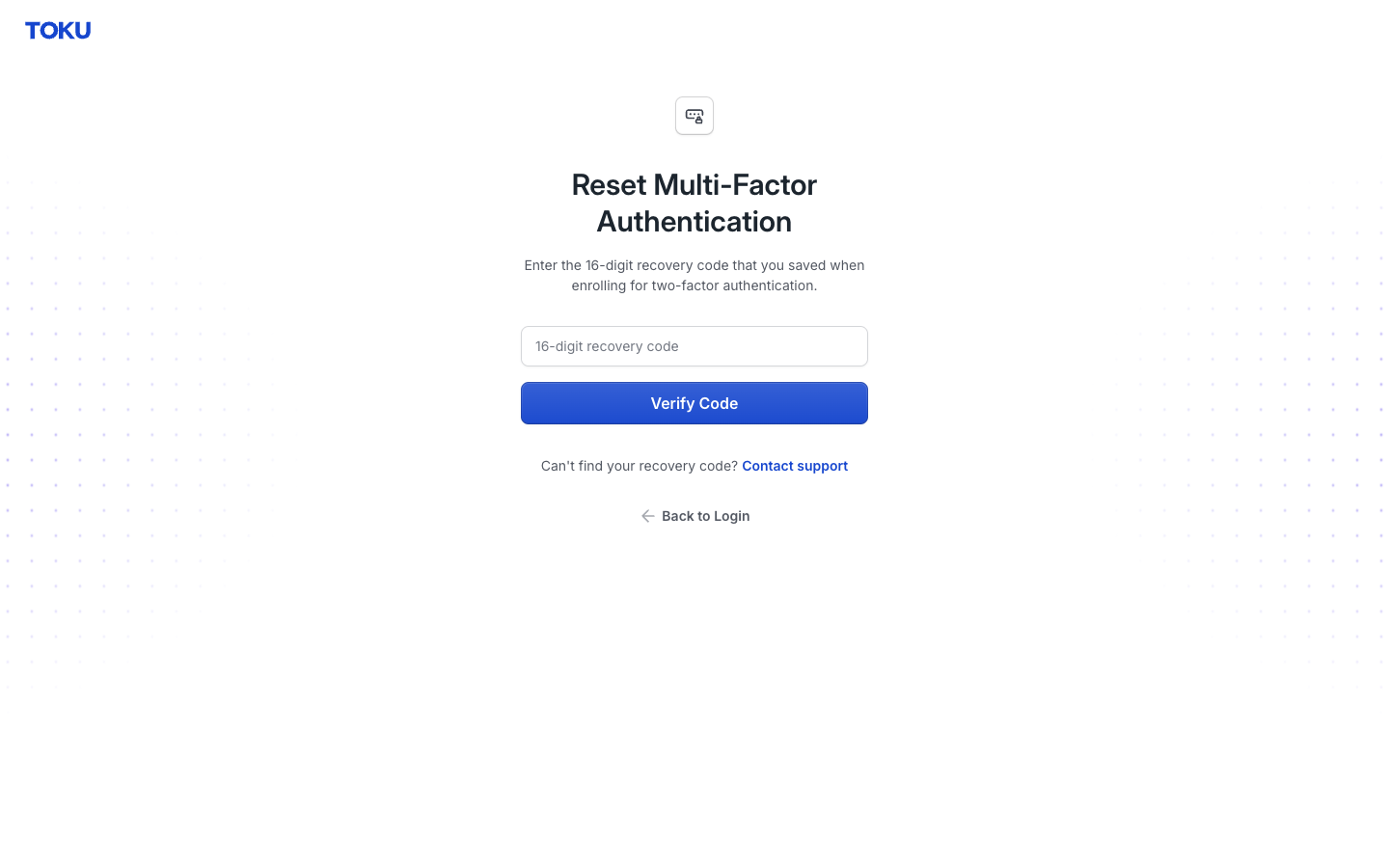
- If you don't have your recovery key, email Toku support and request a 2FA reset. Support will disable your current 2FA - your old authenticator entry stops working, and the next time you sign in, you'll set up a new one with a fresh QR code and recovery key.
- After any reset, scan the NEW QR code Toku shows you. A common mistake is resetting and then using the old Toku entry from your app, which will never work again. Leave the old entry in place until you have signed in successfully with the new one - only then is it safe to remove it.
Good to know
- Do not delete authenticator entries or re-enroll on a hunch. The one exception is an old Toku entry left over after a reset, and only once the new entry has successfully signed you in - deleting the wrong entry can lock you out.
- Your recovery key is one-time use and one-time only - write it down or save it in a password manager when you first receive it.
- If you're unable to fix the problem, email Toku support with: (1) your email address, (2) your organization's name, (3) what you were doing when 2FA blocked you (e.g., signing in or adding a wallet), and (4) a screenshot of the error.
Still stuck?
You can email customer-success@toku.com to reach our support team. Please include your email address, organization name, and a description of what happened. Screenshots and videos are always welcome to speed up the troubleshooting process. Feel free to reach out any time for further assistance.