
 4 MIN READ
 UPDATED OCT 30, 2026
📘 For anyone paid into a Toku Wallet. Last updated October 30, 2026.
Move stablecoins out of your Toku Wallet to any wallet address you control, such as a personal wallet or an exchange deposit address. You start on Payment Methods and finish on the Toku Wallet page, where the action is called Send.
Before you start
- You're signed in to Toku with your email and password.
- Your Toku Wallet holds a balance. The Toku Wallet Balance on the Toku Wallet page shows what you can send.
- You have the receiving wallet address copied from the destination wallet or exchange, and it accepts the same token on the same network (for example, USDC on Ethereum).
- You can read email at the address linked to your Toku Wallet. Toku sends a verification code there before every transfer.
Open your Toku Wallet
- Click Payment Methods in the left-hand menu. Your Toku Wallet appears on the Wallets & Banks tab with its address, its token and network, and a Verified status. The name itself is a link.
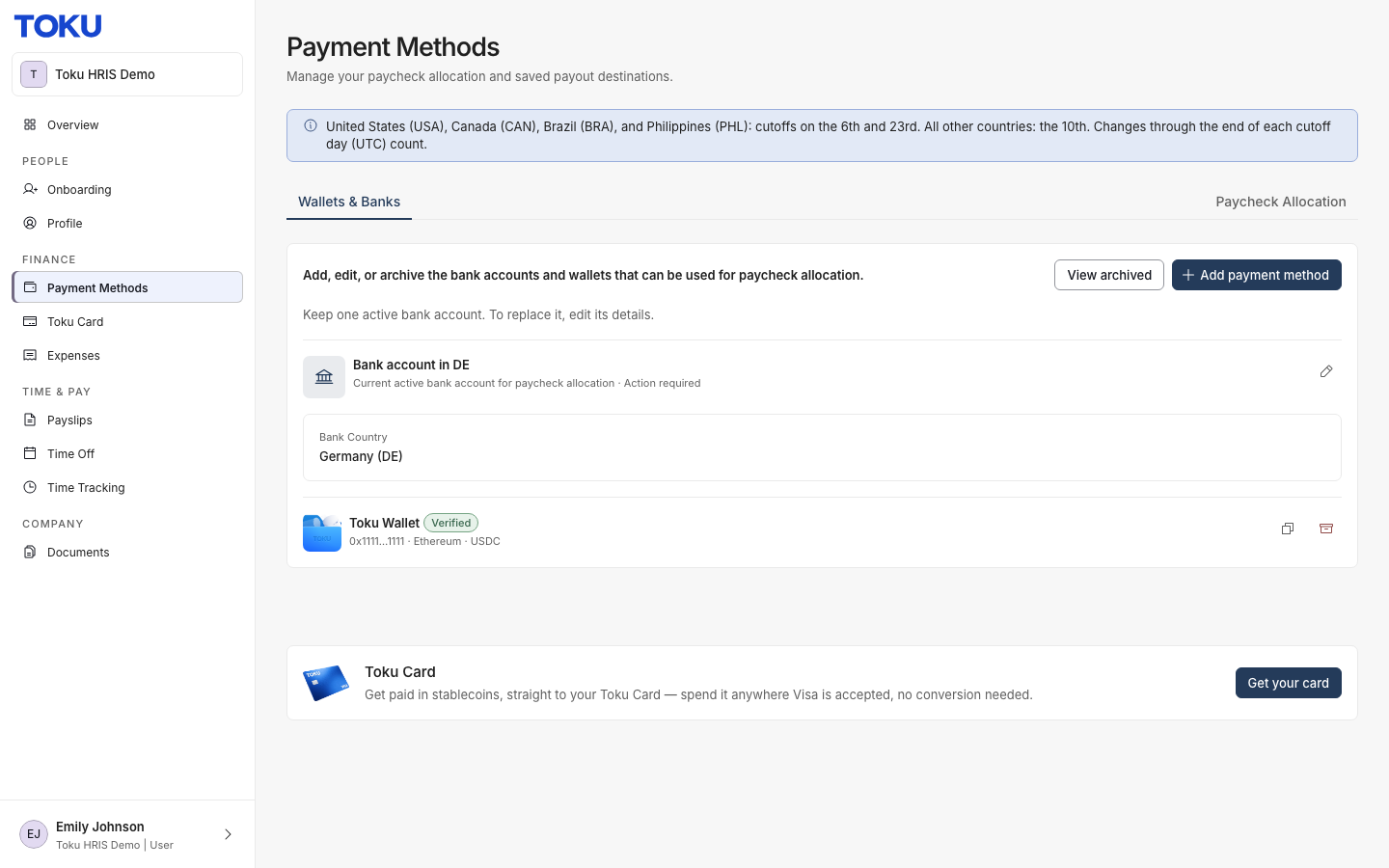
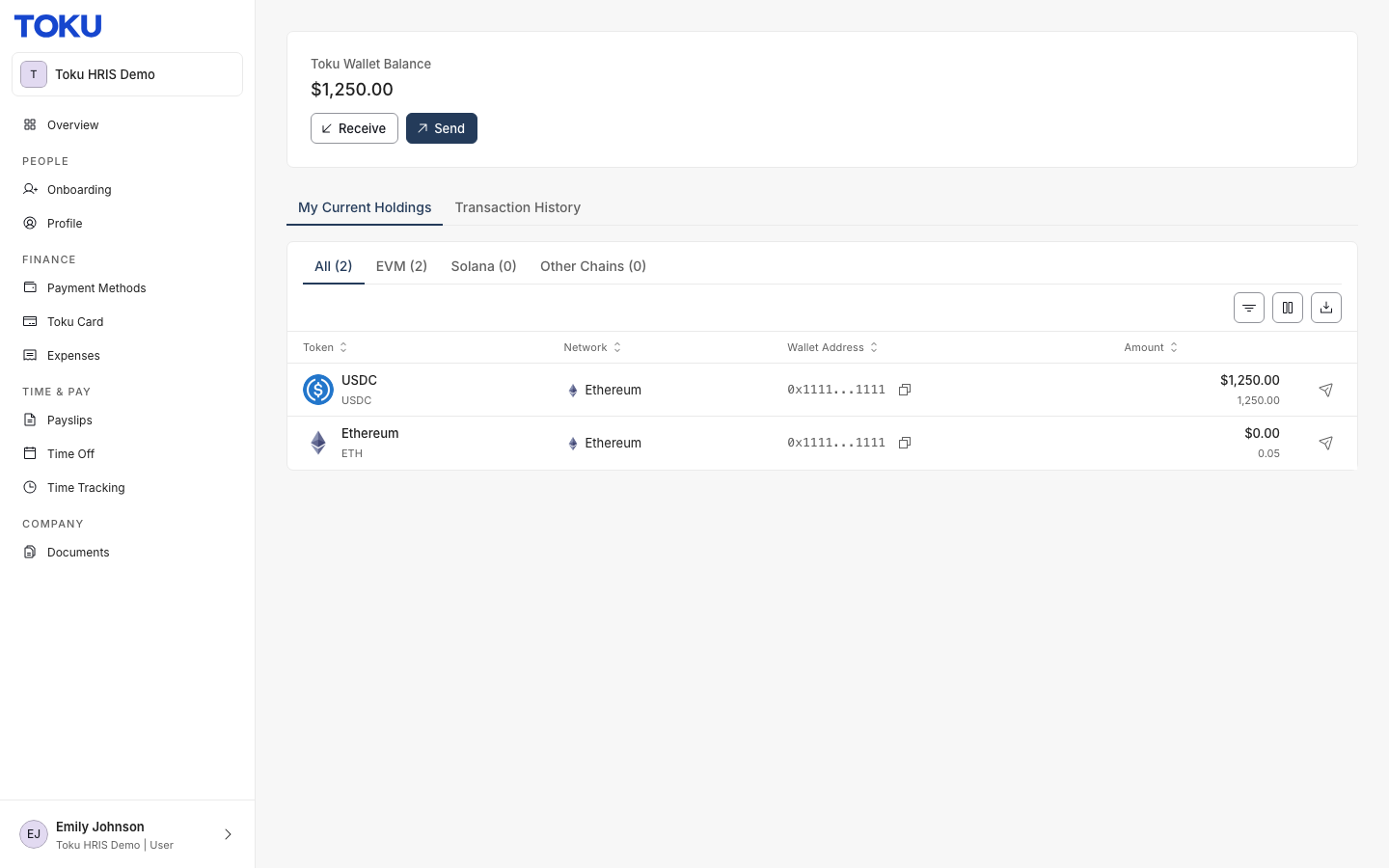
- Click Toku Wallet in that row. This opens the Toku Wallet page, showing your Toku Wallet Balance, the Send and Receive buttons, and My Current Holdings.
Send funds out of the wallet
- Click Send. You can use the Send button under the balance, or the Send icon on the row of the token you want to move in My Current Holdings.
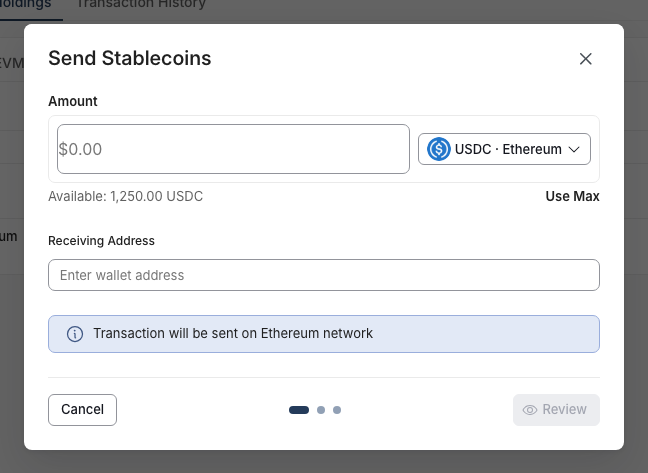
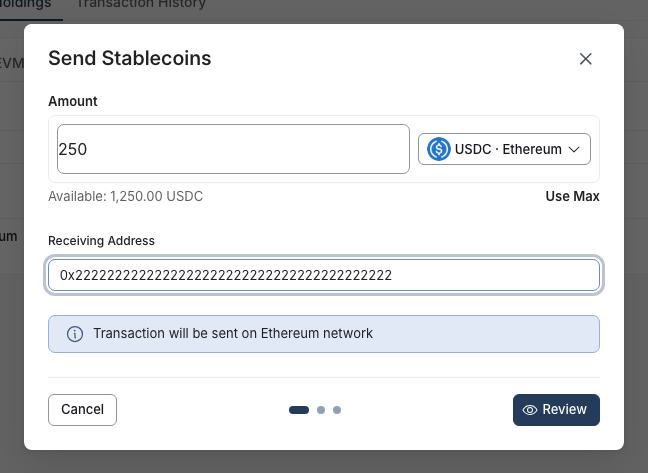
- Type the amount in the Amount box. Available shows your balance, and Use Max fills in all of it. Paste the destination address into Receiving Address, then click Review.
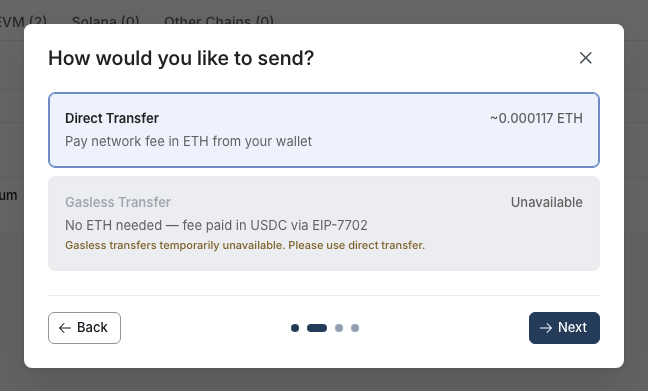
- Under How would you like to send?, choose a method. Direct Transfer pays the network fee in ETH from your wallet. Gasless Transfer pays the fee in USDC instead, and can only be chosen when it is available. Click Next.
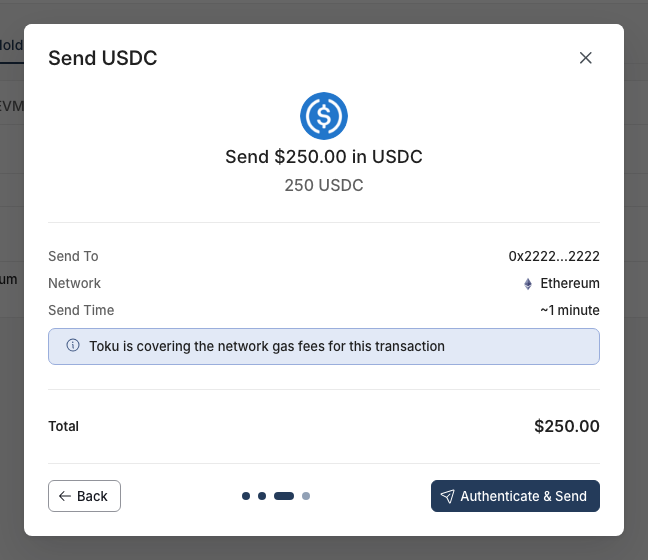
- Check the summary: the amount, Send To, Network, Send Time, and Total. Click Back to change anything. When it is correct, click Authenticate & Send.
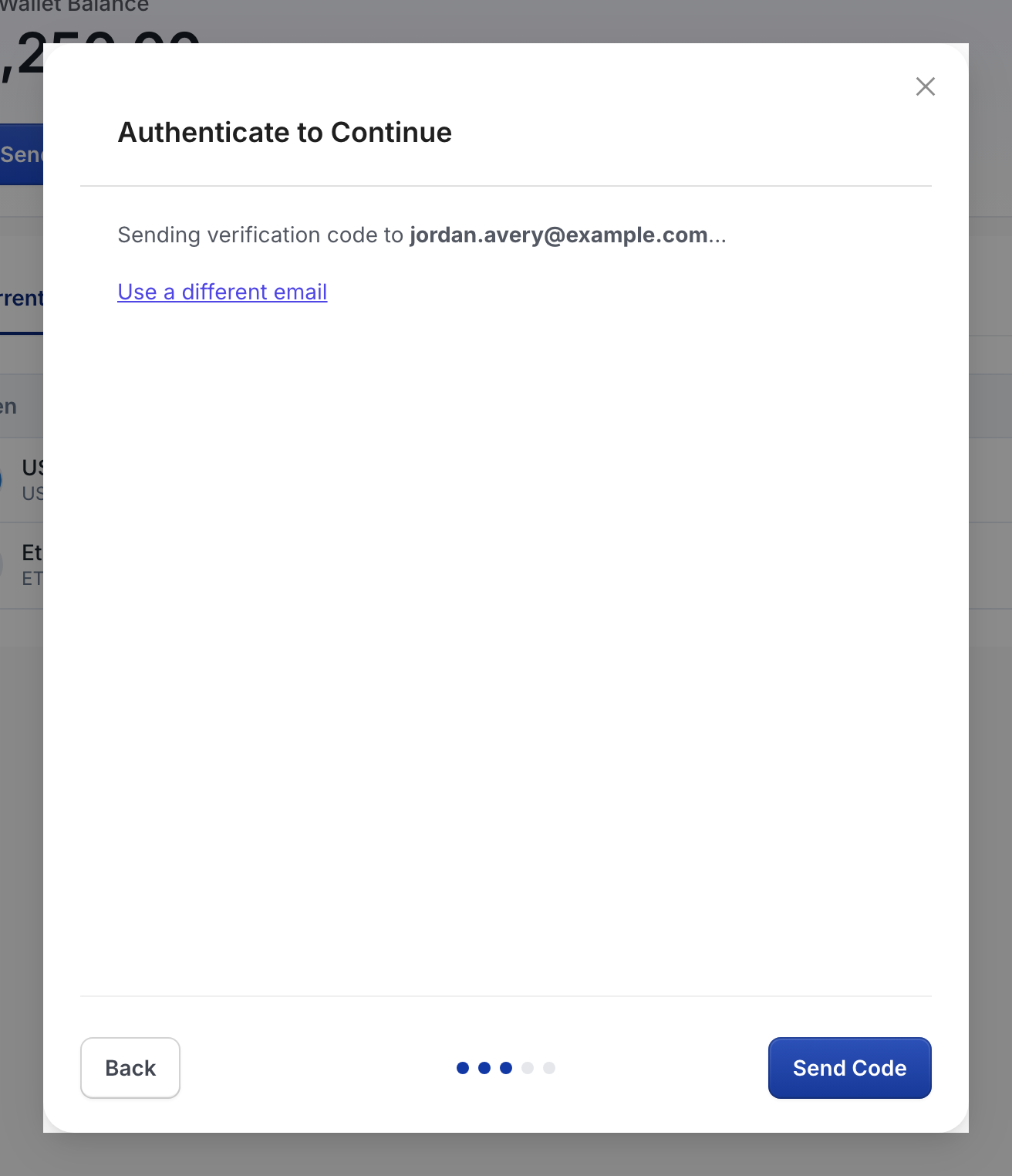
- Toku sends a verification code to the email address linked to your wallet. If the code does not go out on its own, click Send Code. To receive it somewhere else, click Use a different email.
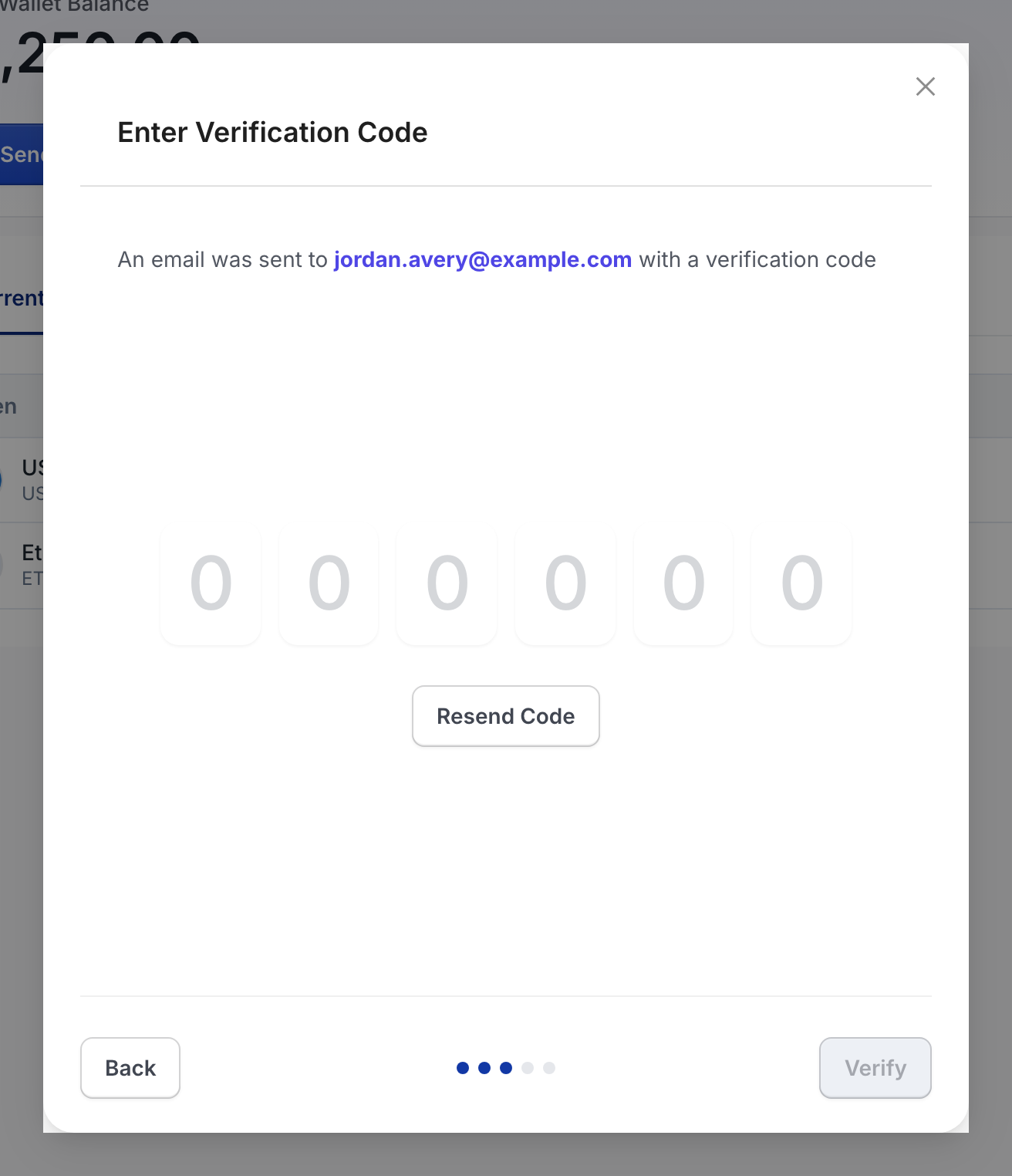
- Open the email, type the 6-digit code into the boxes, and click Verify. Click Resend Code if it has not arrived after a few minutes.
- Once the code is accepted, the button reads Confirm Send. Click it to sign and send the transfer. The window then shows the Transaction Hash, which you can use to track the transfer on the network.
Good to know
- A transfer cannot be reversed once it is sent. Check the receiving address and the network before you click Authenticate & Send.
- Send only to an address that accepts the same token on the same network shown in the window. Funds sent to the wrong network can be lost.
- Sending funds out does not change your paycheck allocation. Your next pay still arrives in the destinations set on Payment Methods.
- Send Time on the review screen is an estimate. Network congestion can make a transfer take longer.
- You will never be asked for a password, private key, or seed phrase to send funds. Only the emailed verification code is needed.
Still stuck?
Email customer-success@toku.com with your email address, your organization name, the amount, the receiving address, and the time you tried to send.