
 4 MIN READ
 UPDATED OCT 30, 2026
⚠️ Contractor invoice and payment deadlines: late action means late payment
- Contractors: submit invoices by the 19th of each month. A saved draft is not a submitted invoice.
- Admins: approve invoices by the 21st of each month. Submission alone does not authorize payment.
- Funding: Toku must receive cleared funds 4 - 5 business days before payout. Initiating a transfer or sending proof of payment does not meet the deadline.
- Standard monthly payout: the last day of the month, provided submission, approval, and funding deadlines are met. Late submission, approval, or funding will delay payment. Every day of delay pushes payment back by at least one day. A missed payment cycle can cause a longer delay; the invoice due date is not a guarantee of payment.
Automation does not remove these deadlines. Earlier published holiday deadlines take precedence; see Toku: 2026 End-of-Year Payroll & Payment Guide.
📘 For employees and contractors on Toku. Last updated October 30, 2026.
When you add a wallet, Toku sends a small test amount to confirm it's correct before any real payouts are made.
Before you start
- You're an employee or contributor with a Toku account, invited by your organization
- Your organization pays in crypto
- You've added (or are about to add) a wallet on the Payment Methods page
Understand why the test transaction exists
- Crypto payments can't be reversed - if even one character of your wallet address is wrong, the money is gone. Toku sends a tiny test amount (a small fraction of one unit) to your new wallet first, and only treats it as verified once that test arrives.
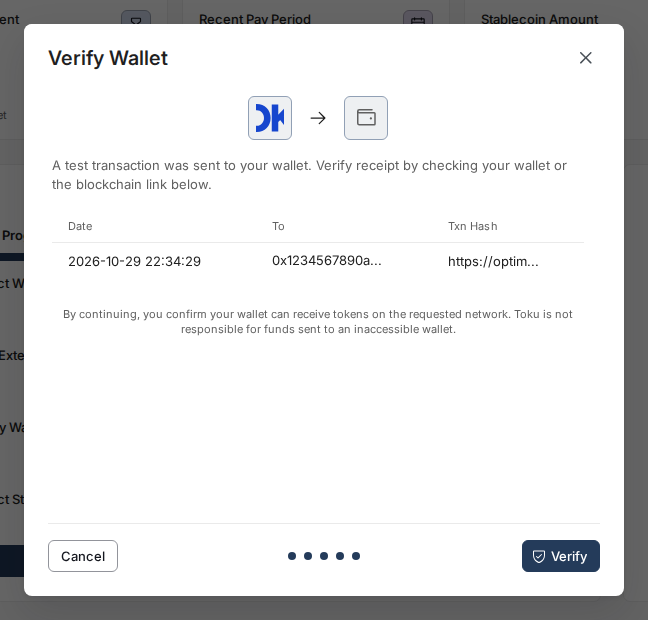
Check your wallet status
- After adding a wallet, close the Verify Wallet screen - verification continues in the background. Return to Payment Methods at any time to check where your wallet stands.
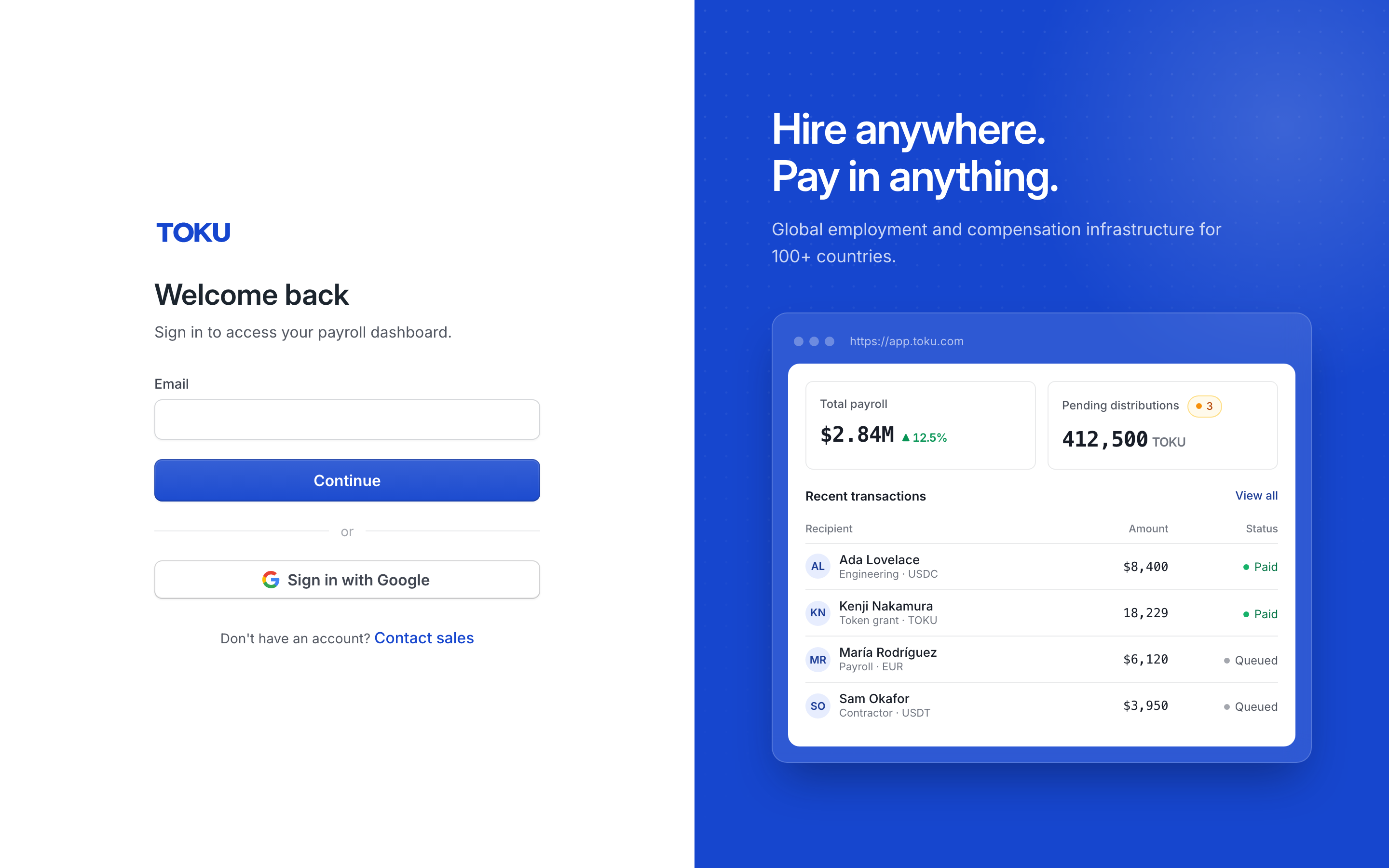
- Go to app.toku.com, enter your work email, select Continue, then enter your password and sign in. There are no product tabs to choose any more - Toku takes you to the right product automatically.
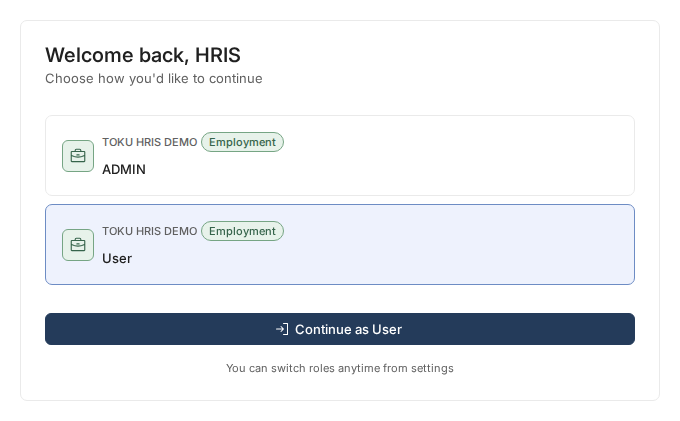
- If you belong to multiple organizations, select the one that pays you, then select Continue as User.
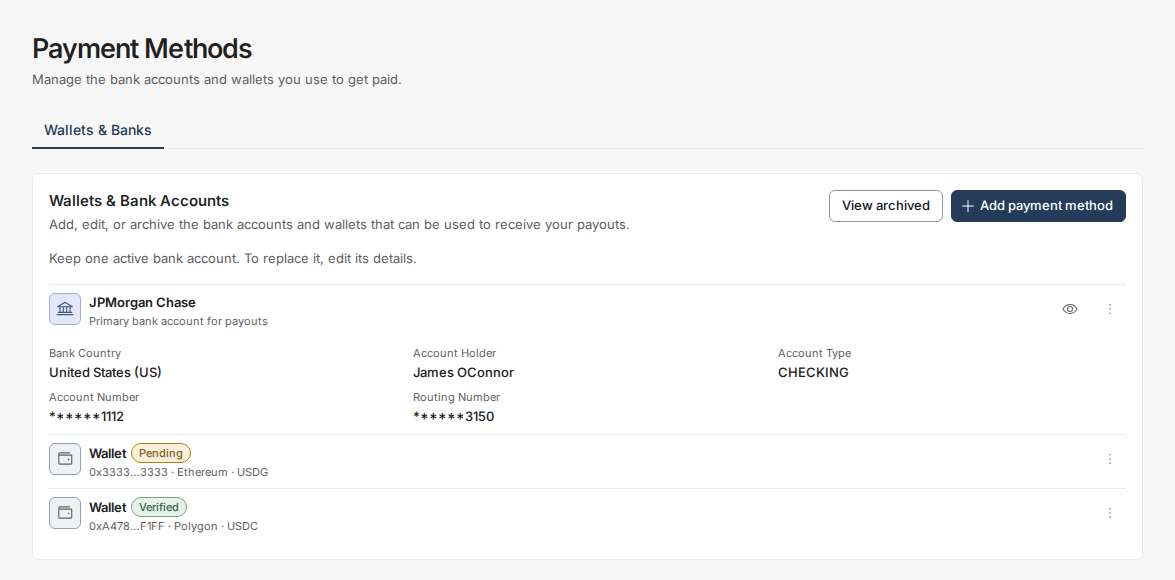
- In the left sidebar, select Payment Methods. The page shows a Wallets card (Wallets & Bank Accounts if you're also paid by bank) listing every wallet you've added.
- A Pending pill means your wallet is waiting on its test transaction; Action needed means the test transaction has arrived and you need to verify it. When verification completes, the pill changes to Verified and your wallet is eligible for payouts.

Confirm receipt of the test transaction
- Once the test amount posts, the Verify Wallet screen (shown when you first add the wallet) lists the transaction with a link to view it on the blockchain explorer. Confirm you received it, then select Verify to finish. If you closed that screen early, reopen it from Payment Methods by selecting Verify on the wallet row (or Verify Wallet in its three-dot menu) - the pill on Payment Methods changes to Verified once you've verified.

- Select Verify. Your wallet shows as verified right away and is now eligible for payouts.
- If your organization has exact-amount verification turned on, the Verify Wallet screen will also ask you to confirm the precise amount you received before it lets you select Verify - a small extra check that the right test amount landed in the right wallet.
Good to know
- A pending wallet doesn't block you from adding a bank account as a fallback payment method (where your organization offers one).
- Toku sends the test transaction automatically as soon as you add the wallet - there's no separate approval step on Toku's side before it goes out.
- Once the test amount is sent, it usually lands in your wallet within minutes.
Still stuck?
You can email customer-success@toku.com to reach our support team. Please include your email address, organization name, and a description of what happened. Screenshots and videos are always welcome to speed up the troubleshooting process. Feel free to reach out any time for further assistance.