
 4 MIN READ
 UPDATED NOV 6, 2026
Toku: Export payroll register, summary and year-to-date reports
For organization administrators on Toku Employment Platform (HRIS). Last updated November 6, 2026.
Use payroll reports to review individual payslips, compare payroll-run totals, or check each worker’s pay for a calendar year. Choose a ready-made report, select the columns and filters you need, and download the results.
Before you start
- Your organization must have Toku HR enabled.
- You need access to Reports and Payroll Approvals. The report includes only the people your current access allows you to see. If your administrator limits your access to a team, your report does not include people outside that scope.
- Payroll reports include approved or finalized payroll data. Payroll still awaiting approval does not appear.
Choose the report you need
Payroll Register
Review gross pay, net pay, employer cost and the token portion of individual payslips. Each row represents one payslip in a payroll run. A worker with separate fiat and token payslips has two rows.
Payroll Summary
Review workers paid and totals for each payroll run. Each row represents one payroll run and currency. A worker with fiat and token payslips is counted once within that run and currency.
Payroll Year to Date
Review each worker’s gross pay, net pay and employer cost over a calendar year. Each row represents one worker, calendar year and currency.
Download a payroll report
- In the left-hand menu, under Insights, select Reports.
- Open Payroll Reports and find Payroll Register, Payroll Summary, or Payroll Year to Date.
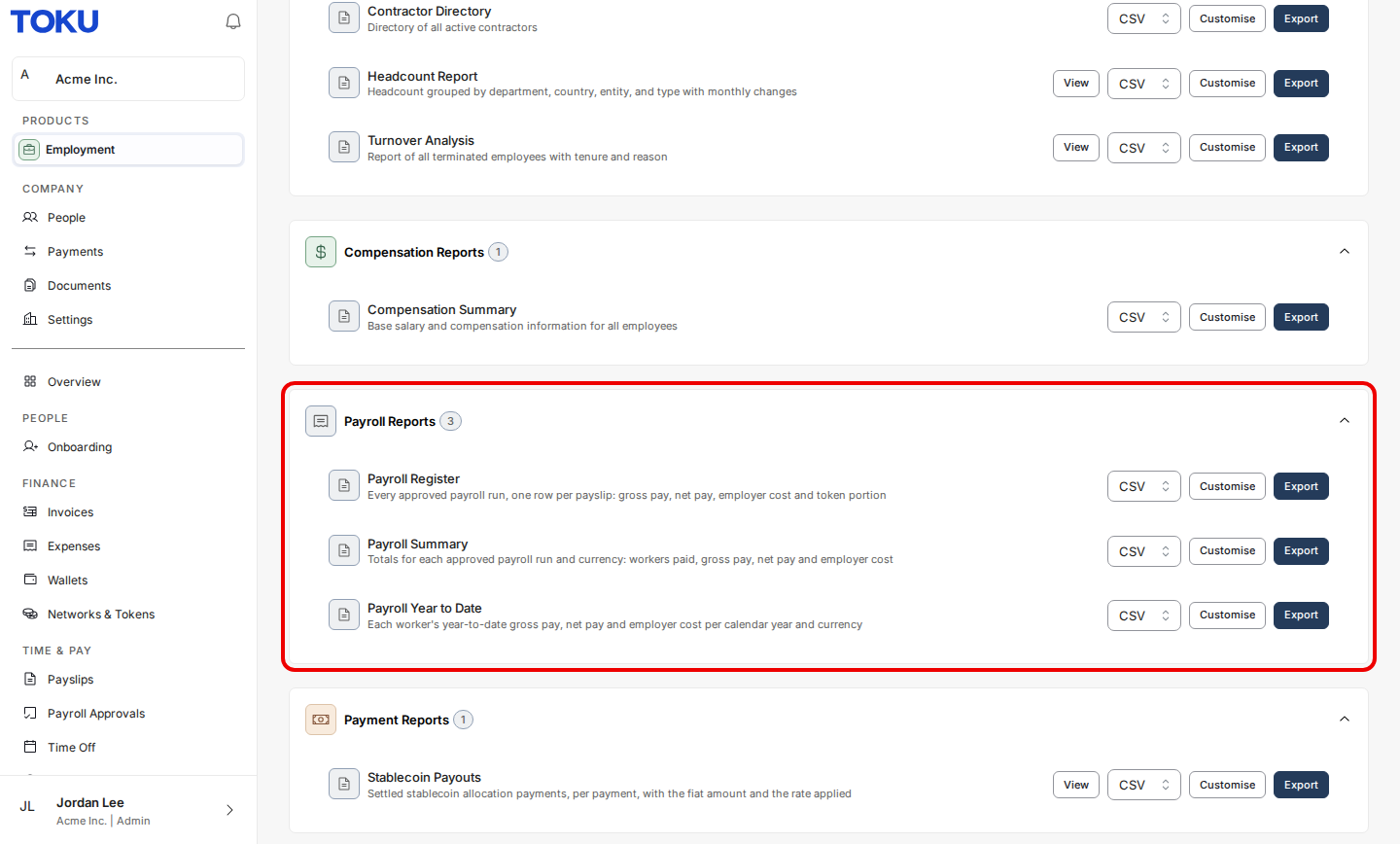
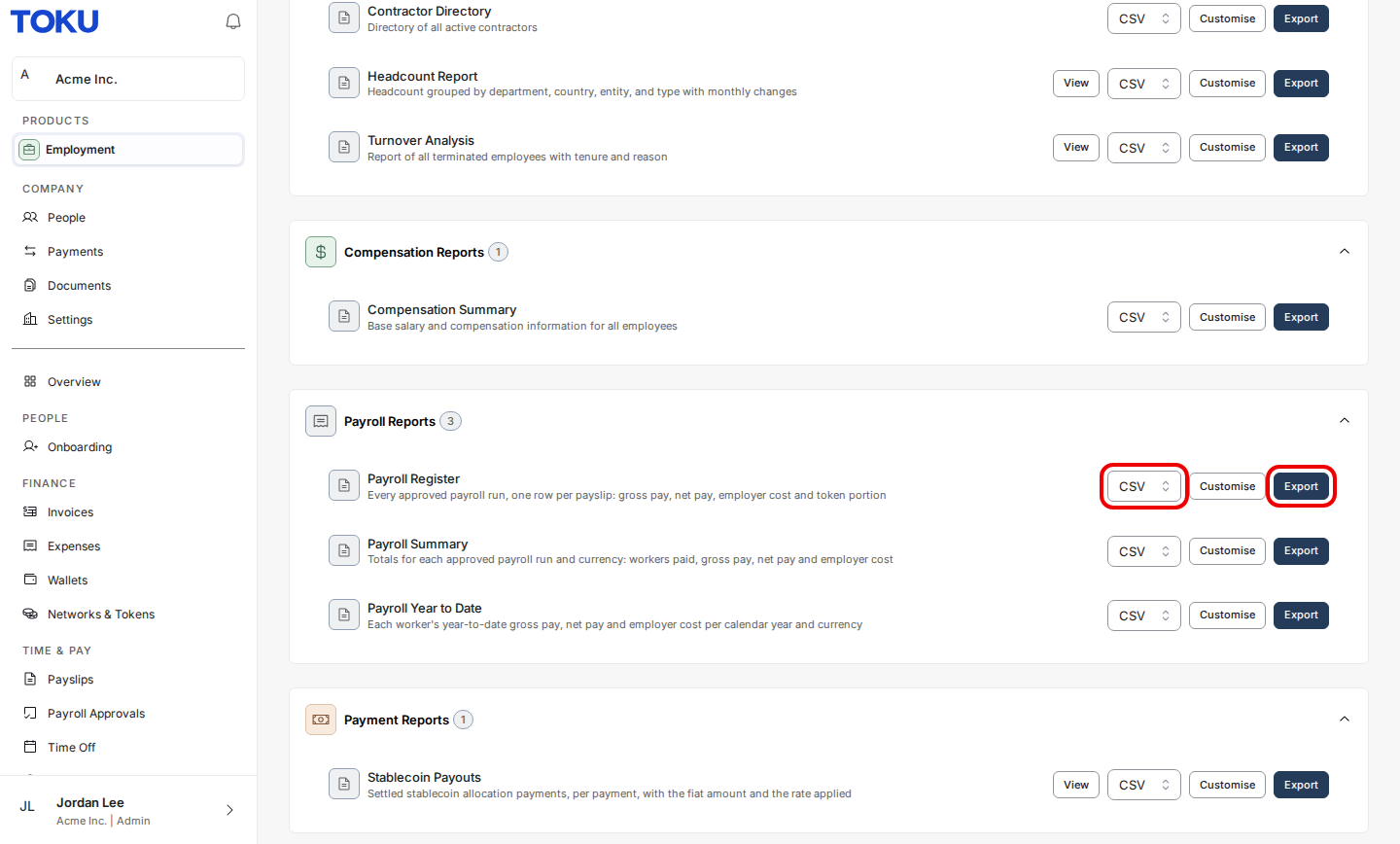
- Select CSV, Excel, or PDF beside the report. For a spreadsheet you can sort and calculate with, select Excel or CSV.
- Select Export. For PDF, use the print window to save the report as a PDF.
Choose columns and filter the results
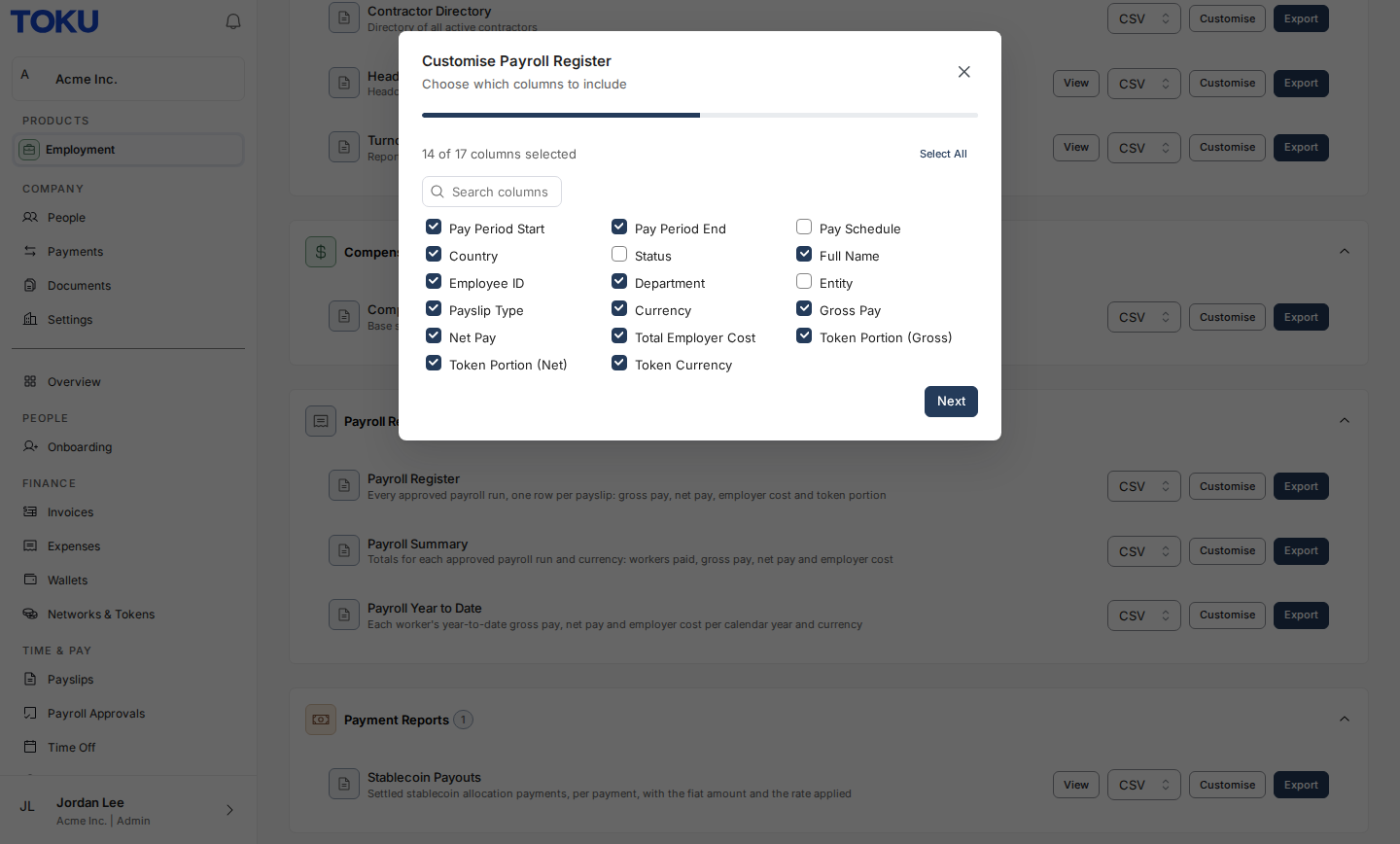
- Select Customise beside the payroll report.
- Select the columns you want to include, then select Next. Available columns depend on the report. For example, the register can include Payslip Type, Token Portion (Gross) and Token Currency.
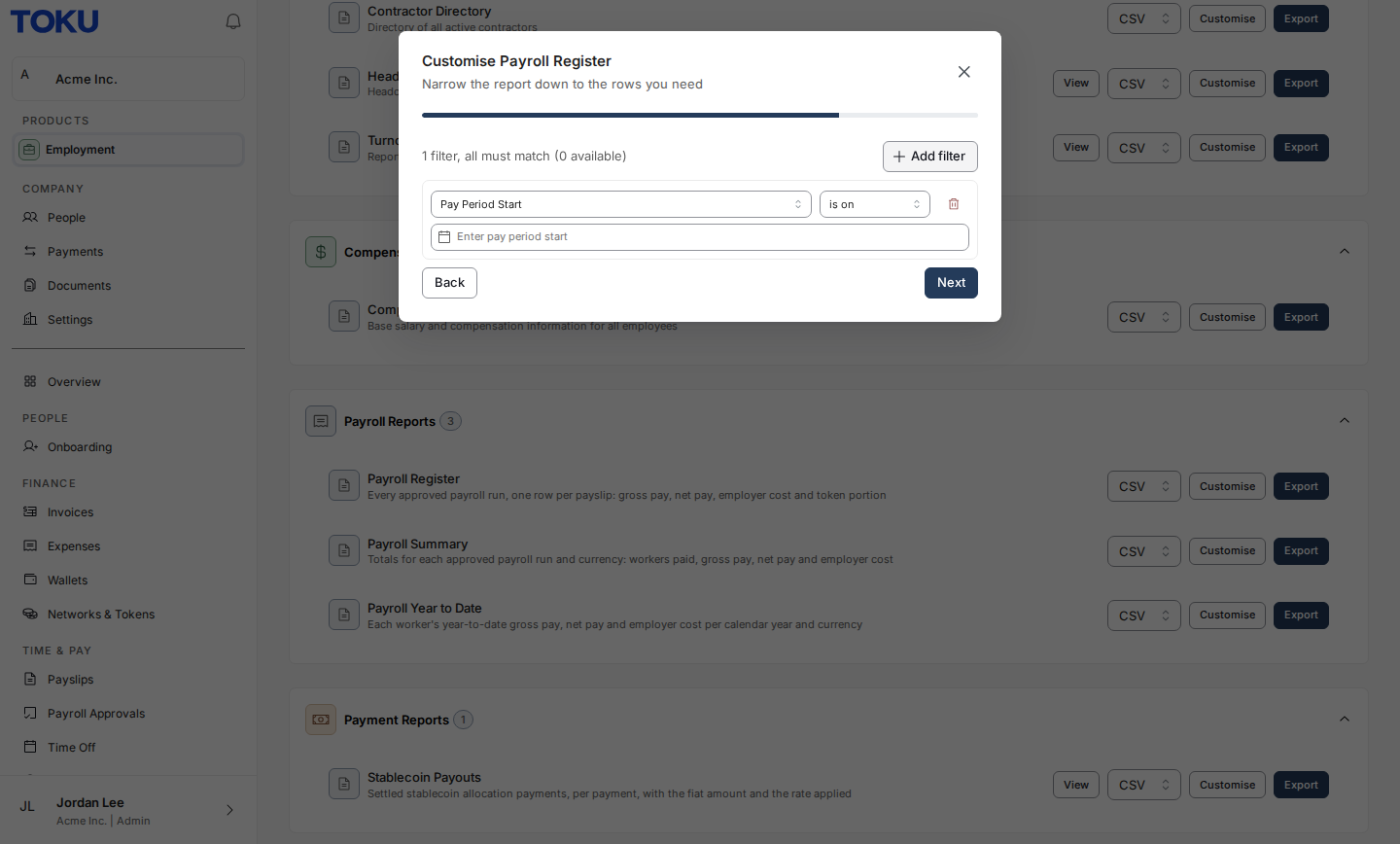
- Select Add filter to narrow the results, or continue without a filter to include every row you can access. Select Next when you are finished.
- Enter a Report Name, review the columns and filters, then select Generate to download the customized report as a CSV file.
Read the amounts correctly
Currency separates the totals. A report does not combine amounts in different payroll currencies. If a worker is paid in two currencies, the year-to-date report has a separate row for each currency.
Token amounts are fiat equivalents. Token gross and net are the payroll provider’s stated value in the row’s Currency, not the number of tokens. Token Currency, when supplied, identifies the asset. Gross and net pay include the token portion without counting it twice.
Blank does not mean zero. A missing amount stays blank when the report cannot determine a complete total. For example, a token-only payslip with no net figure leaves net pay and the affected aggregate net total blank. An explicitly stated zero is shown as 0.00.
Year to date uses calendar years. A payroll run belongs to the year in which its pay period ends. The report can contain rows for more than one year; use the Year filter when you want a particular calendar year.
Download a saved export again
Select the Exports tab on Reports to find stored report copies. Available copies can be downloaded again for up to 30 days. A saved payroll export requires current access to both Reports and Payroll Approvals, with unrestricted access to the organization’s payroll data. If your access is limited, run a fresh payroll report for your current scope instead.
Good to know
- A payroll register can show Unmatched employee when a payroll row has not been linked to a worker. Such rows remain in the register and summary but are not included in worker year-to-date totals.
- Superseded payroll runs and skipped payroll lines are excluded.
- Payroll reports are generated on demand; scheduled payroll reports are not supported.
- Exporting a report does not approve payroll or send a payment.
- If your permissions change while a report is being generated, Toku may refuse the download. Confirm your access and run the report again.
Still stuck?
Email customer-success@toku.com with your organization name, the report you selected and a description of what happened. Include a screenshot of the message you see, without sharing sensitive payroll details.