
 2 MIN READ
 UPDATED NOV 5, 2026
For company admins on Toku Employment. Last updated November 5, 2026.
Every report your team exports from Toku is now kept in one log on the Reports page. You can see which report was exported, with which settings, who exported it and when, and download the same file again for 30 days without running the report a second time.
Before you start
- You need access to the Reports page. If you can open Reports, you can see the log.
- Exports from Time tracking are listed too. You only see them if you also have access to the Time tracking page.
- If your access is limited to your own team, you see only the exports you ran yourself.
- Each export is kept for download for 30 days. After that the file is deleted, but the entry stays in the log.
Find an export
- Go to Reports in the left menu.
- Select the Exports tab at the top of the page.
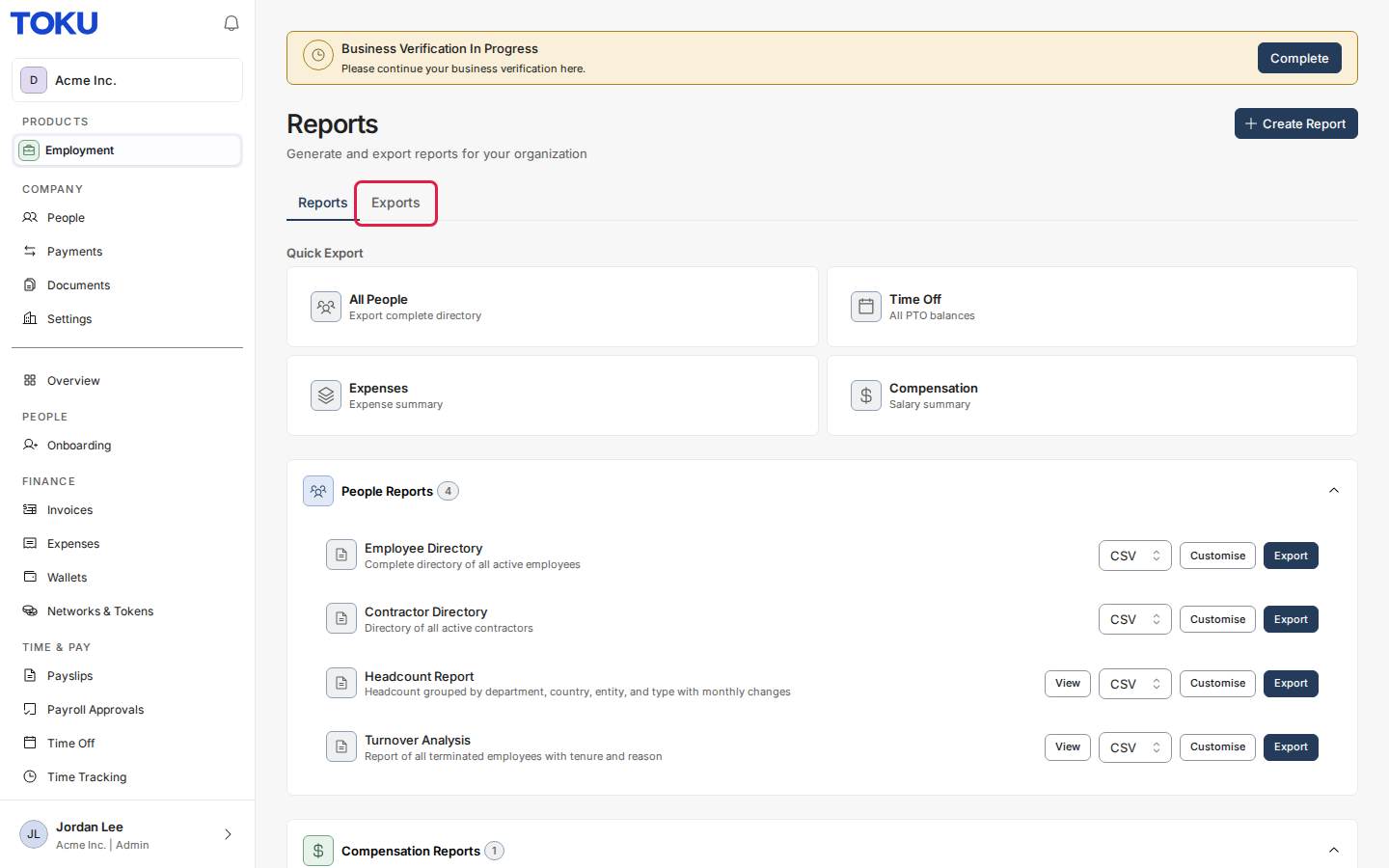
- Find the export in the list. Each row shows the report name, its settings (how many columns and filters), who ran it, when, how many rows it had and until when you can download it again.
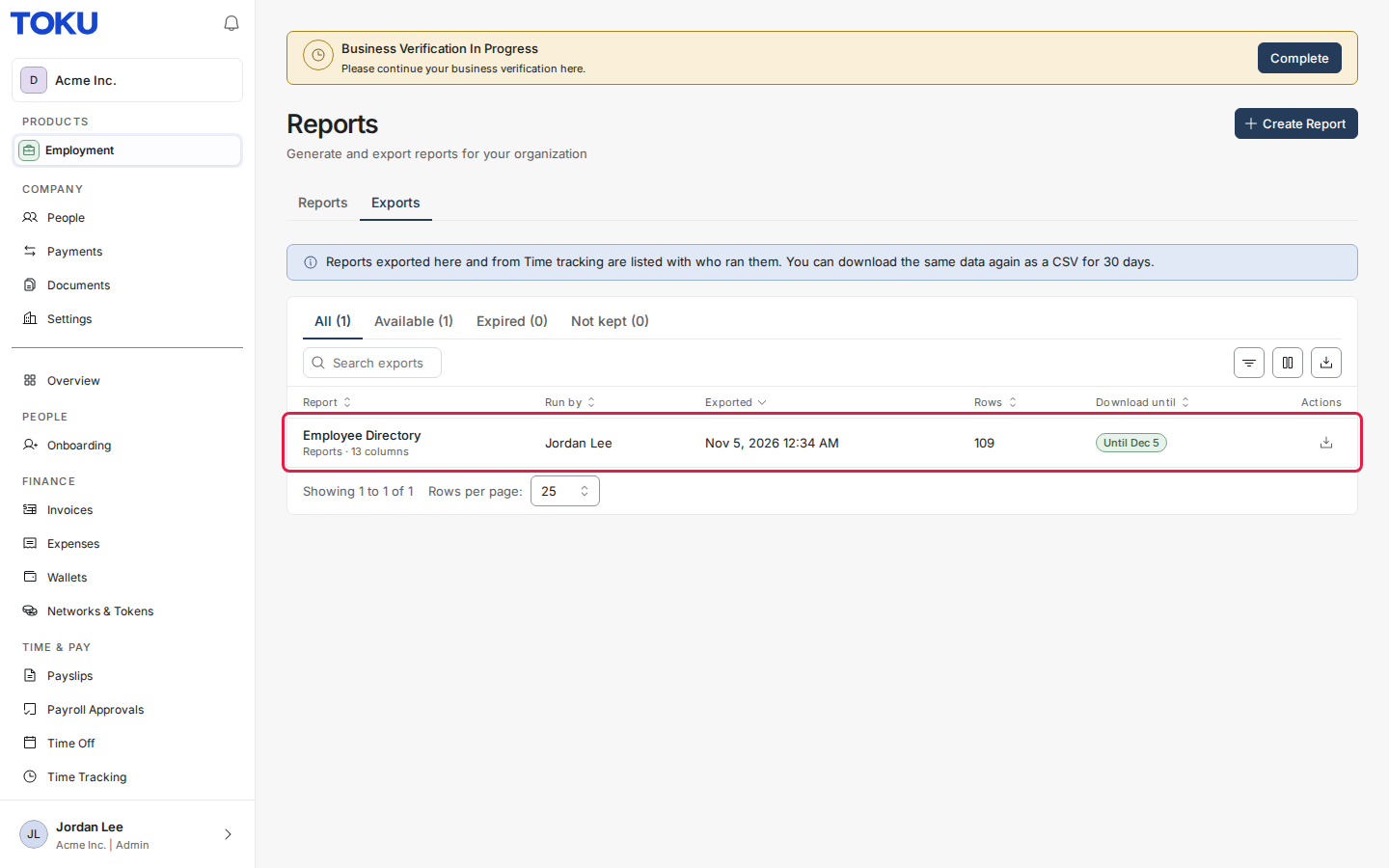
You can search by report name or by who ran it, filter the list, and switch between All, Available, Expired and Not kept.
Download an export again
- Find the export in the Exports tab.
- Select the Download button at the end of its row.
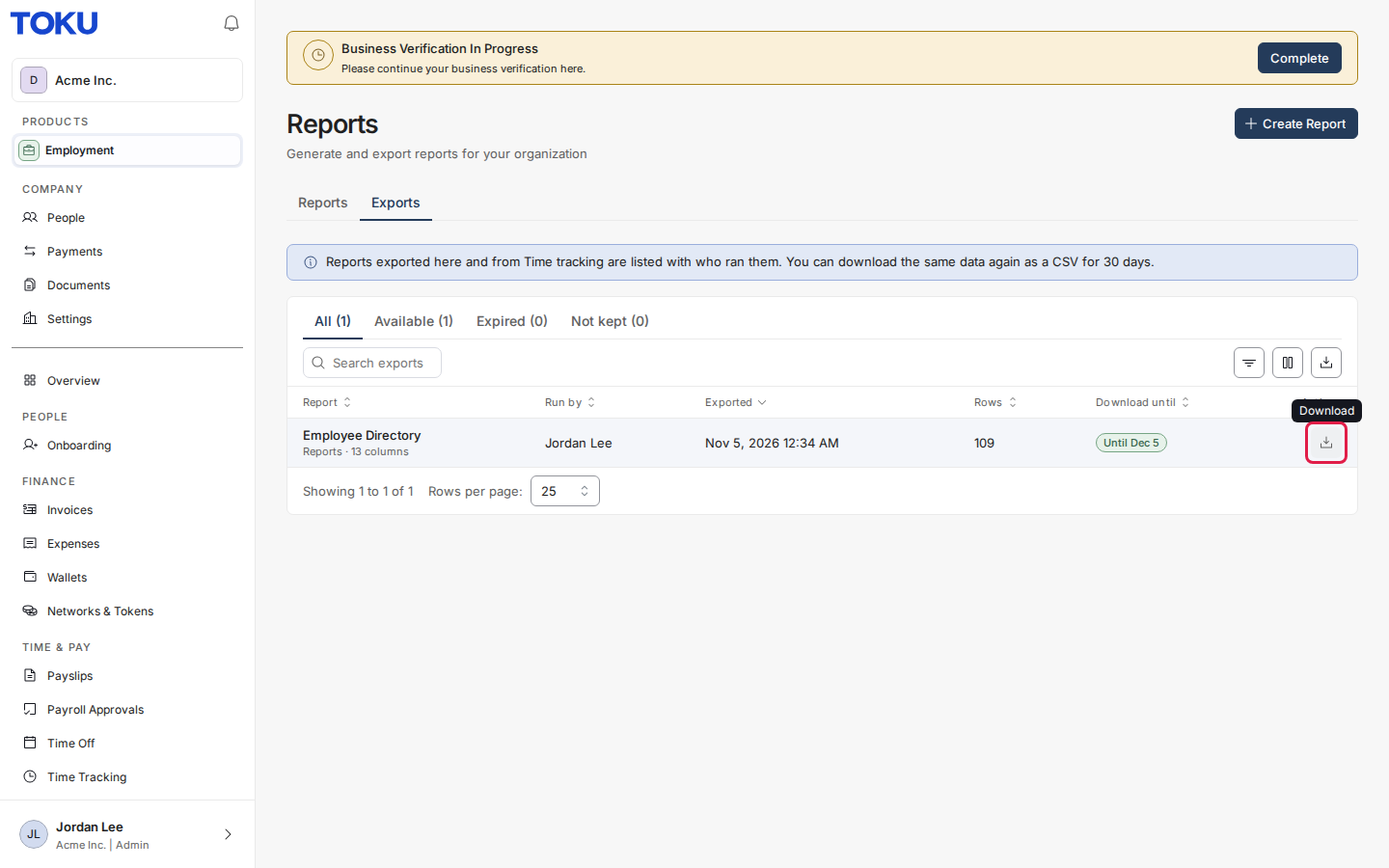
The file downloads straight away. It is the same file that was exported the first time, as a CSV, even if it was first exported as Excel or PDF.
Good to know
- Download until shows the last day you can download the file again. After that the row shows Expired and the download button is turned off. Run the report again from the Reports tab to get a new file.
- Not kept means the file could not be stored when it was exported. The entry is still in the log, so you can see that the export happened.
- Partial file next to a report name means the export reached its row limit and the file does not include every row. Narrow the report, for example by period, and export again.
- When a Toku support person exports a report while helping your company, the row shows a Toku admin label next to their name.
- The log keeps the report's columns and which fields were filtered, but not the values you filtered by.
- If your company's data deletion request is approved, stored exports are deleted at once.
Still stuck?
Contact us at customer-success@toku.com and we will help.