
 4 MIN READ
 UPDATED OCT 30, 2026
⚠️ Contractor invoice and payment deadlines: late action means late payment
- Contractors: submit invoices by the 19th of each month. A saved draft is not a submitted invoice.
- Admins: approve invoices by the 21st of each month. Submission alone does not authorize payment.
- Funding: Toku must receive cleared funds 4 - 5 business days before payout. Initiating a transfer or sending proof of payment does not meet the deadline.
- Standard monthly payout: the last day of the month, provided submission, approval, and funding deadlines are met. Late submission, approval, or funding will delay payment. Every day of delay pushes payment back by at least one day. A missed payment cycle can cause a longer delay; the invoice due date is not a guarantee of payment.
Automation does not remove these deadlines. Earlier published holiday deadlines take precedence; see Toku: 2026 End-of-Year Payroll & Payment Guide.
📘 For contractors on Toku. Last updated October 30, 2026.
Save drafts, edit them later, withdraw submissions, fix rejections, and track your invoices from submission to payment.
Before you start
- You must have created at least one invoice draft or submitted invoice.
- You can only withdraw invoices that are still in Pending status - once approved, you cannot edit them yourself.
Save and edit drafts
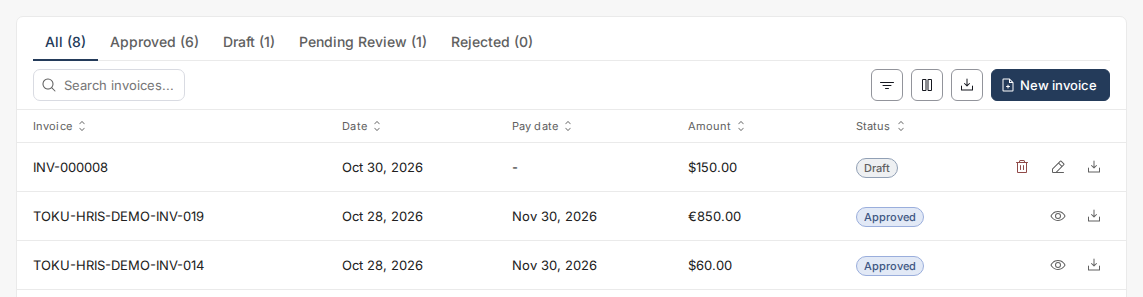
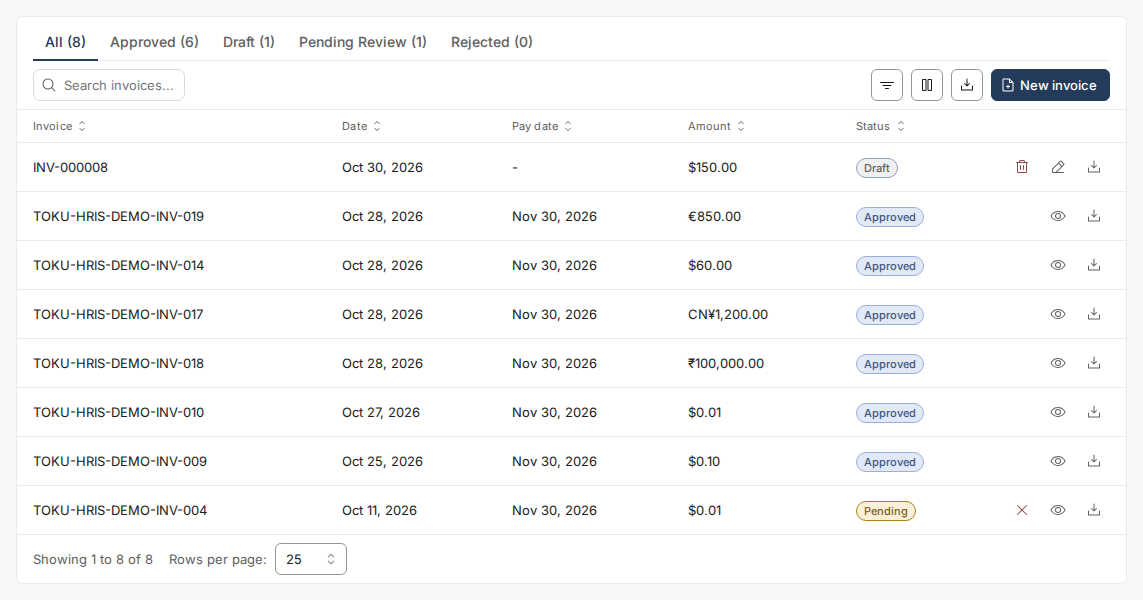
- Instead of clicking Submit Invoice, click Save as Draft to keep the invoice for later. A confirmation message appears and the invoice shows a Draft badge on the All tab of the invoices table.
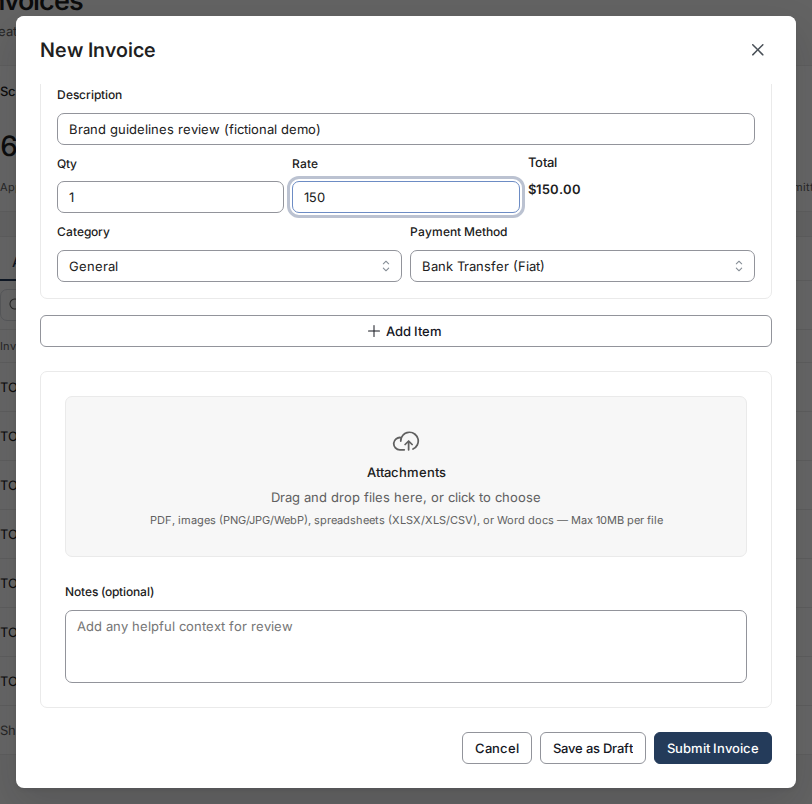
- To continue working, find the draft's row on the All tab and click the Edit (pencil) icon on the right. The form reopens with everything you typed. Make your changes, then click Save as Draft again or Submit Invoice to send it for approval.
Withdraw a pending invoice
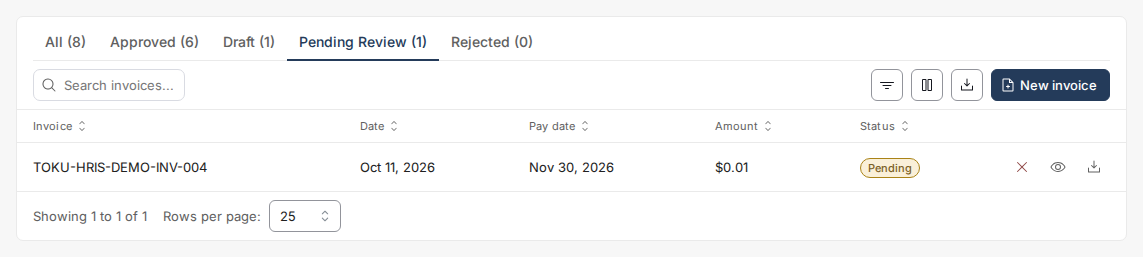
- If you need to fix a mistake before your organization reviews it, find the invoice's row on the All or Pending Review tab (it shows Pending status) and click the small red X button on the right.
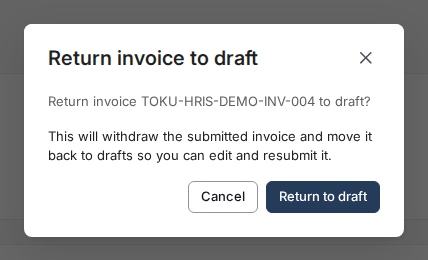
- A confirmation window appears. Click Return to draft to confirm. The invoice moves back to Draft status where you can edit and resubmit it.
Fix a rejected invoice
- If an invoice shows Rejected status, open it to read the rejection reason at the bottom. Then create a new invoice with the corrections and submit it again.
Understand invoice statuses
- Every invoice on the All tab shows one status in the Status column: Draft (only you can see it, not yet submitted), Pending (submitted and waiting for your organization's review - you can still withdraw it), Approved (accepted; payment is being arranged - you can't edit it yourself), Rejected (declined - read the reason, then create a new invoice), Paid (money sent to your bank account or wallet), or Failed (a payment attempt didn't go through - contact your administrator). The stat cards at the top of the page use different labels for the same statuses: Drafts counts Draft invoices, Submitted counts Pending invoices, and Scheduled counts Approved invoices whose payment has been arranged but not yet sent.
Track payment
- Use the Status column to follow your money: Pending means waiting for review, Approved means payment is being scheduled, Paid means the money has been sent to your bank account or wallet.
- Click the download icon at the end of any row to save a PDF copy of the invoice for your records. If an invoice sits in Approved much longer than usual or shows Failed, contact your organization's administrator.
Good to know
- Drafts are private - your organization cannot see them or approve them.
- Once approved, you cannot edit an invoice yourself, and a rejected invoice cannot be resubmitted - each correction requires a new invoice. If you need to change an invoice after it's been approved, contact your administrator: they can reverse the approval as long as payment hasn't started yet, which moves the invoice to Rejected status so you can submit a new, corrected invoice. Once payment has started, the approval is final.
- Approval time depends on your organization - many review invoices within a few business days.
Still stuck?
You can email customer-success@toku.com to reach our support team. Please include your email address, organization name, and a description of what happened. Screenshots and videos are always welcome to speed up the troubleshooting process. Feel free to reach out any time for further assistance.