
 2 MIN READ
 UPDATED OCT 30, 2026
Use this guide to add an external wallet to your TGA profile and complete the verification process before receiving token distributions.
Step 1: Navigate to Payment Methods
In the left sidebar, under Treasury, click Payment Methods.
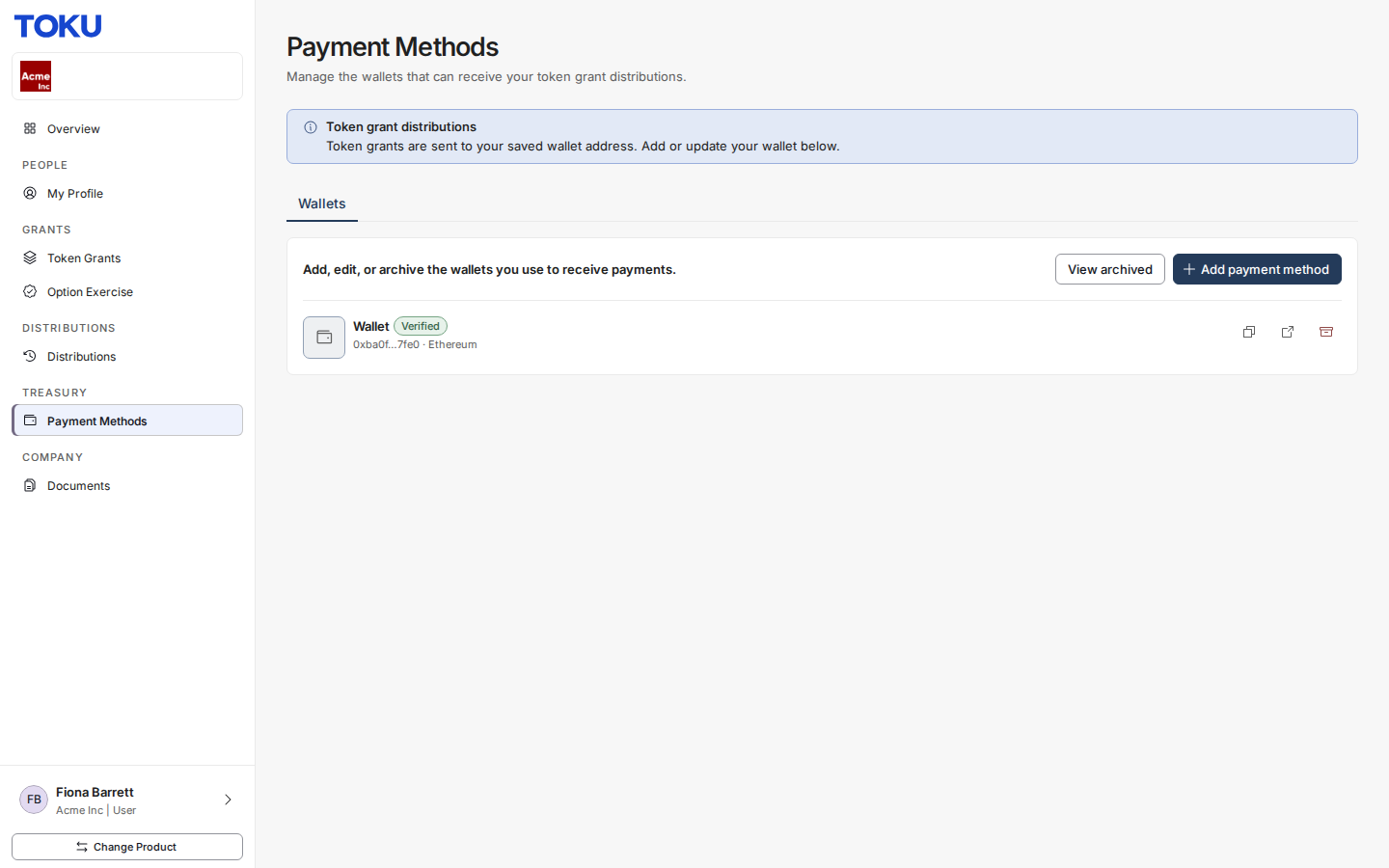
Step 2: Archive Your Existing Wallet (If Applicable)
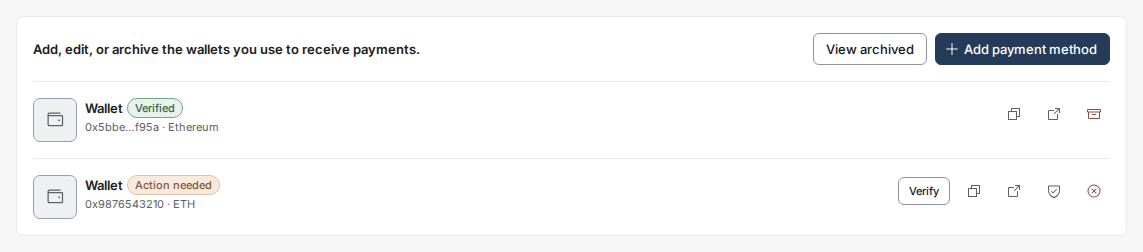
If you already have a wallet on file for the network you want to use, you must archive it before adding a new one (networks you already have a wallet for show as Added). Click the Archive icon next to your existing wallet to archive it.

Step 3: Add a New Wallet
Click Add payment method, select Add External Wallet, then click Next.

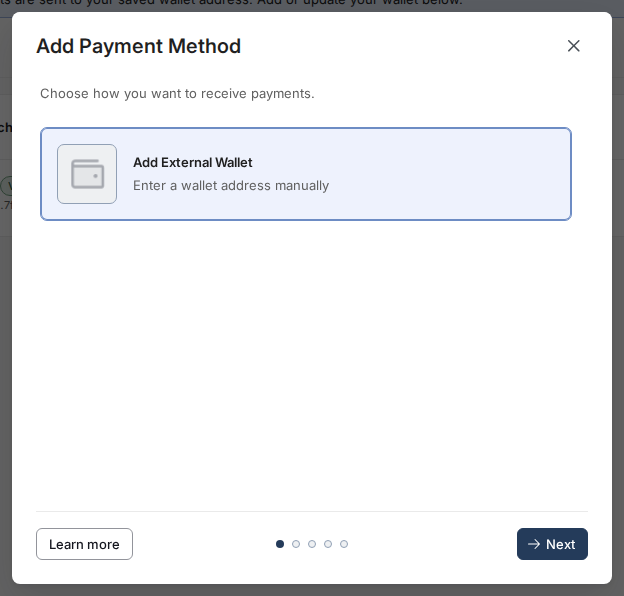
Step 4: Select Your Network and Enter Your Address
- Select your network from the list and click Next.
- Enter your wallet address.
- Click Next.
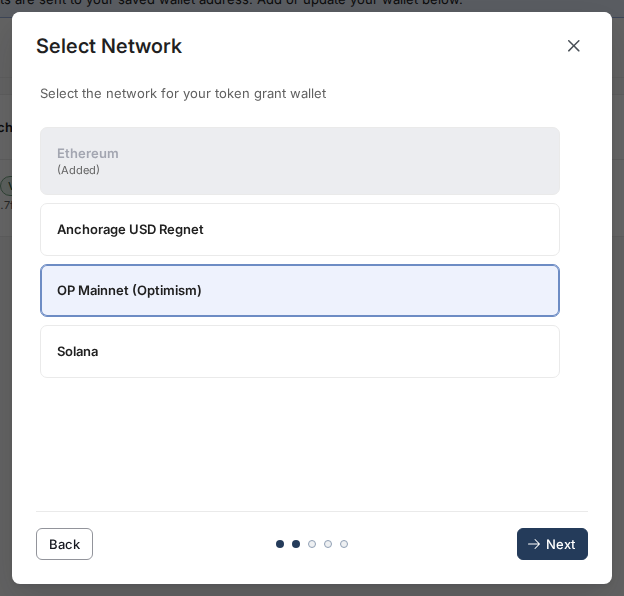
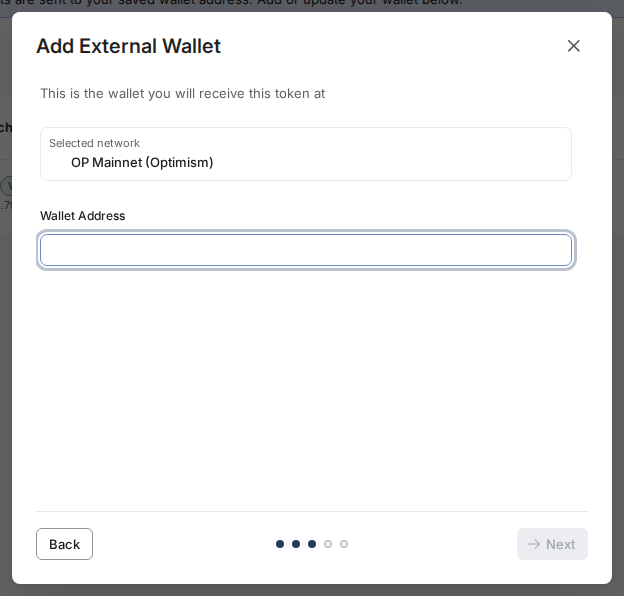
Step 5: Complete Two-Factor Authentication
Enter your Two-Factor Authentication (2FA) code when prompted.
Step 6: Confirm the Test Transaction
After submission, Toku will send a small test transaction to your wallet. You'll receive an email notification once it's sent - check your wallet to confirm receipt.
Step 7: Verify Your Wallet
Once you've confirmed receipt of the test transaction:
- Return to Payment Methods in the TGA platform.
- Click Verify.
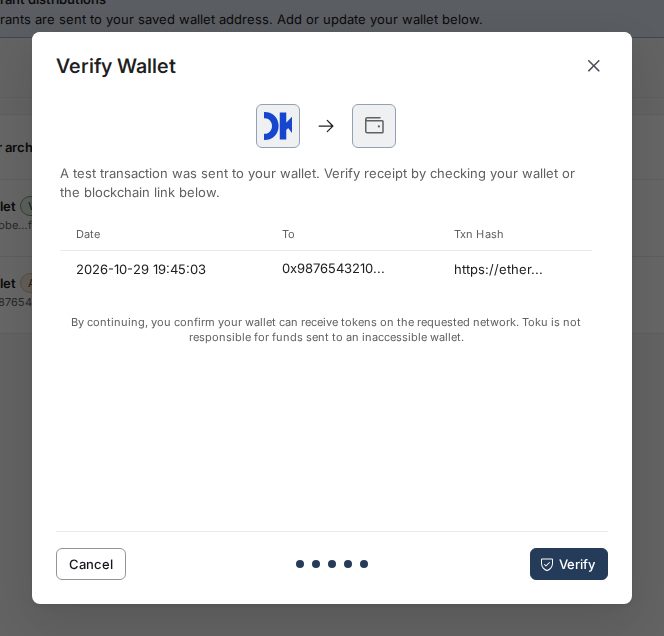
- Review the test transaction details in the window that appears.
- Click Verify again to complete the process.
Your wallet is now verified and ready to receive tokens. ✅
Questions? Reach out to us at tga-support@toku.com.