
 7 MIN READ
 UPDATED OCT 30, 2026
📘 For organization administrators on Toku. Last updated October 30, 2026.
Approving time off and expenses in Toku takes two things: a reporting line that says who a person's manager is, and an Approver role that lets that manager act. You manage both from one place - the approver table in Team & Permissions — and this article walks through granting the role, assigning direct reports, and undoing either.
Before you start
- You need administrator access to a Toku Employment (HRIS) organization, and your own Team & Permissions access must be set to Full Access. An administrator whose Team & Permissions access is View Only can open the page and read it, but cannot grant the Approver role or change reporting lines.
- An approver sees the requests of everyone below them - direct reports and, further down, their reports too - so decide who should have that visibility.
- Your own row never appears in the table: you can't grant yourself the role or make yourself someone's report here. Your fellow administrators do appear - they already approve within their own access scope, so you can give them direct reports here and change that scope under Manage permissions.
Find people in the approver table
Go to Team & Permissions and select the Approvers tab, next to Admins. The table has two tabs: Approvers, for people who already hold the role, and All eligible, for everyone who could hold it, including those who already do. A search box matches names and email addresses across your whole organization, not just the rows on screen. Each row shows the person's department, how many direct reports they have, their status, and an action icon. Add Approver, at the top right, jumps to All eligible with the search cleared, which is the quickest way to grant the role to someone new.
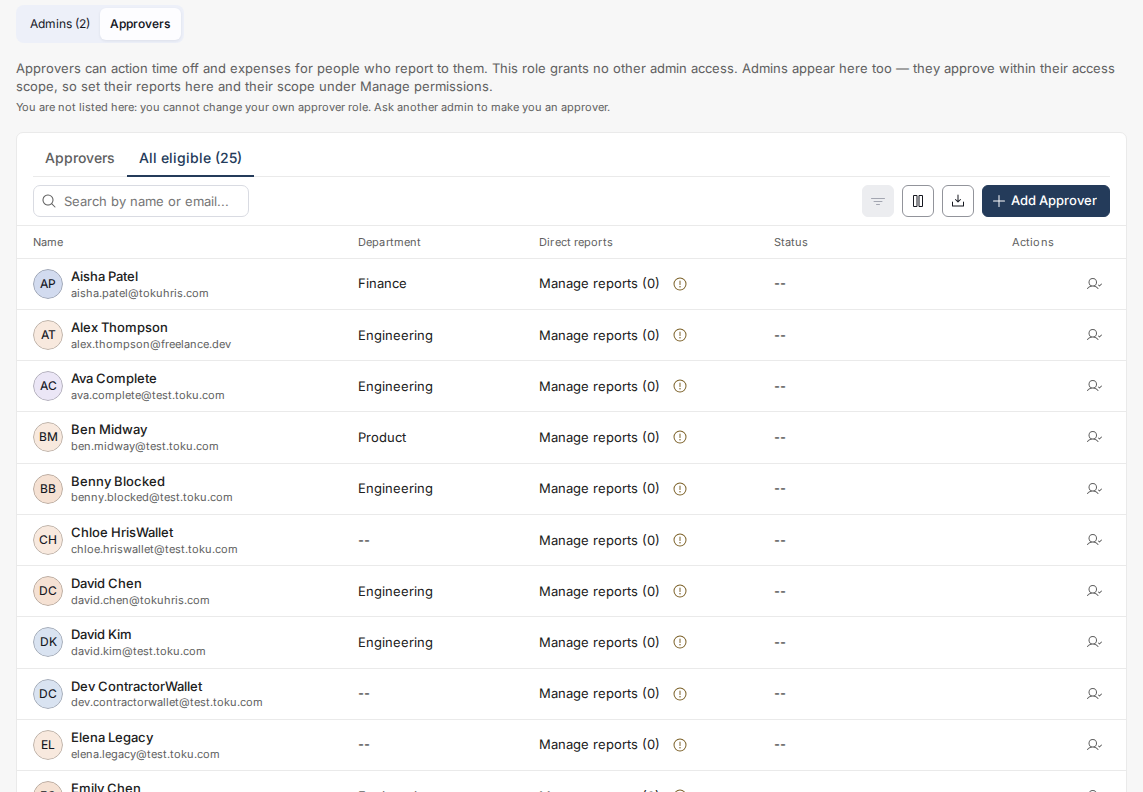
A warning icon in the Direct reports column means the person has nobody reporting to them yet - you can still make them an approver, but they'd have nothing to review.
Make someone an approver
- On the All eligible tab, find the person and select the Make Approver icon (a person with a tick) in the Actions column.
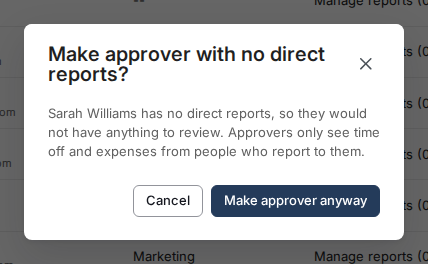
- If they have no direct reports, Toku checks first: a dialog explains they would have nothing to review, and you can Cancel or select Make approver anyway.
You can tell it worked without waiting for the toast: the row now carries an Approver badge, its action changes to the Remove icon, and the person appears under the Approvers tab.
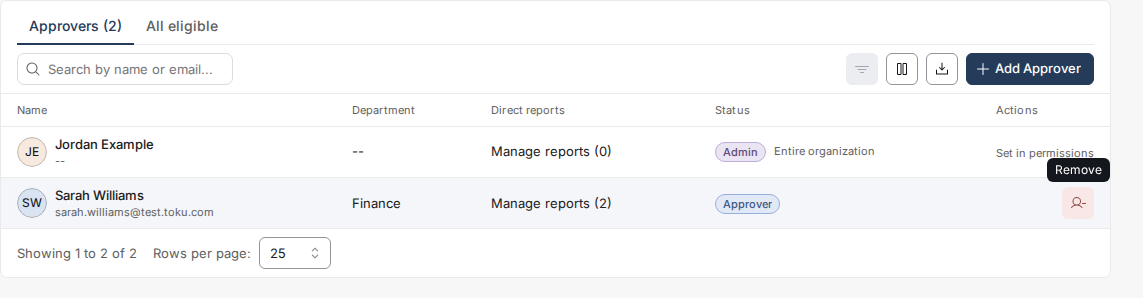
To take the role away later, select the Remove icon on their row. The row reverts and the Approvers tab count drops.
💡 Every grant and removal is recorded on that person's Activity tab, including which administrator made the change - useful when you're asked "who made them an approver?" months later.
Set who reports to them
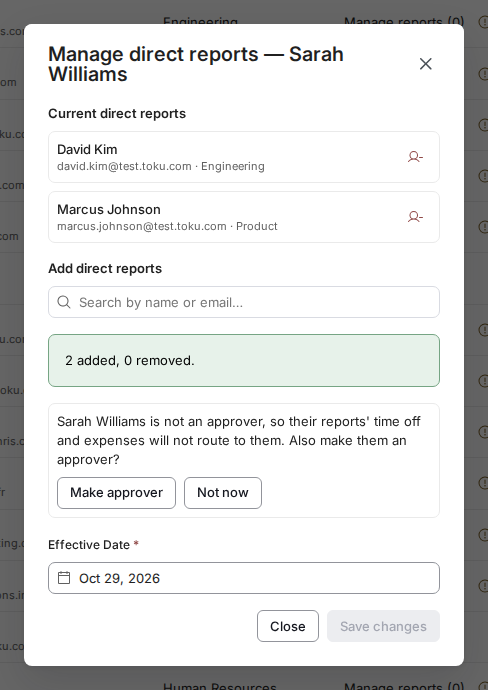
- Select Manage reports (N) on any row - it's available on both tabs, whether or not the person is an approver yet.
- The panel lists their current direct reports, with a Remove icon next to each. Reports who are no longer active are flagged rather than hidden.
- Under Add direct reports, search by name or email (type at least two characters) and select as many people as you need - they collect as a list before you save. Where someone already has a manager, the entry says so, so you can see you're about to move them.
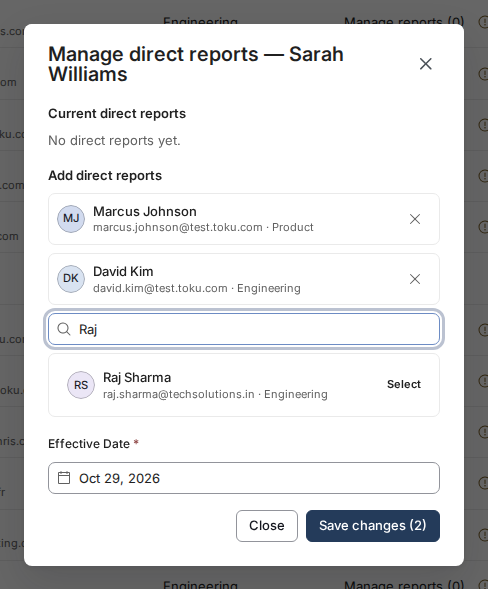
- Check the Effective Date (today by default; a later date applies the change on that day), then select Save changes. With today's date, the change applies immediately: each employee's profile now shows the new manager, and anyone who reported to them follows along into the same review scope.
Two guardrails to know about. The person whose panel you have open is never offered as their own report, and neither is anyone already below them - that would create a loop. If a change in your batch can't be applied, Toku skips just that entry and tells you why, and the rest of the batch still saves - a partial save is not an error.
"Also make them an approver?"
If you assign reports to someone who doesn't hold the Approver role, Toku notices and asks one follow-up question, noting that their reports' time off and expenses won't route to them until they're an approver. Select Make approver, and the role is granted on the spot - you'll see them under the Approvers tab. Select Not now, and they stay a manager on paper only: their team's requests won't reach any review queue until someone grants them the role or reassigns the team.
Remove a direct report
Open Manage reports and select the Remove icon next to the person, then select Save changes. Their profile's manager field is cleared and the count drops. While they have no manager, their submissions notify your administrators instead of a reviewer - see the notifications article below.
If it doesn't work
- The dialog warns about no direct reports. Nobody reports to the person yet. Assign reports first via Manage reports, or grant anyway and add the team afterwards.
- Someone isn't offered in Add direct reports. They're already in this person's reporting line, adding them would create a loop, or they're terminated or archived. Pick a different manager for them instead.
- An entry was skipped when you saved. The panel shows the reason next to that entry - usually a loop. The rest of your changes were applied; fix the skipped one and save again.
- The new approver says they can't see their team's requests. Confirm the role was actually granted (Approvers tab) and that the requesters sit in their reporting line - both are required.
- Make Approver, Add Approver and Manage reports are missing. Your Team & Permissions access is View Only, so the page shows "Full access to Team & Permissions is required to change approvers." and hides those actions; direct-report counts still show as plain numbers. Another administrator in your organization who has Full Access can raise your level from Manage permissions.
Good to know
- Approvers use the normal Toku app - their own dashboard, time off, and expenses - with extra review tabs for their team. For what that looks like, see Toku: Review time off and expense requests as an approver.
- An approver can never approve or reject their own time off or expense request. Toku blocks that automatically, even if they'd otherwise fall inside their own reporting line.
- You can also set a single employee's manager from their profile - see Toku: Assign or change an employee's manager. The approver table is the faster route when you're building out a whole team.
- Who gets emailed when requests are submitted and decided is covered in Toku: Choose who gets notified about time off and expense approvals.
⚠️ An approver can see the dates and leave type of every request in their reporting line, including sick and parental leave, and the line items and receipts on expense reports. Grant the role to people who should have that visibility over the whole branch beneath them.